
AI assistant: ask questions, make changes, use Telegram
Checked against the client area 29 October 2026
The AI assistant answers questions about your account and can make changes for you. For example, it can find out why your website isn’t responding, add a DNS record or restart a server. You chat with it under AI Assistant in the client area or in Telegram.
Open the AI assistant in the client area
How to
Section titled “How to”- Click AI Assistant in the menu on the left. The first time, a short demo plays. Click Skip to start right away.
- Click New conversation. To continue an earlier conversation, click it in the Conversations list instead. On a phone, open the list with the icon at the top left (Show conversations).
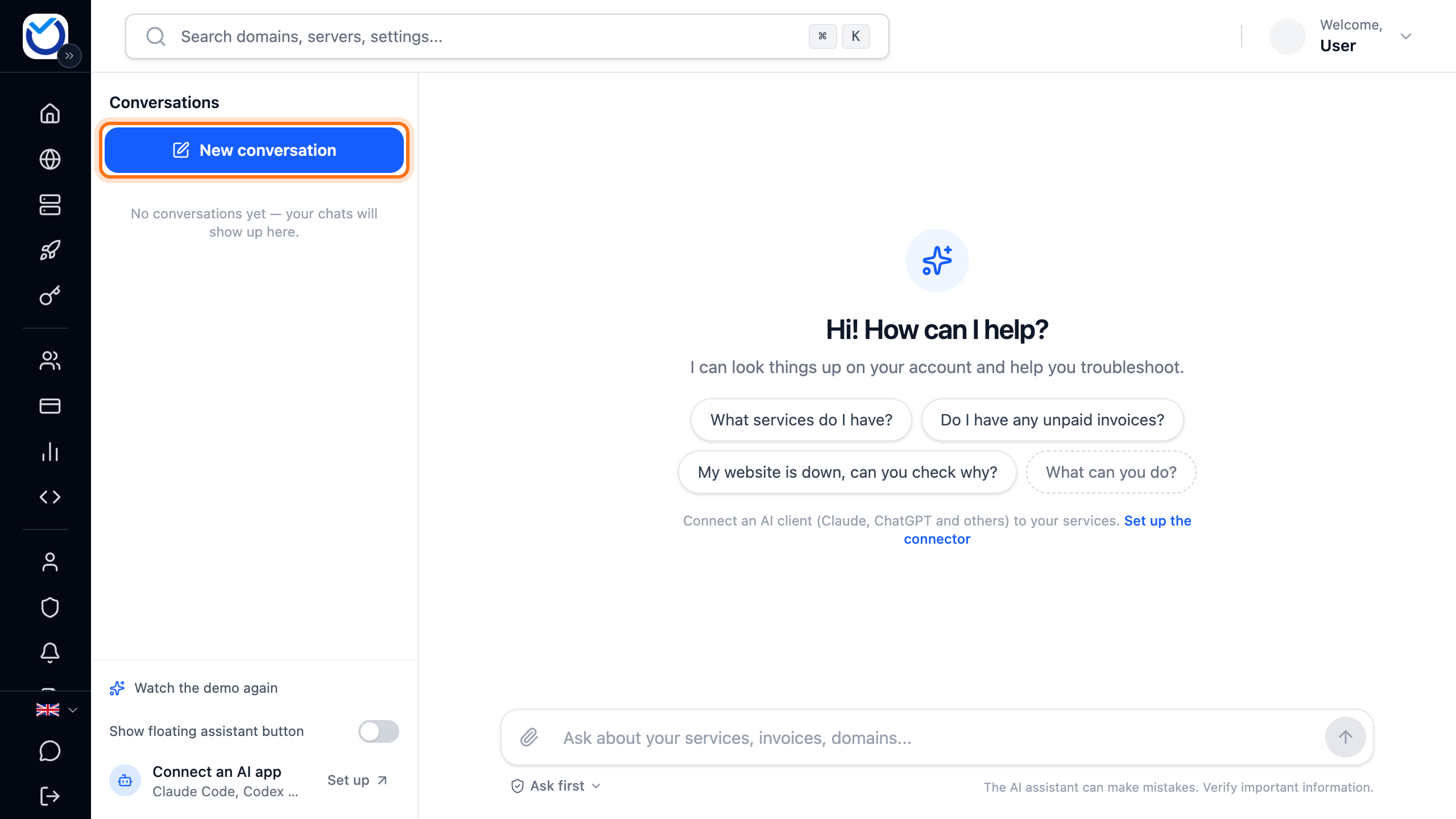
- Type your question in the box at the bottom. Press Enter or click the arrow (Send). Shift+Enter gives you a new line.
- To show a screenshot, click the paperclip (Attach image). You can also paste the image straight into the box. You can send up to three images per message, as PNG, JPEG, WEBP or GIF, of at most 4 MB each.
- The assistant looks up what it needs on your account and answers. While it works, you see what it is doing, for example Fetching your invoices....
- Before the assistant changes anything, it shows the Confirm action box. It says what will be done. If it costs money, the price is shown there too. Click Confirm if everything looks right. Otherwise click Cancel.
- If the assistant has prepared several changes at once, they are in the same box. Click Confirm all or Cancel all.
What happens next
Section titled “What happens next”Once you confirm, the assistant makes the change and tells you how it went. Several changes are made one after the other. If one of them fails, the others are still made.
If the change takes longer, for example a reinstall or a restore from a backup, a notice appears when it is done. You need to have the client area open to see it. The assistant also knows the result the next time you write.
If the assistant creates a new password or a login link, it appears in a box of its own with a copy button. Copy it straight away. It is shown only once and is not saved in the conversation.
A confirmation box is only valid for a while. If it has expired, you are told the confirmation is no longer available. Ask the assistant to prepare the change again.
Let the assistant make changes right away
Section titled “Let the assistant make changes right away”By default, the assistant asks before it changes anything. If you would rather not confirm every everyday change, you can let it make them right away.
- Click Ask first below the box where you type.
- Choose Confirm automatically.
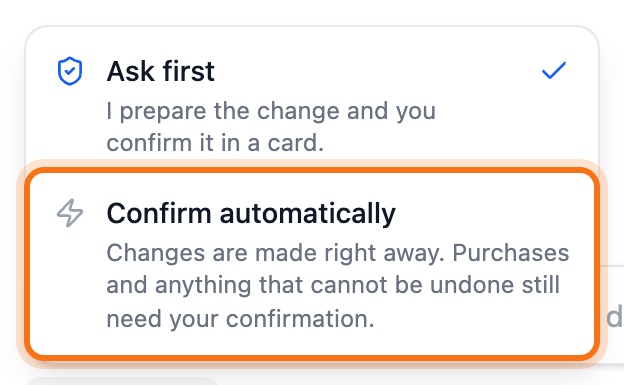
Everyday changes are now made right away, for example a new DNS record or a new email forwarder. That includes removals: a DNS record you ask the assistant to delete is gone at once.
Anything that costs money still gets a box to confirm. So does anything that cannot be undone, for example a reinstall, a restore from a backup or cancelling a service.
The setting is saved in your browser. On another computer or in another browser it starts on Ask first again. To switch back, choose Ask first in the same menu.
Get help from support
Section titled “Get help from support”If the assistant cannot solve what you need, it passes the conversation on to support.
- Write in the conversation that you want help from support. Sometimes the assistant suggests it itself. If so, answer yes.
- The assistant sends the whole conversation to support. No separate support ticket is created.
- Support replies in the same conversation. The reply is marked Support. You also get an email and a notification in the client area that takes you to the conversation.
To carry on with support, reply in the same conversation. If the conversation started in Telegram, the reply arrives there.
Connect Telegram
Section titled “Connect Telegram”You can also chat with the assistant in Telegram. It sees the same account as in the client area.
- At the bottom, below the conversations, click Connect Telegram on the Telegram row. On a phone, open the list first with the icon at the top left (Show conversations).
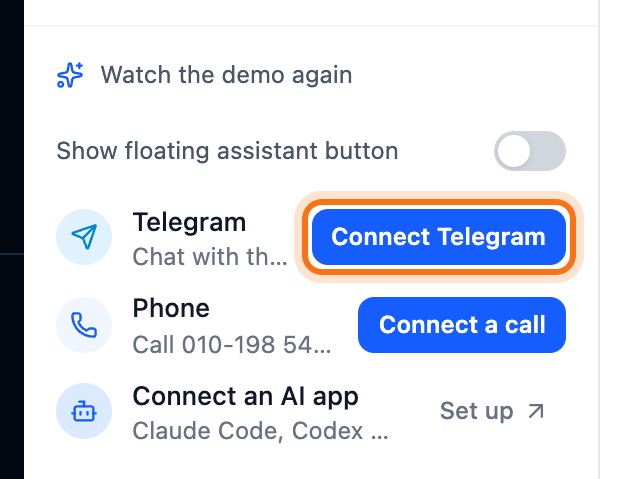
- Telegram opens a chat with the assistant. Tap Start. If Telegram did not open, click Open Telegram.
- The assistant replies in Telegram that your account is connected. Ask your question right there.
The link is valid for ten minutes. If it has expired, click Connect Telegram again.
In Telegram you always confirm changes with the Confirm button below the message. The message also says how long the buttons are valid. Send /new to start a new conversation. Telegram conversations do not show in the list in the client area.
To remove the connection, click Disconnect on the Telegram row. You can also send /unlink in Telegram.
Good to know
Section titled “Good to know”- To delete a conversation, hover over it in the list. Click the bin (Delete conversation) and then Delete. This cannot be undone.
- If some time has passed since your last message, the page opens on a new, empty conversation. The old one is still in the list.
- Turn on Show floating assistant button at the bottom of the list to get the Ask AI button in the corner of every page in the client area. It opens the assistant in a small window.
- Sometimes a reply in a support ticket contains a link to the assistant. It opens a new conversation with the ticket number already in the box. Send the message and the assistant reads the ticket and carries on from there.
- If you send many messages in quick succession, the assistant asks you to wait a moment. Your text stays in the box. There is also a daily limit. When you reach it, the assistant tells you. Continue the next day or open a support ticket.
- The assistant is only available to the account owner. Users and delegated access do not see it.
- If you would rather use Claude, ChatGPT or another AI app, you can connect it to your account. Click Set up on the Connect an AI app row at the bottom of the list.