
Alerts and notifications: URL monitoring, email, webhooks
Checked against the client area 29 October 2026
Under Notifications in the client area you choose how alerts reach you: by email, as push notifications through Pushover, or as calls to a webhook of your own. You can also have us watch your website, and get word when we have an incident.
Open the delivery channels in the client area
How to
Section titled “How to”Alerts from here are emailed only to addresses you add and verify on the Delivery Channels tab.
-
Click Notifications in the menu and choose the Delivery Channels tab.
-
To hear from us when we post an incident or planned maintenance, turn on the switch next to Status page updates. It is saved straight away.
-
Click Add Email Address.
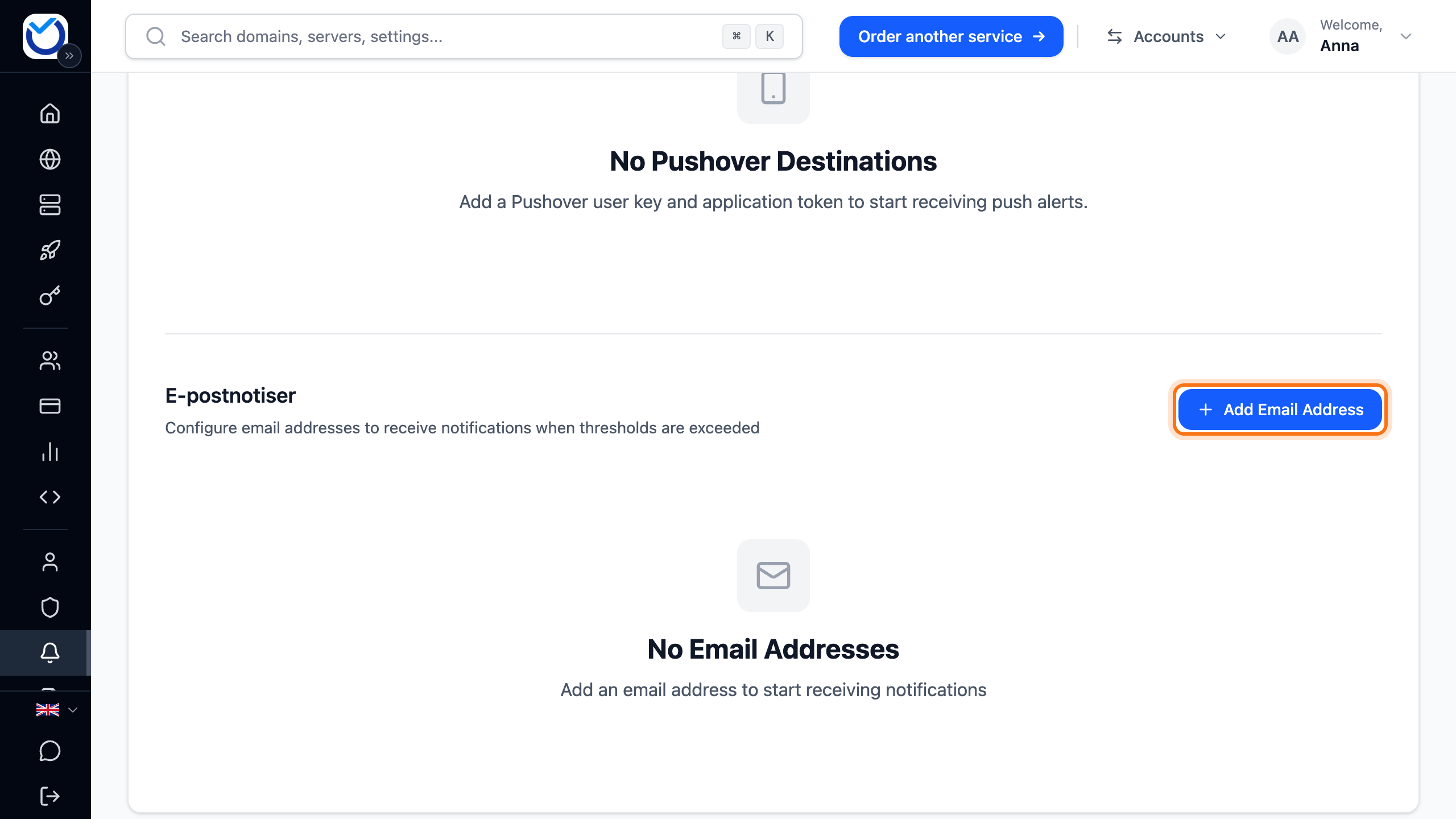
- Enter a name and the email address. Leave All notifications (URL + VM) selected if the address should get every alert. Click the add button.
- The address shows as Not verified. Click Send verification code next to it.
- Enter the code from the email and click Verify e-mail.
- Click the paper plane next to the address to get a test email.
For push notifications on your phone, use Pushover. You need your own Pushover account with a user key and an app token. Click Add Pushover and fill in User key and Application token. Leave Device empty to notify all your devices. Click the add button, then test with the paper plane.
What happens next
Section titled “What happens next”Every alert shows on the Notifications tab. It also goes to your channels. For URL monitoring, you pick the channels in each monitor. Load alerts about your VPS go to every channel that takes VPS alerts. Alerts that the server has restarted go by email only. How to turn those on is in Monitor your VPS.
Monitor a website
Section titled “Monitor a website”URL monitoring fetches an address at regular intervals and alerts you when it doesn’t respond as it should. The address must be on a domain in your account, or on a subdomain of it. How many addresses you can monitor is shown at the top of the tab. It depends on how many domains you have.
- Go to the URL Monitoring tab. It only shows when you have a domain or web hosting.
- Click Add URL Monitor. On a phone, it is the round plus button at the bottom right.

- Enter the address under URL, for example
https://www.example.com. Use the address the page answers on directly. Redirects are not followed, so an address that forwards to https:// or to www counts as down. - Give the monitor a name under Name.
- Change Check Interval (seconds, min 300) if you like. The most often it can check is every five minutes, which is 300 seconds.
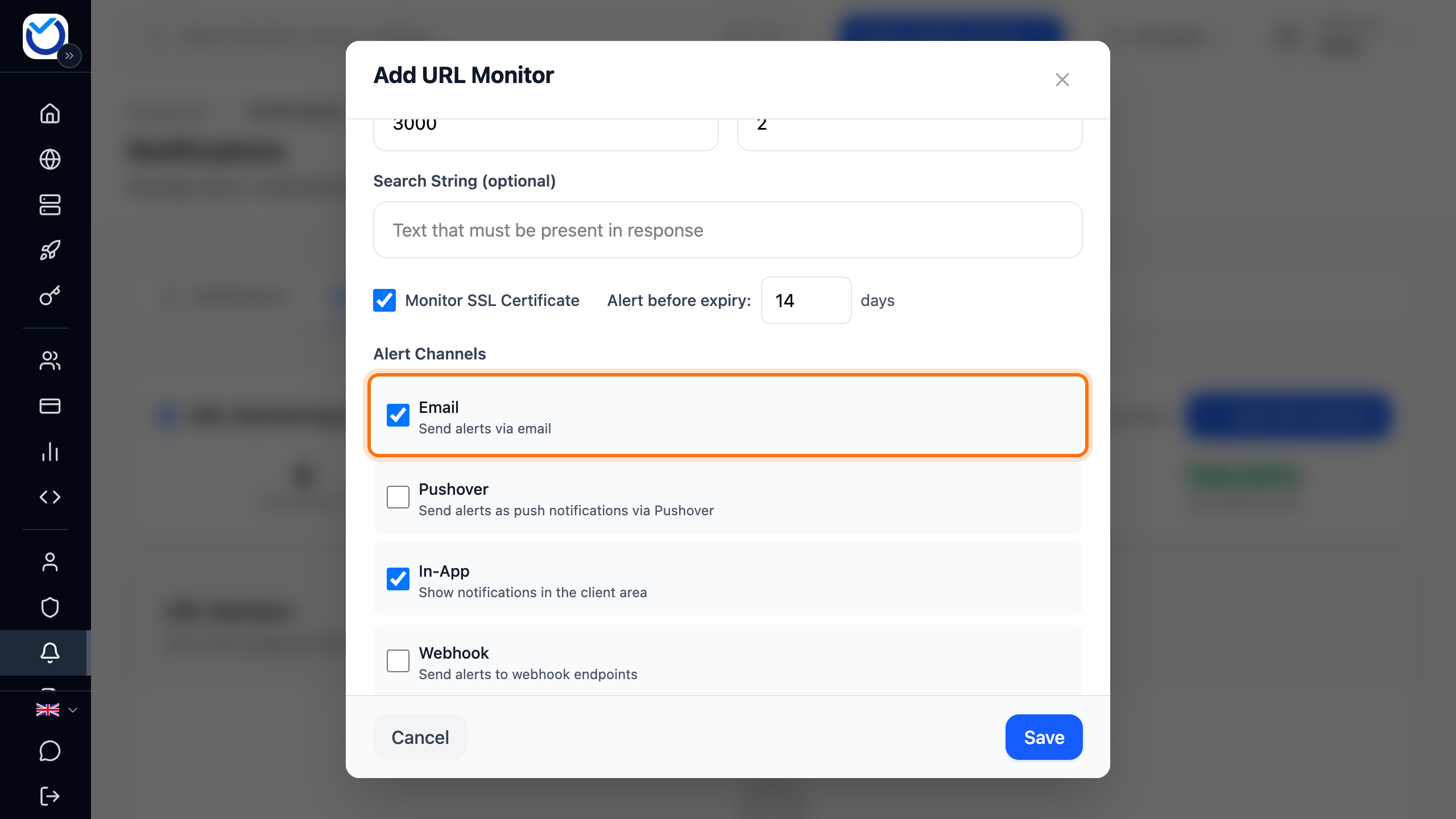
- Under Failed Checks Before Alerting, choose how many checks in a row must fail before you get an alert.
- To check that the page shows the right content, enter some text under Search String (optional). If the text is missing from the response, the page counts as down.
- Under Alert Channels, tick where alerts should go. Email needs a verified address on the Delivery Channels tab.
- Click Save.
The first check runs as soon as you save. The row shows whether the page is Up, Down or Degraded. Degraded means it answered more slowly than Max Response Time (ms). You get an alert when the page turns slow. You don’t get another one while it stays slow.
You get an alert once the page has failed as many times in a row as you chose. You don’t get a new alert for every check while it stays down. When the page answers again, you are told.
Send alerts to a webhook
Section titled “Send alerts to a webhook”A webhook sends alerts to an address of yours, for example your own system. Each alert arrives as a POST request with JSON.
- Go to the Webhooks tab.
- Click Add Webhook.
- Give the webhook a name and enter its address under Webhook URL. It must start with https:// and point to a public address.
- Under Scope, choose which alerts to send, for example All notifications (URL + VM) or URL monitoring only.
- Click the create button.
- Click the paper plane next to the webhook to send a test call. Reload the page after a moment. Below the address you see how many calls succeeded and failed.
Alerts from a URL monitor only go to the webhook if you ticked Webhook in that monitor.
A call counts as failed if your address doesn’t answer with a status code in the 200 range. If five calls in a row fail within 24 hours, the webhook is paused and shows Automatically paused after repeated failures. Click Reactivate once the receiver works again.
Good to know
Section titled “Good to know”- The
eventfield in the JSON says what happened, for exampleurl.down,url.uporwebhook.test. - On a monitor’s row, the play icon (Test Now) runs a check right away. The pulse icon (View History) shows the latest checks, going back at most 24 hours. The switch pauses the monitor.
- To remove a channel or a monitor, click the bin. Your browser asks first. This cannot be undone.