
Send invoices to your finance team or another email
Checked against the client area 29 October 2026
Invoices are sent to the email address you sign in with. If your finance team, an accounting firm or your accounting software should get them too, add their address under Invoice CC Recipients. You can also choose to send invoices only to those addresses.
Open invoice settings in the client area
How to
Section titled “How to”- Go to Account › Invoice settings.
- Scroll down to Invoice CC Recipients and click Add Recipient.

- Enter the address under Email Address.
- If you like, note whose address it is under Note (optional), for example your finance team. The note shows under the address in the list.
- Click Add.
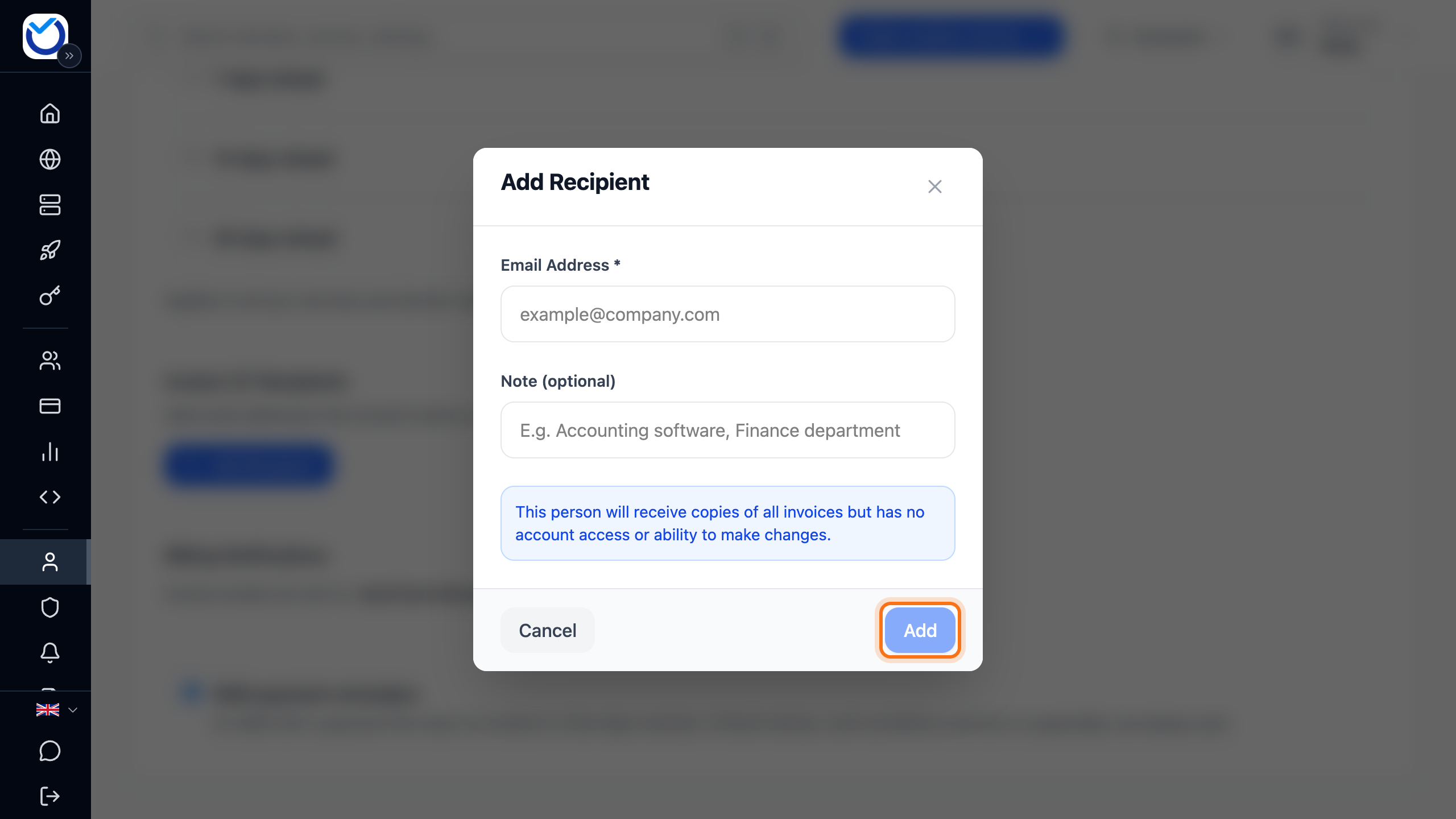
Repeat for every address that should get the invoices.
Send invoices only to the recipients
Section titled “Send invoices only to the recipients”Once you have added at least one recipient, you can choose whether the account’s own email address keeps getting the invoices.
- Go to Billing Notifications below the recipients.
- Under Should invoices go only to the CC recipients?, choose CC only. To keep sending them to both, choose Account email and CC.

The choice is saved straight away. The line Invoice emails are sent to: shows which addresses invoice emails go to.
What happens next
Section titled “What happens next”The recipients get a copy of the invoice emails. These include new invoices and reminders when an invoice is overdue. They get no sign-in and cannot change anything on the account.
If you choose CC only, invoice emails stop going to the account’s email address. Other emails, for example about support tickets and your services, still go there.
Good to know
Section titled “Good to know”- Remove a recipient with the bin icon (Remove) on its row. It is removed straight away, without asking first.
- If you remove the last recipient, invoice emails go to the account’s email address again.
- The same address can only be added once.
- Only the account owner can add and remove recipients.
- To change the account’s own email address, see Change the email address you sign in with.
- If a colleague should sign in and see the invoices, add them as a user. See Give colleagues or an agency access to your account.
- If your company receives e-invoices via Peppol, invoices also go to your accounting system. See E-invoices via Peppol.