
Create email accounts, change passwords and open webmail
Checked against the client area 29 October 2026
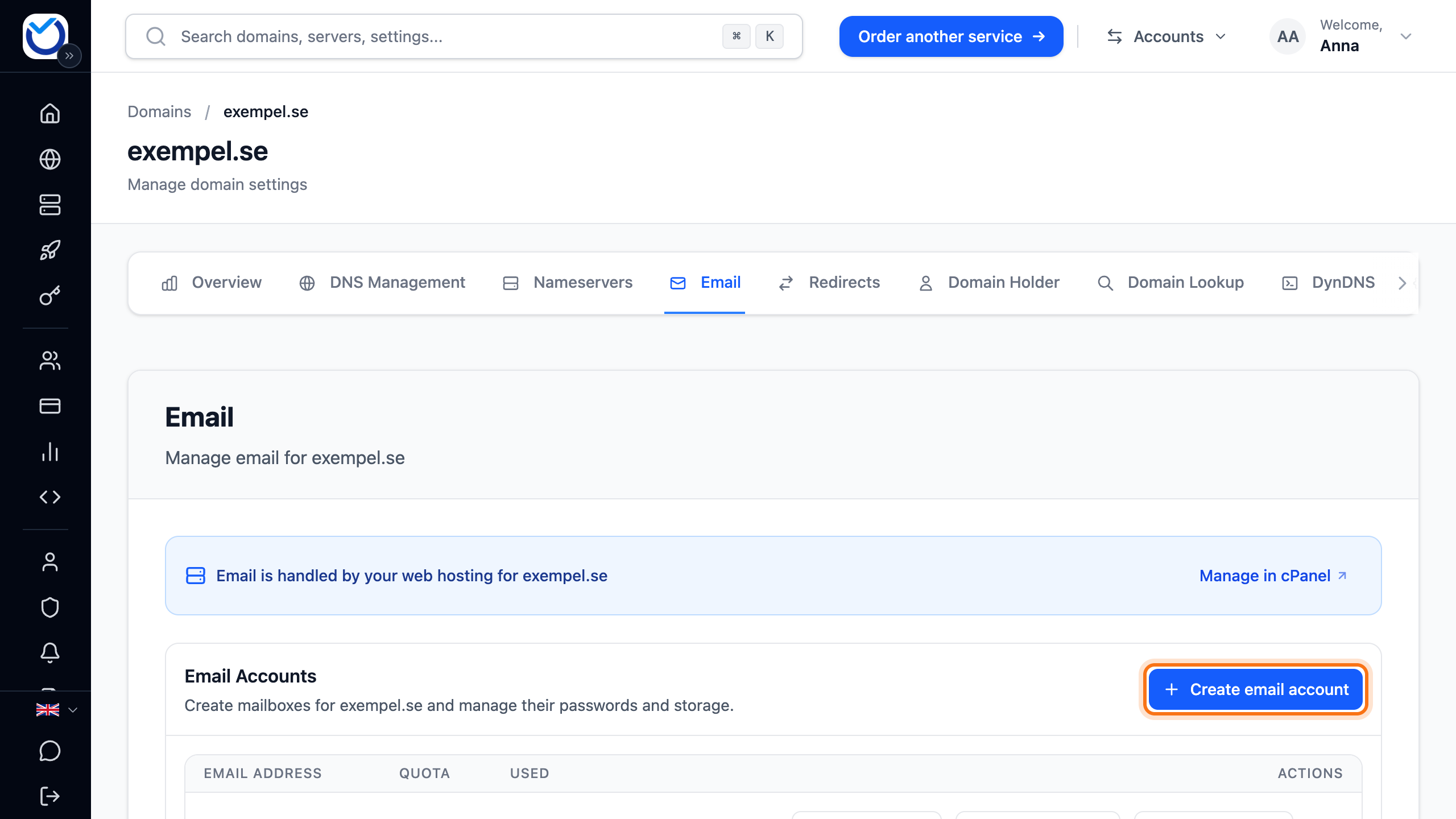
With web hosting you can have your own email addresses on your domain, for example info@yourdomain.com. You create them on the domain’s Email tab in the client area. That is also where you change passwords and open webmail.
Open your domains in the client area
Before you start
Section titled “Before you start”An email account needs the domain to be on one of your web hosting accounts. Open the domain and its Email tab to see where you stand:
- If you see Email Accounts and the Create email account button, you can start right away.
- If it says Get started with email, the domain is not on your web hosting yet. Click Connect domain for email. Email not arriving at your web hosting tells you more.
- If you have no web hosting, click Order web hosting under Email Accounts. Web hosting for the domain is put in your cart. The cart shows the price before you order.
How to
Section titled “How to”- Click Domains in the menu, then the domain.
- Go to the Email tab.
- Click Create email account. On a phone you can also tap the round plus button at the bottom right.
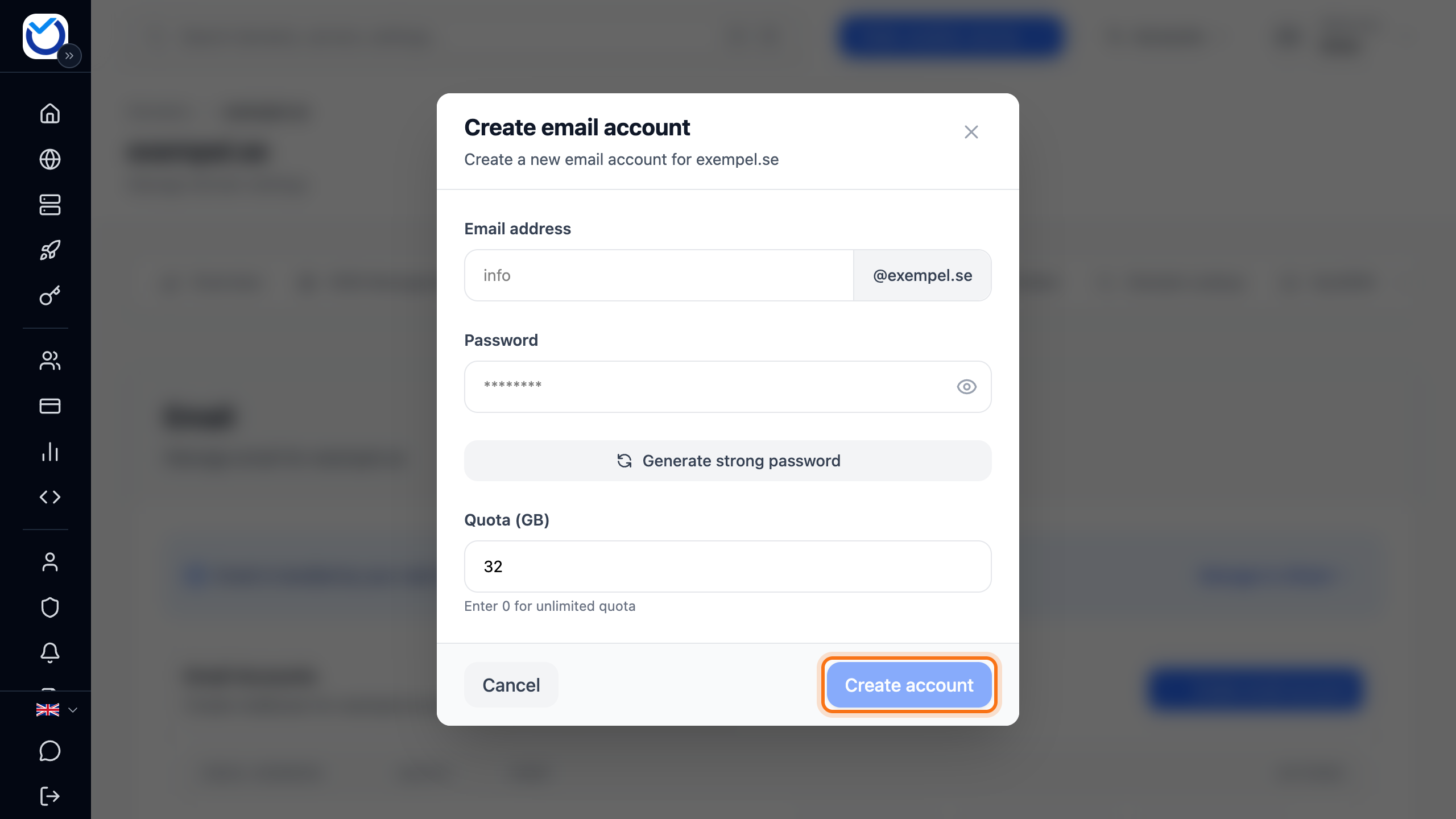
- Under Email address, type what goes before the @, for example
info. The domain is already filled in after it. - Under Password, type a password. It needs at least 8 characters, upper and lower case letters and a number. It must not be easy to guess either.
- To have a password made for you instead, click Generate strong password below the field. The password shows in the field and is copied. Keep it somewhere safe.
- Under Quota, set how many GB the account may use. 32 GB is preselected. Enter 0 for no limit.
- Click Create account.
What happens next
Section titled “What happens next”The account shows in the list under Email Accounts straight away. It receives email as soon as the domain’s email goes to the web hosting. If the tab shows Mail delivery needs attention, it may not yet. Then read Email not arriving at your web hosting.
To read the email on your phone or computer, add the account to a mail app. Click Add to mail app on the account’s row. Add your email to iPhone, Mac, Outlook or Gmail tells you more.
Read your email in webmail
Section titled “Read your email in webmail”- Click Open webmail on the account’s row.
- Webmail opens in a new tab and you are already signed in. You don’t need the password.

Will someone else read the email without signing in to the client area? Under Mail app settings, the webmail address is shown at Webmail. They sign in there with the email address and the account’s password.
Change the password or delete an account
Section titled “Change the password or delete an account”- Change the password: click Change password on the account’s row. Type a new one under New password or click Generate strong password. Click Change password. Then enter the new password in every mail app that uses the account.
- Delete: click the bin (Delete account) and confirm with Delete account. The account and all email in it are deleted. This cannot be undone.
Good to know
Section titled “Good to know”- The client area does not show the password afterwards. If you have forgotten it, set a new one.
- You choose the quota when you create the account. To change it later, click Manage in cPanel on the tab. That opens the email accounts in cPanel.
- A domain registered with another provider but hosted on your web hosting still shows under Domains. It is marked Web hosting.
- If the web hosting is on our older platform, the tab shows the Open the control panel button instead of the list. The accounts are then managed in that control panel. With Request a move to cPanel you ask us to move the hosting to cPanel.
- If the email only needs to go on to another address, you don’t need an account. Read Forward email.