
Change the main domain of your web hosting
Checked against the client area 29 October 2026
The main domain, sometimes called the primary domain, is the hosting account’s own domain. If your company changes its name or the old domain is going away, you can change the main domain in the client area. The website stays where it is and is shown on the new domain.
If you only want another website on a different domain, you don’t need to change anything. Add the domain to your web hosting instead.
Open your web hosting in the client area
Before you start
Section titled “Before you start”The new domain must be registered and must not be on another web hosting account. It does not have to be registered with us.
How to
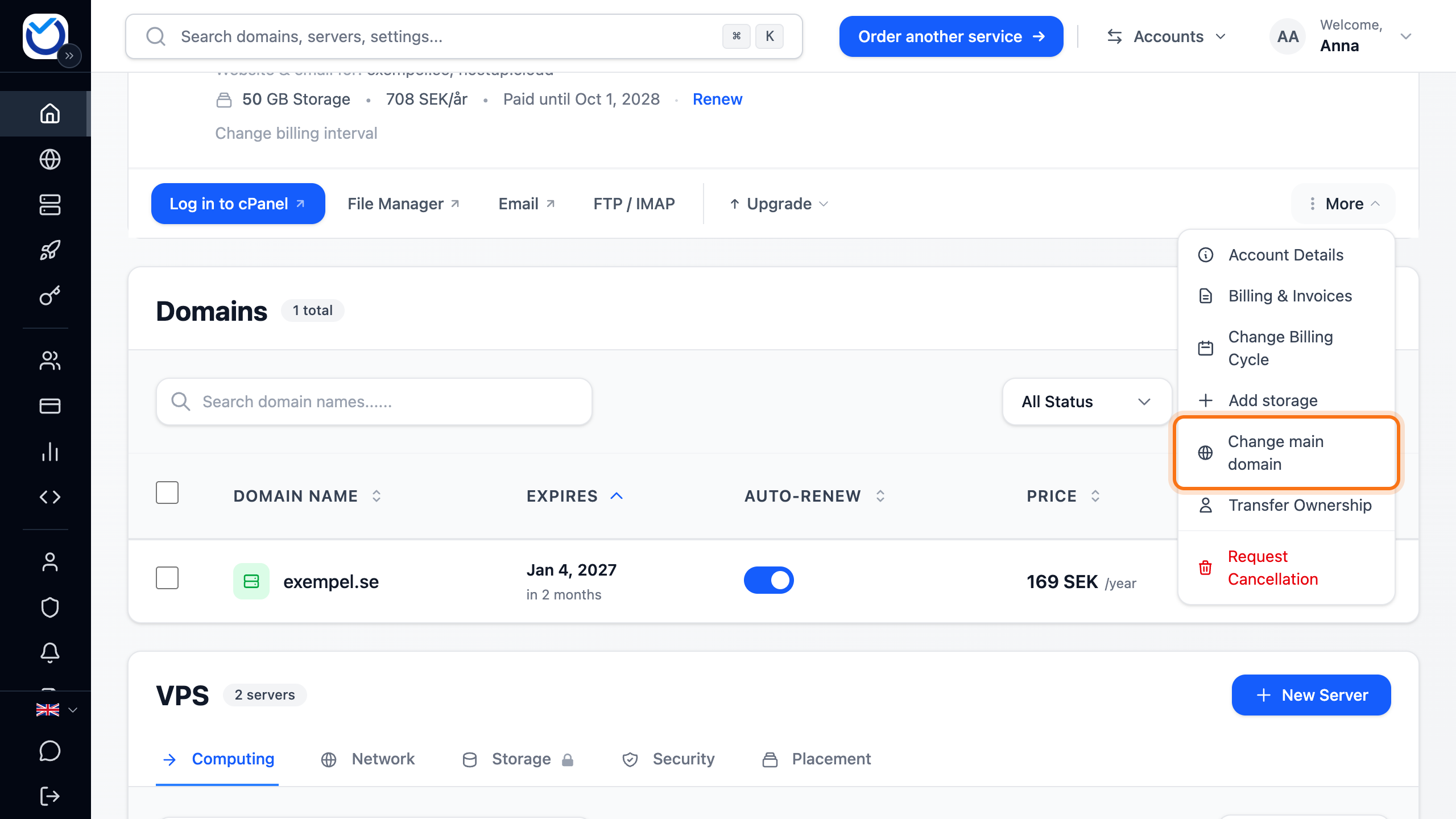
Section titled “How to”- Go to Dashboard. Under Web Hosting, click More next to the hosting account and choose Change main domain.
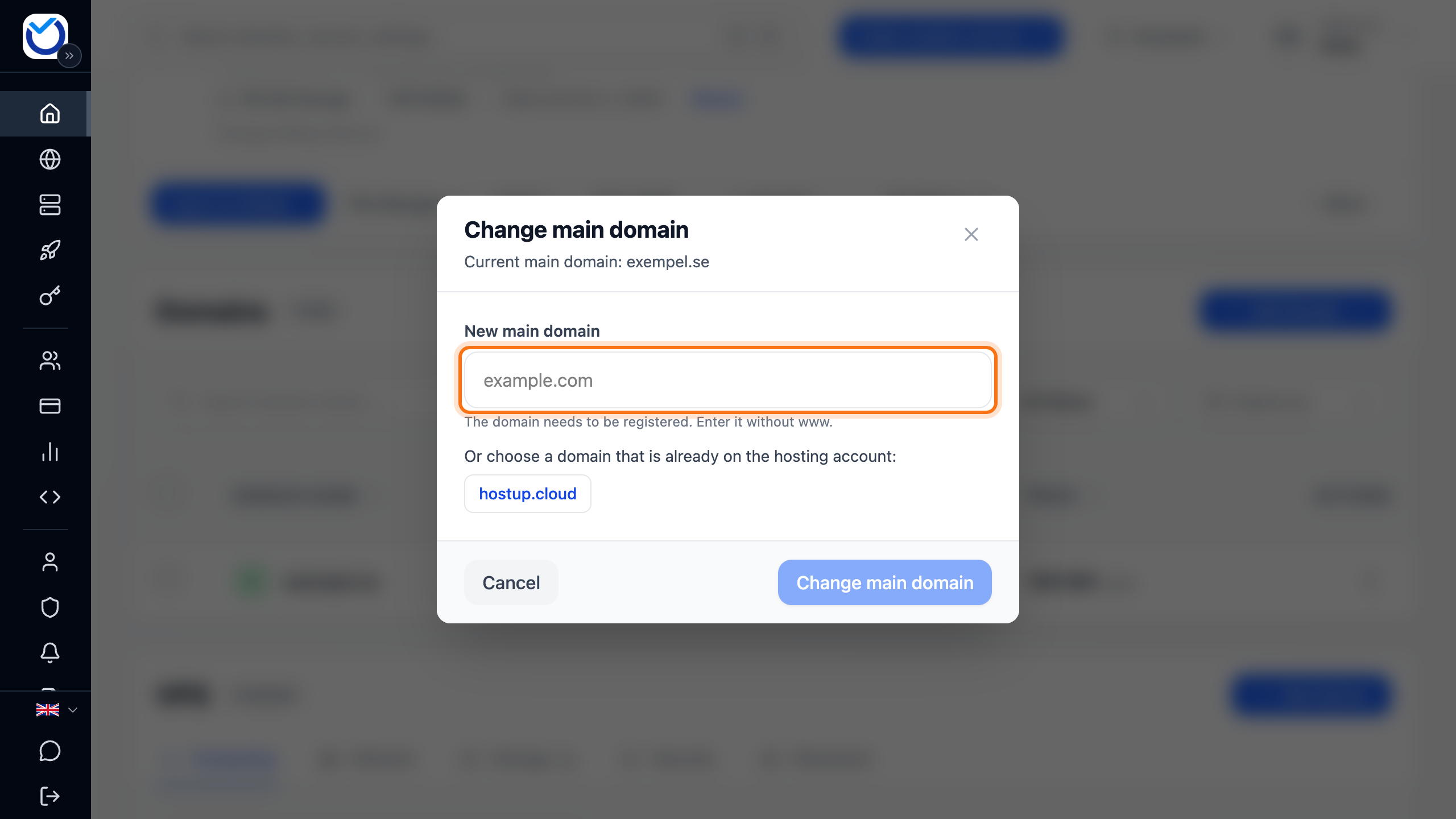
- Type the new domain under New main domain, without www. If the domain is already on the hosting account, you can click it below the field instead.
- The client area checks the domain. Under What happens it lists what the change does to the website, the email and the old domain. Read it before you go on.
- If the new domain uses our nameservers and already has DNS records for a website or email somewhere else, the dialog asks what should move here. Choose Email + Website, Website only, Email only or Don't change my DNS.
- If the old domain should keep showing the website, tick the box to keep it as an extra address. This uses one of the plan’s addon domain slots. If there are no slots left, the box cannot be ticked.
- Tick the box at the bottom confirming that the main domain changes immediately.
- Click Change main domain.
What happens next
Section titled “What happens next”The change takes effect immediately. The dialog shows the new main domain and the new mailbox addresses. Use the new address as the username in your email apps.
- The SSL certificate for the new domain is issued automatically. It is usually ready within a few minutes.
- If the new domain uses our nameservers, the client area points it to the hosting account. If you were asked in step 4, your choice applies. If its DNS is managed by another provider, point the domain to the hosting there. See Point your domain to your web hosting.
- If the website has its own address saved, change it to the new domain. In WordPress this is under Settings → General.
- The old domain stops showing the website, unless you chose to keep it.
Good to know
Section titled “Good to know”- If you pick a domain that is already on the hosting account, its website moves to the
public_htmlfolder. The old main domain’s files are kept in a folder named after that domain. Email and DNS for the domain you picked are not changed. The website can be unreachable for a couple of minutes during the change. - If the current main domain has mailboxes or forwarders, you cannot pick a domain that is already on the hosting account. Move or remove them first.
- If the current main domain has subdomains, you cannot make the change yourself. The dialog lists the subdomains. Click Contact support and support makes the change.
- The hosting account must be active for the change to be possible.
- Users you have added under Users do not see Change main domain. The account owner makes the change.