
Change or reset your client area password
Checked against the client area 29 October 2026
If you have forgotten your client area password, you get a link by email and choose a new one. If you want to change a password you still remember, you do it the same way. This is about the password you use to sign in to the client area. To change the password of a server, see Reset the password of your VPS.
How to
Section titled “How to”- Click Forgot password? on the sign-in page. If you are signed in, go to Account › Sign-in instead and click Reset Password.
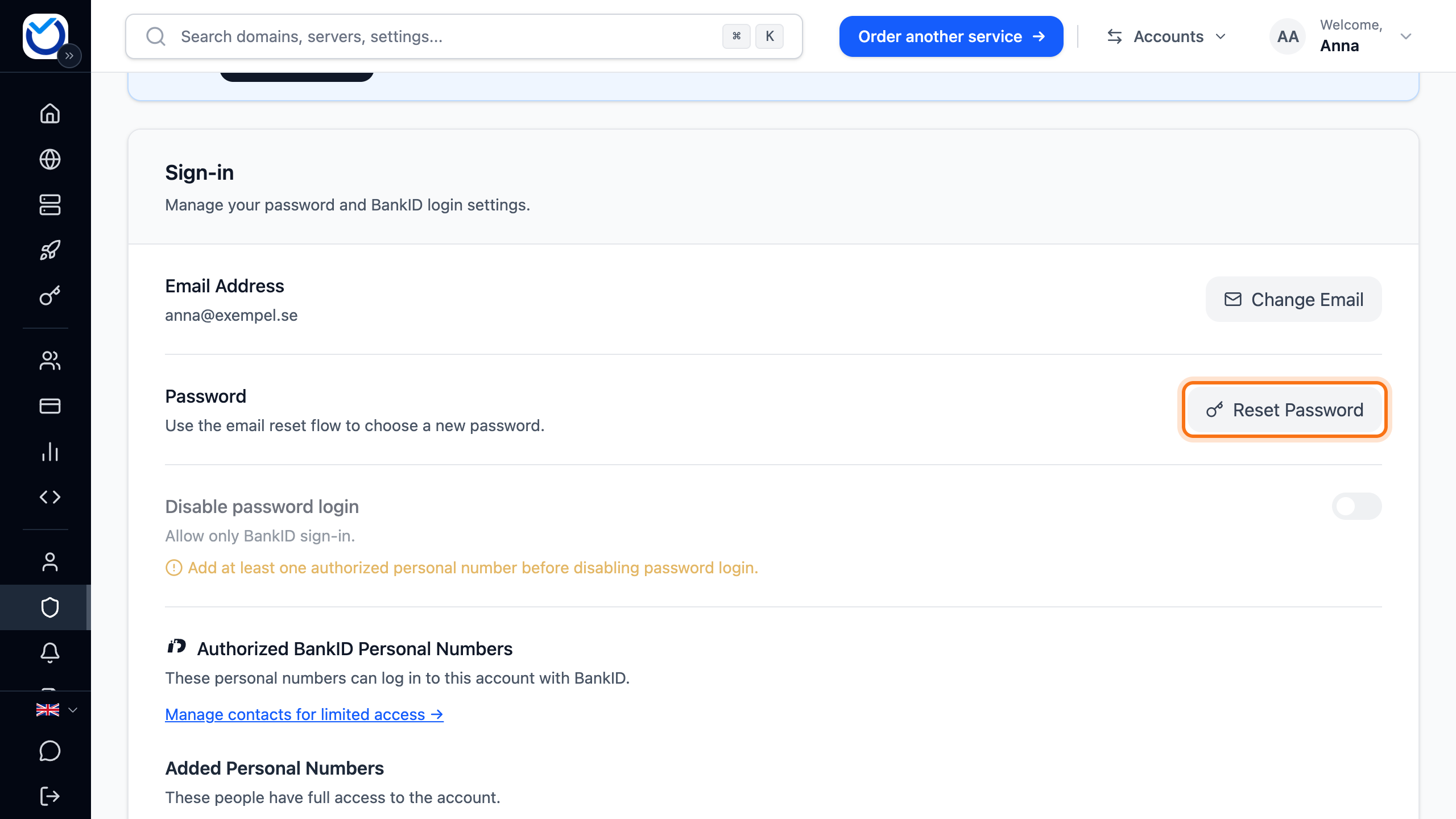
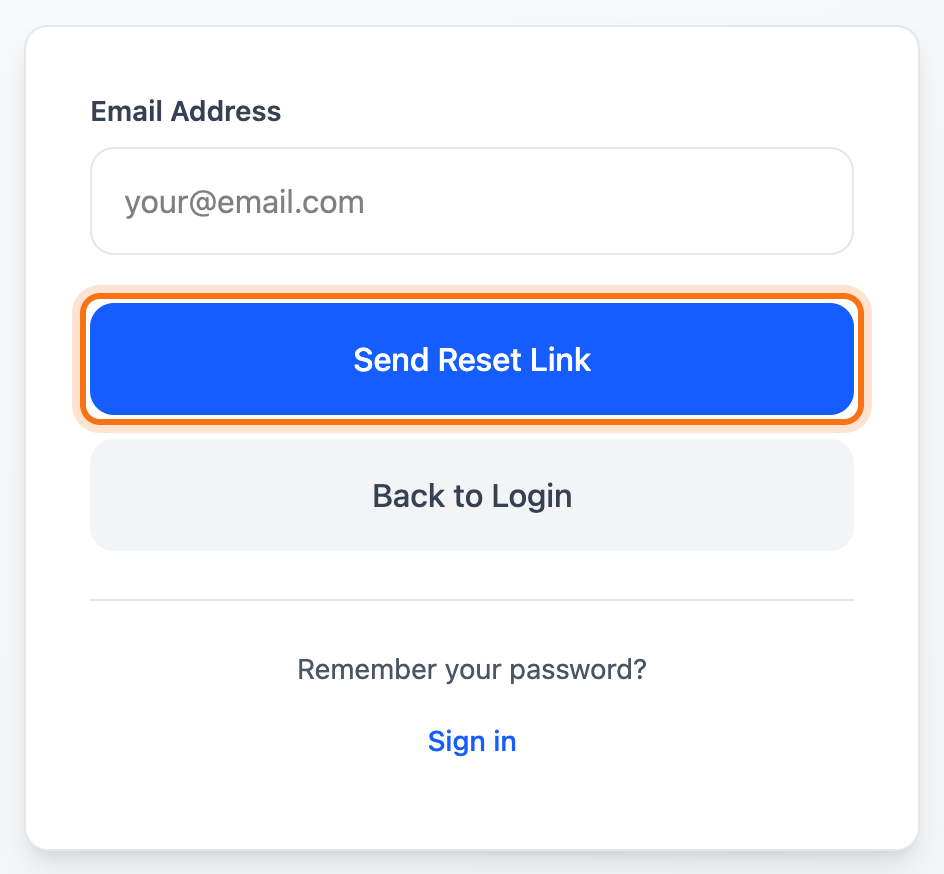
- Enter the email address you sign in with under Email Address and click Send Reset Link.
- Open our email and click the link. It is valid for one hour and works once.
- Enter the new password under New Password and once more under Confirm Password. It needs at least 8 characters with both letters and numbers.
- Click Reset Password.
What happens next
Section titled “What happens next”The page says Your password has been reset. Sign in with the new password.
If you use two-factor authentication, the client area asks for the second step the next time you sign in. This also applies on a device where you ticked Trust this device for 30 days.
Devices where you are already signed in are not signed out. If you change the password because someone else may know it, end their sessions too. See View and end active sessions.
If the email doesn’t arrive
Section titled “If the email doesn’t arrive”- The link only goes to the address you sign in with. Your account may be registered under another address. Try the address where you receive invoices and replies from support.
- If there is no account with the address you entered, that address gets an email saying so instead. That email is sent at most once every 24 hours.
- If you have changed the email address on the account, only the new address works. A link sent to the old address also stops working.
- If BankID is linked to the account, you can sign in with BankID instead. See Sign in with BankID.
Good to know
Section titled “Good to know”- If you created the account with BankID, it has no password that you know. Follow the steps above if you want to be able to sign in with a password as well.
- If you have turned off password sign-in, the new password only works once you turn it back on.
- A user you have added to the account resets their password the same way, with their own email address.