
Sign in with your Google account
Checked against the client area 29 October 2026
You can sign in to the client area with your Google account instead of an email address and password. First you connect the Google account to your account with us. You do that once, while you are signed in.
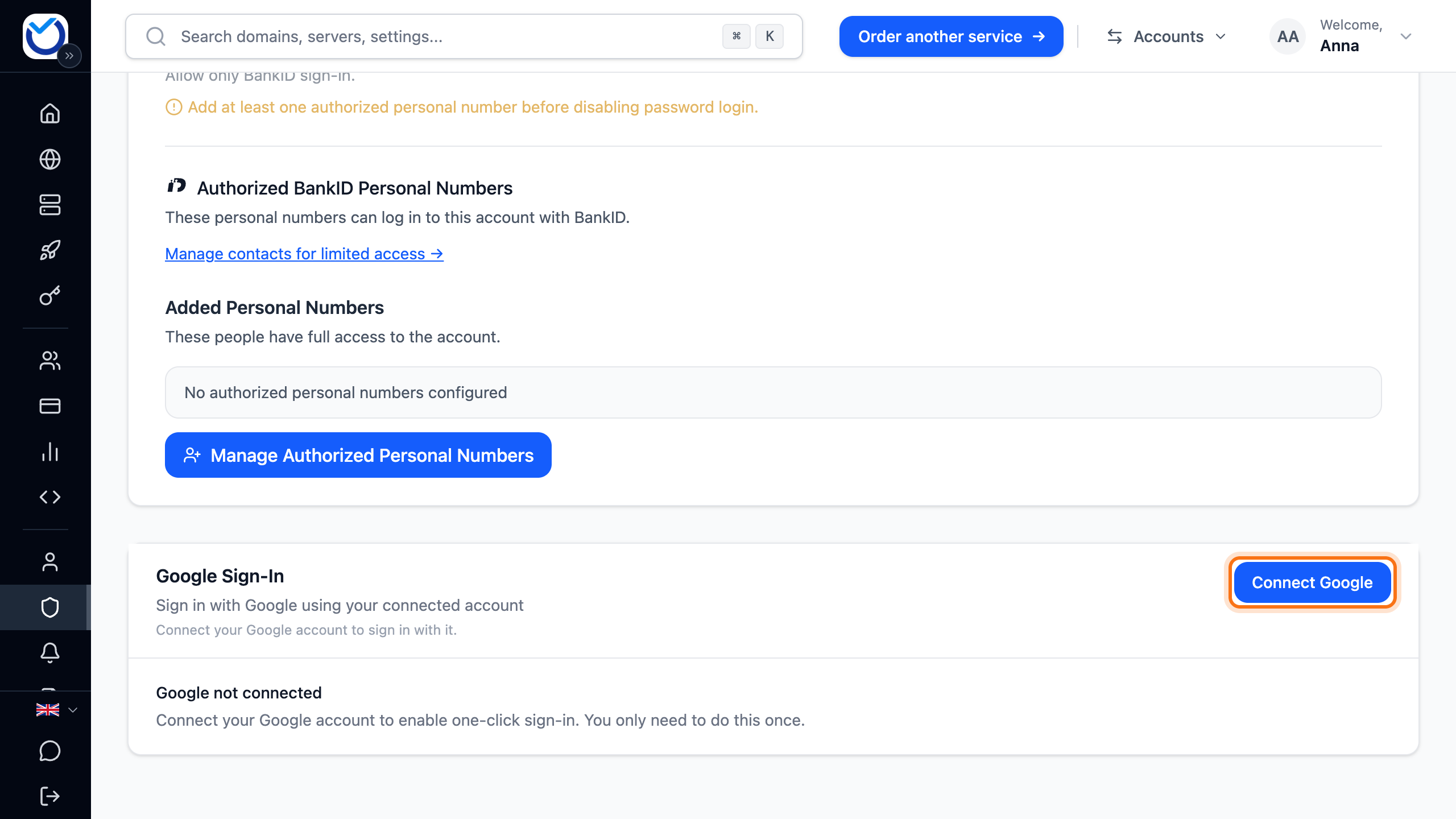
Open the Sign-in tab in the client area
Connect Google
Section titled “Connect Google”- Sign in as usual and go to Account › Sign-in.
- Scroll down to Google Sign-In and click Connect Google.
- Choose your Google account and approve at Google.
- You come back to the client area. The box shows the Google account’s email address and Connected and ready to use.
Sign in with Google
Section titled “Sign in with Google”- Click Sign in with Google on the sign-in page.
- Choose the same Google account you connected.
- If you use two-factor authentication, the client area asks for the second step. Then you are signed in. On a device where you ticked Trust this device for 30 days, the client area skips that step.
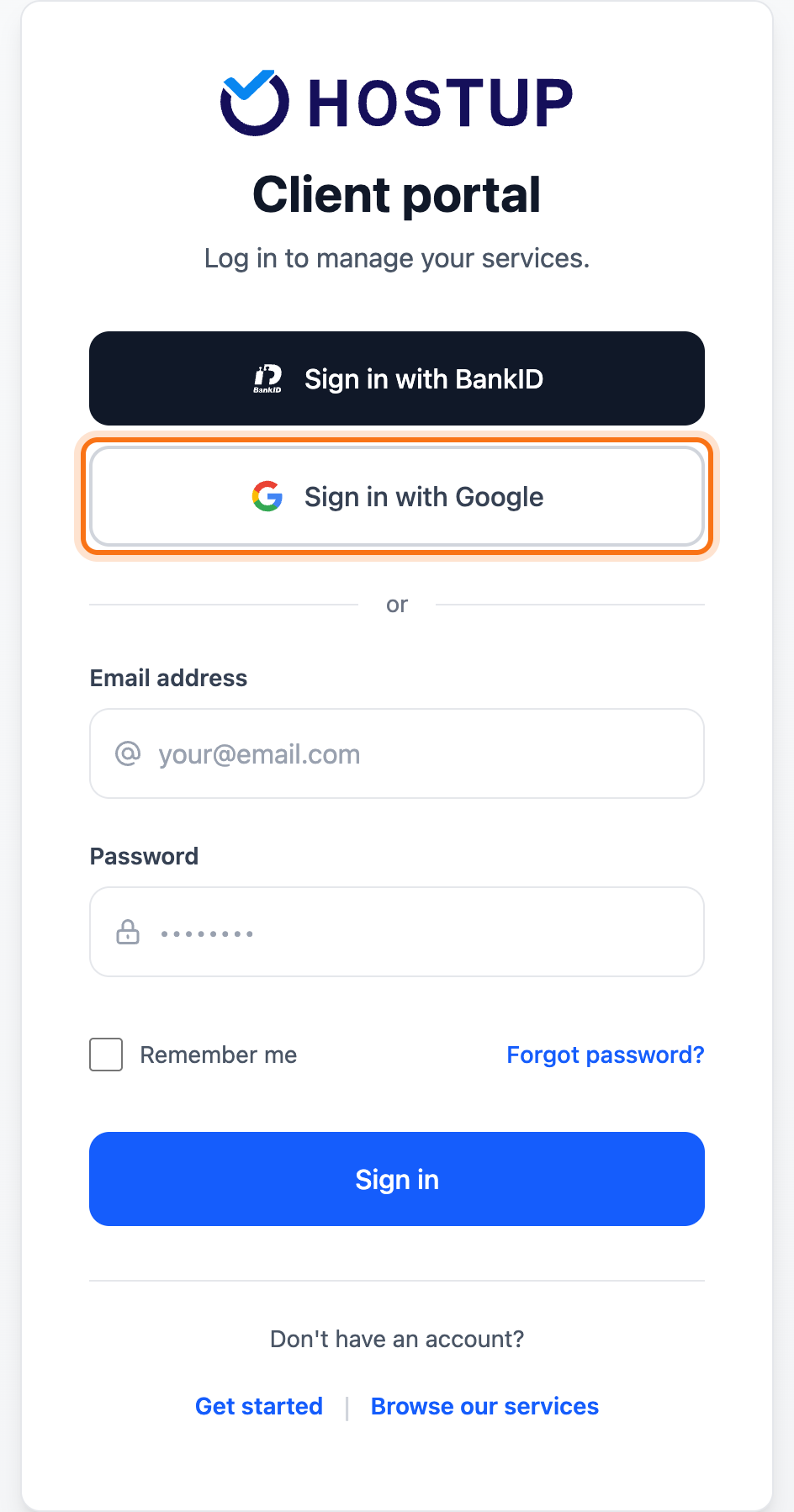
If the Google account is not connected, you can’t get in. The sign-in page tells you so. Sign in with your password or BankID instead and connect Google as described above.
Disconnect Google
Section titled “Disconnect Google”- Go to Account › Sign-in.
- Click Disconnect in the Google Sign-In box.
Google sign-in is removed straight away, without asking first. Your password and BankID keep working as before.
Good to know
Section titled “Good to know”- The Google account doesn’t need the same email address as your account with us.
- An account can have one Google account connected. A Google account can be connected to only one account with us. To switch Google accounts, disconnect the old one first.
- You can’t create an account with Google. See Create an account.
- Only the account owner can connect Google. A user you have added to the account sees Google sign-in is managed by the account owner.
- If you have turned off password sign-in, Google sign-in doesn’t work either. Read more in Sign in with BankID.