
Rename your VPS and set its hostname
Checked against the client area 29 October 2026
Your server has a name that shows in the client area and a hostname that the operating system uses. You change both in the same place. If you type a full name with a dot, such as web01.example.com, it also becomes the server’s hostname. A name without a dot becomes the name in the client area. The server then gets a hostname ending in .local.
Open your servers in the client area
Before you start
Section titled “Before you start”To change the hostname, the server must be running. If it is stopped, the name is only saved in the client area.
How to
Section titled “How to”- Go to VPS in the menu. Click the pencil (Click to edit server name) next to the server name. The name turns into a text field. On the server’s own page, click the server name at the top instead.
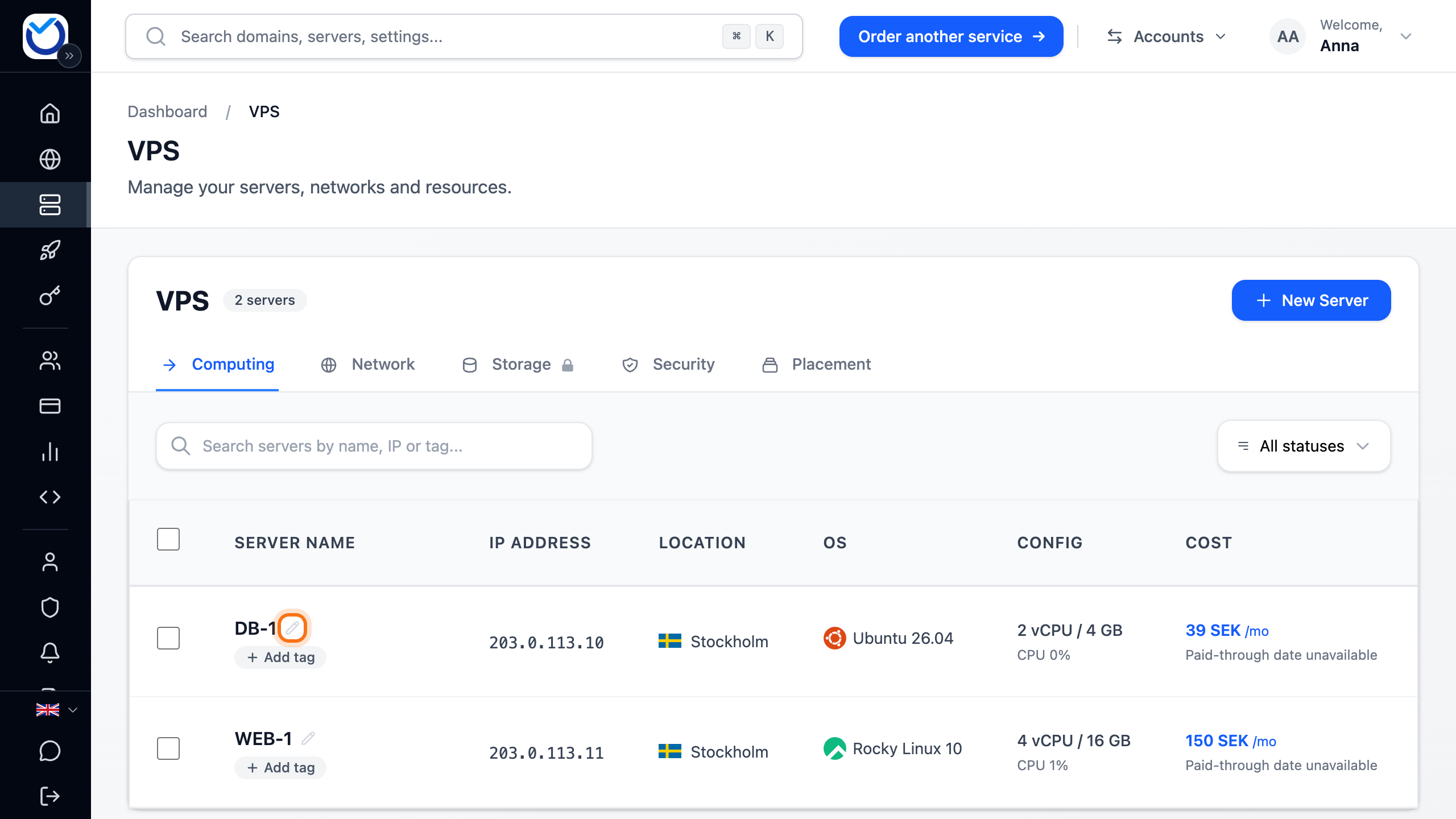
- Type the new name:
- A name such as
Web server customer Abecomes the name in the client area. It can be up to 120 characters. - A full name such as
web01.example.comalso becomes the server’s hostname. Use only the letters a–z, digits, hyphens and dots.
- A name such as
- Press Enter. The name is also saved if you click outside the field. Esc cancels.
What happens next
Section titled “What happens next”The new name shows in the client area straight away.
If you changed the hostname, it applies in the operating system only after the server has been restarted. Restart it with Restart at the top of the server’s page when it suits you.
Good to know
Section titled “Good to know”- If you give a running server a name without a dot, it gets a hostname based on the name and ending in
.local.Web server customer Abecomesweb-server-customer-a.local. - Reverse DNS (PTR) does not follow when you change the hostname. You set it under the Network tab with the pencil (Edit rDNS) next to the address.
- While another operation is running on the server, such as a backup, the name at the top of the server’s page cannot be clicked.