
Several accounts – add and switch between accounts
Checked against the client area 29 October 2026
To keep, for example, your personal services apart from your company’s, create one account for each. Every account has its own email address, its own services and its own invoices. Accounts that belong to the same BankID can be switched between in the top menu without signing out.
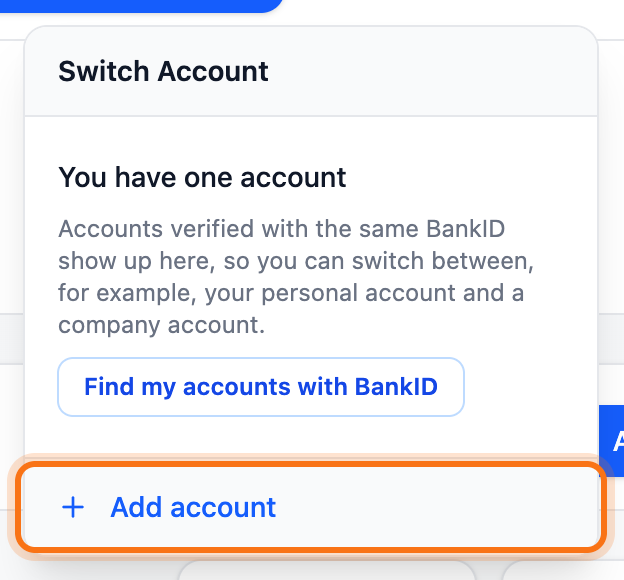
Open the accounts menu in the client area
Add an account
Section titled “Add an account”- Click Accounts in the top menu. On a phone only the icon with two arrows shows. You can also click your name and choose My accounts.
- Click Add account.
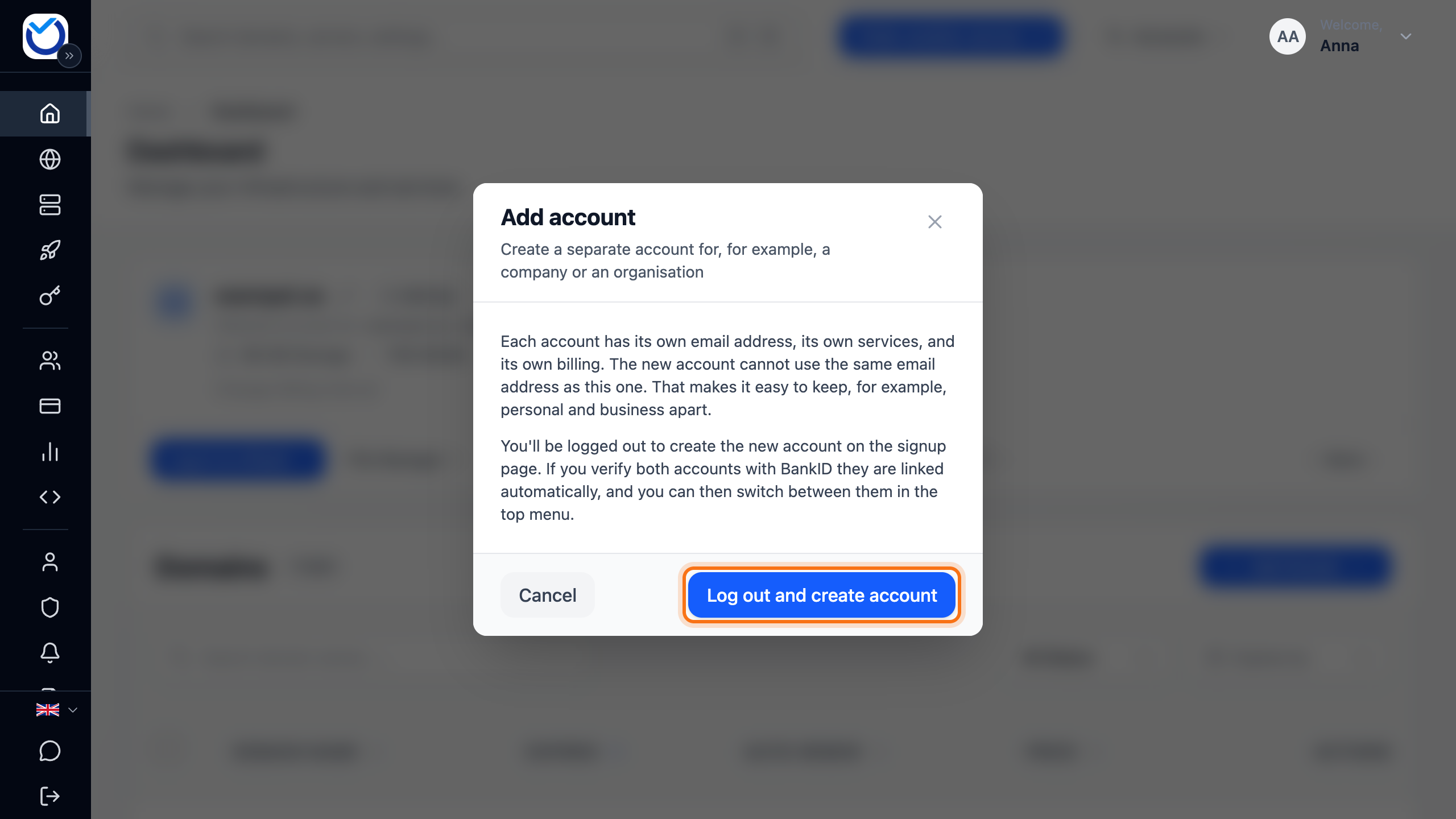
- Click Log out and create account. You are signed out and taken to the sign-up page.
- If you have a Swedish BankID, click Continue with BankID at the top of the page and identify yourself. The new account is then linked to your other accounts.
- If the page says You already have an account with us, click Create a new account.
- Fill in the details for the new account with a different email address from the first one. If you only have one address, a variant with a plus sign often works, such as name+company@example.com. It lands in the same inbox.
For the sign-up itself, see Create an account and verify your email address.
Switch between your accounts
Section titled “Switch between your accounts”- Click Accounts in the top menu.
- Click the account under Your accounts. You land on that account’s start page.
The account you are using right now is marked Logged in.
If you signed in with a password, your accounts are not listed straight away. Click Find my accounts with BankID or Verify again and identify yourself. You come back to the client area with the list open. The verification is valid for 12 hours. Once it has run out, the menu says Your BankID verification has expired. Click Verify again again.
If an account is missing from the list
Section titled “If an account is missing from the list”The list shows the accounts linked to your personal identity number. That is, for example, a private account with your number or an account that lists your number among its authorised numbers. If an account is missing, add your number to it.
- Sign out and sign in to the account that is missing.
- Go to Account › Sign-in.
- Click Manage Authorized Personal Numbers under Authorized BankID Personal Numbers. Enter your personal identity number and click Add. The setting is only on accounts that have Sweden as their country.
The next time you open the accounts menu with BankID, the account is there. See Sign in with BankID.
Good to know
Section titled “Good to know”- An account that is not active shows Account is not active and cannot be chosen.
- Accounts someone has given you delegated access to are under Delegated accounts in the same menu. See Give colleagues or an agency access to your account.
- Without a Swedish BankID you cannot switch in the menu. Sign out and sign in to the other account with its email address instead.
- To move a service from one account to another, see Move a service or domain to another account.