
Change the nameservers for your domain
Checked against the client area 29 October 2026
The nameservers decide where your domain’s DNS records live. If the domain uses our nameservers, you manage the records in the client area. If DNS should live somewhere else, for example Cloudflare, you switch to their nameservers.
Open your domains in the client area
Before you start
Section titled “Before you start”Your website and email follow the nameservers. Make sure the DNS records exist in the new place before you switch.
- From another provider to us: add the records on the DNS Management tab first. There, Import DNS Records can fetch them from the old provider.
- From us to another provider: add the records at the new provider first. The records in the client area stop applying once the switch has gone through.
How to
Section titled “How to”- Click Domains in the menu and then the domain.
- Go to the Nameservers tab and click Edit Nameservers.
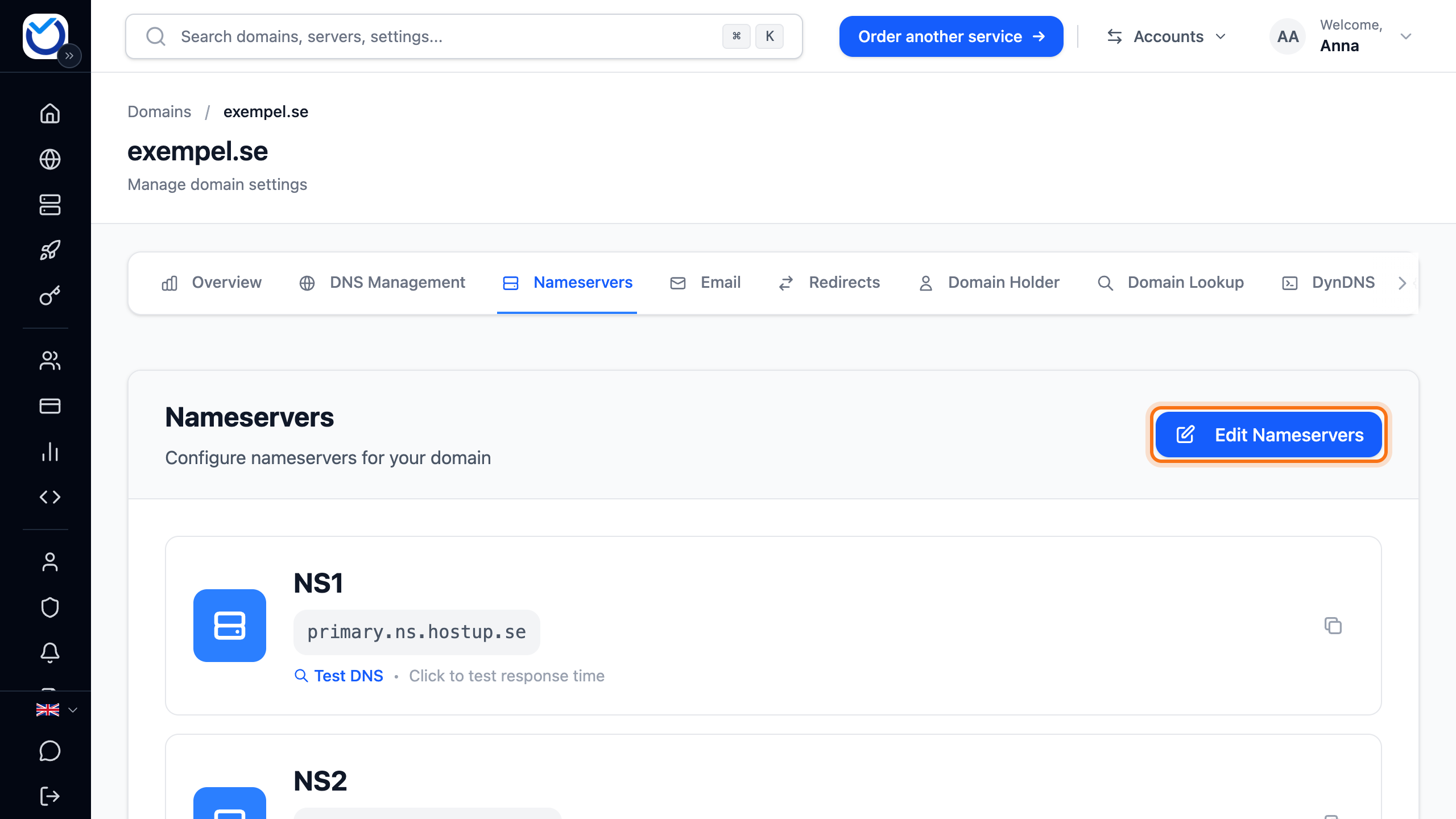
- To use our nameservers, choose Use HostUp Nameservers. The fields fill in with
primary.ns.hostup.seandsecondary.ns.hostup.se. - To use someone else’s nameservers, choose Use Custom Nameservers. Enter the nameservers you were given, one per box under Hostname. If you were given more than two, click Add More Nameservers.
- Click Save Changes.

What happens next
Section titled “What happens next”The client area sends the new nameservers to the domain registry and shows how it is going. This usually takes a few seconds. If you are switching to our nameservers, we first create the domain’s DNS zone and check that our nameservers answer for the domain.
After that, the nameservers show Nameserver update pending until the registry lists the new ones. For .se and .nu, the registry updates its zone files every hour. There it normally takes 1–2 hours. Computers and networks that have already looked up the domain may remember the old nameservers for a while. Allow up to 24–48 hours before everyone sees the change.
If you switched from another provider to us, the client area offers to copy your DNS records. Click Copy DNS records and the records are fetched from the old provider.
If you switch to different nameservers, the domain’s DNSSEC is removed in the same change. To have DNSSEC again, turn it on wherever the domain’s DNS now lives. The DNSSEC guide shows how to add the DS record after that.
Good to know
Section titled “Good to know”- You need at least two nameservers and can have up to ten. A .se or .nu domain can make do with one. Our nameservers always go as a pair.
- If a .se or .nu domain has Domain Lock turned on, its nameservers cannot be changed. Unlock it on the Settings tab first. Unlocking is done with BankID and takes a few business days.
- Nameservers for .dk domains are changed at DK Hostmaster. The tab shows a direct link there.
- While a transfer of the domain to us is in progress, its nameservers cannot be changed.
- If the nameserver sits under the domain itself, for example
ns1.example.com, the registry needs its IP address. The client area asks for it in the form. For .se and .nu, add the address under Glue Records (Advanced) on the same tab. - If you use the same nameservers on many domains, you can save them under Saved nameservers. That section shows once you have chosen Use Custom Nameservers. Next time you pick them instead of typing them in.
- To change the nameservers of several domains at once, tick them in the domain list. Click More actions and choose Update Nameservers.