
Create a VPS billed by the hour (Cloud VM)
Checked against the client area 29 October 2026
A VPS billed by the hour is paid for by what it uses. You decide how much CPU, memory and disk it has, and you can change the CPU and memory whenever you like. In the client area it is called Cloud VM (PAYG).
Open your servers in the client area
Before you start
Section titled “Before you start”Hourly billing is opened for your account in two steps:
- The account needs paid invoices with us up to a certain amount. Until then, New Server goes straight to ordering a standard VPS. How far you have left is shown on the Verify Identity for Cloud page.
- Then you verify your identity on the same page with a passport or ID card. If the account is Swedish, you can also use BankID.
Depending on your country, the account may also need a saved payment card. If verification or a card is missing, the option in the menu says Verification required. Click it to go to what is missing.
Open verification in the client area
How to
Section titled “How to”- Go to VPS in the menu and click New Server. Choose Cloud VM (PAYG).
- The Quick Deploy Cloud VM dialog opens. At the top, under Your Cloud limits, you see how much CPU, memory and disk the account may use and how much is left.
- Drag the sliders for CPU Cores:, Memory: and Boot Disk:. Under each slider is the price per hour and per month if the server runs around the clock.
- Check Estimated monthly cost at 24/7: at the bottom. Bandwidth is paid per GB on top of that.
- Click Deploy VM.
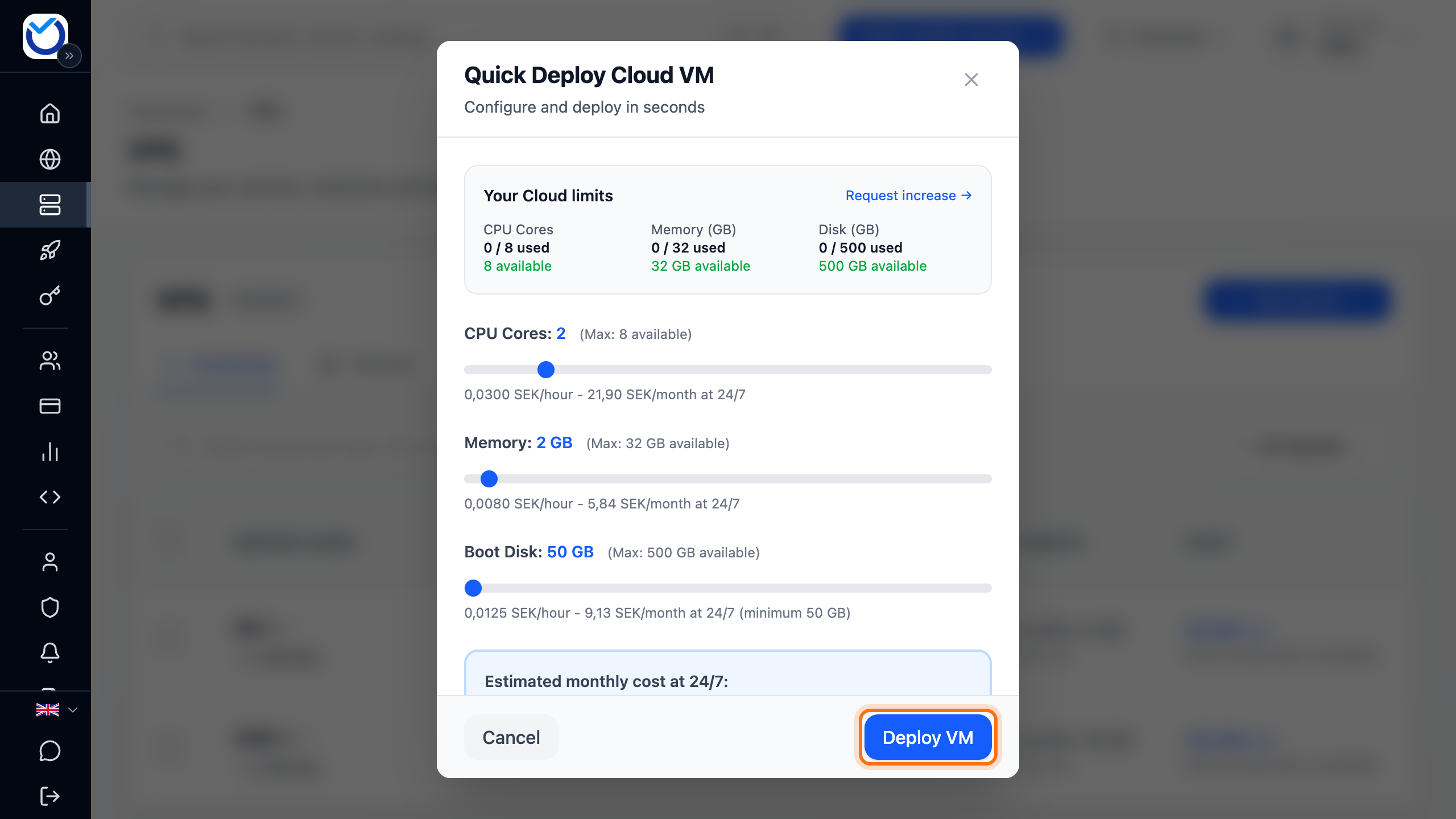
The sliders stop at what is left within the account’s limits. If you need more, click Request increase →. More in Request higher Cloud limits.
What happens next
Section titled “What happens next”After a couple of seconds you are taken to the server’s page. It shows Preparing your server while the server is created. The start and stop buttons work once it is ready.
The server gets a name like swift-falcon.local. The dialog does not ask for an operating system. You see which one the server got under the Operating System tab, where you can also reinstall it with another. The username and password are under Overview, in the Quick Connect box.
Change CPU and memory
Section titled “Change CPU and memory”- Open the server and click Edit Resources at the top.
- Drag the sliders. You can go up to what the server has now plus what the account has left within its limits. When you reach the ceiling, the Need more? Request a limit increase link appears.
- Under Estimated monthly cost you see the new monthly cost and the difference from today.
- If the server is running, click Save & Restart. The server restarts straight away. If it is stopped, click Save Changes. The change applies when you start it.
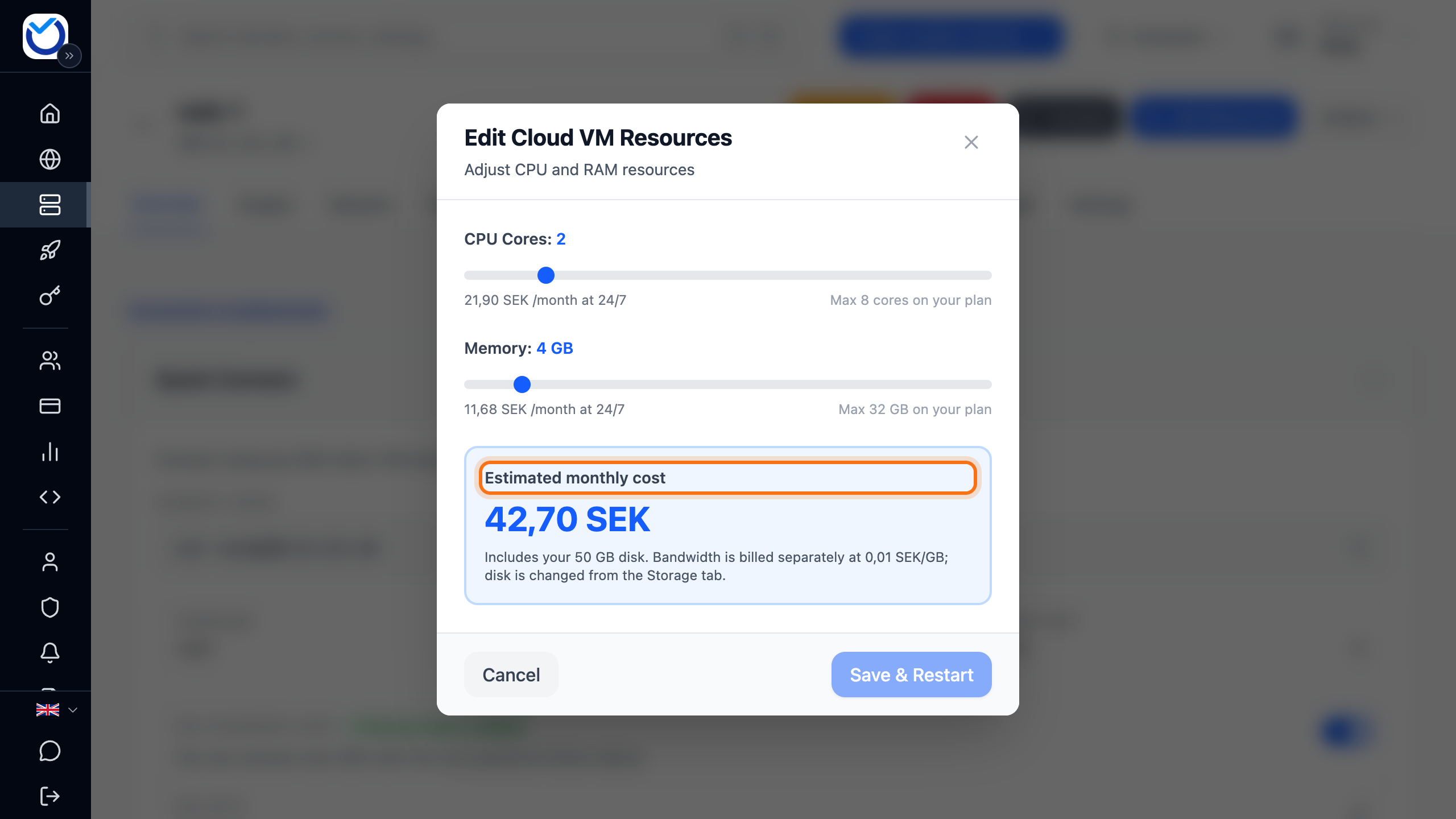
You change the disk under the Storage tab.
Switch a standard VPS to hourly billing
Section titled “Switch a standard VPS to hourly billing”- Open the server and go to the Billing tab.
- In the Change Plan & Resources box, click Switch to Cloud VM (PAYG). If hourly billing is not open for the account, it says Verification required instead. Click Verify your account and finish the verification first.
- You see what the server would cost per month with hourly billing, and the Before you convert list. If something stands in the way, such as an unpaid invoice for the server, it is shown there instead.
- Click Schedule Cloud VM conversion. The Confirm Conversion to Cloud VM dialog opens. Click the same button there.
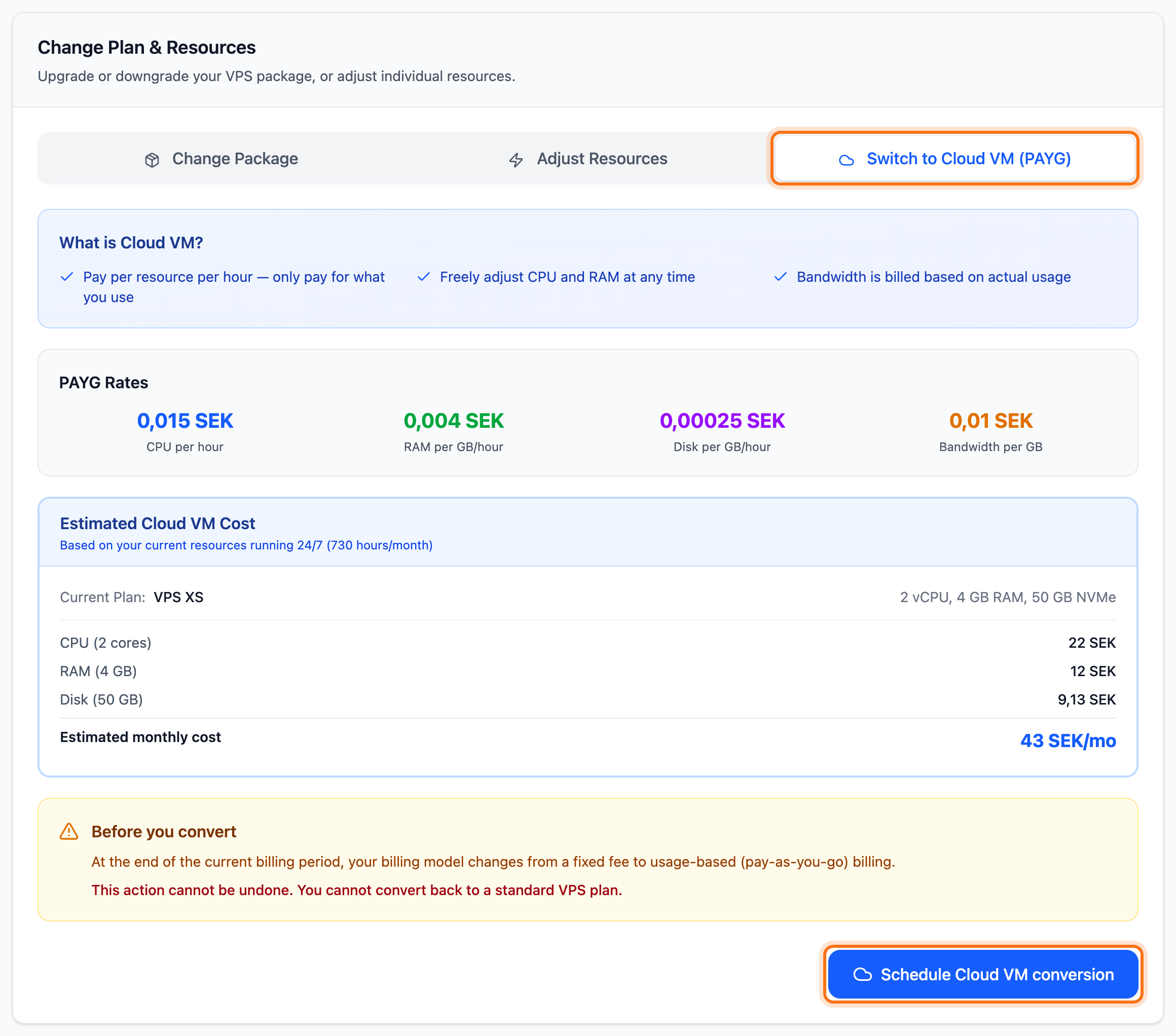
The switch happens when the paid period ends. Until then the server works as usual. While the switch is waiting, you can cancel it under the Billing tab with the Cancel scheduled change button.
Good to know
Section titled “Good to know”- CPU and memory only cost money while the server is running. The disk costs money for as long as the server exists, even when it is stopped.
- What your servers have cost so far is shown under Cost Management in the menu.
- If your hourly-billed servers have been paused over an overdue invoice, you cannot create or start one until the invoice is paid.
- On a phone, neither the option in the menu nor the Edit Resources button is shown. Use a computer.