
More storage for your VPS: grow a disk or add one
Checked against the client area 29 October 2026
If your VPS needs more storage, you can make a disk bigger or add a separate disk (sdb, sdc …). Both are done on the server’s Storage tab. Afterwards you make the new space available in the operating system.
Open your servers in the client area
Before you start
Section titled “Before you start”How you get more storage depends on which kind of VPS you have:
- A regular VPS has a fixed plan and a Billing tab. That is where you buy the extra storage before you use it.
- A pay-as-you-go VPS has the Edit Resources button at the top. Its storage comes from your account’s storage allowance. The cost is shown before you confirm.
How to
Section titled “How to”This is how you make a disk bigger.
- Open the server in the client area and go to the Storage tab.
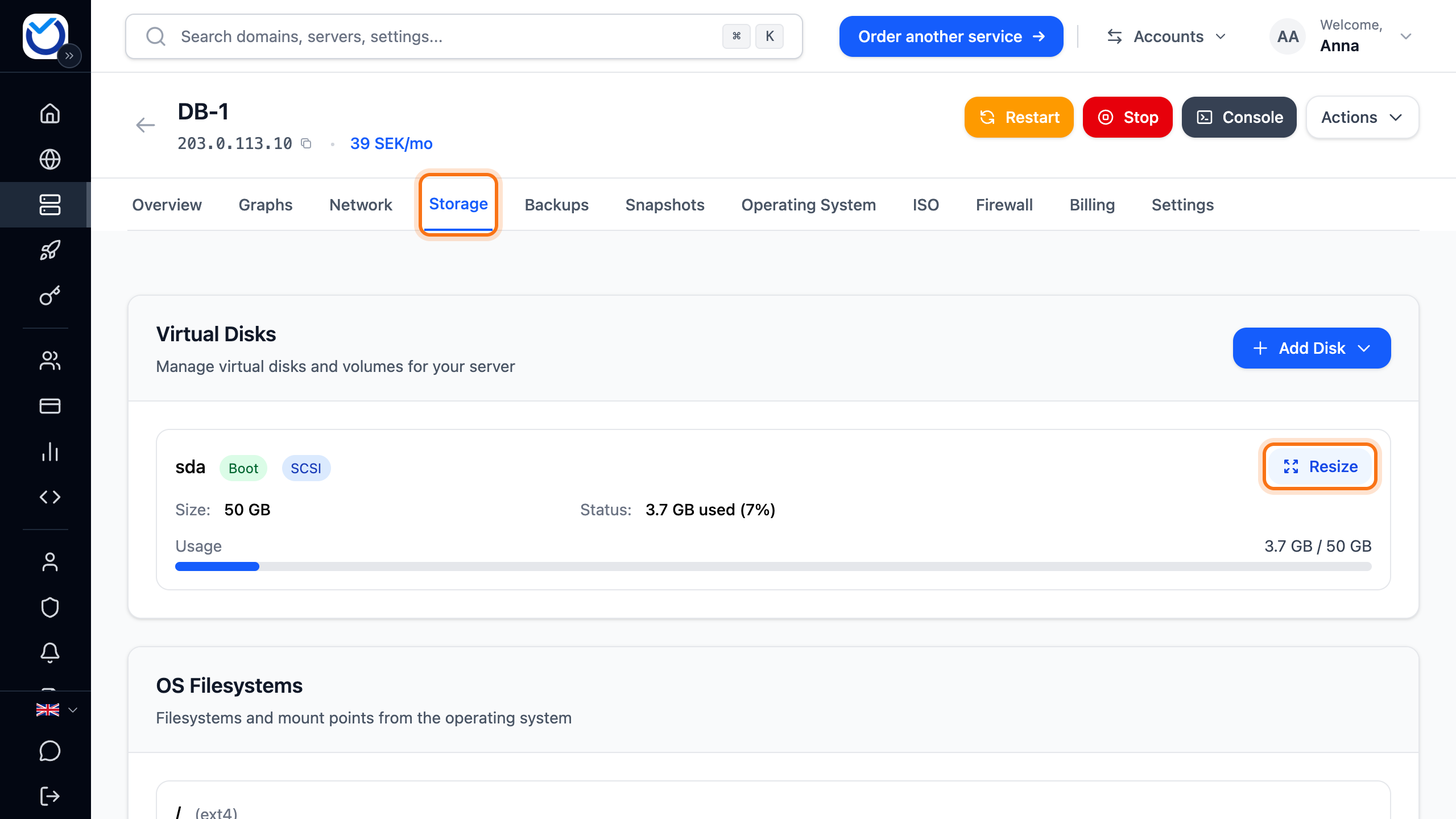
- Click Resize next to the disk you want to grow.
- Continue depending on the disk and the server:
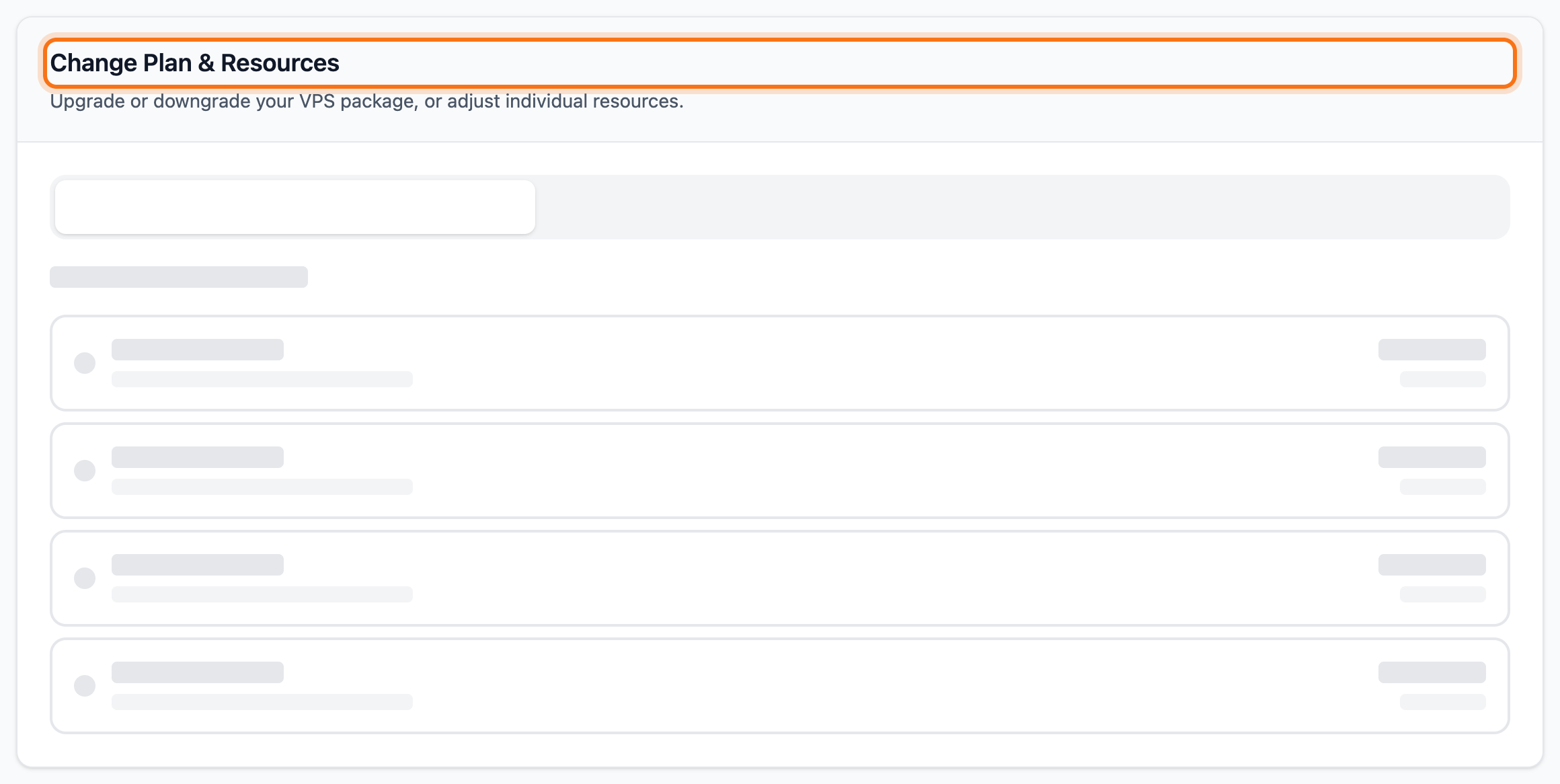
- The main disk of a regular VPS is marked Boot. You are taken to the Change Plan & Resources box on the Billing tab. It opens on Adjust Resources and shows the row for the main disk. Increase the storage there and confirm. The price is shown before you confirm.
- For every other disk, the Resize disk dialog opens. Choose how much the disk should grow under Increase by and click Resize disk.
A disk can only grow, never shrink. A separate disk on a regular VPS grows from the storage you have bought for separate disks. If none is left, you are taken to the Billing tab. If your account’s storage allowance is not enough on a pay-as-you-go VPS, you are taken to a form where you ask for a higher limit.
What happens next
Section titled “What happens next”The disk gets bigger. The file system in the operating system does not grow by itself, though.
- Linux: next to the disk on the Storage tab you see One more step to use your new storage. Click Use full storage. The server does not need a restart. If you would rather run the commands yourself over SSH, they are under Advanced: run via SSH.
- Windows: the box describes the steps in Disk Management. There you extend C: with Extend Volume.
The box only shows while the server is running and has the QEMU Guest Agent. If the agent is missing, QEMU Guest Agent Not Installed shows further down the tab, with the command that installs it.
Add a separate disk
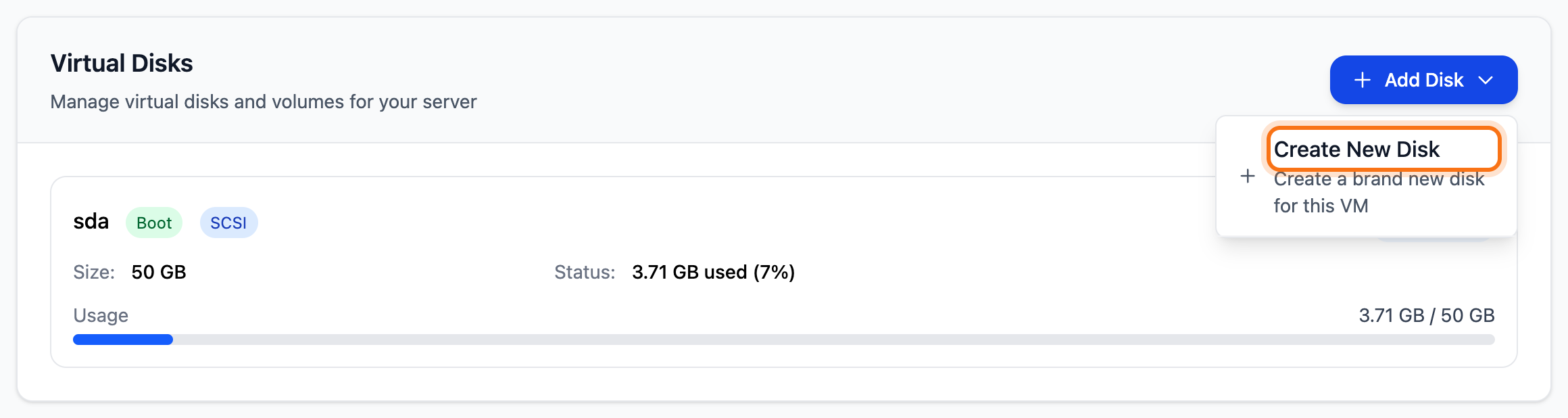
Section titled “Add a separate disk”- On the Storage tab, click Add Disk and choose Create New Disk.
- Choose a size under Disk size and click Add disk.
- On a regular VPS the disk comes from the storage you have bought for separate disks. If none is left, you are taken to the Billing tab to buy it first.
- On a pay-as-you-go VPS you choose the size in steps of 10 GB. The dialog shows the Estimated monthly cost.
- The disk shows on the tab as Ready to configure. The tab also shows the disk’s name inside the server, for example sdb.
- Create a file system on the disk and mount it in the operating system:
-
Linux: check the name with
lsblk. Replace sdb with your disk’s name. Themkfs.ext4command erases everything on the disk you give it.Terminal window mkfs.ext4 /dev/sdbmkdir /datamount /dev/sdb /dataAdd the disk to
/etc/fstabso it is mounted again after a restart. -
Windows: open Disk Management. Initialise the new disk and create a new simple volume on it.
-
Delete a disk
Section titled “Delete a disk”- Click Delete next to the disk. The main disk cannot be deleted.
- The Confirm Disk Deletion dialog opens.
- On a pay-as-you-go VPS you can tick Keep as Volume. The button then says Detach Disk. The disk is kept as a volume that you can attach to another server. More in Volumes for pay-as-you-go VPS.
- Otherwise click Delete Permanently.
On a regular VPS, what you pay does not change when you delete a disk. If you no longer need the space, reduce it on the Billing tab.
Good to know
Section titled “Good to know”- A server with a separate disk cannot be reinstalled. Delete the disk first. More in Reinstall your VPS with a new operating system.
- No One more step to use your new storage box after you grew the disk? Check that the server is running and the QEMU Guest Agent is running in it. Then reload the page. The box only shows when more than 5 GB of the disk lies outside the file system. If you grew the disk only a little, it does not show.