
Move a service or domain to another account
Checked against the client area 29 October 2026
When someone else is taking over a VPS, web hosting or a domain, you create a transfer code. The recipient enters the code on their own Hostup account. The service then moves there with everything on it. From then on, the recipient pays for it.
Before you start
Section titled “Before you start”- The recipient needs their own Hostup account.
- The VPS or web hosting must be active. If you have requested cancellation, withdraw the request first.
- If the domain has an unpaid invoice or a pending order, it must be paid or cancelled first.
- Codes are created and accepted by the account owner. A user or partner with access to the account cannot do it.
Transfer a VPS or web hosting
Section titled “Transfer a VPS or web hosting”Open your servers in the client area
- Open the button for the service:
- For a VPS, open the server and go to the Settings tab. Under Transfer Server, click Transfer to Another Account.
- For web hosting, go to Web Hosting on the start page. Click More next to the hosting account and choose Transfer Ownership.

- Click Generate Transfer Code.
- Copy the code with the copy icon (Copy to clipboard). Send it to the recipient.
Transfer a domain
Section titled “Transfer a domain”Open your domains in the client area
- Open the domain and go to the Settings tab.
- Click Transfer Domain.
- Choose Move the domain to another HostUp account. The domain moves to the recipient’s account. The recipient then pays for the renewal. The holder the domain is registered to does not change.
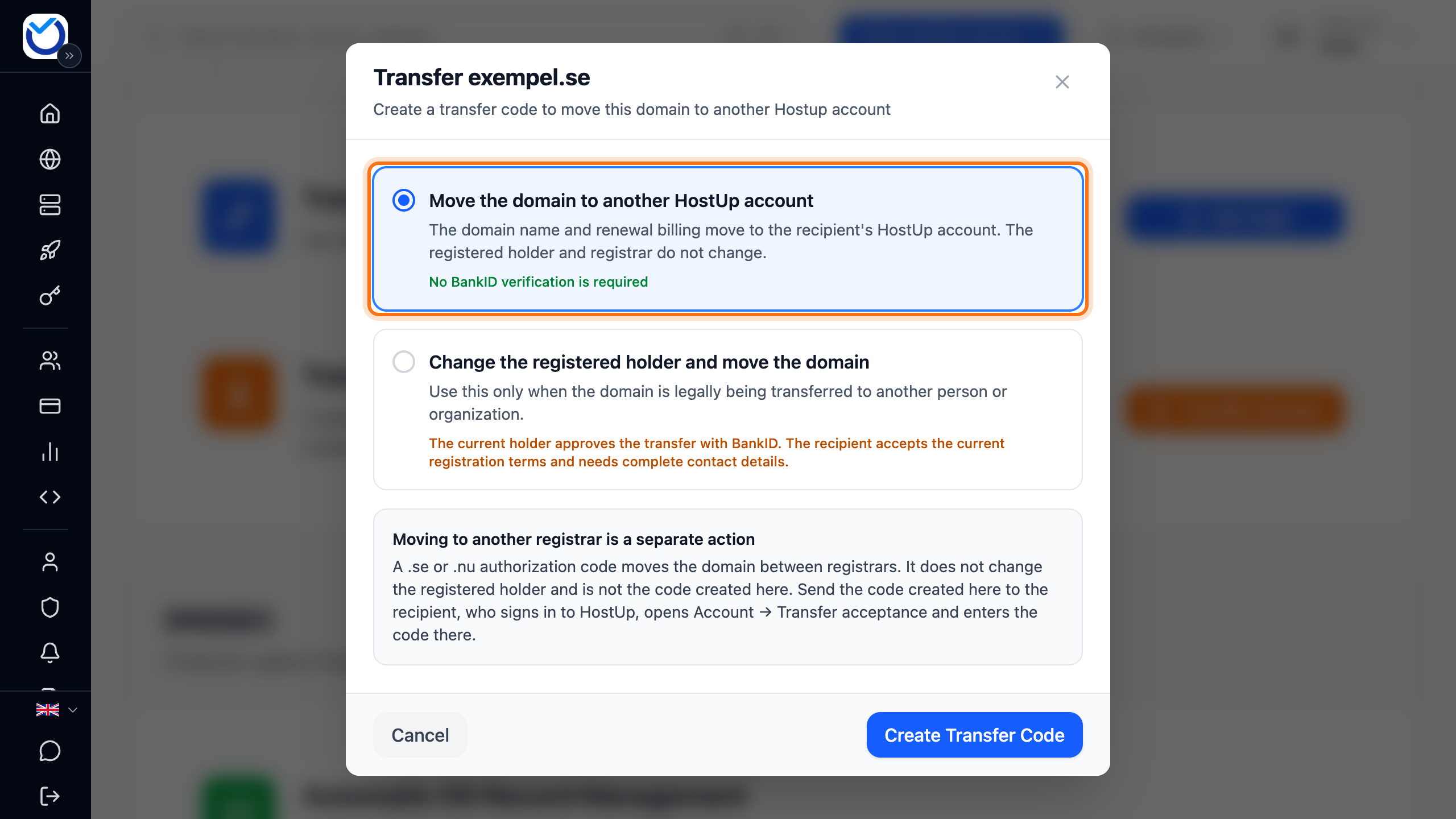
- Click Create Transfer Code.
- Copy the code with the copy icon (Copy code). Send it to the recipient.
If a .se or .nu domain should also change holder as it moves, choose Change the registered holder and move the domain in step 3. If the domain has a registry lock, remove it first. When you click Create Transfer Code, the client area asks you to identify yourself with BankID. If you are not the holder, a link appears. Send it to the holder. Once the holder has approved with BankID, click Approval is complete — retry. If the domain should change holder but stay on your account, see Transfer a .se or .nu domain to a new holder.
Accept a service
Section titled “Accept a service”Open Transfer acceptance in the client area
- Sign in to the account that is taking over the service and go to Account › Transfers.
- Paste the code under Transfer code. Click Preview Transfer.
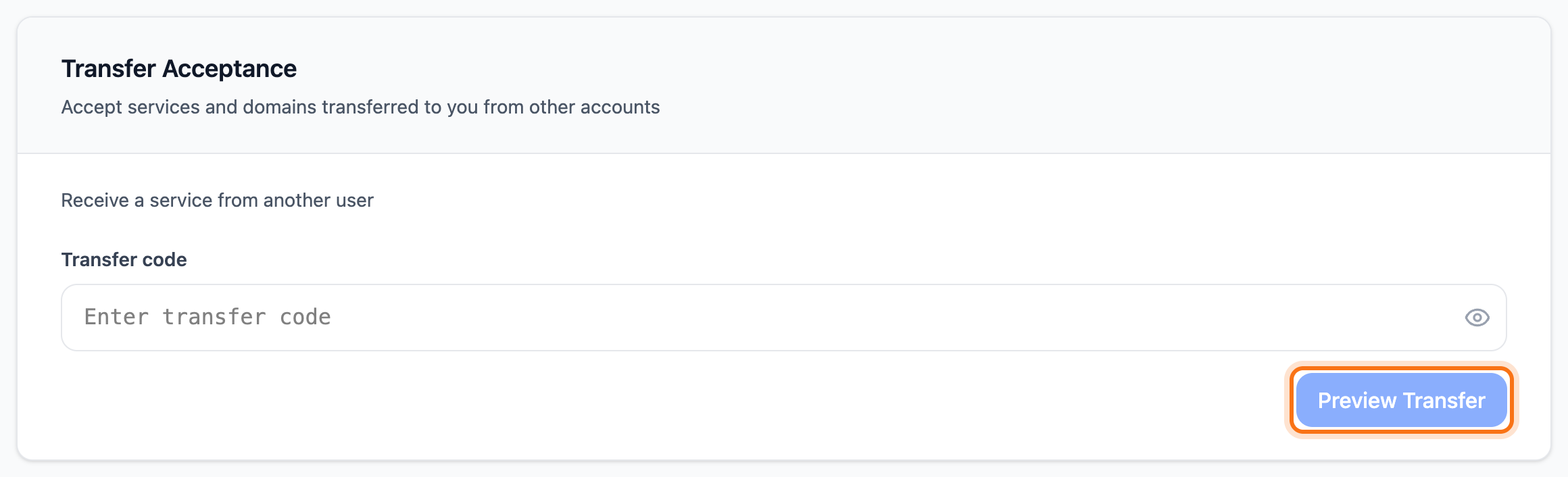
- Check that it is the right service. Click Accept Transfer.
If you are accepting a .se or .nu domain that changes holder, first tick that you accept the registration terms. The account needs a name, a phone number and a personal identity number or organisation number. If anything is missing, the page says so. Click Go to account details, fill it in and save.
A code starting with SE- or NU- is a transfer code for changing provider. It does not work here. See Transfer a domain away from Hostup.
What happens next
Section titled “What happens next”Once the code is accepted, the page says Transfer Complete!. The service is on the recipient’s account straight away and disappears from the sender’s.
If a VPS or web hosting had an unpaid renewal invoice, it is cancelled on the sender’s account. The recipient gets a new invoice on their account.
Good to know
Section titled “Good to know”- The code is valid for 7 days and works once. If you create a new code for the same service, the previous one stops working.
- Only share the code with the recipient. Anyone who has the code can take over the service until it runs out.
- If a change to the service is scheduled, it cannot be transferred until the change has gone through or been removed. If you bought extra bandwidth for the current period on a VPS, it can be transferred once the bandwidth has reset.
- Moving a service between your own accounts works the same way. For more on several accounts, see Several accounts – add and switch between accounts.