
Start, stop and restart your VPS
Checked against the client area 29 October 2026
You start, stop and restart the server with the buttons at the top of its page. Stop and restart first shut the server down gracefully, the way you shut down a computer. If it does not respond, the power is cut.
Open your servers in the client area
How to
Section titled “How to”- Open the server under VPS. If it is running, you see Restart and Stop at the top. If it is stopped, you see Start.
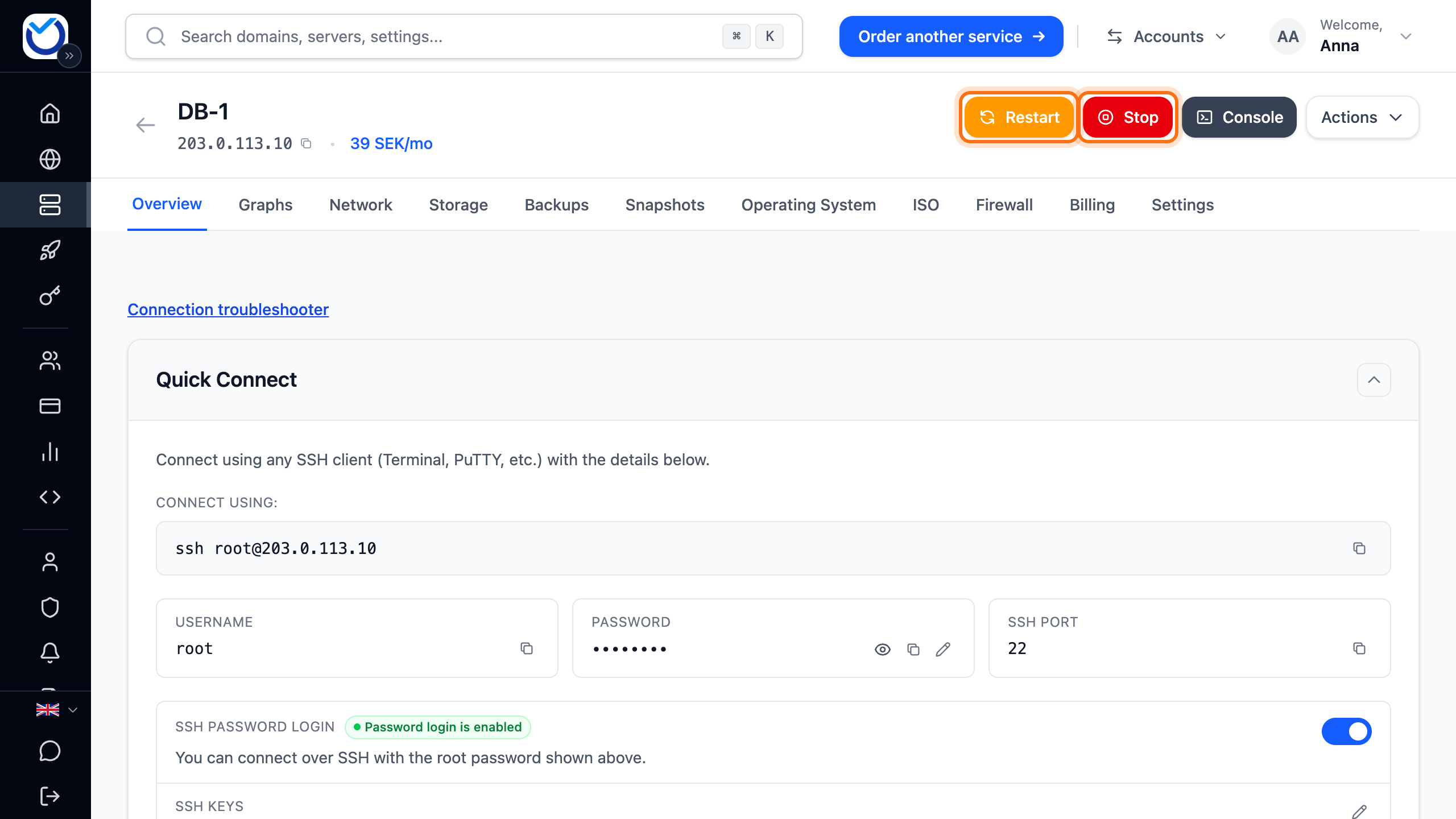
- Click Start to start the server. It starts straight away, without asking.
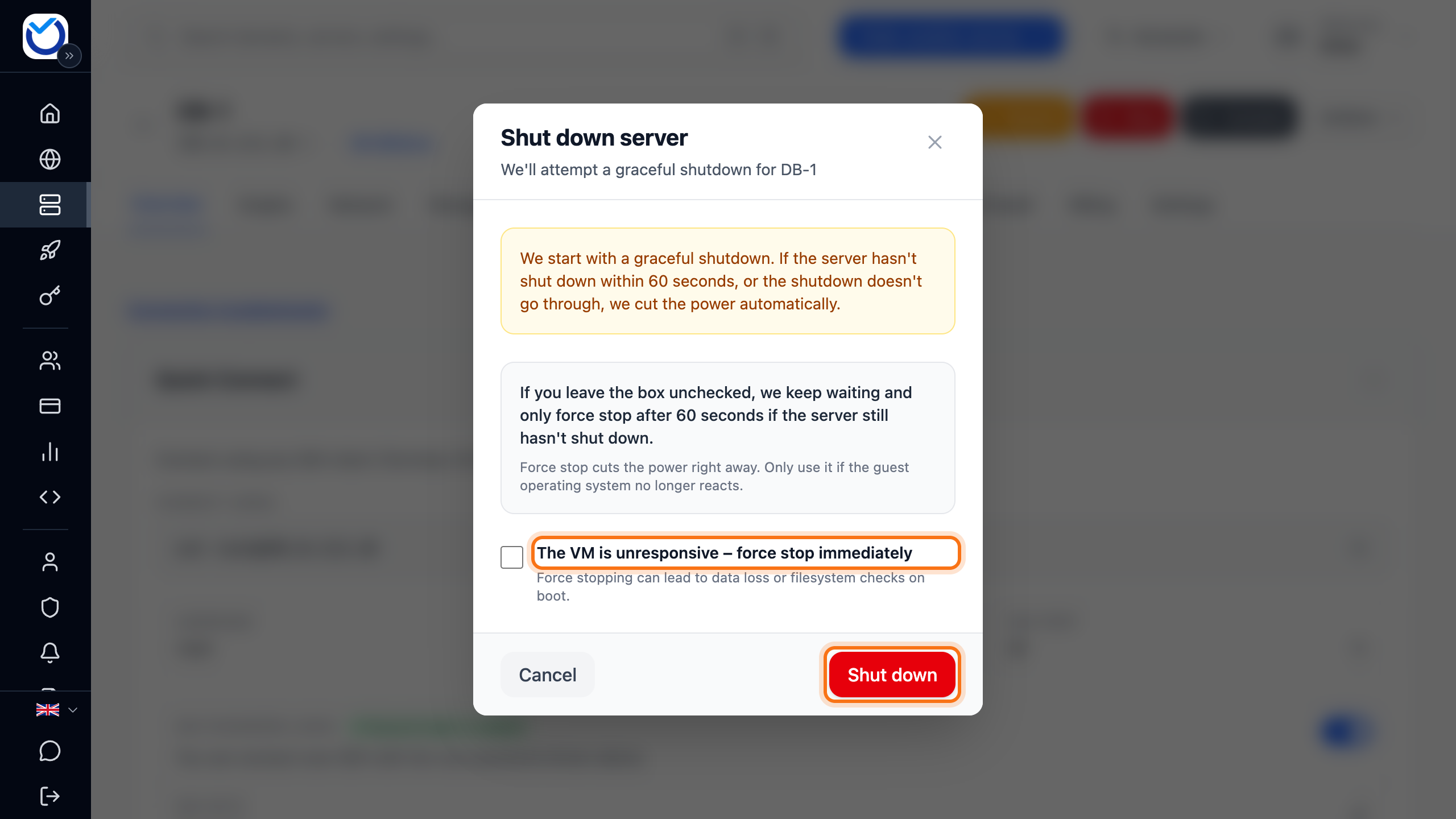
- Click Stop to shut the server down, or Restart to restart it. A dialog opens.
- The server gets 60 seconds to shut itself down. If it is not off by then, the power is cut automatically. If the operating system does not respond at all, you can tick The VM is unresponsive – force stop immediately. The power is then cut immediately. This can cause data loss or a file system check at the next start.
- Click Shut down or Restart.
What happens next
Section titled “What happens next”While the server starts, stops or restarts, the page shows Server action running. The buttons cannot be used until it is done. A stopped server has the Server is stopped badge next to its name.
Sometimes a start has to wait for free capacity. The same box then says so. The server starts by itself as soon as there is room.
Start or stop several servers
Section titled “Start or stop several servers”- Go to VPS and tick the servers in the list. The Start, Stop and Restart buttons appear above the list.
- Click the action you want.
No dialog opens here. The servers are shut down gracefully in the same way as above. A server whose bandwidth is used up is skipped. The same buttons are also shown as icons on each row of the list. There, stop and restart open the dialog just as on the server’s page.
Good to know
Section titled “Good to know”- While another operation is running on the server, such as a backup or a reinstall, the buttons cannot be clicked. Wait until it has finished.
- If the bandwidth for the period is used up, Bandwidth blocked shows next to the name. The server then cannot be started or restarted. Stop still works. Buy extra bandwidth in the Bandwidth limit reached box on the Overview tab. Otherwise the server is unlocked when the next period begins. Paying a renewal invoice is not enough. Read more in Bandwidth on your VPS.
- On a phone or tablet the buttons are shown as icons only. The orange one restarts, the red one stops and the green one starts.
- A stopped VPS billed by the hour still costs money for its disk, see Create a VPS billed by the hour.