
Monitor your VPS: graphs, traffic and alerts
Checked against the client area 29 October 2026
The client area shows how hard your VPS is working: CPU, memory, disk and network traffic over time. It also shows how much bandwidth the server has used this period. If you want to know straight away when something spikes, turn on alerts.
Open your servers in the client area
How to view the graphs
Section titled “How to view the graphs”- Open the server in the client area and go to the Graphs tab.
- Pick a time range in the list to the right of Performance metrics. You can choose anything from Last Hour to Last Year. The range applies to every chart on the page.
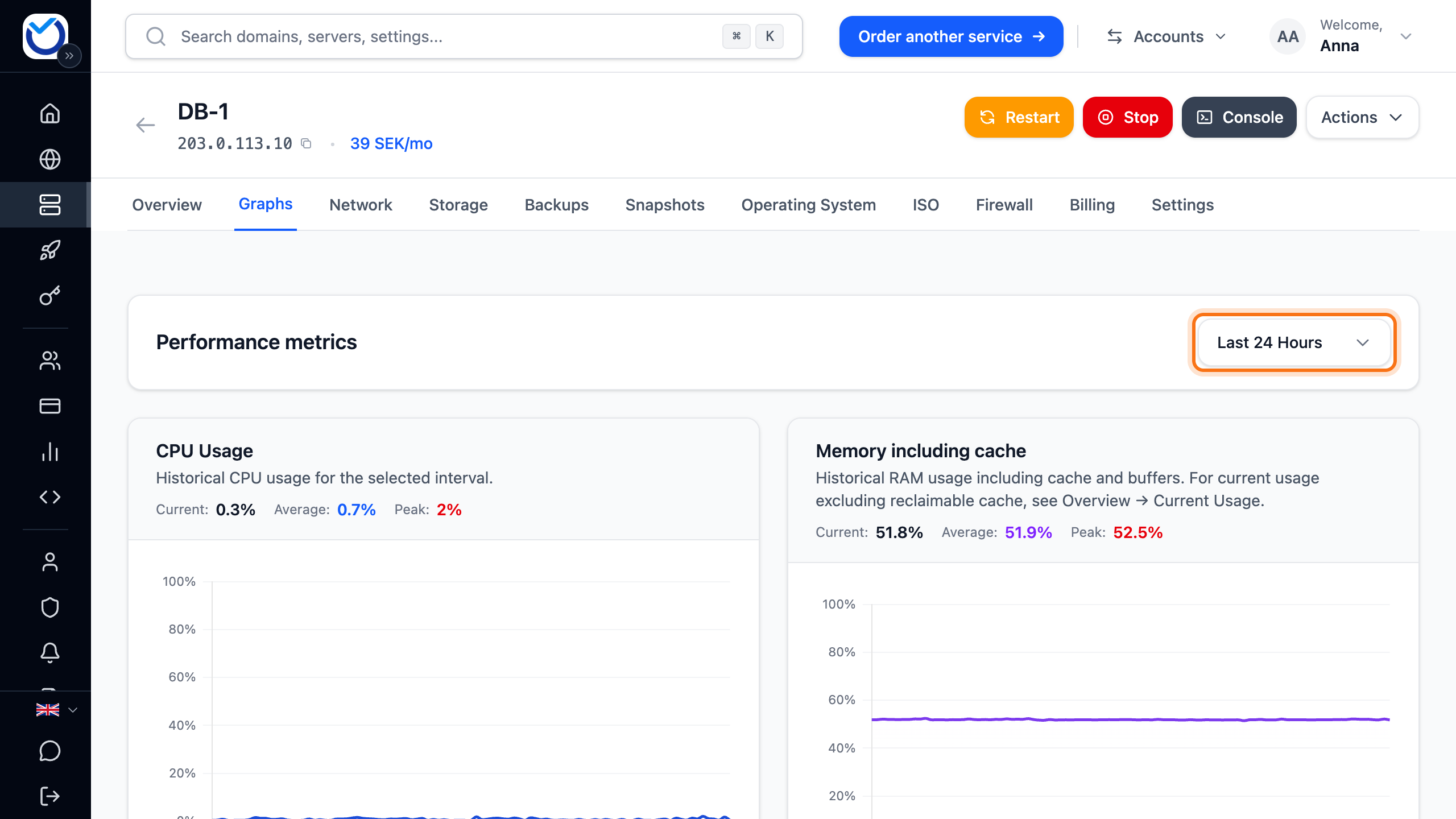
- Read the charts CPU Usage, Memory including cache, Network Traffic and Disk I/O. Above each chart are figures for the range, such as the average and the peak.
- Click Inbound or Outbound on the network chart to hide that line. Click it again to show it. The disk chart works the same with Read and Write.
The graphs only fill up while the server is running. When it is stopped, the tab shows the history that is already there.
Bandwidth this period
Section titled “Bandwidth this period”Bandwidth is counted per period. A new period starts every month, on the same day of the month as the server renews. That also applies if you pay for a year at a time. Inbound and outbound traffic count together.
- Open the server. On the Overview tab, the Bandwidth Usage box shows how much of the included bandwidth is used. Below it you see when the counter resets.
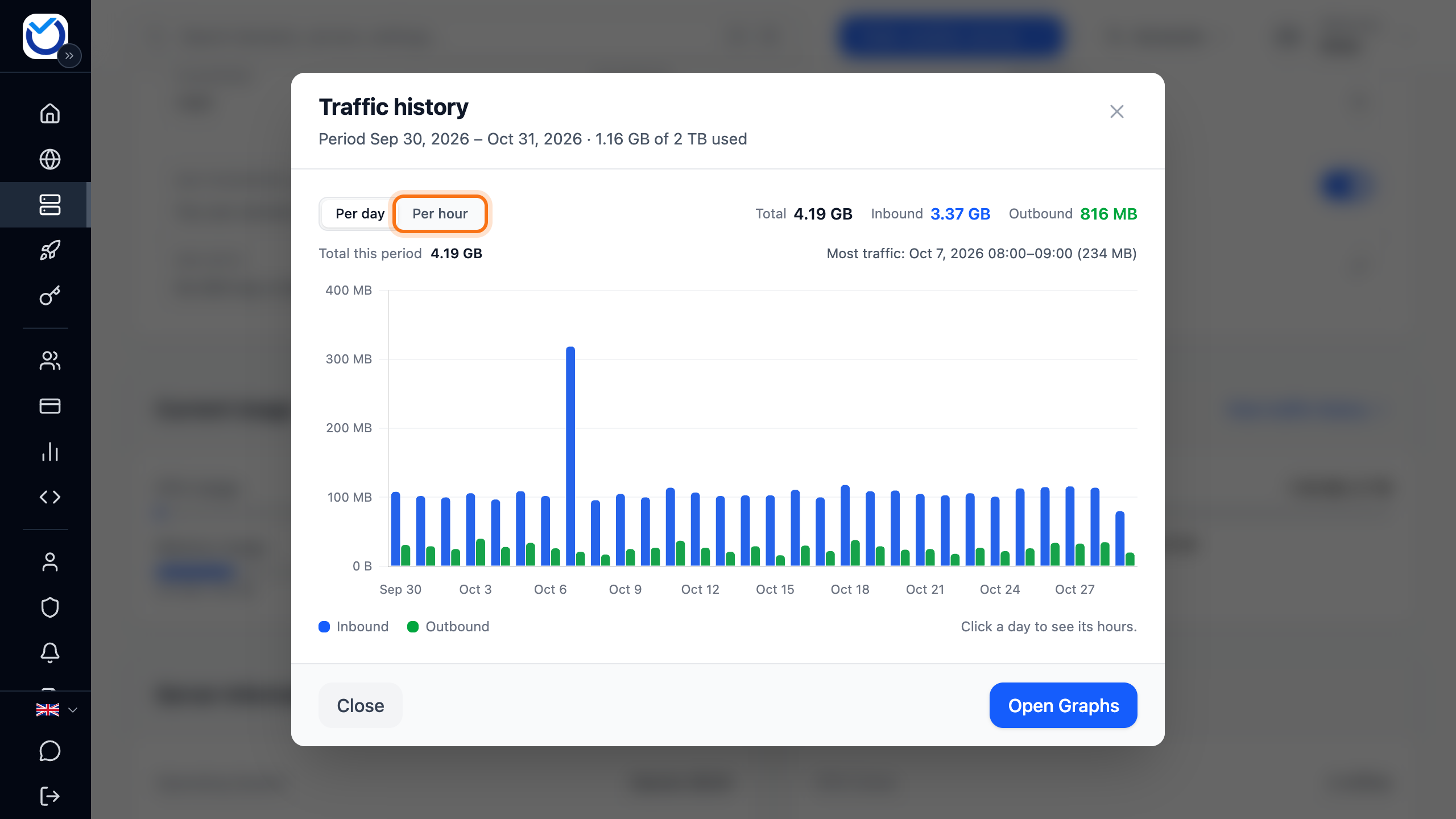
- Click View traffic history to see the traffic day by day this period.
- Click a day to see its hours. You can also pick Per hour straight away.
On the Graphs tab, the current period is shown under Network Traffic. If you pick Last 30 Days or Last Year, a dashed line shows where a new period started.
What happens when the bandwidth runs out is in Bandwidth on your VPS. It also shows how to buy more.
Get alerts when the server is under heavy load
Section titled “Get alerts when the server is under heavy load”You can get an alert when CPU or memory goes over a limit you choose. You can also get an email when the server restarts without the restart being started in the client area.
- Click Notifications in the menu and choose the VM Monitoring tab. The tab is only there when you have a VPS.
- Find the server under VPS Monitoring.
- For an email when the server restarts on its own, turn on the switch next to Restart emails.
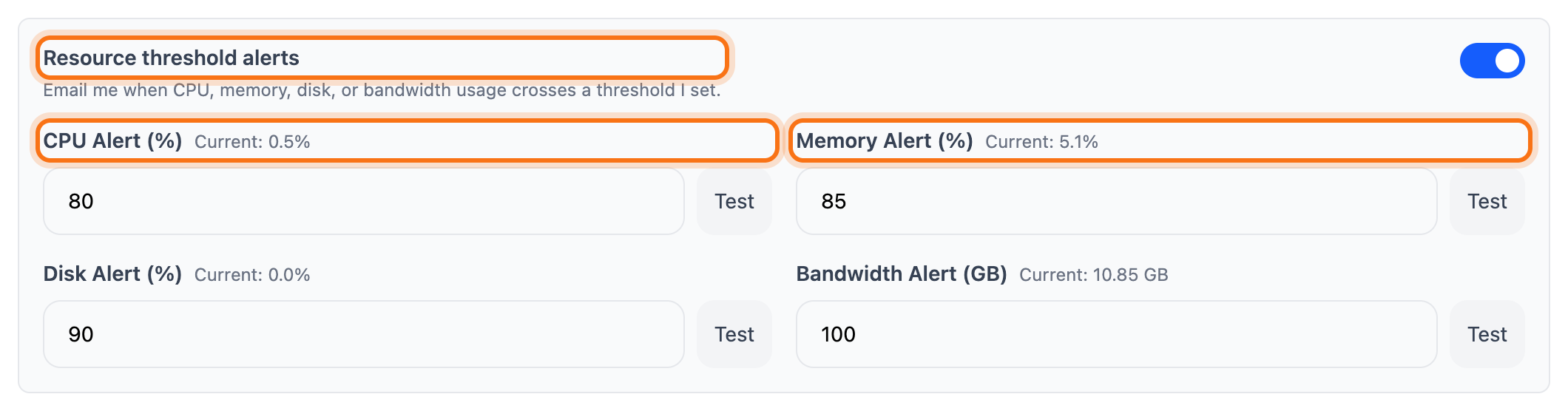
- Turn on the switch next to Resource threshold alerts.
- Enter the limits in percent under CPU Alert (%) and Memory Alert (%).
- Click Save VPS monitoring. Nothing is saved until you click it.
- Click Test next to CPU or memory to check that the alert gets through.
What happens next
Section titled “What happens next”CPU and memory are checked every five minutes. The value is an average over the last few minutes. The same alert is sent at most once every 12 hours for each server.
Alerts show under the Notifications tab. As email, they only go to addresses you have added and verified under Delivery Channels. Restart emails go to the same addresses.
- Go to the Delivery Channels tab and click Add Email Address.
- Enter a name and the email address. In the list for the type of notifications, choose All notifications (URL + VM) or VM notifications only. The other choices get no VPS alerts. Click the add button.
- Click Send verification code next to the address.
- Enter the code from the email and click Verify e-mail.
Good to know
Section titled “Good to know”- The memory chart includes cache and buffers. How much memory is really in use is shown under Current Usage on the Overview tab. That figure needs the QEMU Guest Agent running inside the server.
- Below the Restart emails switch it says whether restarts can be detected on the server. That needs the server to be running with the QEMU Guest Agent active inside it.