
Connect to your Windows VPS with Remote Desktop (RDP)
Checked against the client area 29 October 2026
You connect to a VPS running Windows with Remote Desktop. Everything you need is under Quick Connect on the server’s overview: the address, the username and the password.
Open your servers in the client area
How to
Section titled “How to”- Open the server in the client area. The Overview tab is shown.
- Find the Quick Connect box. If it is collapsed, click the arrow to the right of the heading.
- The server’s IP address is under Connect using Remote Desktop to:. Copy it with the icon next to it (Copy Address).
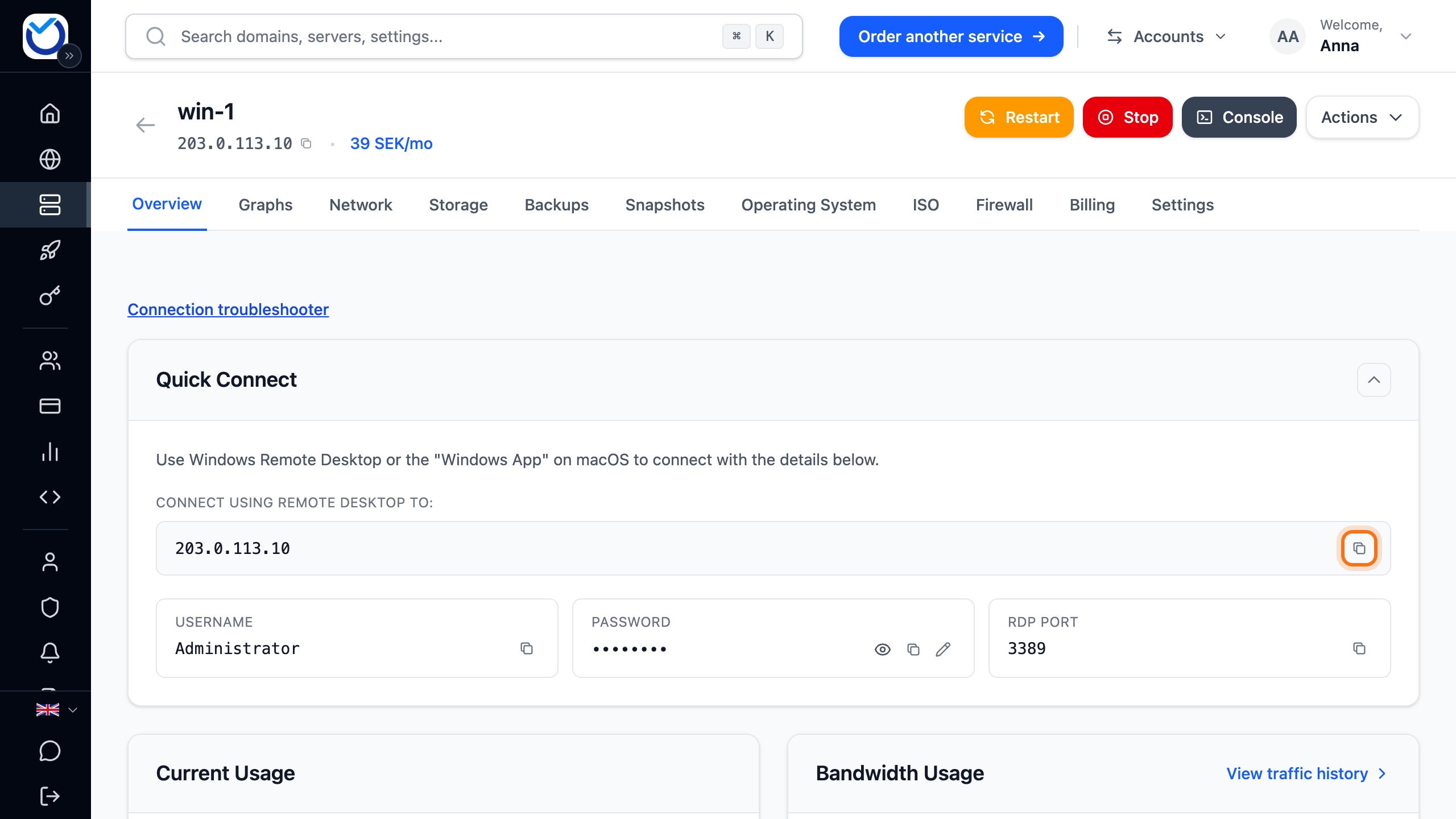
- The username is under Username. Copy it with the icon next to it (Copy).
- The password is under Password. Click the eye (Show) to see it, or the icon next to it (Copy) to copy it.
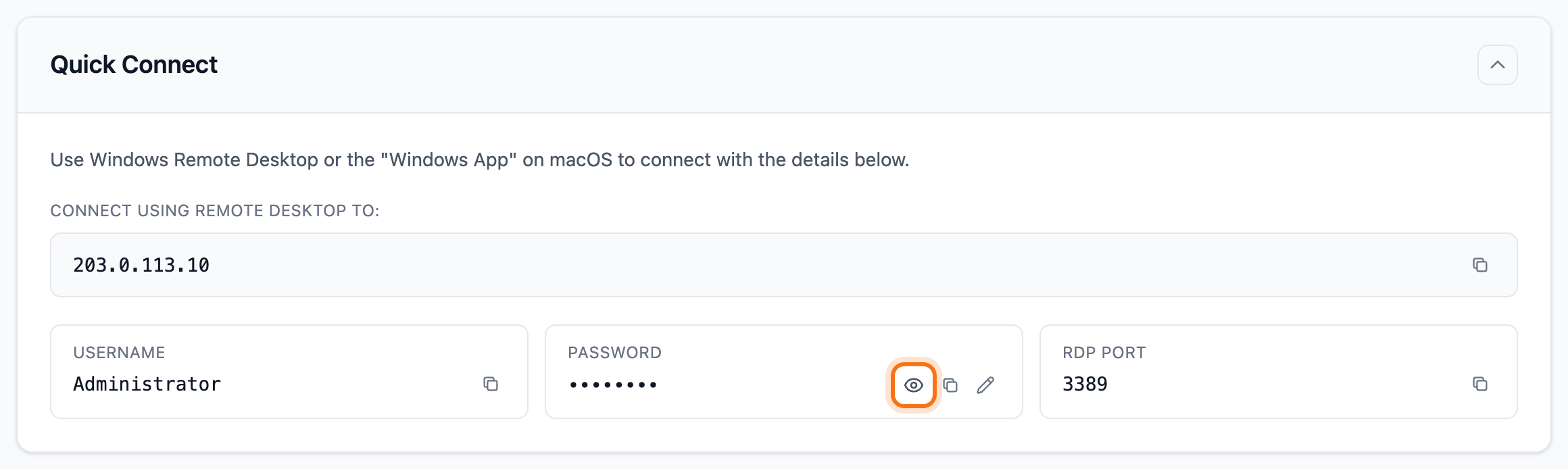
- Connect with Remote Desktop on Windows or the Windows App on a Mac. Enter the address, username and password from the box. The port is under RDP Port. It is 3389, the standard Remote Desktop port.
Good to know
Section titled “Good to know”- If you have turned on the firewall in the client area, it needs a rule for Remote Desktop. Pick the RDP - Remote Desktop (port 3389) template when you add the rule. See Firewall for your VPS.
- If the password doesn’t work, click the pencil (Reset Server Password) next to it and create a new one. If the box shows no password, do the same from the Settings tab. See Reset the password for your VPS.
- If you can’t get through, click Connection troubleshooter at the top of the Overview tab. Then click Run check. It checks whether the server answers from the internet. You can also log in through the console.
- If the box shows a command starting with ssh, the server runs Linux. You connect to it with SSH, not Remote Desktop. To switch to Windows, see Reinstall your VPS with a new operating system.