
Forward email to Gmail or another address
Checked against the client area 29 October 2026
Forwarding sends email for an address on your domain, for example info@yourdomain.com, on to another inbox such as Gmail. You set it up on the domain’s Email tab. How it works depends on whether the domain is on web hosting.
Open your domains in the client area
Before you start
Section titled “Before you start”Open the domain under Domains and go to the Email tab.
- If you see the Add forwarding button, the domain is on web hosting. Follow the With web hosting part.
- Otherwise, follow the Without web hosting part. The domain must then use our nameservers. If it doesn’t, the tab cannot be clicked. Switch to our nameservers first.
With web hosting
Section titled “With web hosting”- Click Add forwarding under Email forwarding.
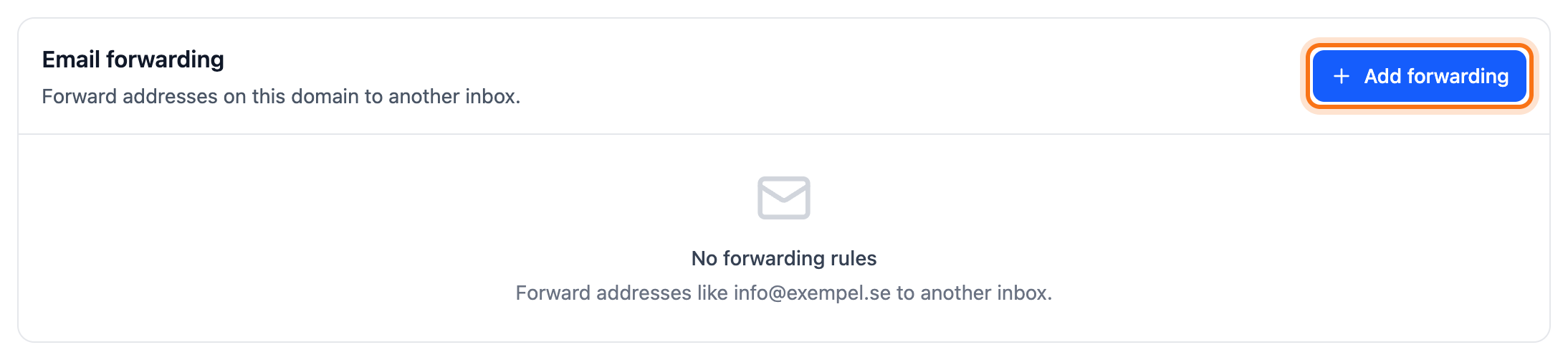
- Under Address, type what goes before the @, for example
info. - Under Forward to, type the address the email should go to.
- Click Add forwarding.
The forwarding shows in the list straight away. It works as soon as the domain’s email goes to the web hosting. If it doesn’t, read Email not arriving at your web hosting.
Without web hosting
Section titled “Without web hosting”- Click Configure forwarding. If forwarding is already on, go straight to step 3.
- Click Enable Email Forwarding. Turning it on can take a few minutes. It finishes by itself.
- Click Add address.
- Under Email address, type what goes before the @, for example
info. - Under Recipients, type the address the email should go to. To send it to several addresses, pick each one in the list that appears as you type. You can have up to 10 recipients.
- Click Add address.
Each new recipient gets an email with a verification link. The address shows in the list straight away. Forwarding starts once the recipients have clicked the link. Then click Check verification next to the address. You can also open the tab again.
If the email has not arrived, click Send again next to the recipient. A recipient that is already verified doesn’t need to verify again. You pick it from the list when you add more addresses.
Receive email for every address (catch-all)
Section titled “Receive email for every address (catch-all)”A catch-all rule handles email to addresses on the domain that have no forwarding. It is there for domains without web hosting.
- Click Manage at the top of the tab.
- Click Configure next to Catch-all Rule.
- Choose what happens to the email:
- Forward to email address: pick a recipient from the list. Only verified recipients are listed.
- Discard all (Drop): the email is not delivered anywhere.
- Disable catch-all: the sender is told the address does not exist.
- Click Save Settings.
Change or delete a forwarding
Section titled “Change or delete a forwarding”- With web hosting: click the bin (Delete forwarding) and confirm with Delete forwarding. To change the recipient, delete the forwarding and add it again.
- Without web hosting, change: click the pencil next to the address. Change the recipients and click Save Changes. New recipients must verify first. Save again once they have clicked the link. The old forwarding keeps working meanwhile.
- Without web hosting, delete: click the bin next to the address and confirm with Delete Rule.
- To turn off all forwarding without web hosting, click Manage and then Turn off forwarding. Confirm with Turn off forwarding. None of the addresses are forwarded after that.
Good to know
Section titled “Good to know”- If you want an inbox of your own on the domain, you need an email account. Read Create an email account.
- Forwarding without web hosting looks after the domain’s MX records. If you add your own MX record on the DNS Management tab, the client area asks first.