
Turn on password login for SSH on your VPS
Checked against the client area 29 October 2026
If you get “Permission denied (publickey)” when you connect with SSH, the server only accepts SSH keys. You turn on password login in the client area. You don’t need to log in to the server first. This applies to a VPS running Linux.
Open your servers in the client area
Before you start
Section titled “Before you start”The server must be running. The client area changes the setting through the guest agent inside the server (QEMU Guest Agent). If the agent doesn’t answer, it reads Password login status is unknown. The switch can’t be clicked then. The reason is shown under the heading.
How to
Section titled “How to”- Open the server in the client area. The Overview tab is shown.
- Find the Quick Connect box. If it is collapsed, click the arrow to the right of the heading.
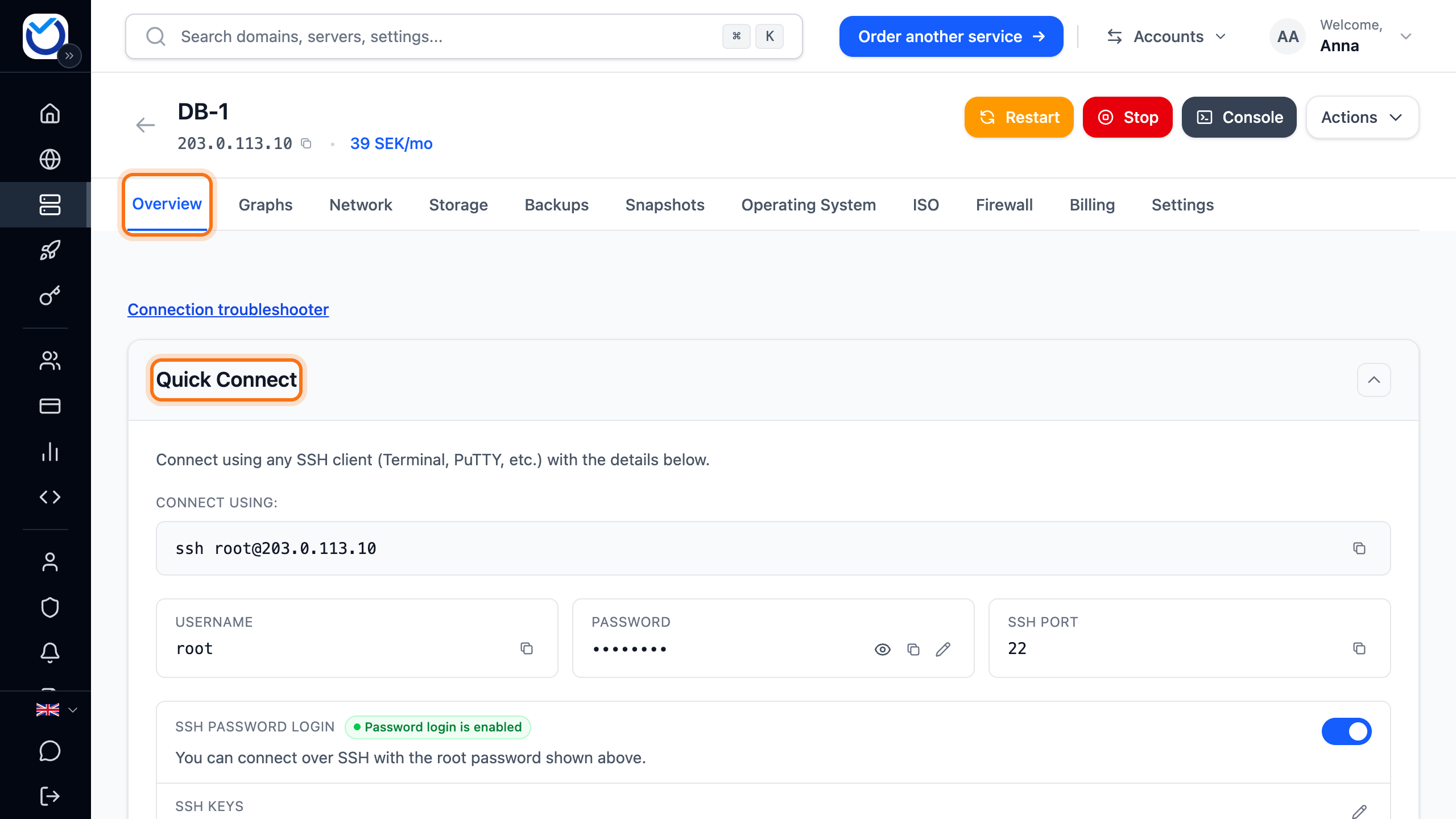
- Under SSH password login you see whether password login is on or off. Click the switch on the right to turn it on.

What happens next
Section titled “What happens next”While the setting changes, it reads Updating.... The client area changes the SSH settings inside the server and restarts the SSH service. When it is done, it reads Password login is enabled.
You can now connect with SSH as root. The password is in the Password field under Quick Connect. If the change did not go through, a red message appears under the row. Try again.
Turn password login off
Section titled “Turn password login off”With password login off, you log in over SSH with an SSH key.
- Check that the server has an SSH key you can use. Click the pencil (Manage SSH Access) on the SSH keys row in the same box. The Settings tab opens with the Manage SSH Access window. Current server access lists the keys that give access right now. See Add SSH keys to your account and your VPS.
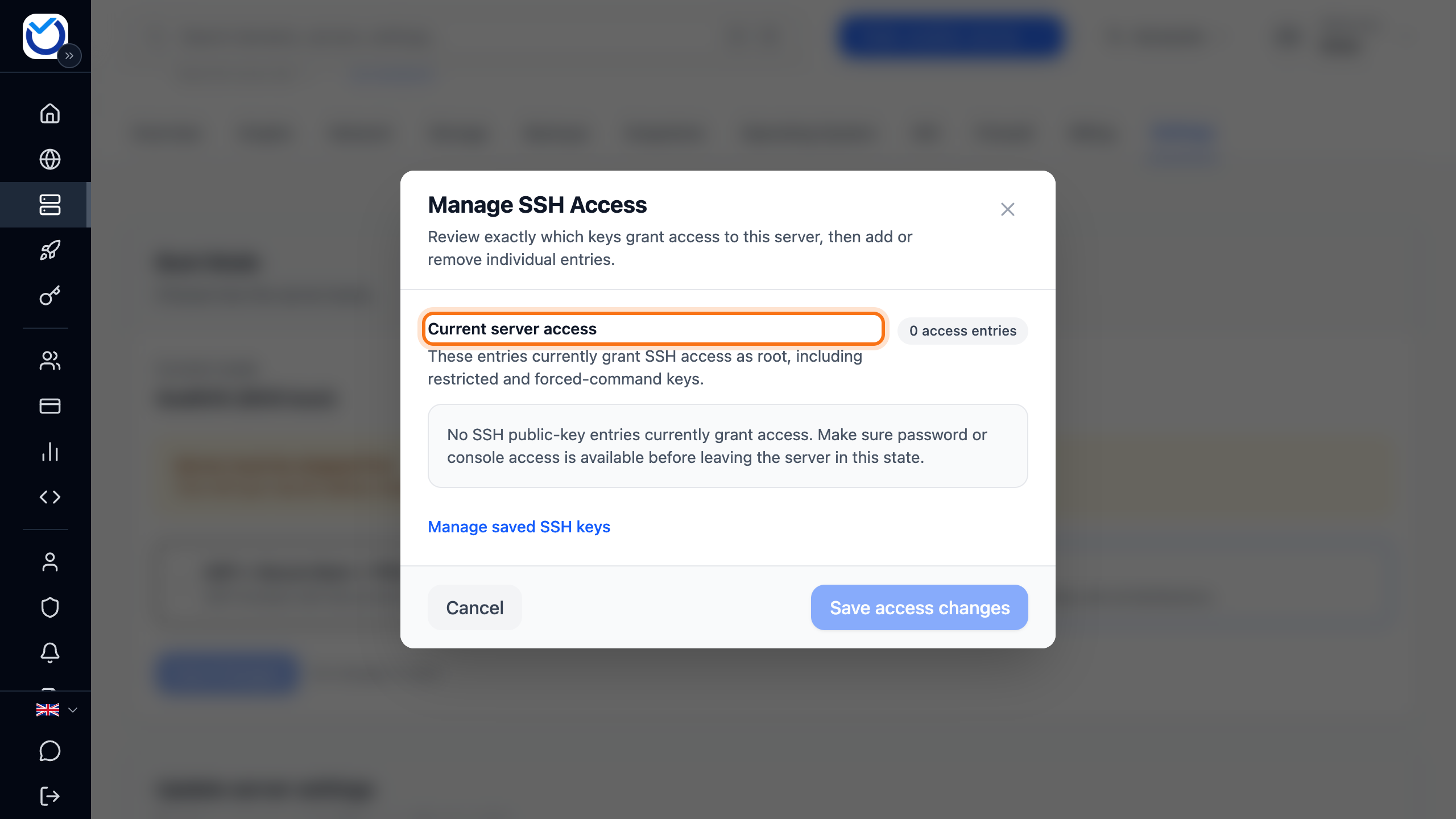
- Click the switch. It turns off straight away, without asking first. If the server has no key you can use, you can no longer get in over SSH.
- When it is done, it reads Password login is disabled. The root password no longer works over SSH.
Good to know
Section titled “Good to know”- The setting only covers SSH. In the console you log in with the password as usual. See The console (VNC).
- Right after the server is created, it reads Setting up server. Wait until the server has finished starting. The row updates by itself.
- If the client area can’t tell whether password login is on, no status is shown next to the heading. You can still click the switch to turn it on.
- If you have forgotten the root password, create a new one. See Reset the password for your VPS.
- A Windows server has no such row. You connect to it with Remote Desktop. See Connect to your Windows VPS with Remote Desktop.