
Add, change and delete DNS records for your domain
Checked against the client area 29 October 2026
DNS records decide where your domain points: the website, the email and the verifications other services ask for. If you are connecting the domain to Google, Shopify or Squarespace, for example, they give you the records. You add them on the domain’s DNS tab in the client area.
Open your domains in the client area
Before you start
Section titled “Before you start”The records in the client area only apply when the domain uses our nameservers. If it doesn’t, the tab shows Domain Using External Nameservers at the top. Then add the record wherever the domain’s nameservers are, or switch to our nameservers first.
If the domain has no DNS zone with us yet, click Create DNS zone now. You can then prepare the records before you switch nameservers.
How to
Section titled “How to”-
Click Domains in the menu and then the domain.
-
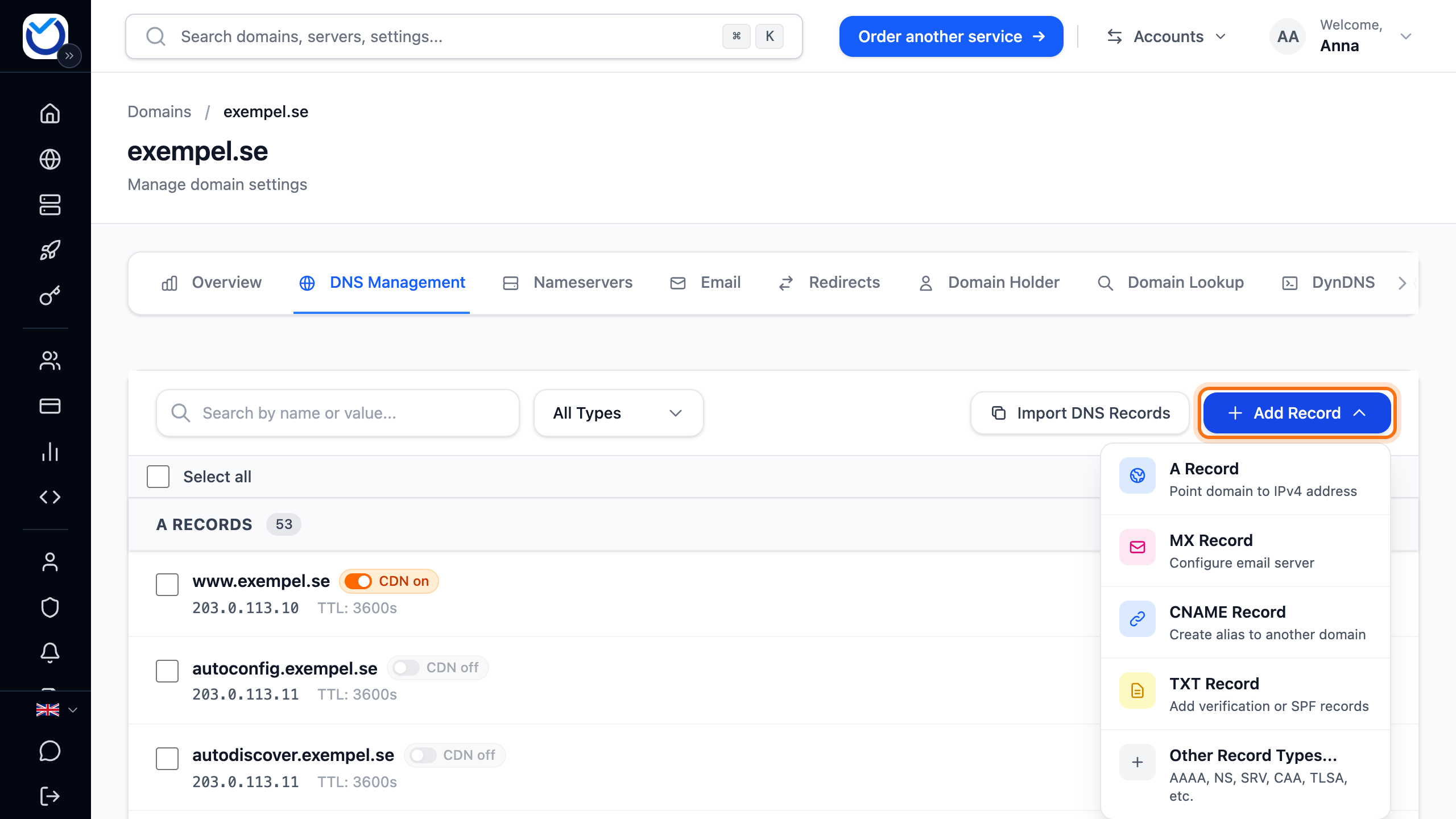
Go to the DNS Management tab. It lists the domain’s records, grouped by type.
-
Click Add Record and pick A Record, MX Record, CNAME Record or TXT Record. For AAAA, SRV, CAA and other types, click Other Record Types... and choose the type under Record Type. On a phone, tap the round plus button at the bottom right. It opens the dialog for an A record. Change the type under Record Type if you need to.
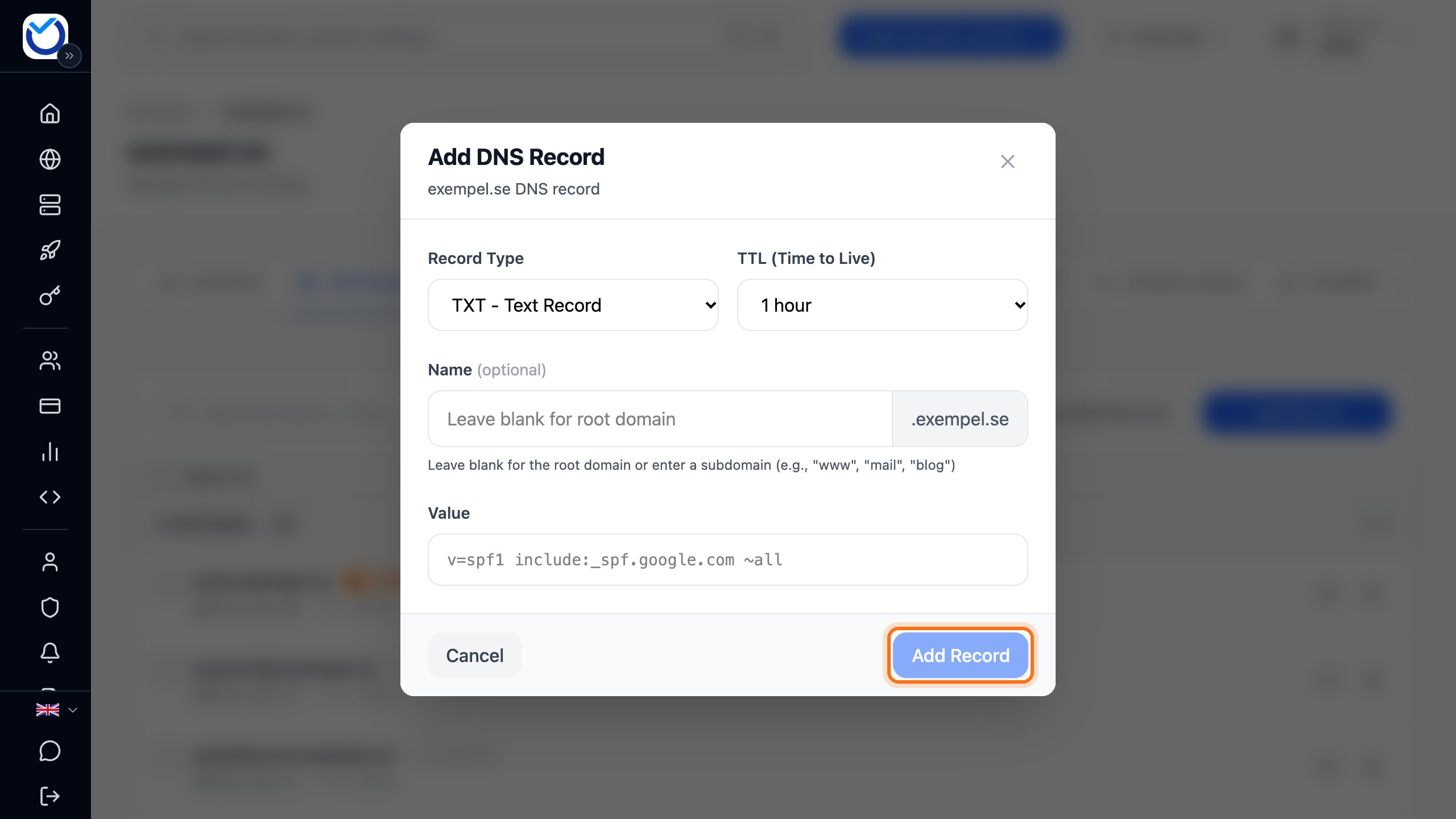
- Under Name, type the part that comes before the domain name, for example
www. For a record on the domain itself, leave the field empty. That includes when the service writes@. Services often call this field Host or Name. - Under Value, paste the value you were given. Services often call it Value, Target or Points to. For an MX record, also fill in Priority.
- Leave TTL (Time to Live) at 1 hour unless the service asks for something else.
- Click Add Record.
Change or delete a record
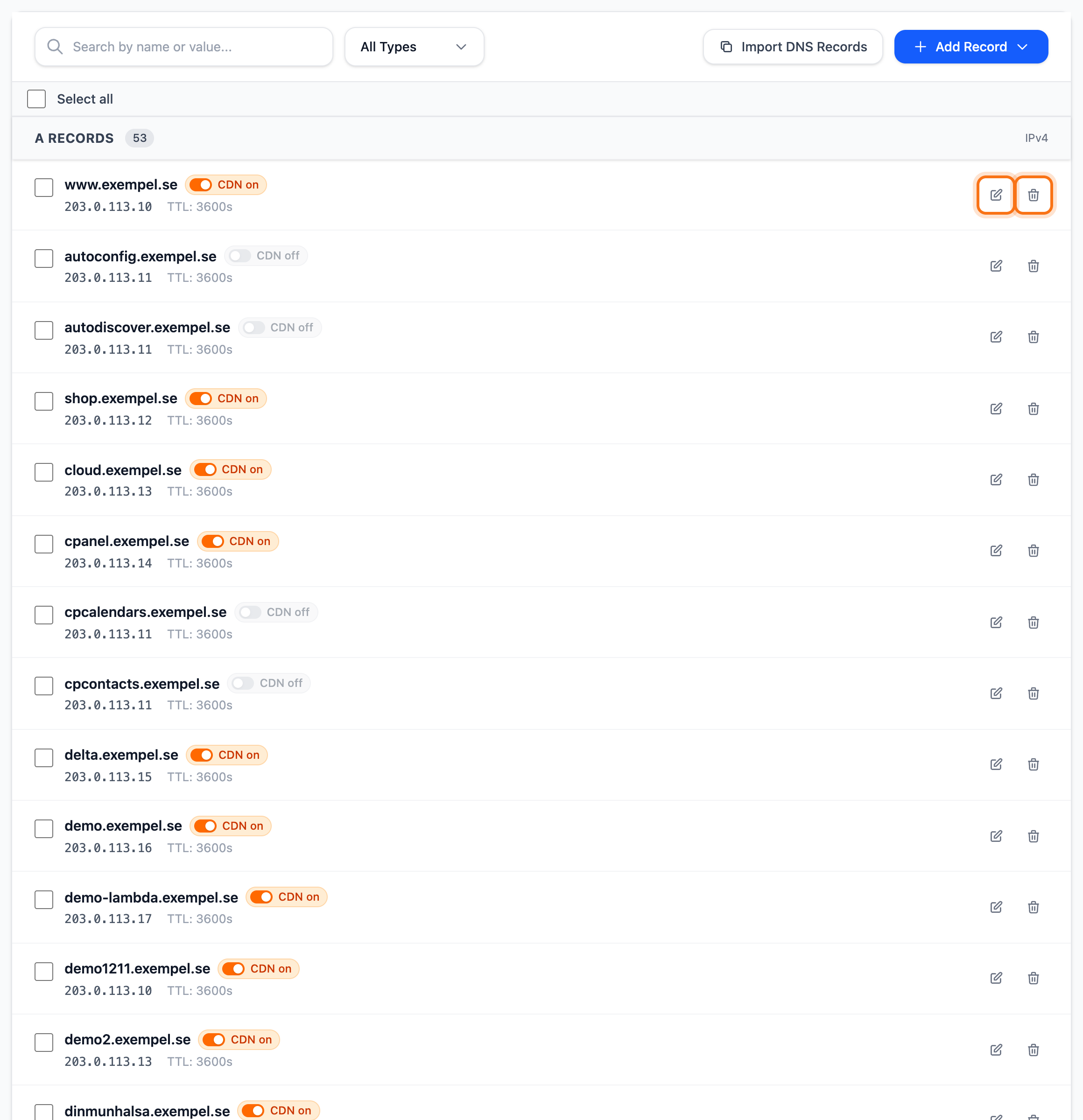
Section titled “Change or delete a record”- Change: click the pencil to the right of the record (Edit record). Make the change and click Save Changes.
- Delete: click the bin (Delete record) and confirm with Delete record. This cannot be undone. If you need the record again, add it anew.
- Several at once: tick the records on the left and click Delete Selected. Confirm with Delete.
What happens next
Section titled “What happens next”The record is saved and shows in the list straight away. Computers and networks that have already looked it up may keep the old answer for as long as the TTL says. With 1 hour, a change can take up to an hour to show everywhere.
If the domain shows our parking page, the page goes away when you add an A, AAAA or ALIAS record on the domain itself. To remove it without pointing the domain anywhere, click Remove parking page.
Good to know
Section titled “Good to know”- A CNAME record cannot sit on the domain itself. Use an ALIAS record there. A name that has a CNAME record cannot have any other records.
- If email forwarding is on for the domain, it manages the domain’s MX records. When you add your own MX record on the domain, the client area asks first. Click Turn off forwarding and add record if you want to switch.
- If the domain is registered elsewhere but uses our DNS, you find it under External domains on the Domains page. Click Manage DNS. Everything else works the same way.
- If you are moving DNS from another provider, Import DNS Records can fetch the records from there or read a zone file.
- To make the same change on several domains, tick them in the domain list. Click More actions and choose Edit DNS Records.