
See your costs and show prices with or without VAT
Checked against the client area 29 October 2026
Under Cost Management you see what you have paid and what your services cost per month. The page also lists services that get cheaper with a longer billing period. This guide also shows how to choose whether prices in the client area include VAT.
Open cost management in the client area
How to
Section titled “How to”- Click Cost Management in the menu.
- At the top you see Current Month, Year to Date and Forecasted Monthly. The first two are the sum of the invoices you have paid. The forecast is what your active services cost per month, plus a ten percent margin.
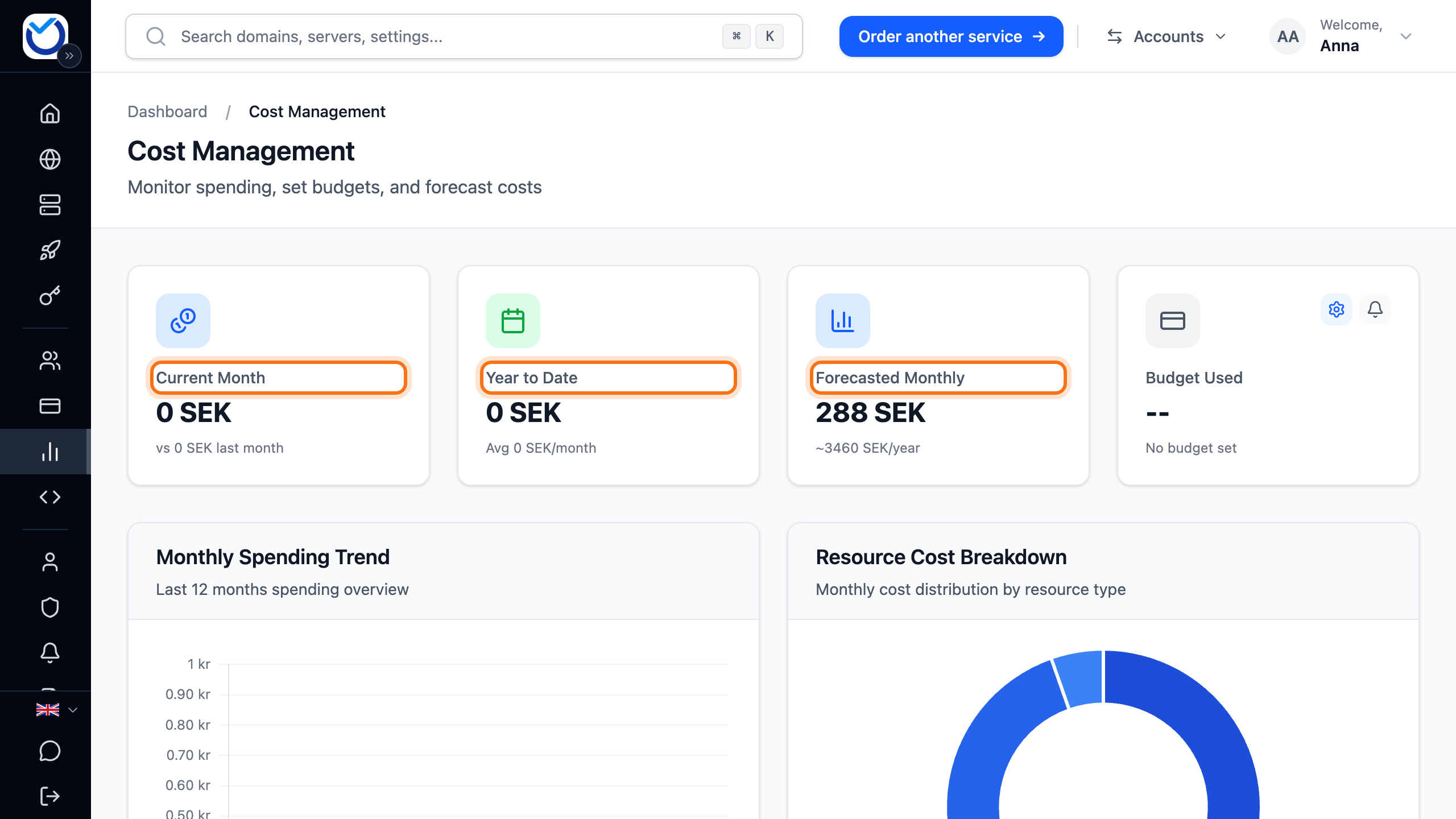
- Monthly Spending Trend shows what you paid each month over the last year. Resource Cost Breakdown shows how the monthly cost splits between VPS, web hosting, domains and the rest.
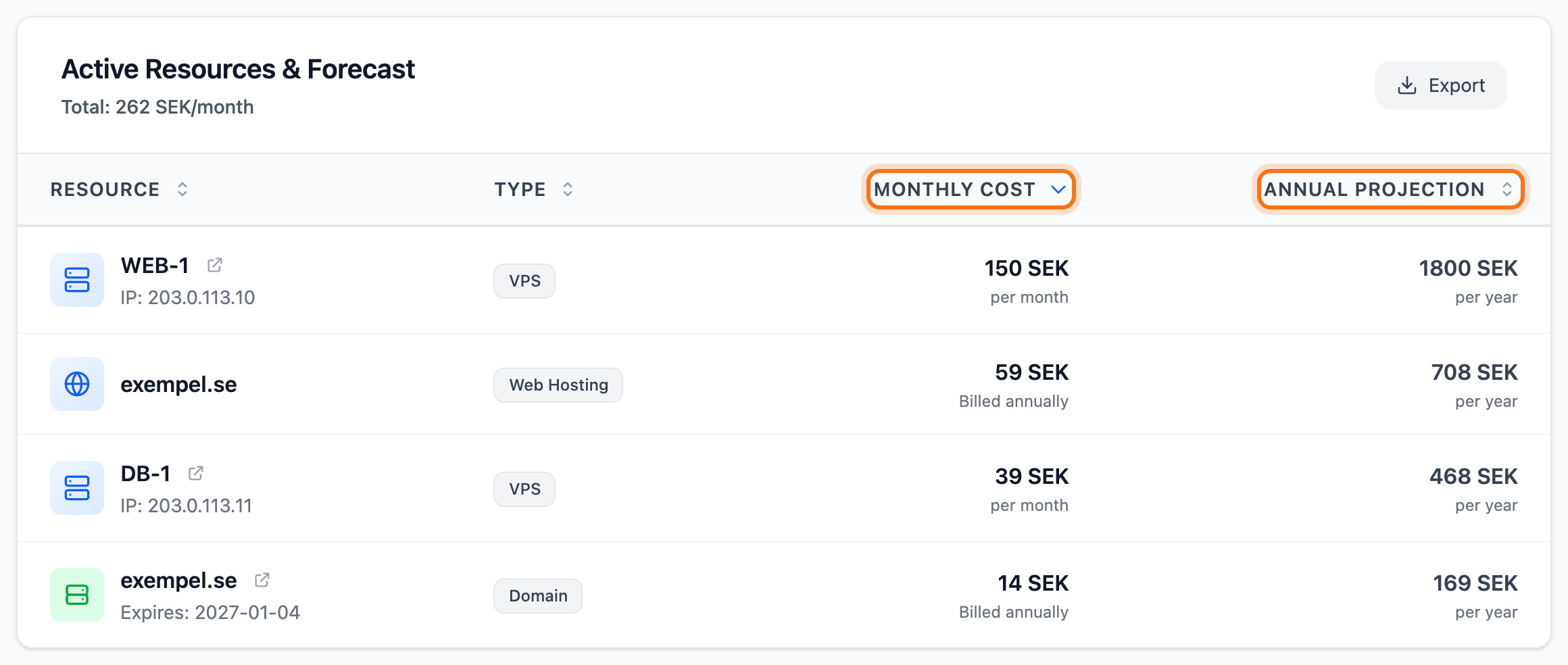
- Under Active Resources & Forecast, every service is listed with its Monthly Cost and Annual Projection. If you have many services, you can search and filter under Filter & Search.
Save with a longer billing period
Section titled “Save with a longer billing period”Potential savings lists up to five VPS and web hosting services that get cheaper per month with a different billing period. Each row shows the period, the approximate cost per month and how much you save. If there is nothing to save, it says No savings opportunities found.
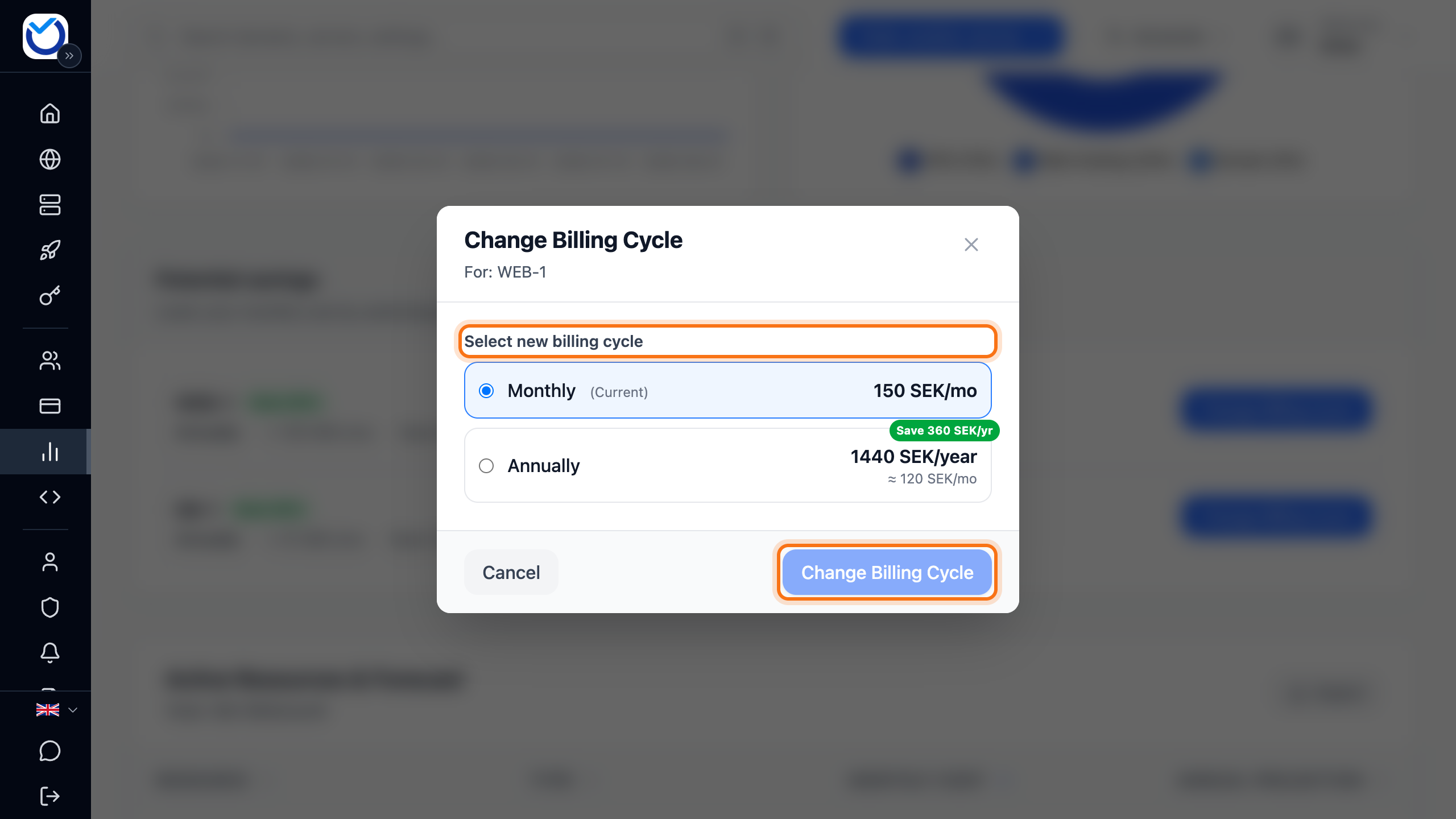
- Click Change Billing Cycle on the row.

- Choose a period under Select new billing cycle. Each period shows its price and roughly what it comes to per month.
- Click Change Billing Cycle.
If the service already has an unpaid renewal invoice, the dialog shows Unpaid invoice detected. To change straight away, tick Cancel the existing invoice and create a new invoice for the selected billing cycle. The button then reads Cancel Invoice & Apply Now. The unpaid invoice is cancelled and a new one is created for the new period. You are then taken straight to paying the new invoice. To keep the invoice, pay it first and change the period afterwards.
For more on billing periods, see Change your billing cycle.
Show prices with or without VAT
Section titled “Show prices with or without VAT”If you are a private customer in an EU country, you can choose whether prices in the client area include VAT.
- Go to PREFERENCES at the bottom of the menu. If the menu is collapsed, expand it first.
- Click VAT. The switch moves between excl. and incl..
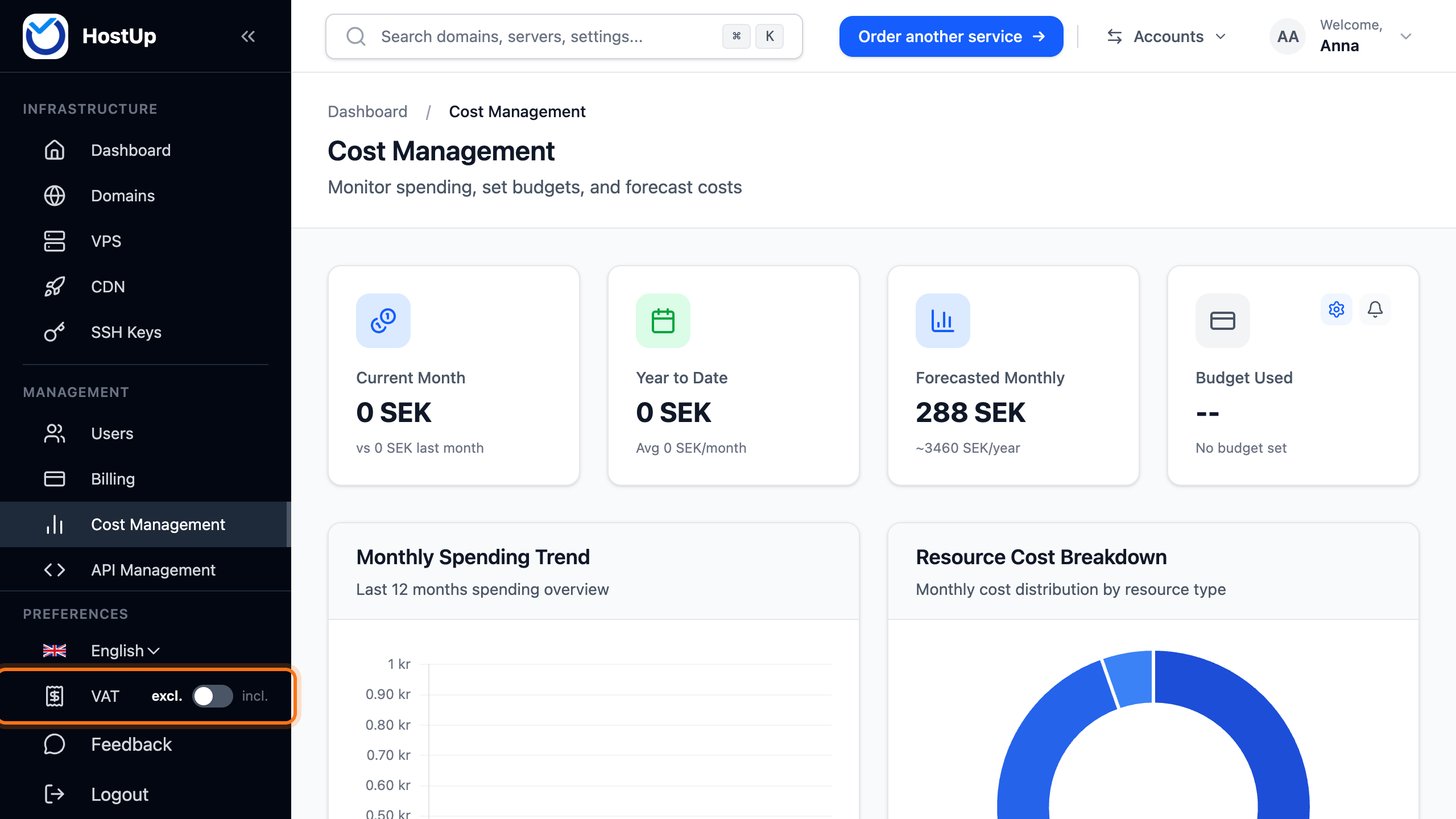
This only changes how prices are shown. Your invoices are not affected. The choice is saved in the browser you use.
Companies and customers outside the EU always see prices without VAT. There is no switch for them.
Good to know
Section titled “Good to know”- The forecast and the monthly costs on the page follow your VAT choice. Current Month and Year to Date show the invoice totals. Your VAT choice does not change them.
- Export downloads the overview as a JSON file.
- Users who may see invoices also see Cost Management. See Give colleagues or an agency access to your account.