
Run commands on your VPS when SSH is not working
Checked against the client area 29 October 2026
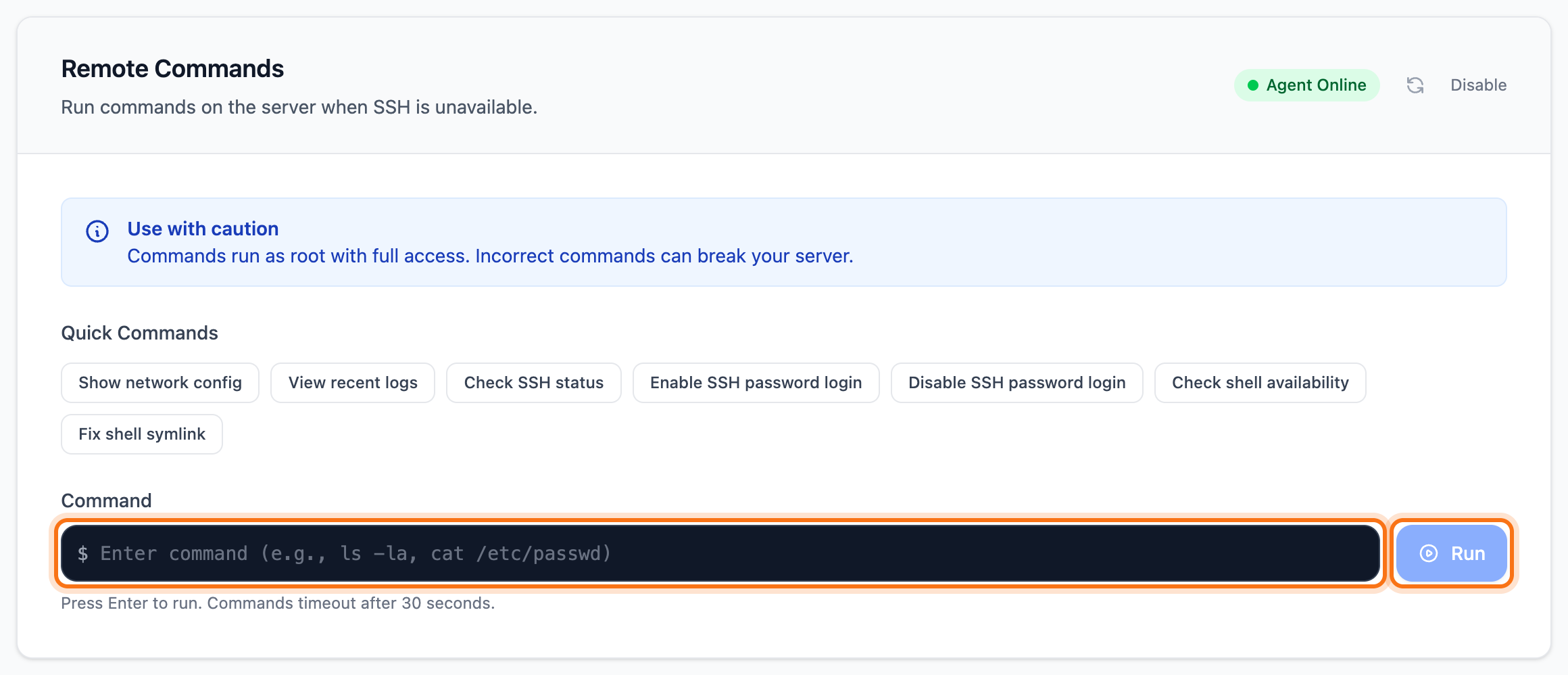
If you can’t get into the server with SSH or Remote Desktop, you can run commands on it straight from the client area. The feature is called Remote Commands. Commands go through an agent inside the server, the QEMU Guest Agent. You don’t need to log in. You can for example restart SSH, turn off a firewall inside the server that locks you out, or see what is filling up the disk.
Open your servers in the client area
Before you start
Section titled “Before you start”The server must be running. The agent must be installed and running inside the server. If it does not answer, the card shows how to start it. See If the agent does not answer.
How to
Section titled “How to”- Open the server in the client area and go to the Settings tab. Scroll down to Remote Commands.
- The first time, click Enable Remote Commands. The choice applies to this server.
- The top right of the card should say Agent Online.
- Type the command in the Command field. Press Enter or click Run. The command runs as root with full access. On Windows it runs as administrator. A wrong command can damage the server.
- The result appears under Output, with the Exit code below it. A green exit code (0) means the command succeeded.
On Windows servers you type PowerShell commands.
What happens next
Section titled “What happens next”The command runs inside the server straight away. You see the result when it has finished. On Linux, a command that takes longer than 30 seconds is stopped.
Under Quick Commands there are ready-made commands, for example to show the network settings or the latest logs. One click runs the command straight away, without asking first. Some of them change the server. Enable SSH password login, for example, turns on password login and restarts SSH.
If the agent does not answer
Section titled “If the agent does not answer”If the card says Agent Offline, the agent inside the server is not answering. The card then shows Guest Agent not responding and a command to run inside the server. On Linux the command restarts the agent or installs it. On Windows it restarts the agent.
- Click Console at the top of the page and log in.
- Run the command shown on the card.
- Click the refresh icon (Refresh) at the top right of the card.
If it says Server stopped, start the server with Start.
Update the settings of an older Linux server
Section titled “Update the settings of an older Linux server”Servers created from an older template lack some settings that new servers have, among them zram (compressed swap in RAM) and better memory settings. One command gives the server the same settings.
- Go to the Settings tab and the Update server settings card. The card is only shown on Linux servers.
- Copy the command with the copy button next to it.
- Log in to the server as root, over SSH or in the Console. Paste the command and run it.
- The command shows what it will change and asks before it does anything. Confirm to go ahead.
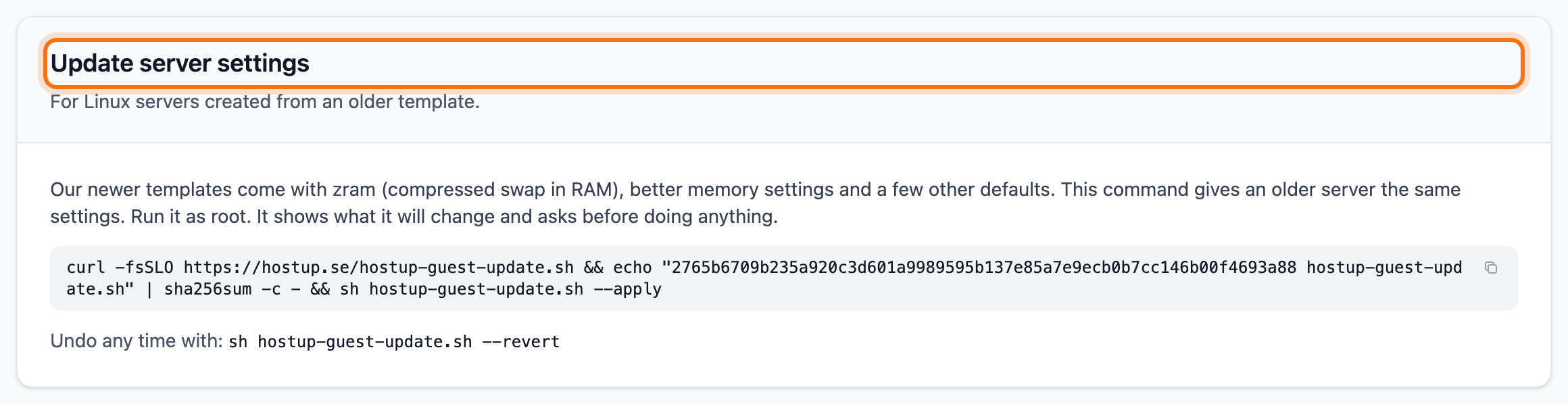
Don’t run it under Remote Commands. You can’t answer its question there. If you want to undo the changes later, the card has a command for that at the bottom.
Good to know
Section titled “Good to know”- Press the up arrow in the field to bring back commands you have run since you opened the tab.
- You turn the feature off with Disable at the top right of the card.
- If you only want to turn on password login over SSH, there is the SSH password login switch on the Overview tab. See the guide on SSH password login.