
Upgrade or downgrade your VPS or web hosting
Checked against the client area 29 October 2026
You can move your VPS or web hosting to a bigger or smaller package. On a VPS you can also change single resources, such as storage, bandwidth or the number of IPv4 addresses. You pay for an upgrade straight away. A downgrade takes effect from the next renewal.
Open your servers in the client area
How to
Section titled “How to”This is how you change package or resources on a VPS.
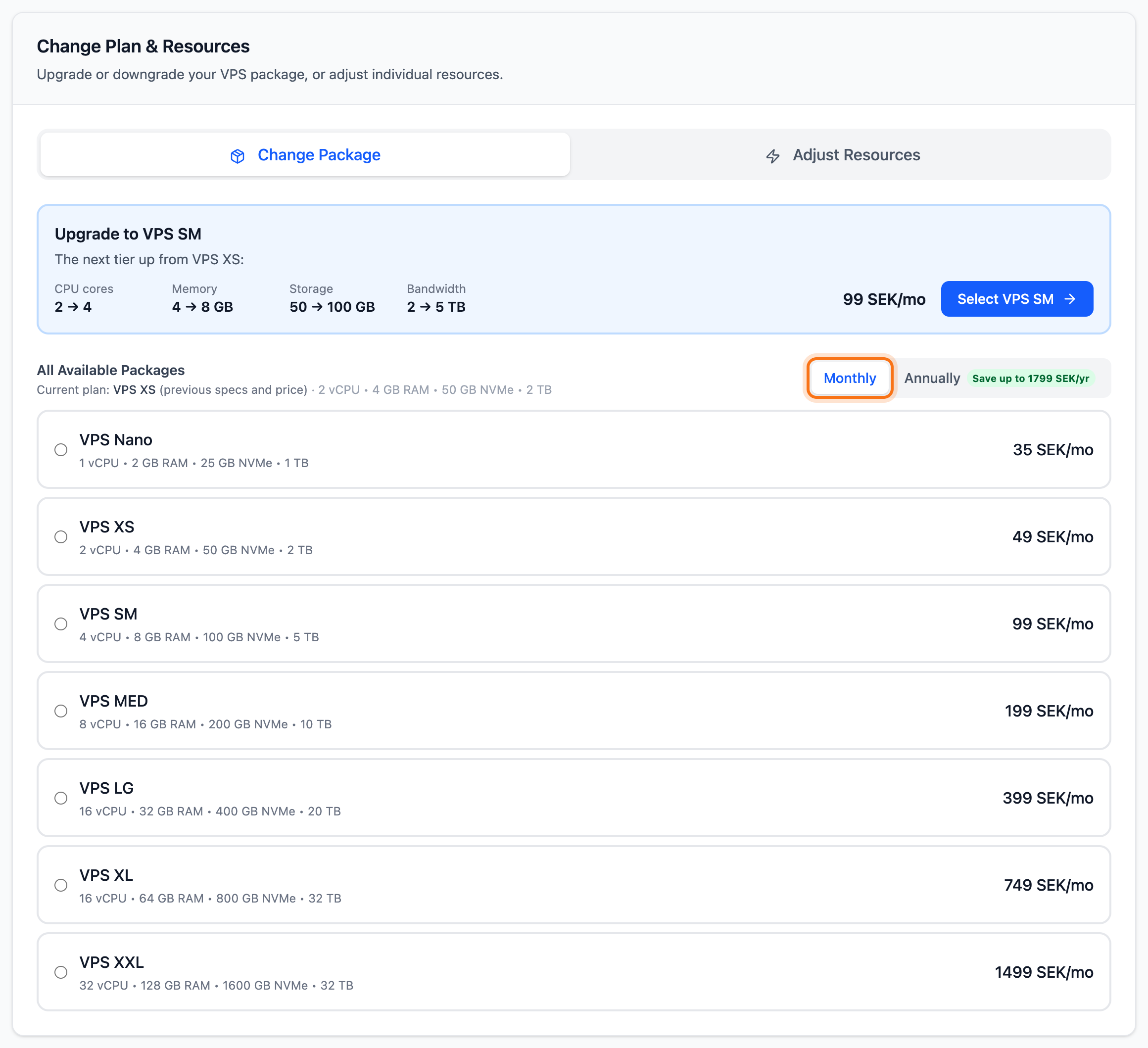
- Open the server and go to the Billing tab. Scroll down to Change Plan & Resources.
- Choose what to change:
- Change package: click Change Package. Pick Monthly or Annually above the list. If you pick a different cycle from today’s, the service switches cycle at the same time. Then pick the package. Your current package is marked Current.
- Change single resources: click Adjust Resources. Raise or lower a value with plus and minus. You can also type in a new value. The price per unit is shown on the card.
- Click Review package change or Review resource changes at the bottom.
- The dialog that opens shows what changes and the new renewal price. For an upgrade you see what you pay now. For a downgrade you see the date it takes effect.
- Click Confirm Upgrade, Confirm downgrade or Confirm changes.
If the service already has an unpaid invoice, the Unpaid invoice detected dialog opens. Click Cancel invoice & continue if the old invoice should be replaced by a new one.
What happens next
Section titled “What happens next”An upgrade only costs the time left until the next renewal. You are taken to the invoice. On a VPS the change is made once the invoice is paid. When you change package, the server restarts by itself as the change is made.
A downgrade is scheduled for the next renewal. Until then the service stays as it is. In the meantime you can only add bandwidth for the current period. The renewal invoice gets the new price. If you change your mind, open the same card again and click Cancel scheduled change. If that is no longer possible, the card says so.
Change package on web hosting
Section titled “Change package on web hosting”Open your web hosting in the client area
- Go to Dashboard and scroll down to Web Hosting.
- Click Upgrade next to the hosting account and choose Upgrade Package. On a phone, click More and choose Upgrade Package.
- Pick a package under Available Packages. Each package is marked Upgrade or Downgrade.
- Click Get Estimate. For a smaller package the button reads Review Downgrade.
- Check the amount under Upgrade Cost Estimate. Click Confirm Upgrade or Schedule Downgrade.
An upgrade takes you to the invoice. A downgrade is scheduled for the next renewal. If you change your mind, open the same dialog again and click Cancel scheduled change.
If the hosting account uses more storage than the smaller package holds, the dialog says so. Reduce what you have stored before the downgrade is due. Otherwise it cannot be carried out.
More storage on web hosting
Section titled “More storage on web hosting”If the hosting account only needs more disk space, you can add storage without changing package.
- Click More next to the hosting account and choose Add storage.
- Choose how much storage to add. The price is shown next to each size.
- Click the Add … GB storage button. You are taken to the invoice.
You pay for the time left of the hosting period. After that the storage renews together with the hosting. You can add more several times.
Good to know
Section titled “Good to know”- The main disk of a VPS cannot get smaller. If you move to a smaller package, the server keeps its storage. Whatever exceeds the package becomes extra storage. The dialog shows this before you confirm.
- To reduce attachable block storage (separate disks), IPv4 addresses or snapshots on a VPS, first remove whatever does not fit into the new amount. Otherwise the change cannot be scheduled.
- While a downgrade is waiting, you cannot change the billing cycle or renew the service early.
- More storage on a VPS does not show up in the operating system by itself. Read More storage for your VPS. For bandwidth, read Bandwidth on your VPS.
- On a VPS billed by the hour, you change CPU and memory with Edit Resources. Read Create a VPS billed by the hour.