
Change your contact details, address and account type
Checked against the client area 29 October 2026
You change your name, address, phone number and personal or organisation number under Account details in the client area. That is also where you switch between a private and a company account and choose the time zone the client area shows times in.
Open Account details in the client area
How to
Section titled “How to”- Click Account in the menu. The Account details tab opens.
- Click Edit Details in the box you want to change. The boxes are Personal Details and Address Details. On a company account the first one is Contact Person, and there is also a box for Company Details.
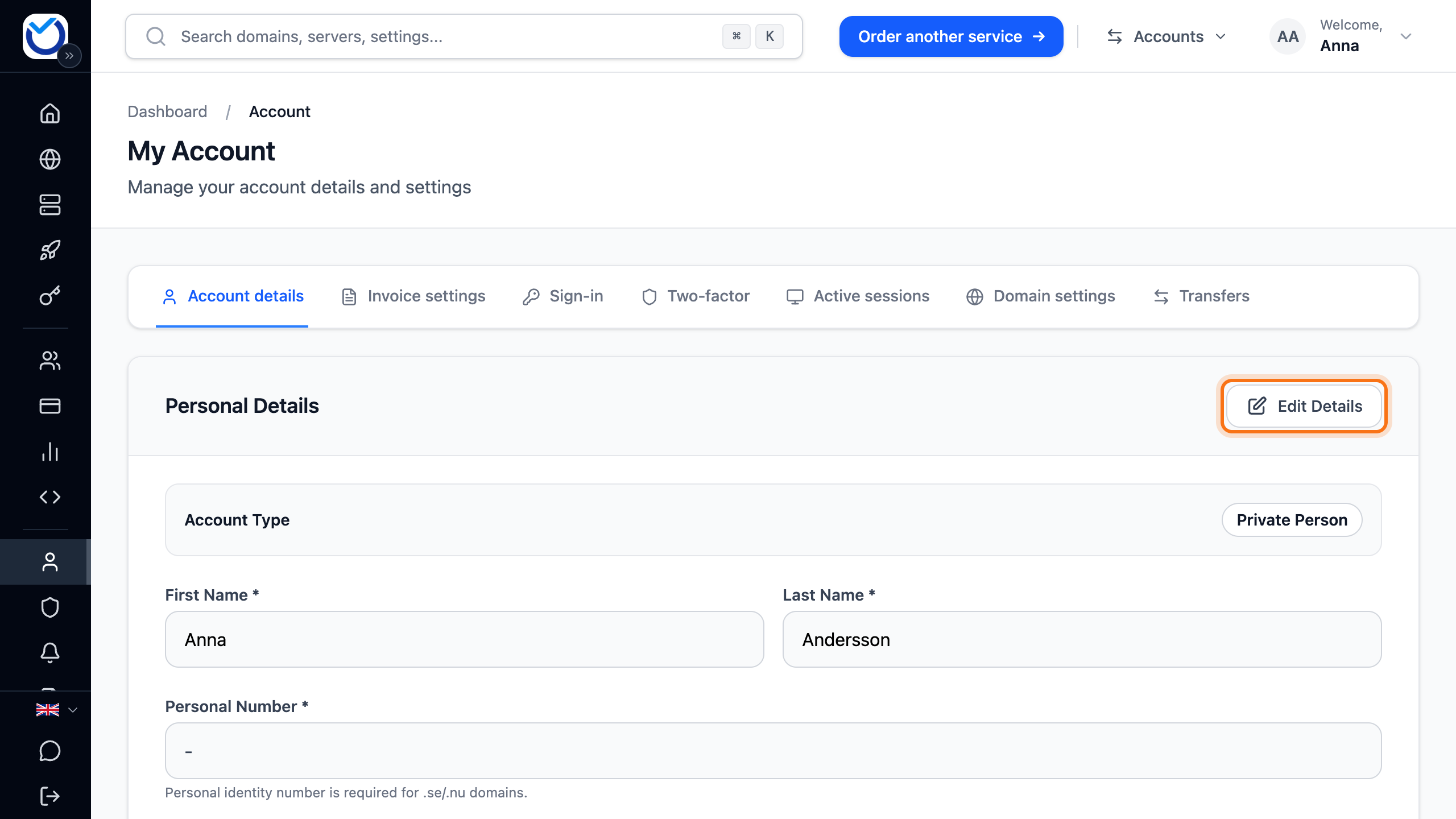
- Change the details. Fields marked with an asterisk must be filled in.
- Click Save at the bottom of the box.
If the account has domains, Phone Number must be filled in. If it has a .se or .nu domain, a private account also needs Personal Number and a company account needs Organization Number.
Switch between private and company
Section titled “Switch between private and company”- Click Edit Details in the first box.
- Under Account Type, click Private Person or Organization.

- If you choose company, the Company Details box appears. Fill in Company Name. A Swedish company also fills in Organization Number. A company in another EU country can fill in VAT Number. The number is checked before it is saved.
- Click Save.
If you have a Swedish sole proprietorship (enskild firma), enter your personal identity number as the organisation number. The client area shows a warning but saves the details.
If you switch to private, the company name, organisation number and VAT number are removed from the account.
Choose your time zone
Section titled “Choose your time zone”The time zone decides which time the client area shows dates and times in. The first time you open the page it is taken from your browser.
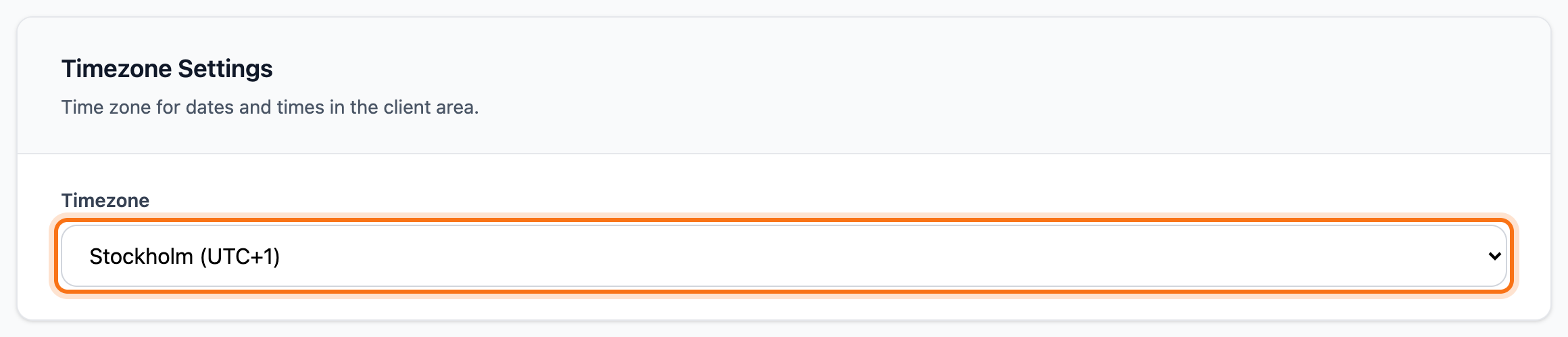
- Scroll down to Timezone Settings on the Account details tab.
- Choose a time zone under Timezone. The change is saved straight away.
What happens next
Section titled “What happens next”The client area shows Account details updated once the details are saved.
Domains you already have keep their holder. To give a domain the new details, open its Domain Holder tab and use Fill from profile. See Update the contact details for your domain.
For a Swedish company, the client area checks that the company name and organisation number belong together. If they do not, it shows a warning.
Good to know
Section titled “Good to know”- If you change a Swedish personal identity number or organisation number, the account no longer counts as verified. If you had turned off password sign-in, it is turned back on. See Verify your account.
- If you switch from private to company on an account verified with BankID, you keep your BankID sign-in. Your personal identity number is added to the account’s authorised numbers.
- You change the email address you sign in with under Account › Sign-in › Change Email.
- Only the account owner can change the account details. A user you have added only sees the tabs for their own sign-in.