
Order a VPS with Linux or Windows
Checked against the client area 29 October 2026
A standard VPS is paid for one month or one year at a time. You choose a plan, an operating system and how you log in. Once the order is paid, the server is created. If you would rather pay by the hour for what the server uses, see Create a VPS billed by the hour.
Before you start
Section titled “Before you start”Windows is only offered on some plans. You also need your own Windows licence. The server starts without a licence key. You activate Windows with your own key once the server is ready.
How to
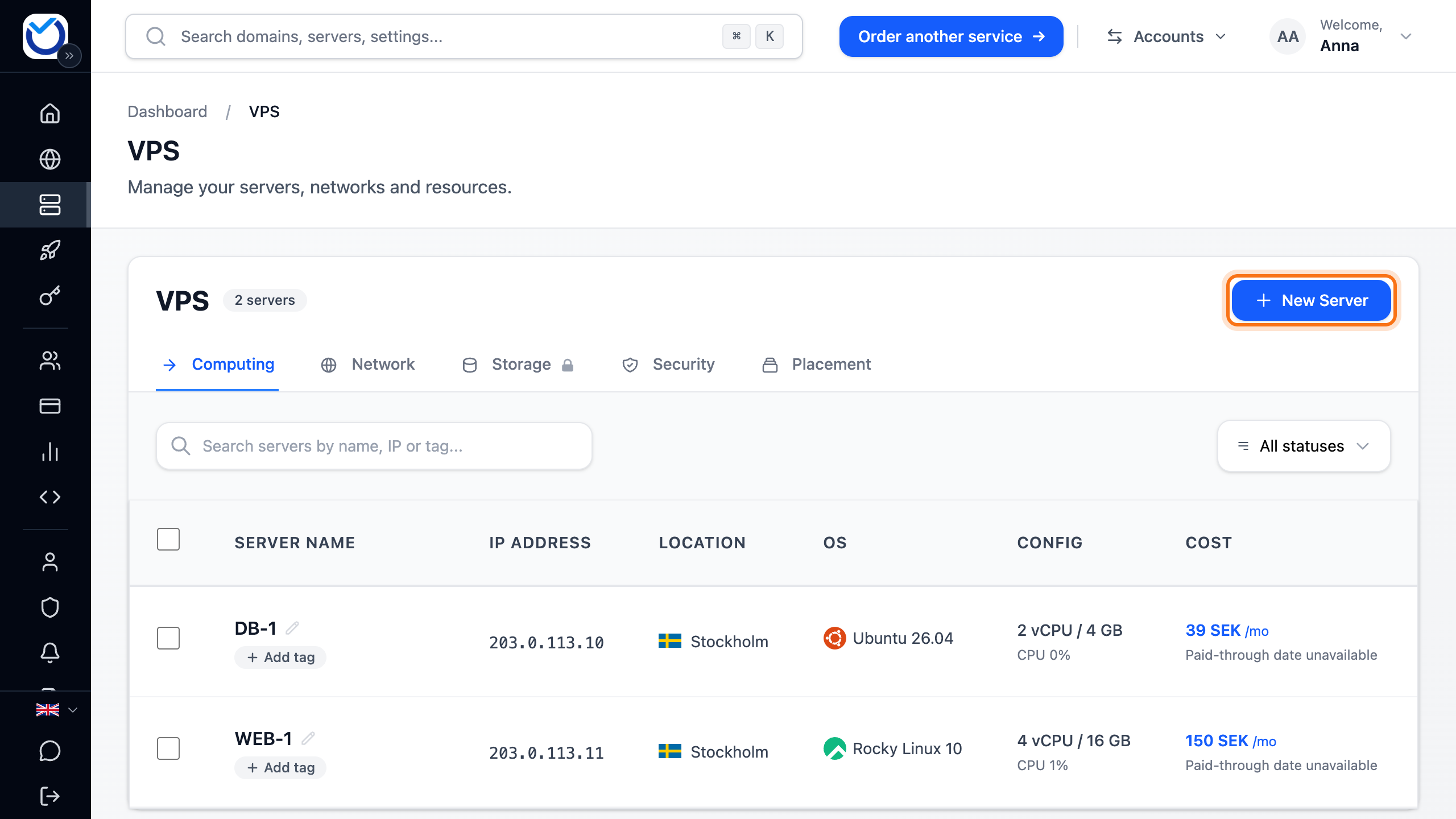
Section titled “How to”- Go to VPS in the menu and click New Server. If a menu opens, choose Standard VPS.
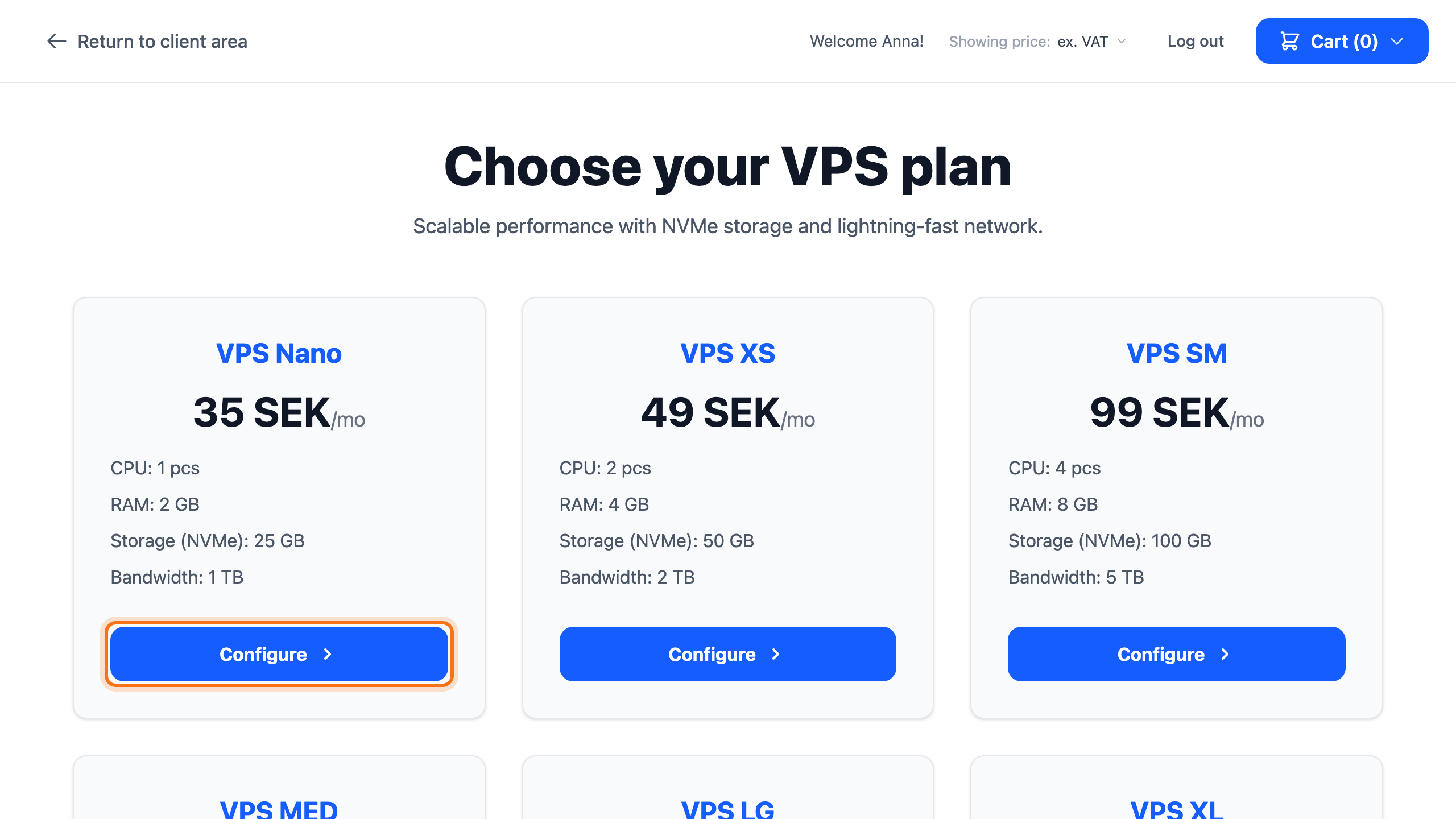
- Under Choose your VPS plan you see the plans with their CPU, RAM, storage and bandwidth. Click Configure under the plan you want.
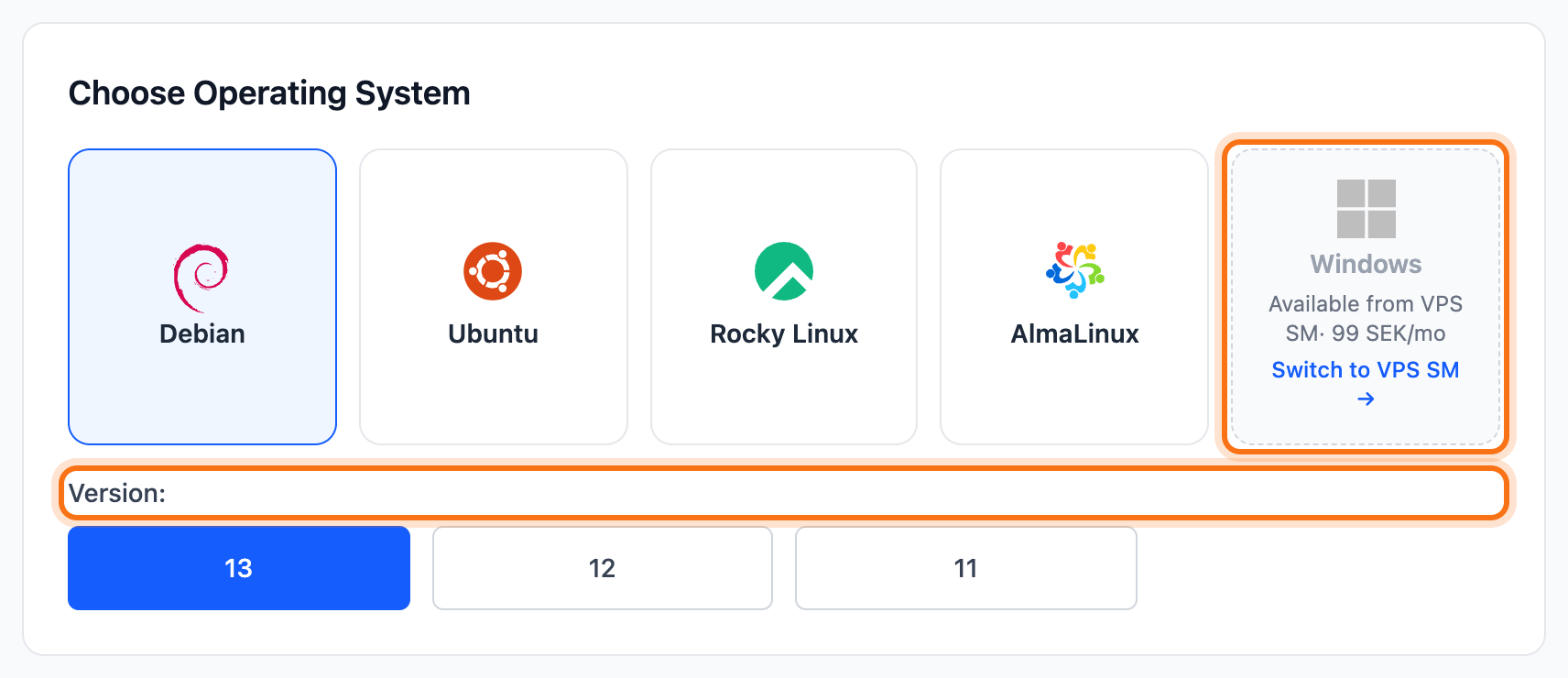
- Under Choose Operating System, click the operating system and then the version. If the system is not available on the plan you picked, it is shown greyed out with the cheapest plan that has it. Click Switch to and the plan’s name to move to that plan.
-
Under SSH Keys, choose how you log in:
- An SSH key already on your account. If the account has keys, the first one is preselected.
- Add new key... to use a new key. Fill in Key name and paste the key under Public SSH key. The key is saved to your account when you order.
- Password to log in with a password.
With Windows you always log in with a password.
-
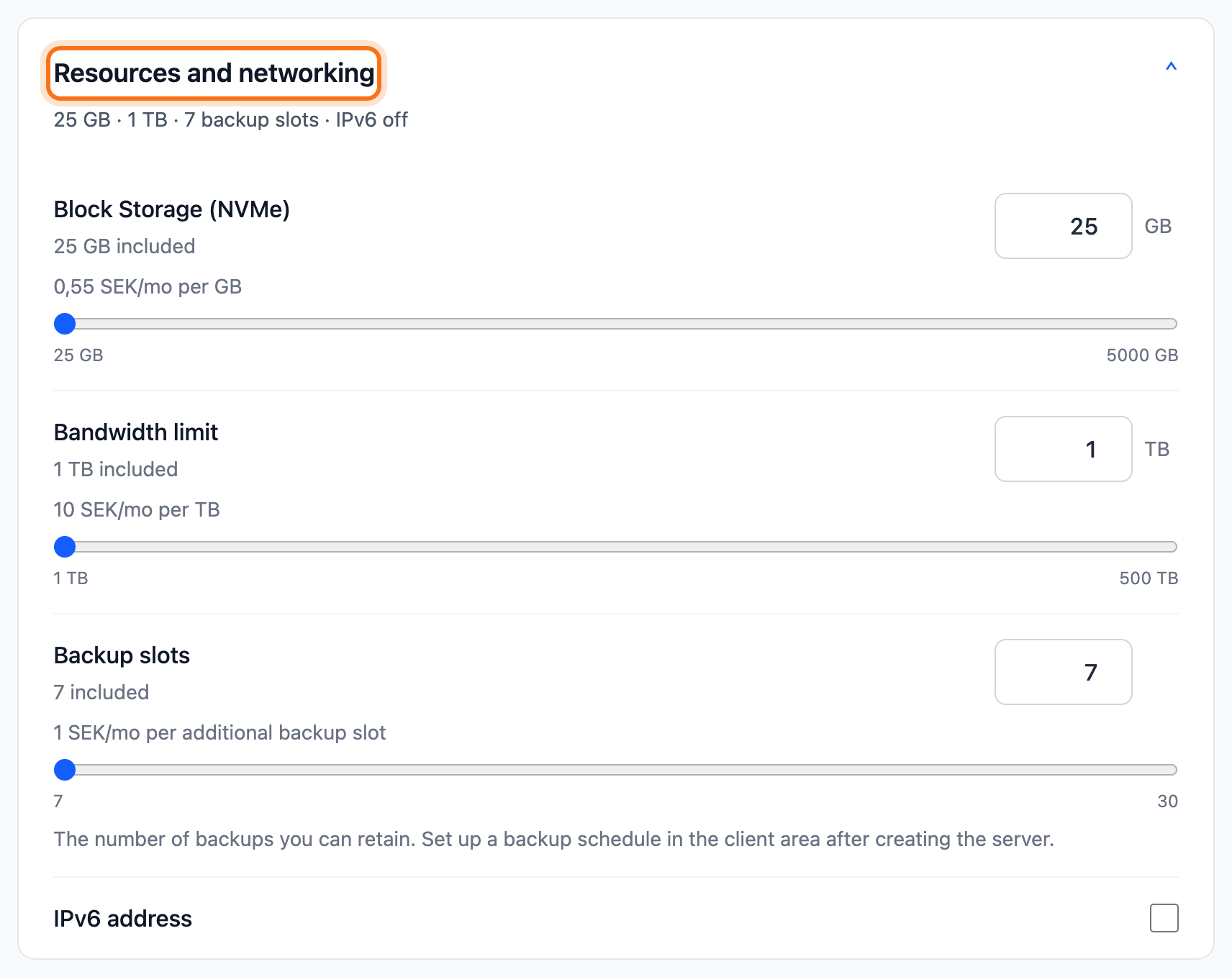
To change the resources, click Resources and networking. The box opens. There you can add more storage, for example. Anything that costs extra shows its price next to it.
- Choose the billing period in Order Summary: 1 month or 12 months. The total is shown below. On some plans you can order several servers at once under Quantity.
- Click Review order. You are taken to the cart.
- Click Go to checkout and complete the order at checkout.
What happens next
Section titled “What happens next”The server shows under VPS once the order is placed. Until it is ready it is marked Pending activation. If the invoice is unpaid, the server’s page shows VPS Pending Activation with a Pay Invoices button.
The server gets a name like swift-falcon.local. You can change it whenever you like. See Rename your VPS and set its hostname. The username and password are on the server’s page under Overview, in the Quick Connect box.
Good to know
Section titled “Good to know”- If you change your mind before the invoice is paid, click Cancel VPS order on the server’s page. Choose a Reason for cancellation in the dialog that opens and click Cancel VPS order again. The order and the invoice are cancelled.
- Storage can be increased later but never reduced. You change the plan and resources on the server’s page under Billing, in the Change Plan & Resources box.
- If the server got the wrong operating system, change it under the Operating System tab. Everything on the server is erased. See Reinstall your VPS.