
Boot your VPS from your own ISO file or netboot.xyz
Checked against the client area 29 October 2026
To install an operating system we don’t offer, or to start the server in a rescue system, you mount an ISO file. It works like a disc in a virtual CD/DVD drive. You can download your own ISO file from a link or use netboot.xyz, which starts a menu where you pick the system to install.
Open your servers in the client area
How to
Section titled “How to”- Open the server in the client area and go to the ISO tab.
- Choose what the server should boot from:
- netboot.xyz: click Quick Mount next to netboot.xyz. If you have no ISO files yet, the button is called Mount netboot.xyz. If the file has not been downloaded yet, it is downloaded first and then mounted automatically. If the download takes longer than usual, the client area tells you. Then mount the file from the list once it has arrived.
- Your own ISO file: first download it as described under Download your own ISO file. Then click the three dots (Actions) next to the file in the list and choose Mount. On a phone, tap Mount directly.
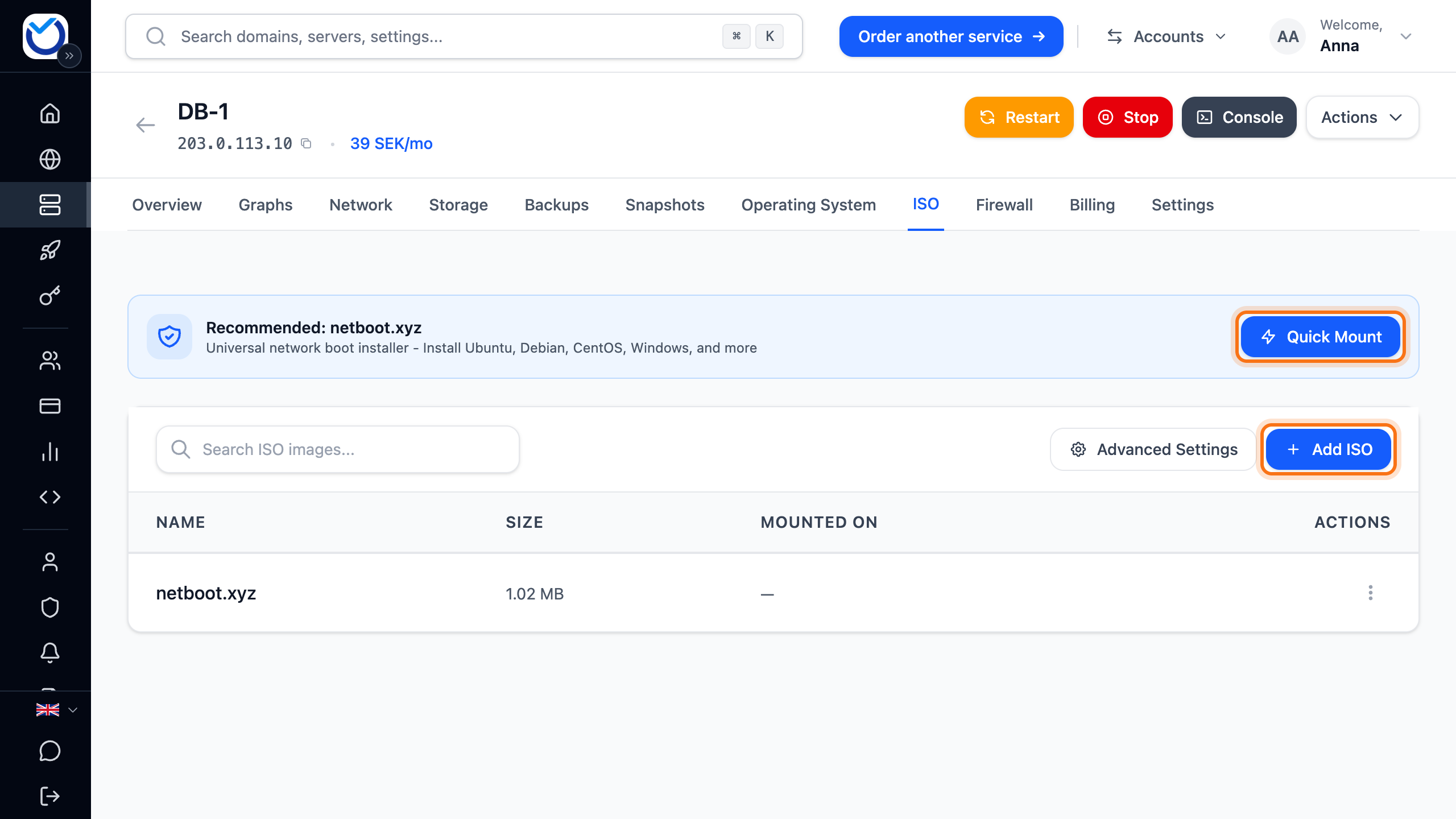
- The top of the tab now shows the file name and Mounted on the CD/DVD drive. Click Boot from ISO. If it says instead that the drive is not first in the boot order, click Use ISO first and restart.
- The server restarts straight away, without asking first. It boots from the ISO file.
- Click Console at the top of the page. The console shows the installer or the netboot.xyz menu.
What happens next
Section titled “What happens next”You install or repair the system in the console. The server boots from the ISO file for as long as it is mounted.
When you are done, click Unmount at the top of the ISO tab. The disk is then put first in the boot order again. Restart the server with Restart so it boots from the disk.
Download your own ISO file
Section titled “Download your own ISO file”- Click Add ISO on the ISO tab. If you have no ISO files yet, the button is called Add your first ISO.
- Paste the link to the file under ISO URL. Filename is filled in from the link.
- If the file is compressed, for example
.iso.gzor.iso.bz2, this is recognised from the file extension. You see it under Decompression. - Click Download ISO.
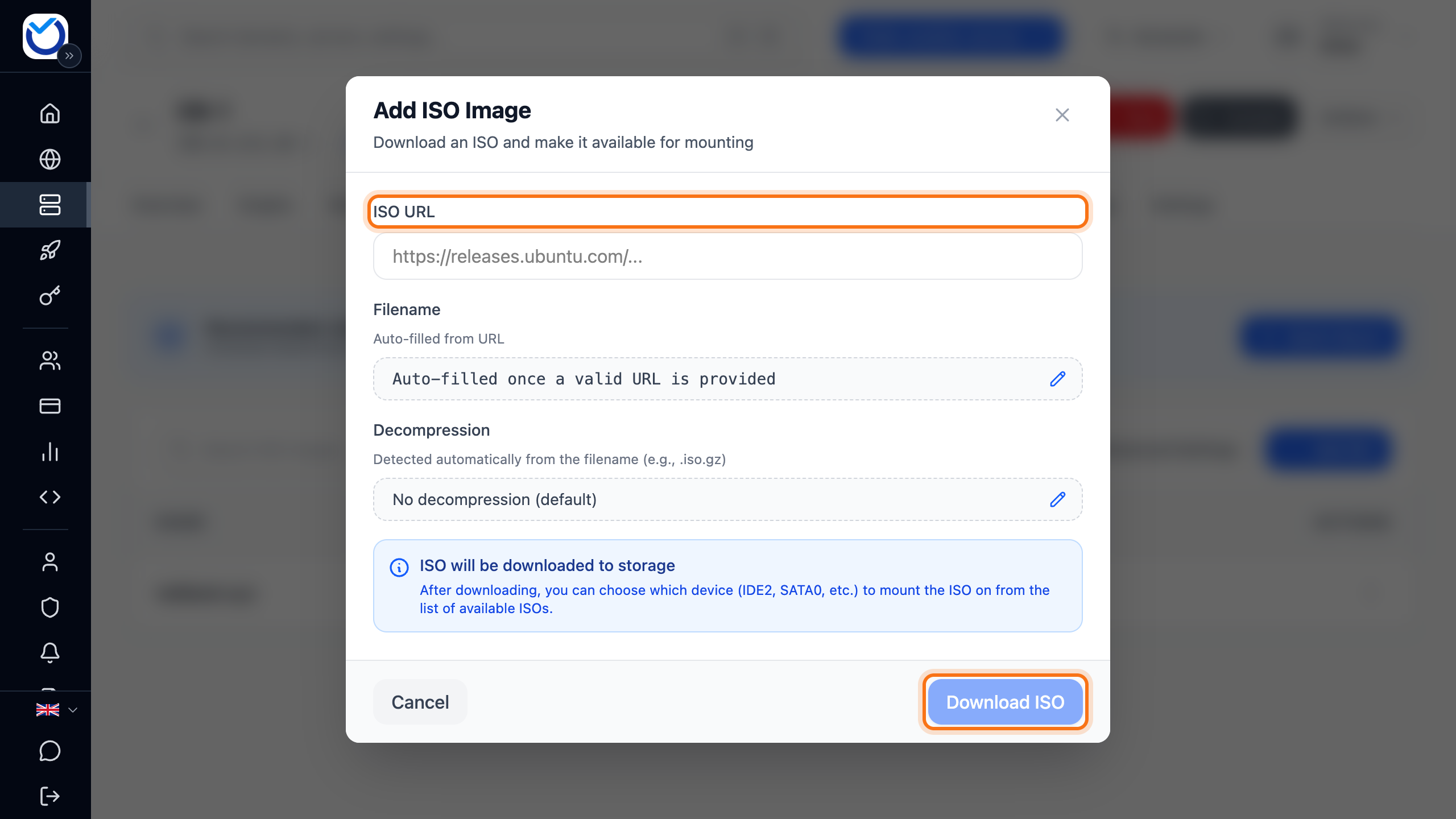
The file downloads in the background and shows up in the list when it is ready. Then mount it as in step 2 above.
- The link must start with
http://orhttps://and point straight at the file. A link that sends you on to another address does not work. Use the final link to the ISO file. - The file can be at most 20 GB.
Change the boot order
Section titled “Change the boot order”You rarely need to do this. Mount puts the CD/DVD drive first and Unmount puts the disk first again. To change the order yourself:
- Click Advanced Settings on the ISO tab. A panel opens below the list. Boot Order lists the first devices in order. The top one boots first.
- Click Edit order.
- Move the devices with the arrows.
- Click Save Boot Order.
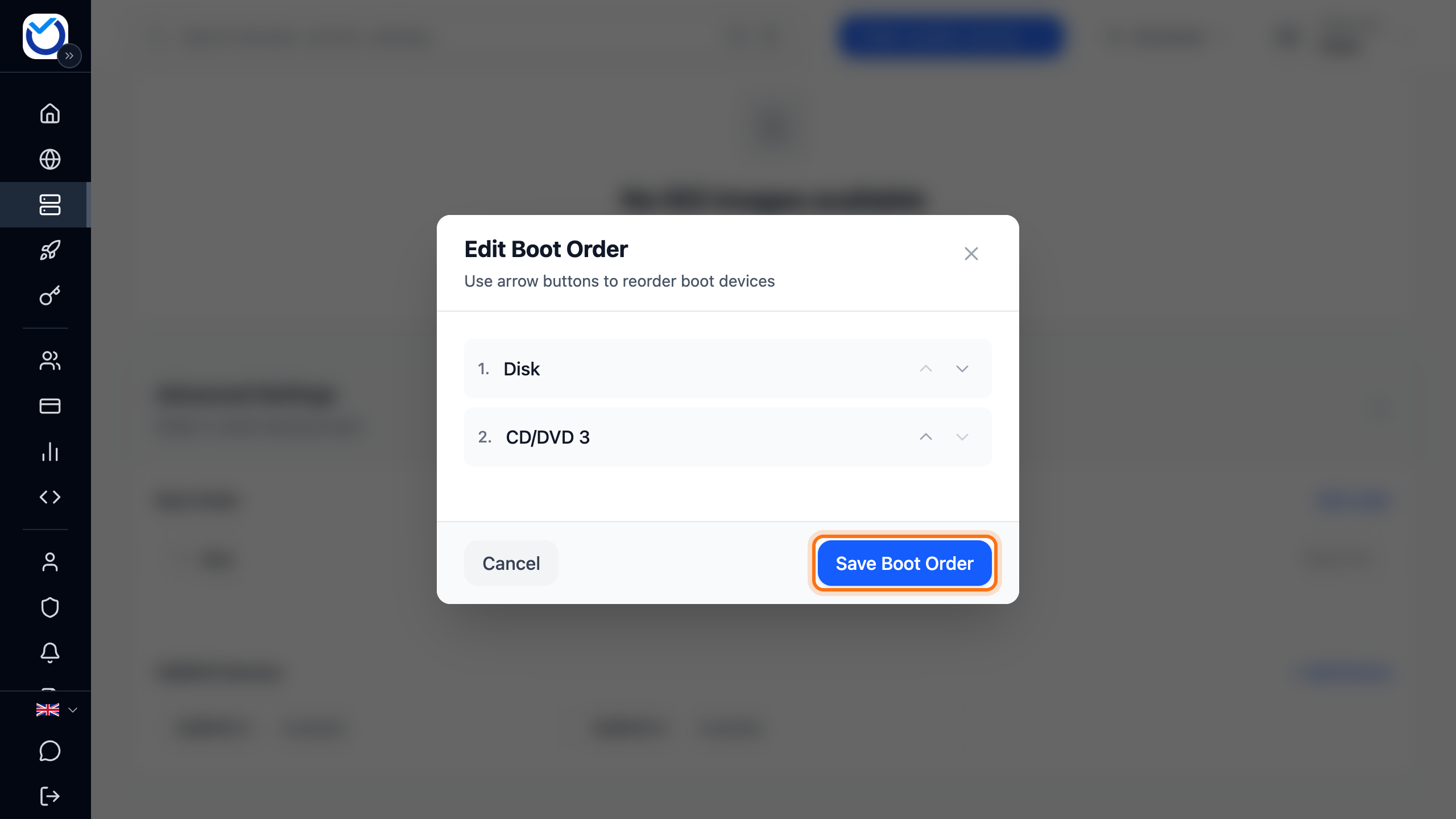
The new order applies the next time the server starts.
Good to know
Section titled “Good to know”- To switch to another ISO file, mount the new one from the list. It replaces the one that is mounted.
- To remove an ISO file you no longer need, use Delete under the three dots. It must be unmounted first. You are asked before it is deleted.
- While another operation is running on the server, the buttons are locked until it has finished.
- An operating system installed in one boot mode does not start in the other. Choose the mode before you install. See Change the boot mode of your VPS.
- If you only want one of our operating systems, you don’t need an ISO file. See Reinstall your VPS with a new operating system.