
Move your DNS to Hostup without downtime
Checked against the client area 29 October 2026
Your website and email follow the nameservers. If you switch to our nameservers before your DNS records are here, they stop working until the records are in place. So add the records here first. The client area can fetch them from your old DNS provider for you.
Open your domains in the client area
Before you start
Section titled “Before you start”This is for a domain registered with us. If it is registered somewhere else, first add it as described in Your domain is registered elsewhere.
How to
Section titled “How to”- Click Domains in the menu and then the domain.
- Go to the DNS Management tab. If it says Prepare the DNS zone before switching nameservers, the domain has no DNS zone with us yet. Click Create DNS zone now.
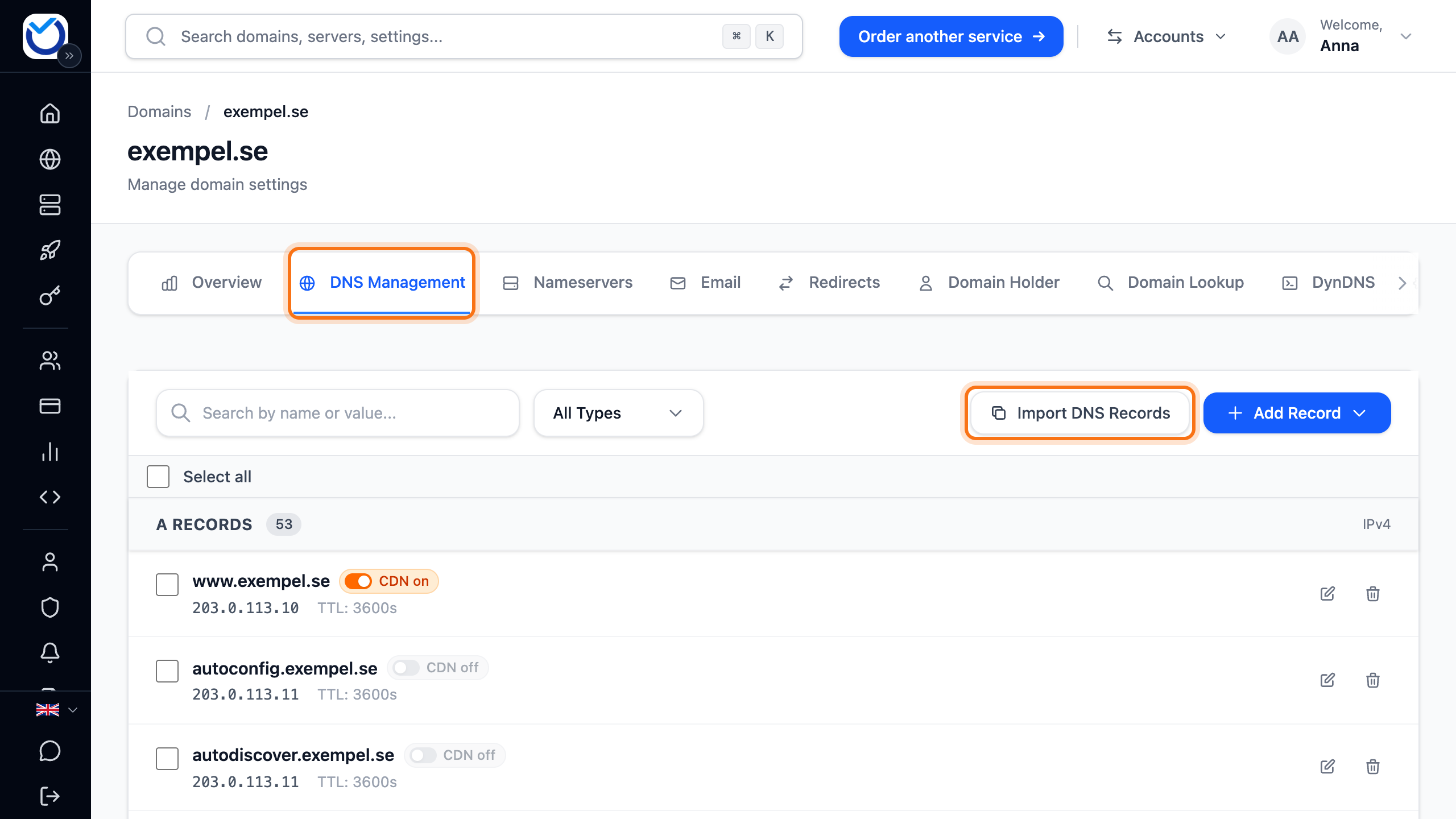
- Click Import DNS Records.
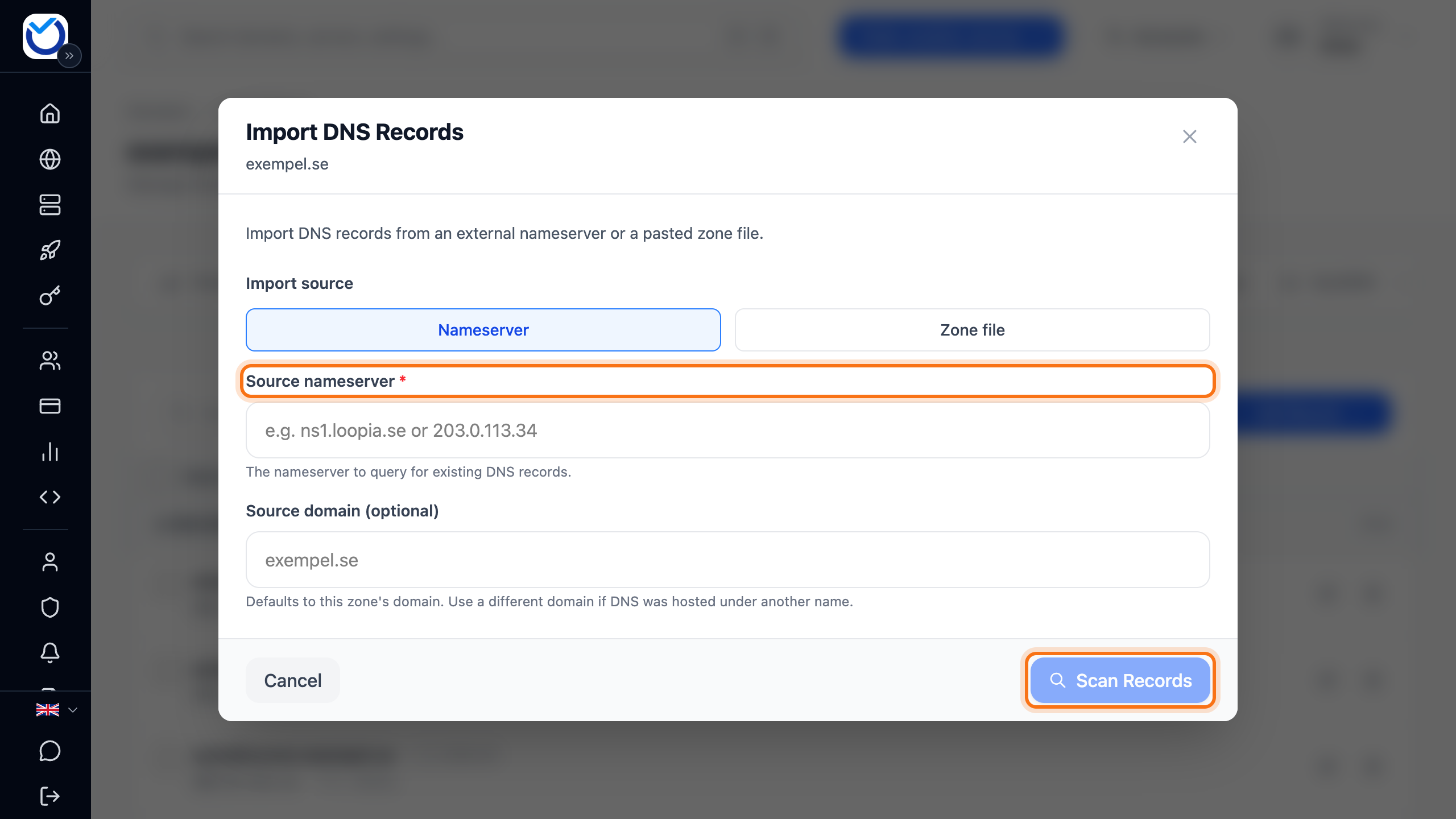
- Leave Nameserver selected. Type your old provider’s nameserver under Source nameserver. You find it under Current Nameservers at the top of the tab.
- Click Scan Records.
- The client area lists the records it found. Records marked New are already ticked. Records marked Duplicate already exist here and are skipped.
- A record marked Conflict has the same type and name as a record you already have, with a different value. It is not ticked. Only tick it if the old provider’s value is the one that should apply.
- Click the Import records button at the bottom right. It shows how many records will be imported.
- When it says Import Complete, click Done. The records now show on the tab.
The scan asks the old nameserver for the domain itself and common names such as www and mail. If you use names of your own, for example shop, check that they came across. Add any that are missing by hand, or read in a zone file as described next.
Read in a zone file instead
Section titled “Read in a zone file instead”If your old provider can export the domain’s zone file, you get every name in one go.
- Click Import DNS Records and choose Zone file.
- Paste the whole zone file into the box.
- Click Preview Zone File. Then carry on from step 6 above.
Record types the client area does not handle are skipped.
Switch nameservers
Section titled “Switch nameservers”When the records look right, switch to our nameservers on the Nameservers tab. Change the nameservers for your domain explains how and how long the switch takes. The records here start to apply once the switch has gone through.
Your domain is registered elsewhere
Section titled “Your domain is registered elsewhere”If the registration stays with another company, the domain can still use our DNS. You add it in the client area and prove it is yours with a TXT record.
Add an external domain in the client area
- Click Add Domain on the Domains page and choose Use Our DNS. On a phone, tap the round plus button at the bottom right.
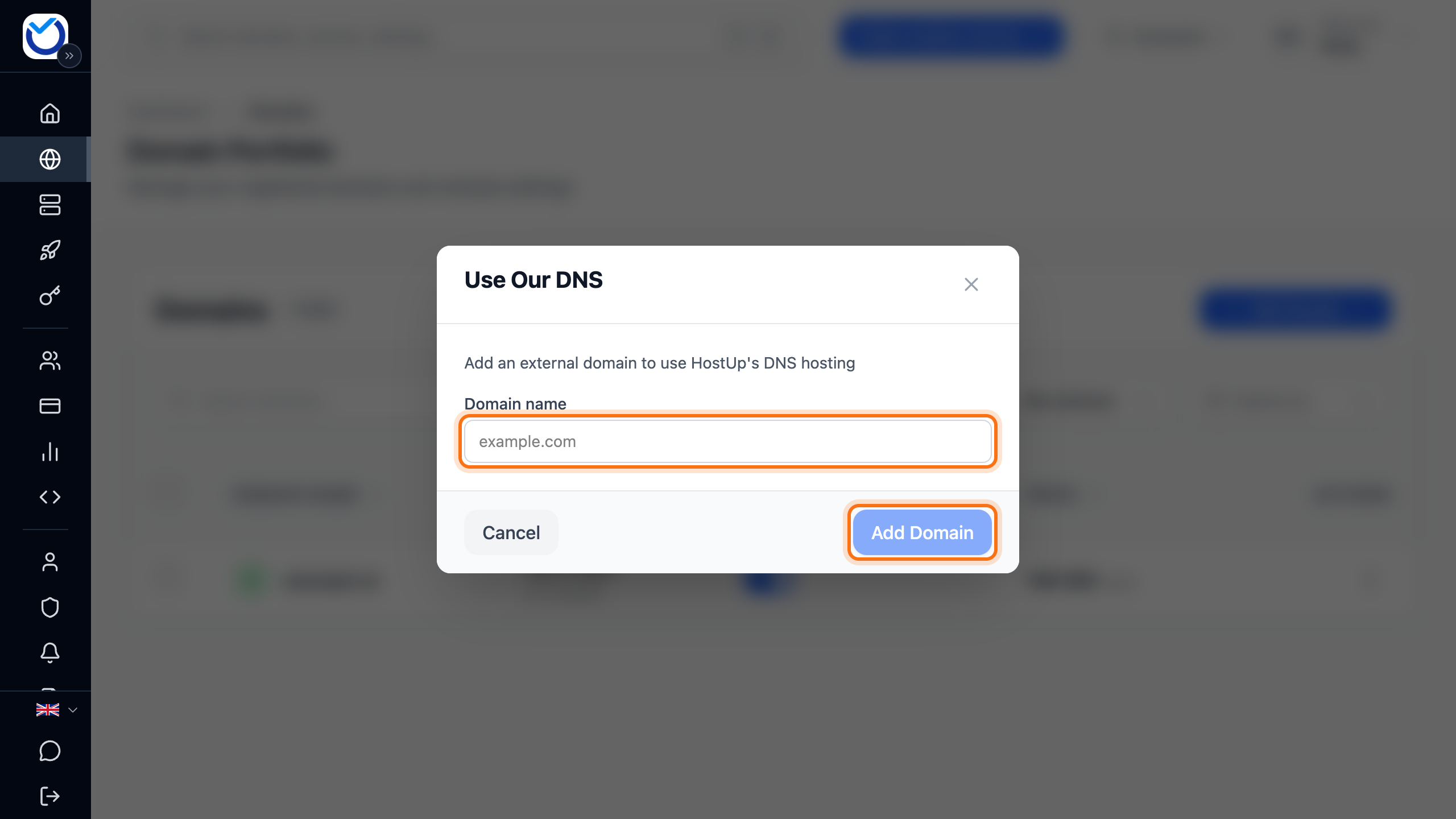
- Type the domain name and click Add Domain.
- The client area shows a TXT record with a Record name and a Record value. Add it at your current DNS provider.
- Click Verify. If the record is not found yet, wait a few minutes and click again. The dialog shows how much time and how many checks you have left.
- When it says Domain Verified!, the dialog shows our nameservers. Don’t switch yet. Click Done.
- The domain is now listed under External domains on the Domains page. Click Manage DNS and import the records from step 3 of How to.
- Then change the nameservers to
primary.ns.hostup.seandsecondary.ns.hostup.seat the company where the domain is registered.
If the domain already uses our nameservers, no TXT record is needed. It then says Domain Verified! as soon as you have added it. If you switch to our nameservers while the dialog waits for the TXT record, click Verify.
Good to know
Section titled “Good to know”- The import changes nothing at your old provider. It only reads the records from there.
- You can import up to 100 records at a time.
- If a record says CF, the address belongs to Cloudflare. It may not be your web server’s own address. Add the web server’s address instead.
- A record marked Parking page only leads to the old provider’s parking page. It is not ticked.
- If the records were copied recently, for example when you transferred the domain here, the DNS Management tab shows a line about it.
- If you switch to our nameservers on the Nameservers tab without importing first, the tab asks right after the switch whether to copy the records. Click Copy DNS records.