
Extra IP addresses and network interfaces on your VPS
Checked against the client area 29 October 2026
The Network tab shows your server’s network interfaces and their addresses. That is where you add more IPv4 addresses, a new public network interface or an IPv6 address. In the client area the interfaces are called net0, net1 and so on. Inside the server they may have other names, such as eth0.
Open your servers in the client area
Before you start
Section titled “Before you start”The server has a set number of slots for IPv4 addresses. The top of the IPv4 Addresses box shows how many are in use, for example 1/2. When every slot is in use, you see Add more IPs instead of Assign IPv4 Address. Add a slot first:
- Click Add more IPs. You are taken to the Billing tab with the Adjust Resources view open.
- Raise the number on the IPv4 Address card with the plus button. The price is shown before you confirm.
- Confirm the change. If you are taken to an invoice, pay it. The slot is added once the change is done.
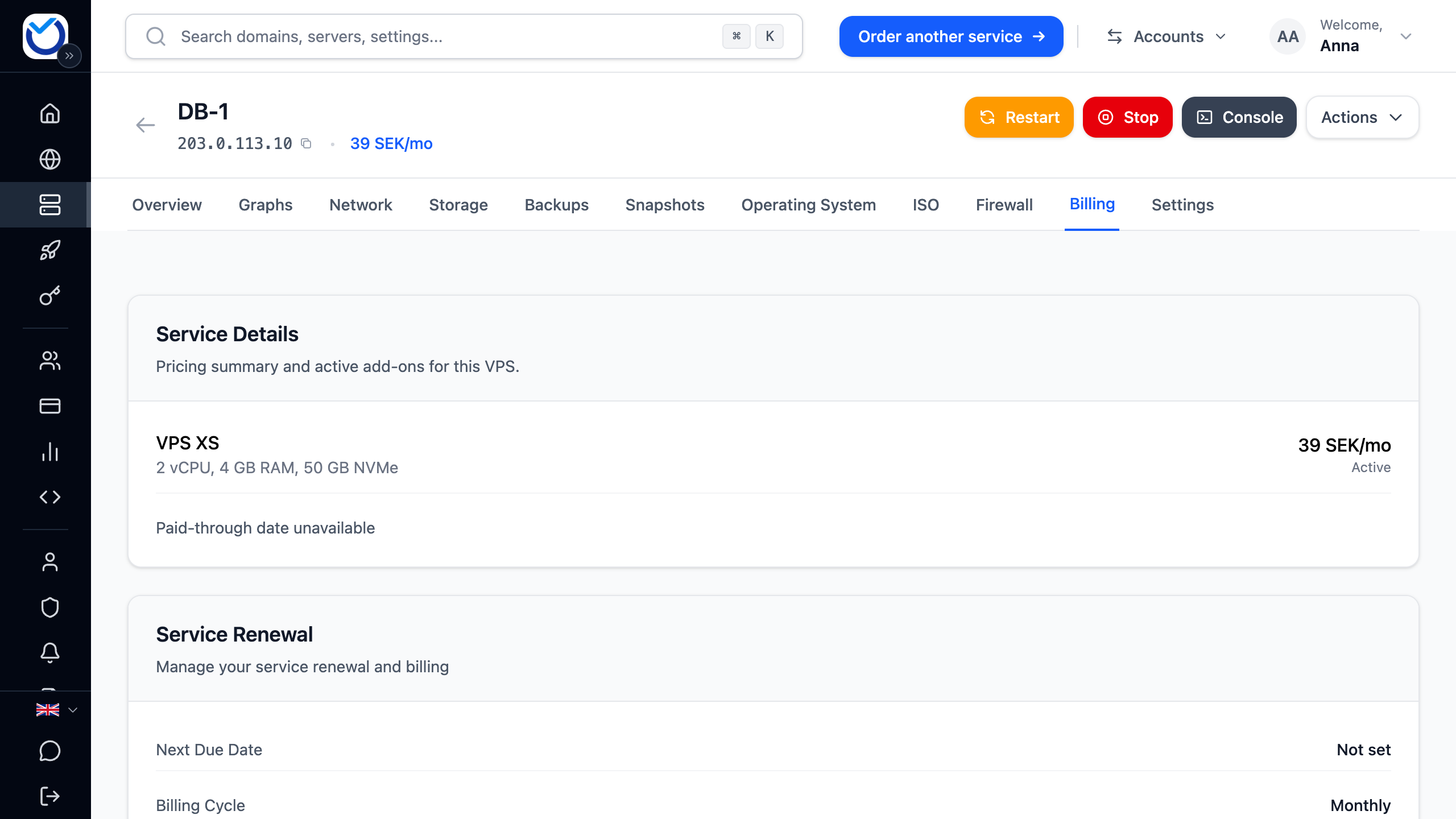
If you pay for the server by the hour, a slot is added straight away when you click the button.
How to
Section titled “How to”- Open the server in the client area and go to the Network tab.
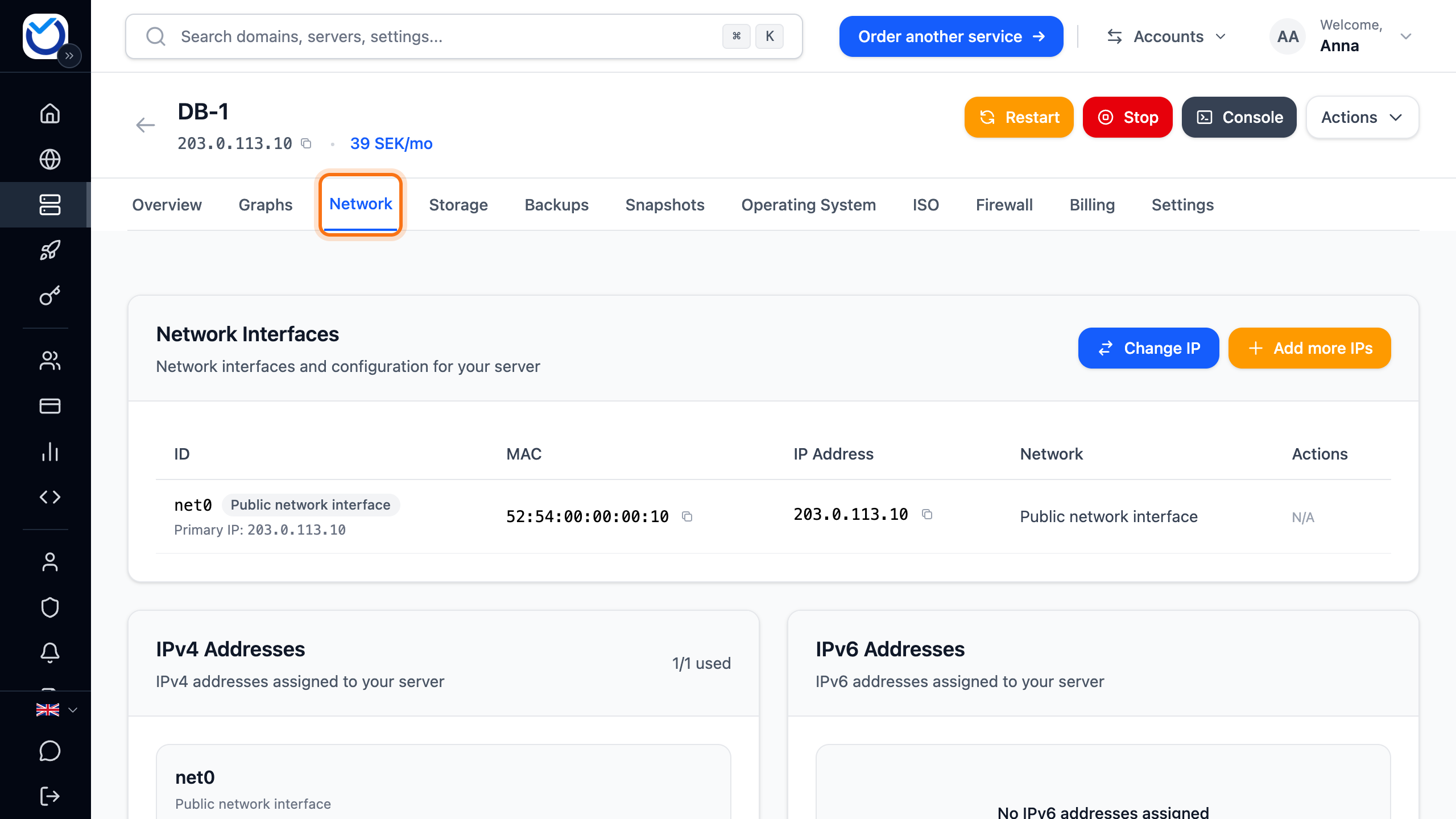
- Under IPv4 Addresses, click Assign IPv4 Address next to the interface that should get the address.
- Click Assign automatically. A free address is picked for you. To choose one yourself, click Choose an address yourself (advanced). Tick the address and click Assign Selected IP.
The dialog tells you whether the server restarts when the address is added. If it says The VM will restart automatically, that happens automatically. If it says No restart needed, the address is added to the running server.
If the server’s network has no free addresses, it says No available IPv4 addresses. Click Add a new public interface on a different subnet and follow the steps below.
Add a public network interface
Section titled “Add a public network interface”A new public network interface gets its own IPv4 address. It can be on a different network from the server’s first interface. The interface uses one of the server’s IPv4 slots.
- Click Add public interface in the Network Interfaces box. When every IPv4 slot is in use, Add more IPs shows there instead. Add a slot first, as described under Before you start.
- Click IPv4 (Add IPv4 Address).
- Pick a network. Then pick an address and click Continue.
- Click Confirm.
Add an IPv6 address
Section titled “Add an IPv6 address”Each public network interface can have one IPv6 address.
- If there is an Enable IPv6 button at the bottom of the IPv6 Addresses box, click it first. It costs nothing extra.
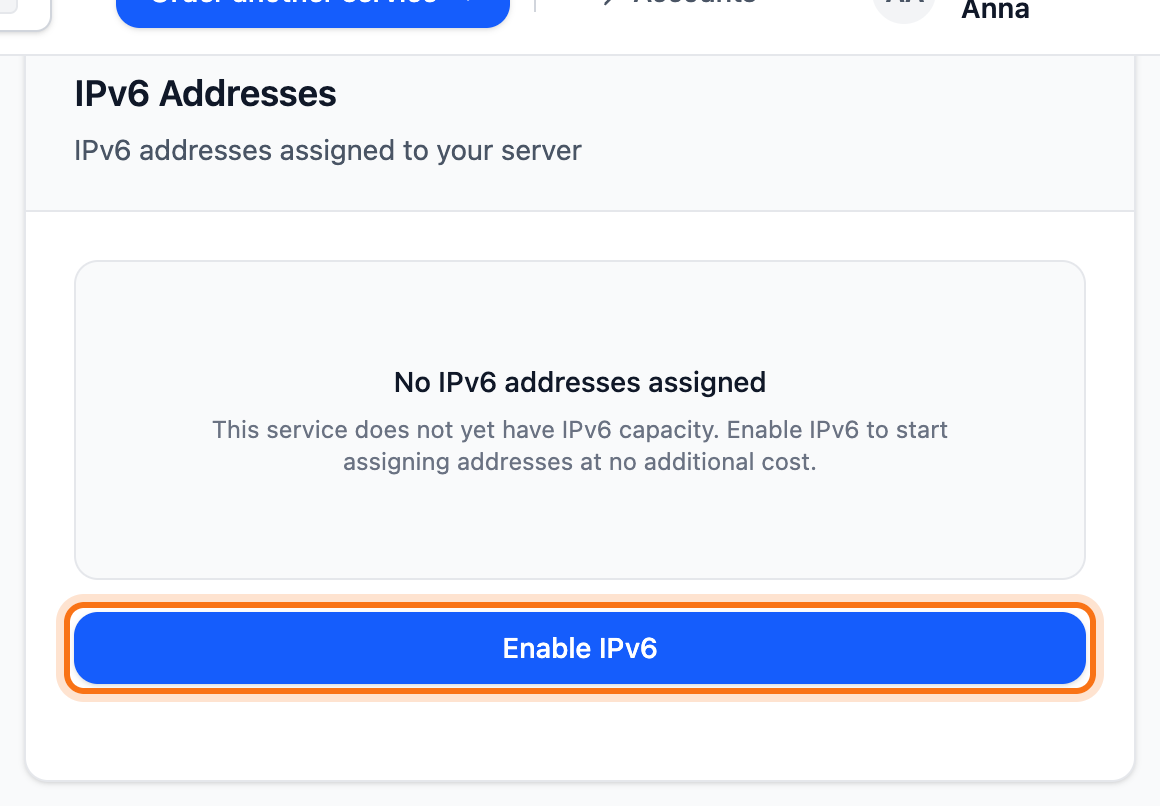
- Click Assign IPv6 Address next to the interface.
- Click Assign automatically.
If you need more IPv6 addresses, route a network of your own to the server. See Routed IPv6.
What happens next
Section titled “What happens next”The address shows under the network interface. The client area adds it to the server’s network settings, either straight away or with an automatic restart.
If the server is not using the address, the tab shows a Server IP configuration needs attention box. It lists the addresses missing in the server.
- Click Apply inside server in the box. The client area then adds the address inside the server.
- If you cannot click the button, restart the server. Do the same if an error appears.
- If the address still does not show, add it in the operating system’s network settings.
Good to know
Section titled “Good to know”- To remove an extra address, click the bin (Remove IP) and then Confirm. The primary IPv4 address cannot be removed.
- To remove an extra network interface, click Remove Interface in the Network Interfaces table. Confirm with the same button in the dialog that opens. The addresses on it are released from the server.
- After a DDoS attack you cannot add IPv4 addresses for a while. The date shows under the button.
- Swapping an address for a new one is covered in Change the IP address of your VPS. For private addresses between your servers, see Private network between your VPS.