
Payment cards and automatic invoice payment
Checked against the client area 29 October 2026
With a saved card, your invoices can be charged automatically on the due date. You save the card and choose whether invoices are charged automatically under Billing in the client area.
Open Payment Methods in the client area
Before you start
Section titled “Before you start”Only the account owner can add and remove cards and change automatic charging. A user you have added to the account who is allowed to see the invoices can still pay a single invoice by card.
Add a card
Section titled “Add a card”- Click Billing in the menu and open the Payment Methods tab.
- Click Add Payment Method.
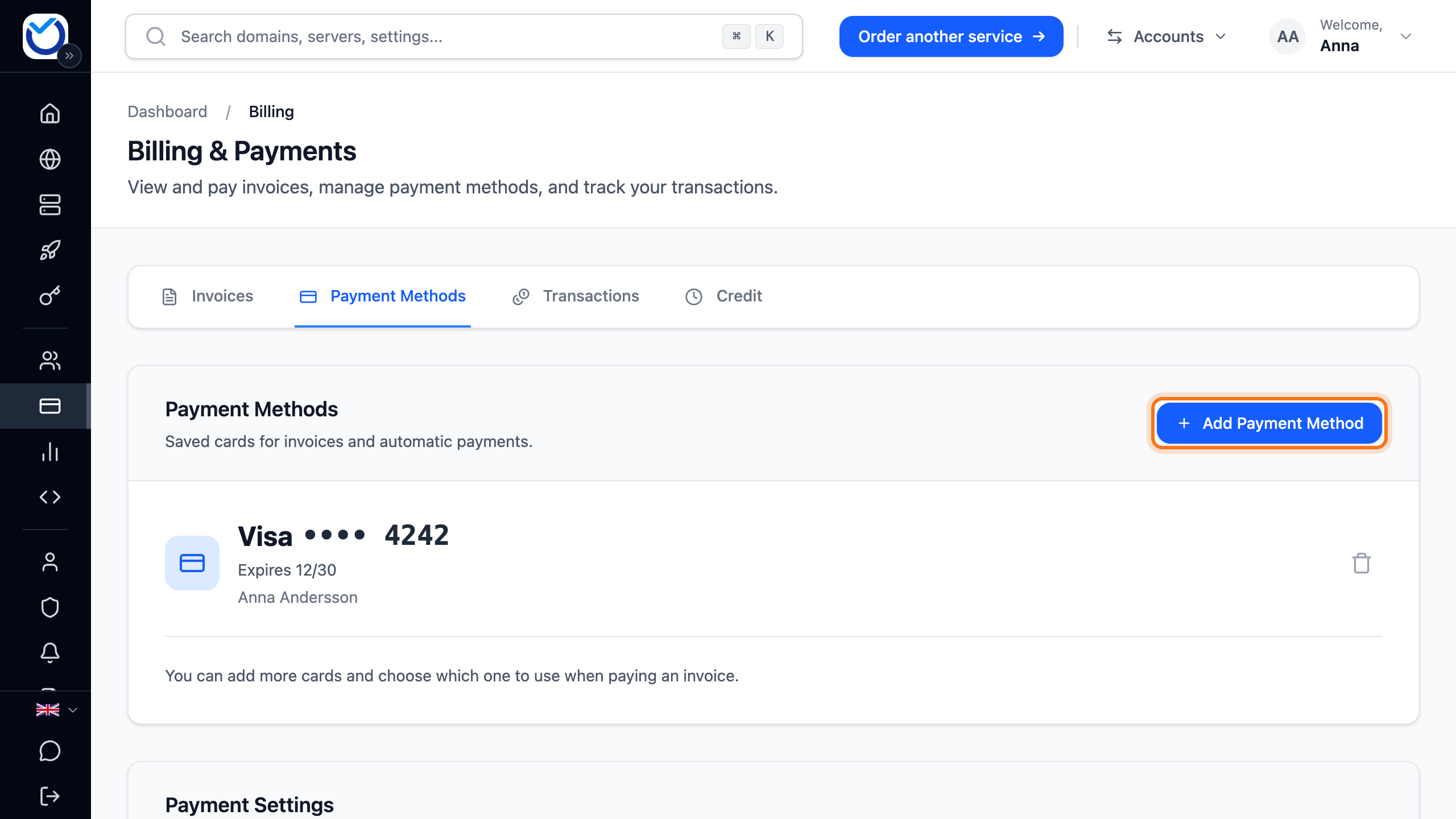
- You go to a secure card page. Enter the card details and save the card.
- You come back to the client area. The card shows under Payment Methods. If you have exactly one unpaid invoice, that invoice opens instead, so you can pay it right away.
The new card becomes the default card. The default card is the one charged automatically, and the one charged when you click Pay with card on an invoice.
Change or remove a card
Section titled “Change or remove a card”- Add the new card as described above. It becomes the default card straight away.
- Click the bin (Remove Card) next to the old card.
- Click Delete. The card is removed from the account.

When you have several cards, the default card is marked Default. To use another of your saved cards, click Make default next to it.
Turn on automatic charging
Section titled “Turn on automatic charging”- Go to Payment Settings further down the Payment Methods tab.
- Tick Charge automatically on the due date. The setting is saved straight away.

The text under the option shows which card is charged and at what time. Unpaid invoices are charged to the default card on the due date. You still receive the invoice as usual. If the invoice is already paid by the due date, nothing is charged.
You cannot change the option until you have saved a card. Unless you turned it off earlier, it is already ticked once the card is saved. If you would rather pay the invoices yourself, untick it.
If a charge does not go through
Section titled “If a charge does not go through”When a charge fails, the Dashboard shows Automatic card payment failed. It says which card could not be charged, and the reason when it is known. The invoice is then still unpaid.
- If the card has expired or been replaced, add the new card. The Manage payment cards link in the box takes you there.
- To pay with another card right away, open the invoice and click Pay with card. If the saved card is declined again, you go to a page where you enter another card.
- You can also pay the invoice by Swish or Bankgiro. Read more in Pay an invoice.
Good to know
Section titled “Good to know”- When you as the account owner pay an invoice with a new card, the card is saved on the account and becomes the default card.
- If you remove the default card, the most recently added of your other cards becomes the default.
- If you receive your invoices as e-invoices (Peppol), we turn off automatic charging. Otherwise the invoice could be paid twice. The text under the option says so. You can turn charging back on if you want.