
Snapshots of your VPS
Checked against the client area 29 October 2026
A snapshot saves the state of the server’s disk right now. If something goes wrong after an update or a change, you roll the server back to that state. All snapshots are deleted automatically after 24 hours. They do not replace backups.
Open your servers in the client area
Before you start
Section titled “Before you start”Snapshots must be included in the server’s plan. If the tab says Snapshots not included in your plan, they are not. Click the box (Upgrade). It takes you to the Billing tab with Adjust Resources already chosen. Choose more snapshot slots there.
How to
Section titled “How to”- Open the server in the client area and go to the Snapshots tab.
- Click + Create Snapshot. If the server has no snapshots, the button says + Create First Snapshot.
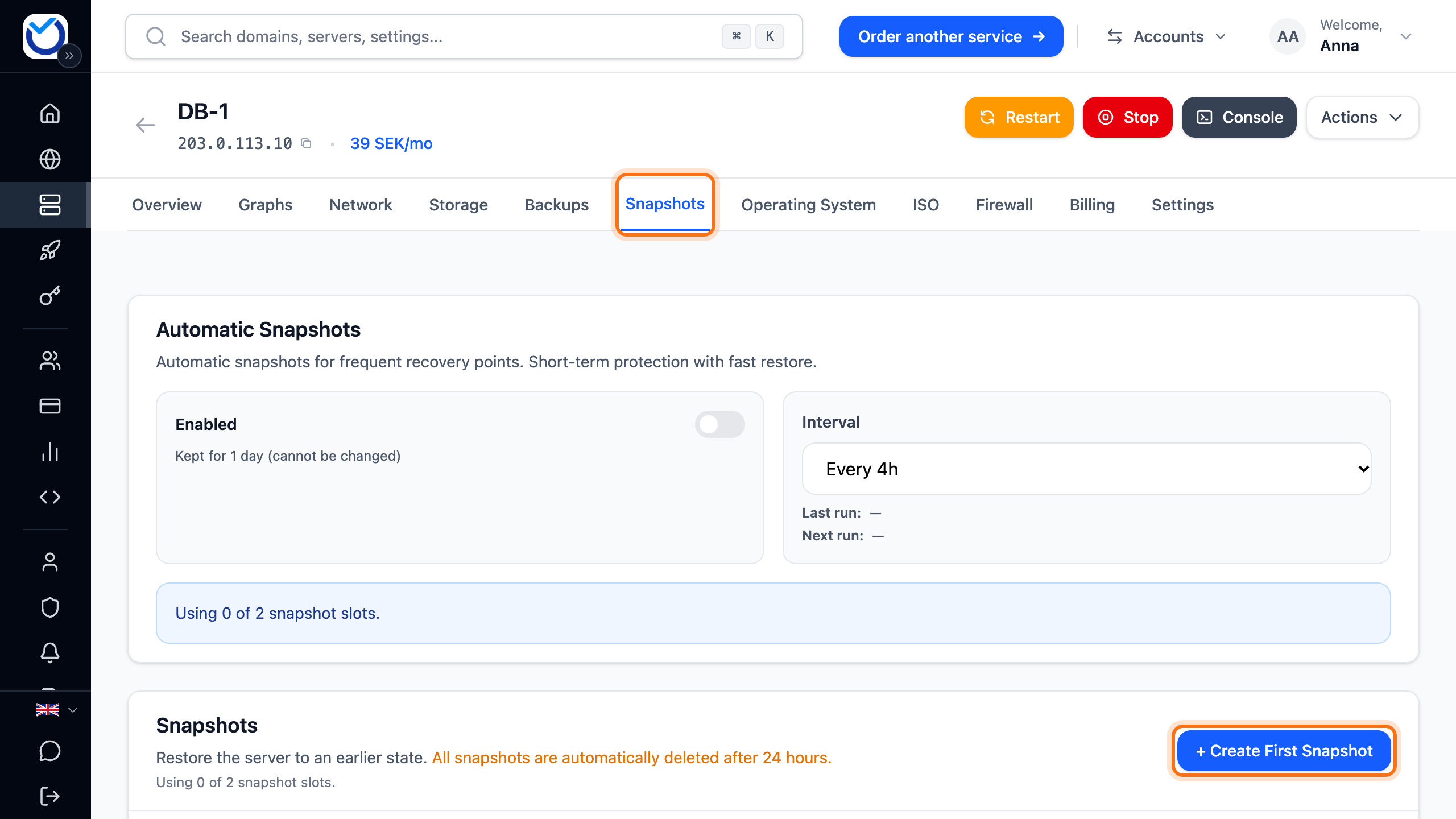
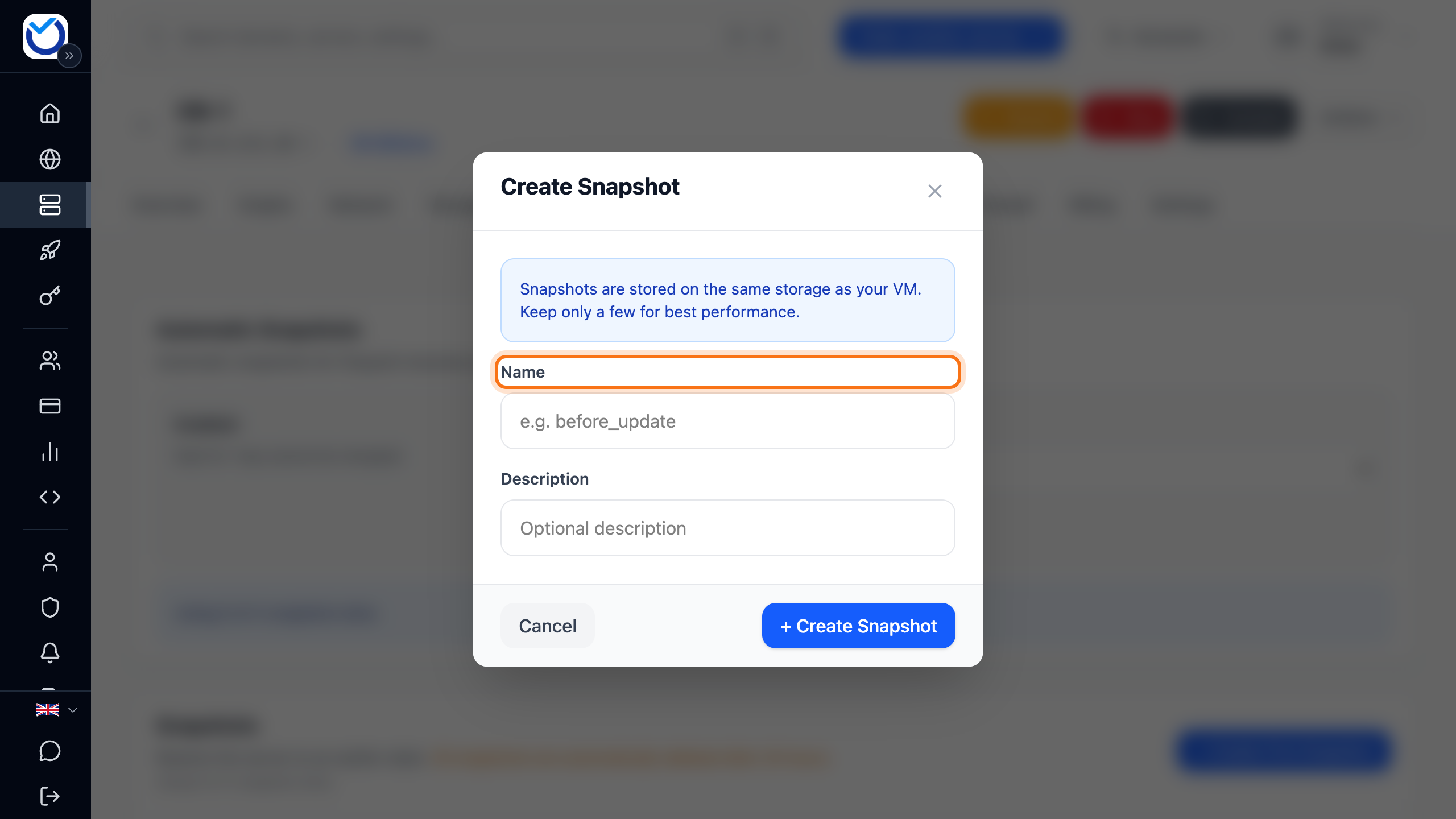
- Enter a name under Name, for example before_update. Letters, digits, underscores and hyphens work. Spaces and letters such as å, ä and ö do not. The name can be at most 40 characters.
- If you like, note what you are about to do under Description.
- Click + Create Snapshot in the dialog.
What happens next
Section titled “What happens next”While the snapshot is being taken, the button says Snapshot operation in progress. When it is done, it shows in the list. The Expires column shows when it will be deleted automatically.
Roll back to a snapshot
Section titled “Roll back to a snapshot”- Click Rollback on the snapshot’s row.
- Type the snapshot’s name in the field to confirm.
- Click Rollback in the dialog.
If the server is running, it is shut down during the rollback. It is started again afterwards.
Automatic snapshots
Section titled “Automatic snapshots”- Under Automatic Snapshots, click the switch to the right of Enabled. It is saved straight away.
- Choose how often under Interval: every 4, 6, 12 or 24 hours. This is also saved straight away. The list can only be changed once the switch is on.
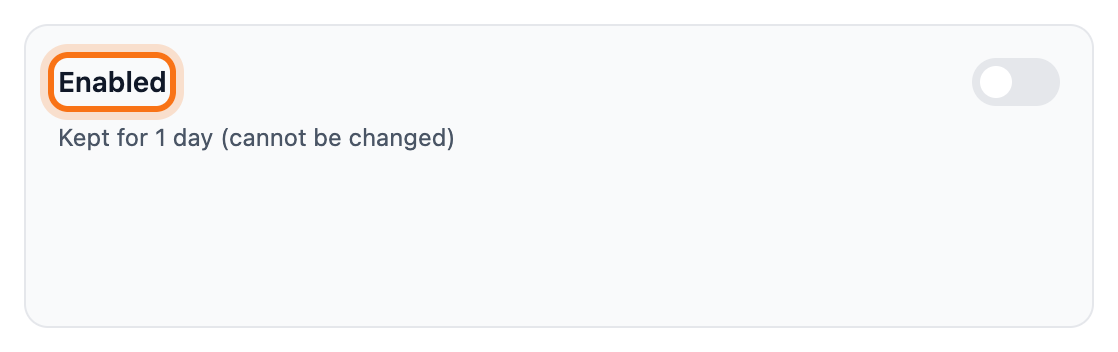
Automatic snapshots are kept for one day. This cannot be changed. Next run shows when the next one is taken.
Good to know
Section titled “Good to know”- The plan decides how many snapshots the server can have. The tab shows how many slots are in use. Manual and automatic snapshots share the slots.
- When every slot is in use, the automatic snapshot is skipped. It tries again at the next interval. To delete a snapshot, click Delete on its row and confirm in the dialog.
- Snapshots are stored on the same storage as the server. Keep only a few.
- If you need to go back further than a day, take a backup instead.