
UEFI, TPM or BIOS: change the boot mode of your VPS
Checked against the client area 29 October 2026
Under Boot Mode you choose how the server boots: with UEFI and TPM 2.0, or with plain BIOS (SeaBIOS). The mode matters when you install an operating system from your own ISO file. The system is installed for one of the modes and only boots in that one.
Open your servers in the client area
Before you start
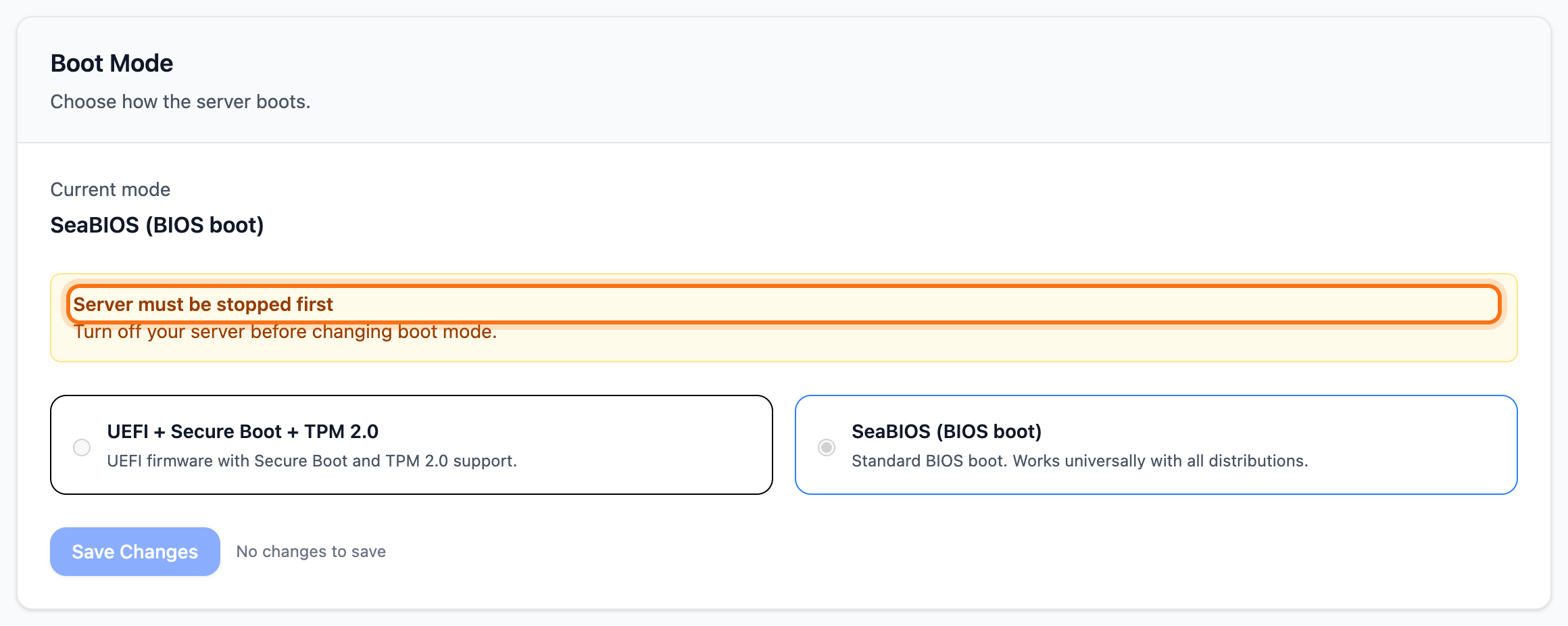
Section titled “Before you start”The server must be stopped. While it is running, the card says Server must be stopped first and the options are locked.
How to
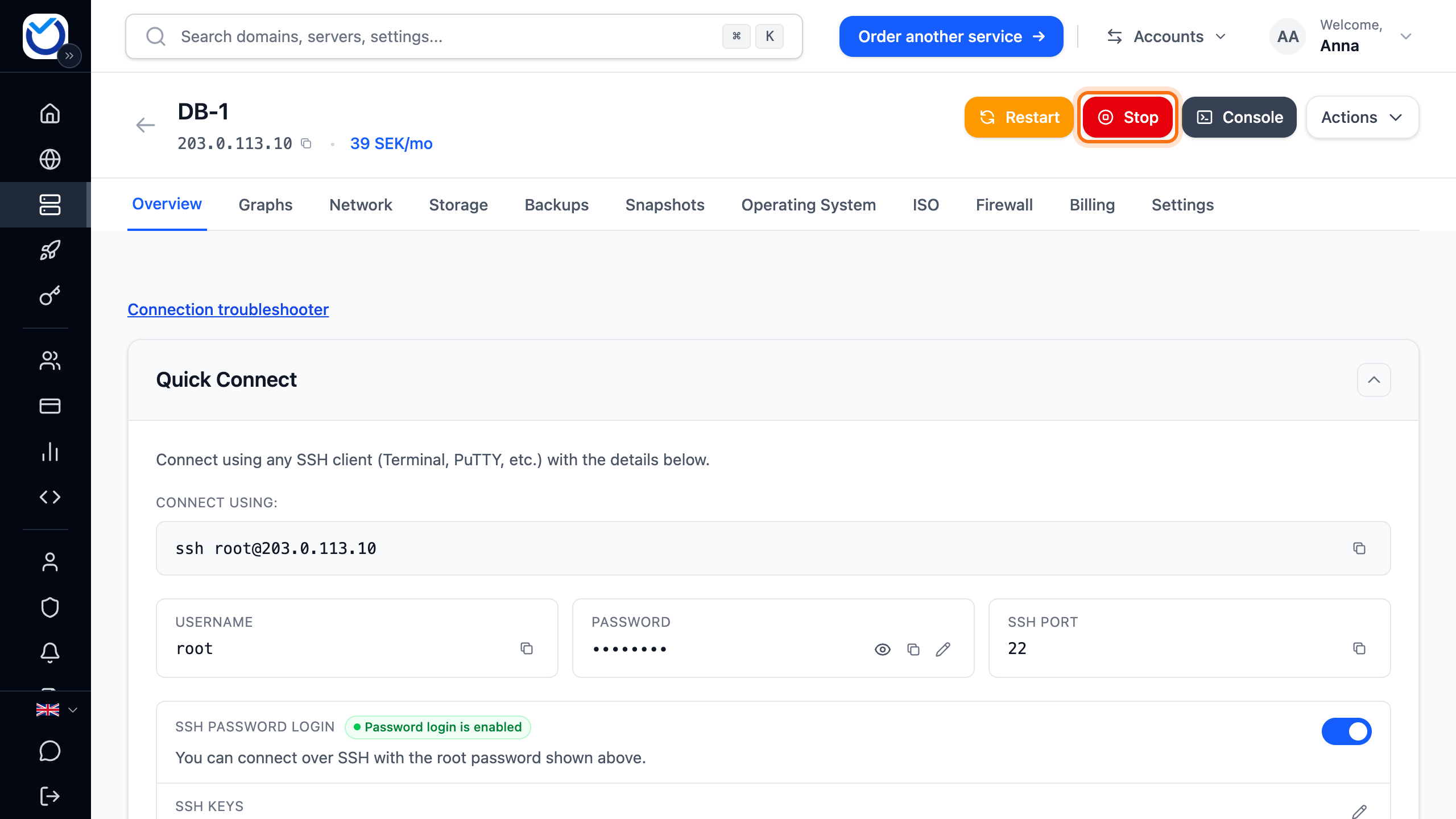
Section titled “How to”- Open the server in the client area and click Stop at the top of the page.
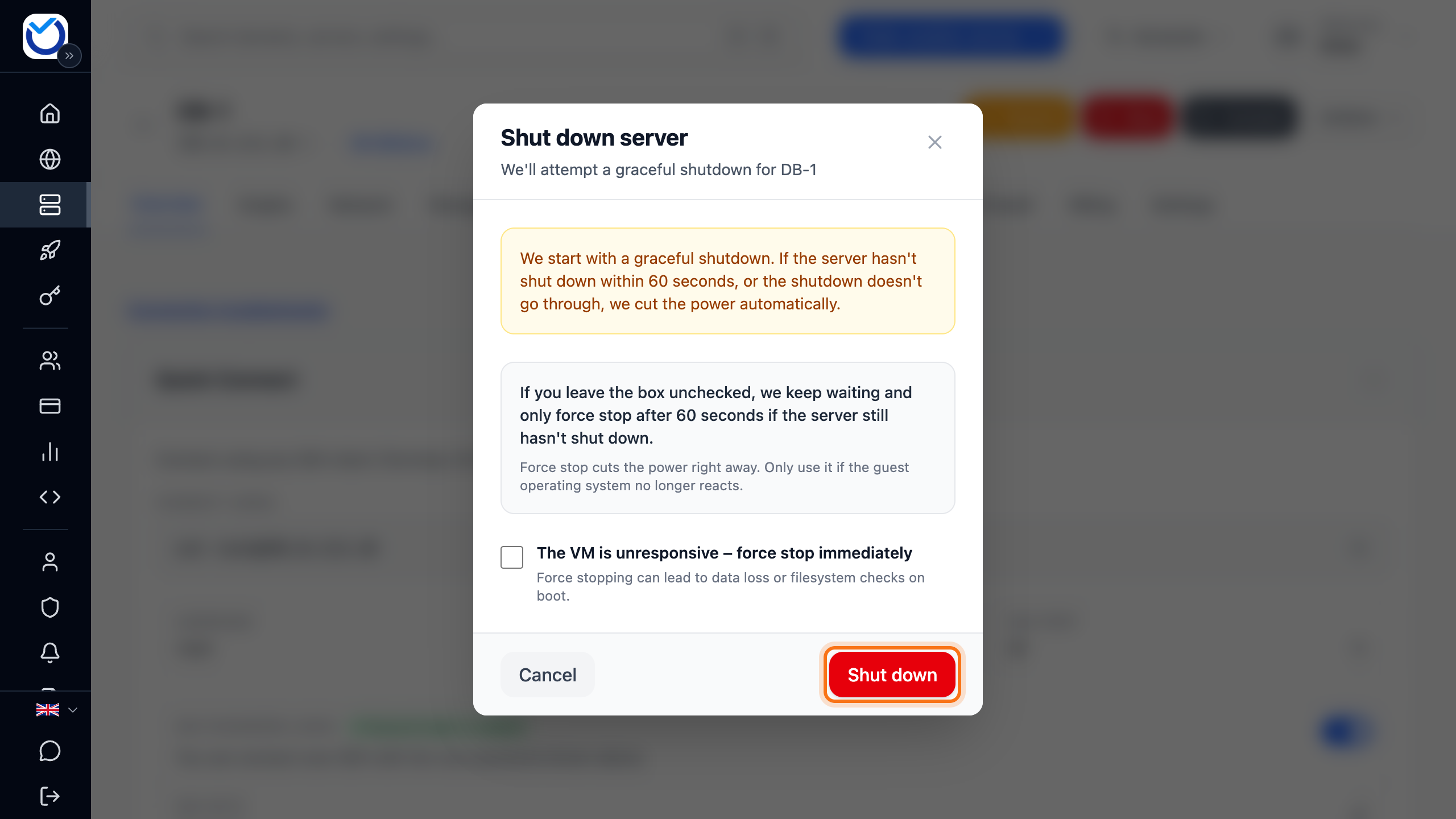
- The Shut down server dialog opens. Click Shut down and wait until the server has stopped.
- Go to the Settings tab. Boot Mode is at the top. Current mode shows the mode the server has now.
- Choose UEFI + Secure Boot + TPM 2.0 or SeaBIOS (BIOS boot).
- Click Save Changes.
- Start the server again with Start.
What happens next
Section titled “What happens next”Current mode shows the new mode. With UEFI the server gets a UEFI disk and a virtual TPM 2.0 chip. If you choose SeaBIOS, both are removed. Anything stored in them cannot be recovered.
If you are installing a system from your own ISO file, do it now. See Boot your VPS from your own ISO file or netboot.xyz.
Good to know
Section titled “Good to know”- If you reinstall the server on the Operating System tab, it gets the right boot mode for the system you choose. You don’t need to change it yourself.