
CDN settings: proxy per record, HTTPS and cache
Checked against the client area 29 October 2026
Once the CDN is on for your domain, you decide two things. Which addresses go through the CDN is chosen per DNS record on the domain’s DNS tab. What Cloudflare calls proxied is CDN on in the client area. HTTPS, cache and extra protection are set in the domain’s CDN settings.
Open the CDN page in the client area
Before you start
Section titled “Before you start”The CDN must be on for the domain. If the domain shows Not connected on the CDN page, first read Turn the CDN on or off for your domain.
The per-record choice applies to domains that use our nameservers. If you connected the domain with Keep your current DNS, you chose the addresses under Choose hostnames when you activated the CDN.
How to
Section titled “How to”To choose which addresses go through the CDN:
- Click Domains in the menu and then the domain.
- Go to the DNS Management tab. If the domain is under External domains, its records show straight away. A, AAAA and CNAME records have a button that shows CDN on or CDN off.
- Click the button to turn the CDN on or off for that record. The change is saved straight away, without asking first.
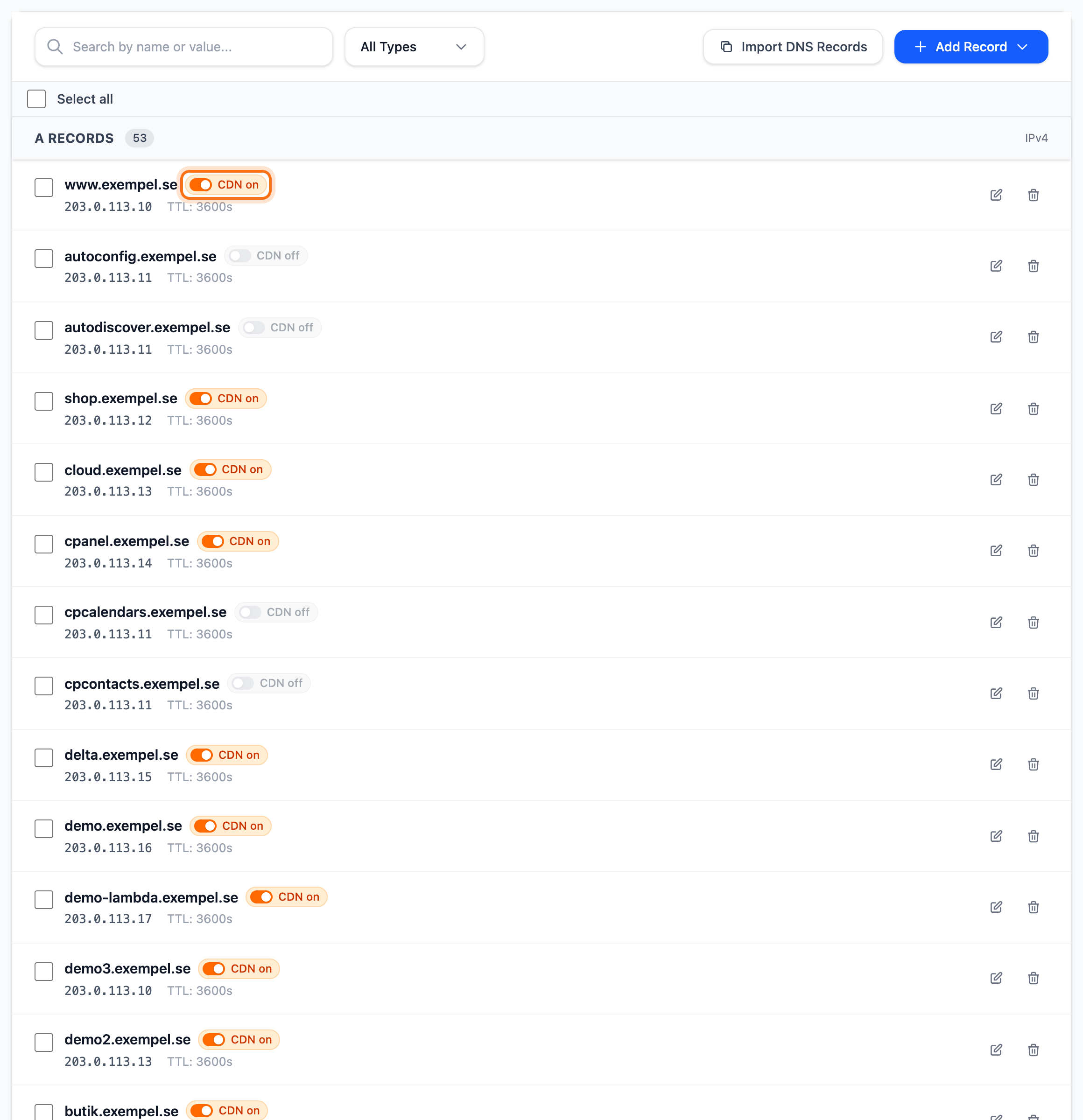
When a record goes through the CDN, traffic to that address reaches the web server via Cloudflare. When it shows CDN off, traffic goes straight to the server, without the cache and security filters.
Some records cannot go through the CDN. Their button is then dimmed. Hover over it to see why.
- MX records and types other than A, AAAA and CNAME have no button at all.
- An A or AAAA record that an MX record points to is used by your email. It cannot go through the CDN.
- A and AAAA records for system subdomains, for example mail, webmail, ftp and autodiscover.
- Subdomains of a subdomain, for example
www.blog.example.com. - Every record while the CDN is off for the whole domain.
Change HTTPS, cache and protection
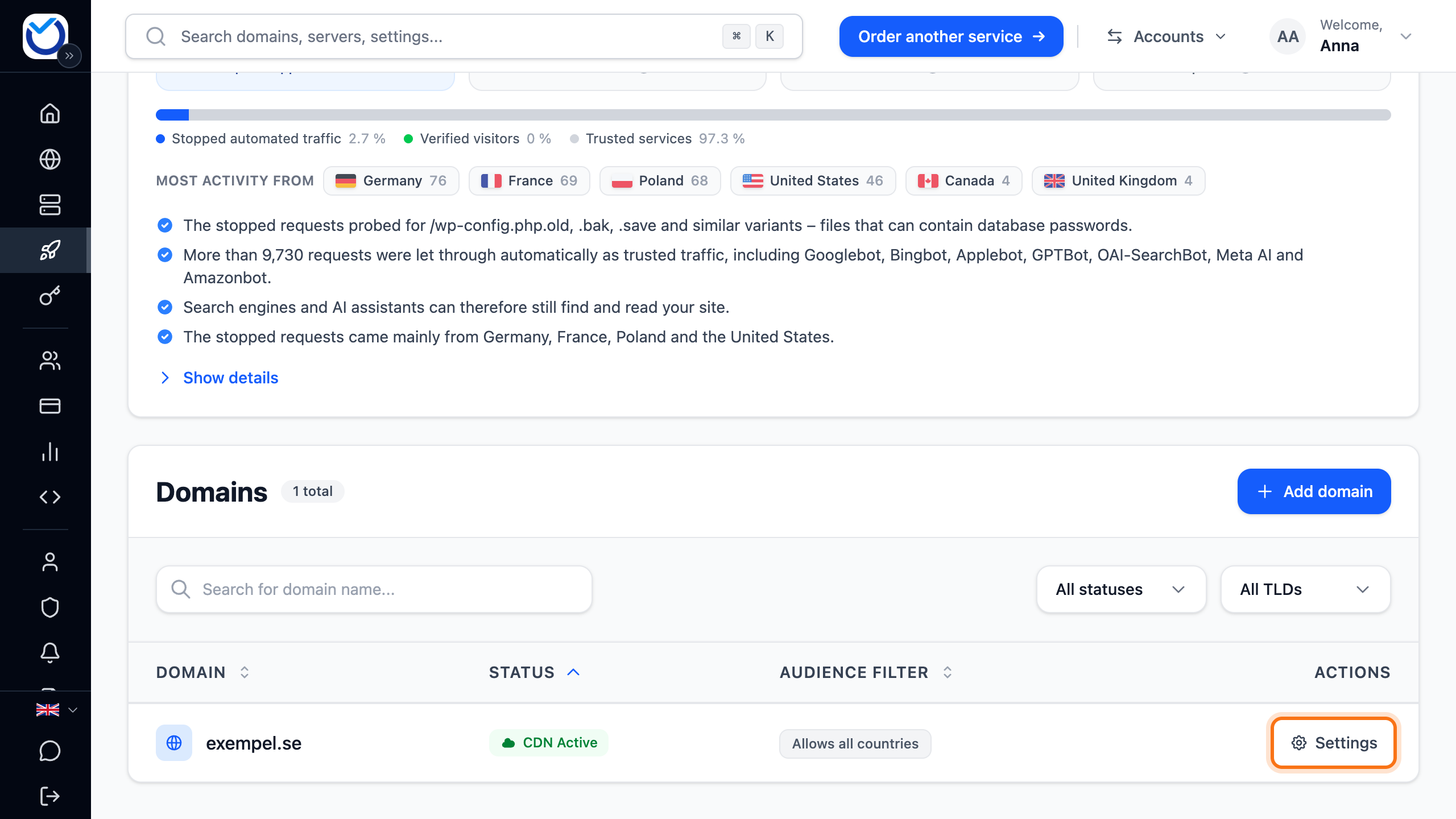
Section titled “Change HTTPS, cache and protection”- Click CDN in the menu and then Settings next to the domain. On a phone, tap the domain.
- Click the heading of what you want to change: HTTPS and encryption, Cache and performance or Additional protection.
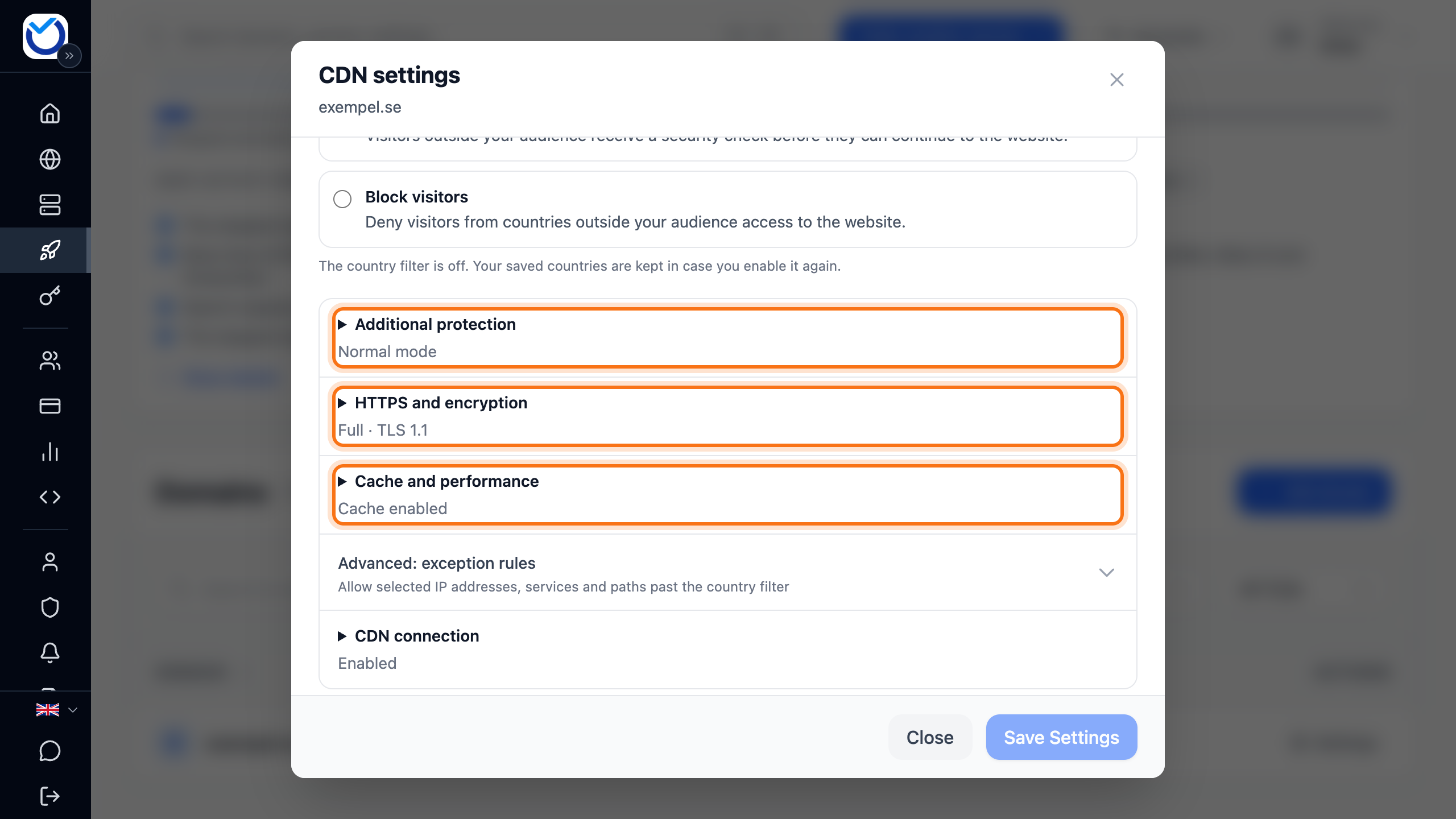
- Make the change. What the options mean is described below.
- Click Save Settings.
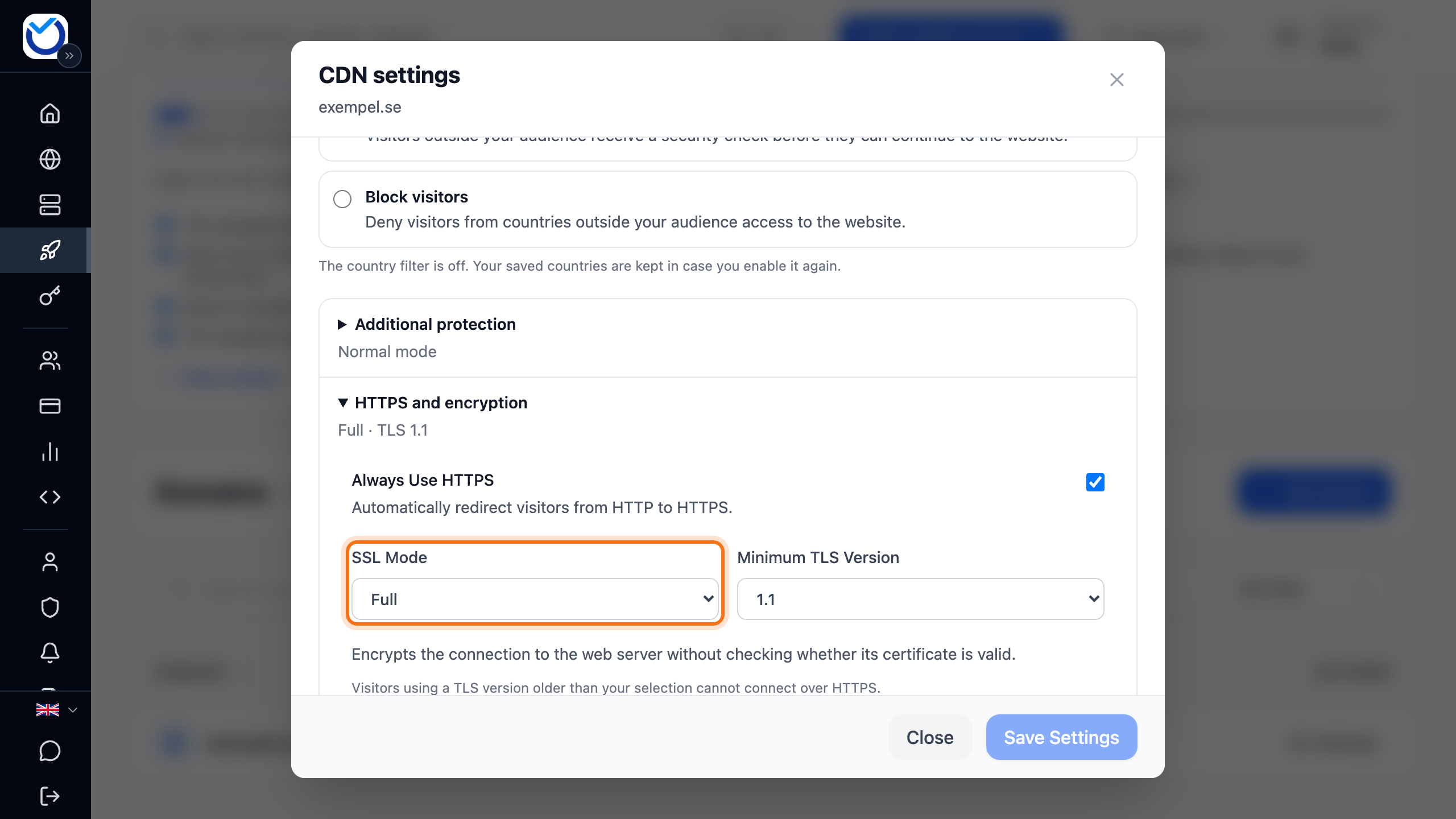
Under HTTPS and encryption:
- Always Use HTTPS sends visitors from HTTP to HTTPS.
- Under SSL Mode you choose how the connection to the web server is encrypted. Full (strict) encrypts it and requires a valid certificate on the web server. Full encrypts it without checking the certificate. Flexible only encrypts as far as Cloudflare. From there to the web server, traffic uses HTTP. With Off (not secure) the website gets no HTTPS.
- Under Minimum TLS Version you choose the oldest TLS version that is let in. Visitors with older versions cannot connect over HTTPS.
Under Cache and performance:
- Disable cache turns the cache off. This helps while you develop or troubleshoot the website and changes don’t show.
- Early Hints lets the browser start fetching parts of the page earlier.
- Always Online™ can show a saved copy of some pages if the web server does not respond.
Under Additional protection:
- Under Attack mode adds extra checks for visitors during an ongoing attack.
- Bot Protection checks automated traffic. Suspicious visitors may have to verify themselves.
- WP Login Protection adds extra protection to the WordPress login.
- This is also where you block crawlers, user agents and IP addresses. See Block countries, bots and IP addresses with the CDN.
What happens next
Section titled “What happens next”Once the settings are saved, the bottom of the dialog says Settings saved successfully!. If you close the dialog with Cancel, nothing is saved.
At the top of the dialog you see how many of the domain’s web records go through the CDN. If none do, the settings make no difference yet.
Good to know
Section titled “Good to know”- If you tick Disable cache or Under Attack mode, it stays in effect until you untick it.
- There is no separate button to clear the cache. If visitors see an old version after a change, turn the cache off with Disable cache.
- If you turn the CDN off for the whole domain, the settings are kept. They apply again when you turn the CDN back on. See Turn the CDN on or off for your domain.