
Order web hosting and get help moving your website
Checked against the client area 29 October 2026
Web hosting holds your website and the email for your domain. You pick a package and connect a domain. If you already have a website or email with another provider, we move it for you at no cost. You ask for that right in the order.
How to
Section titled “How to”- Click Order another service at the top of the client area.
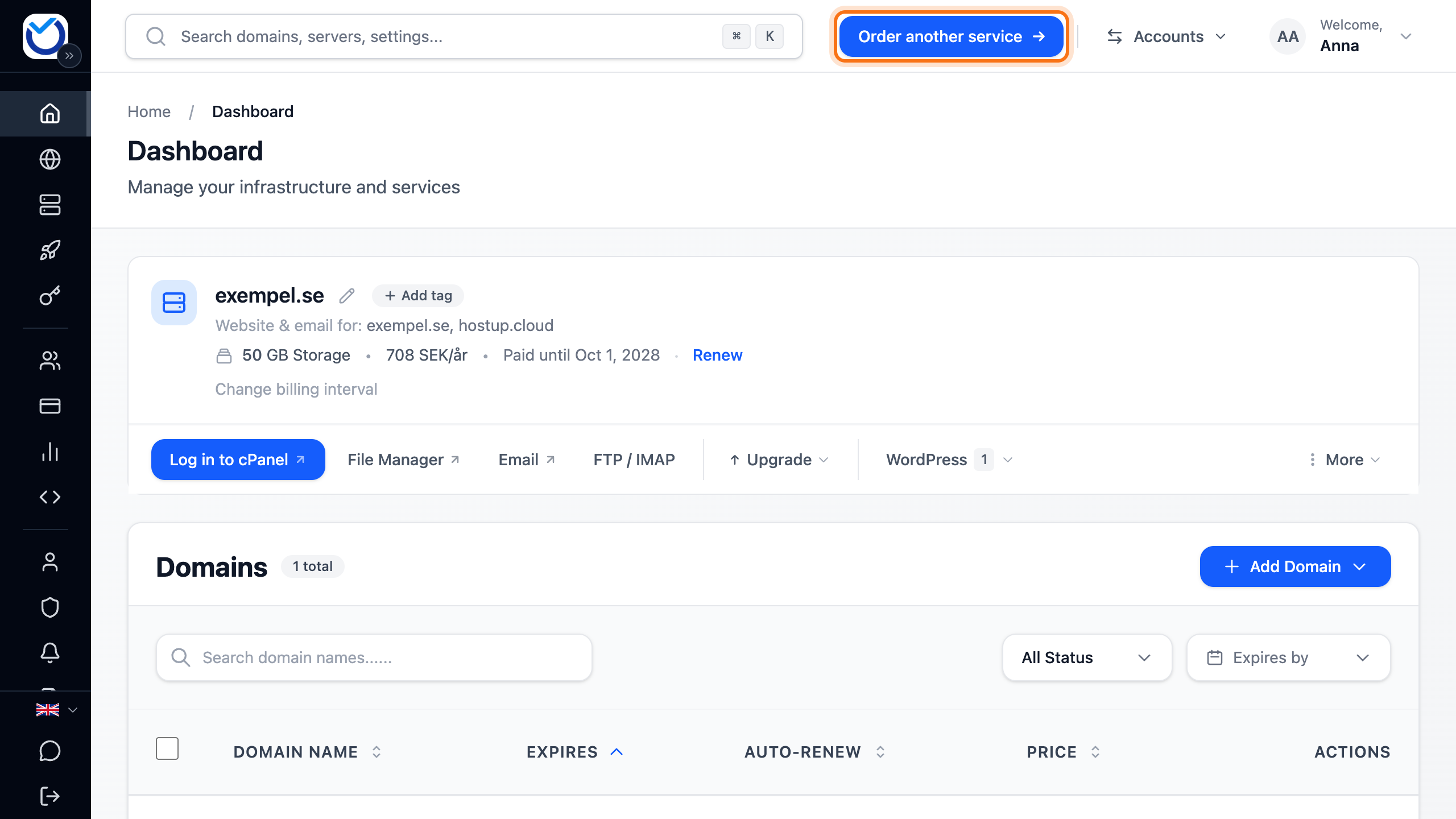
- Click Web Hosting.
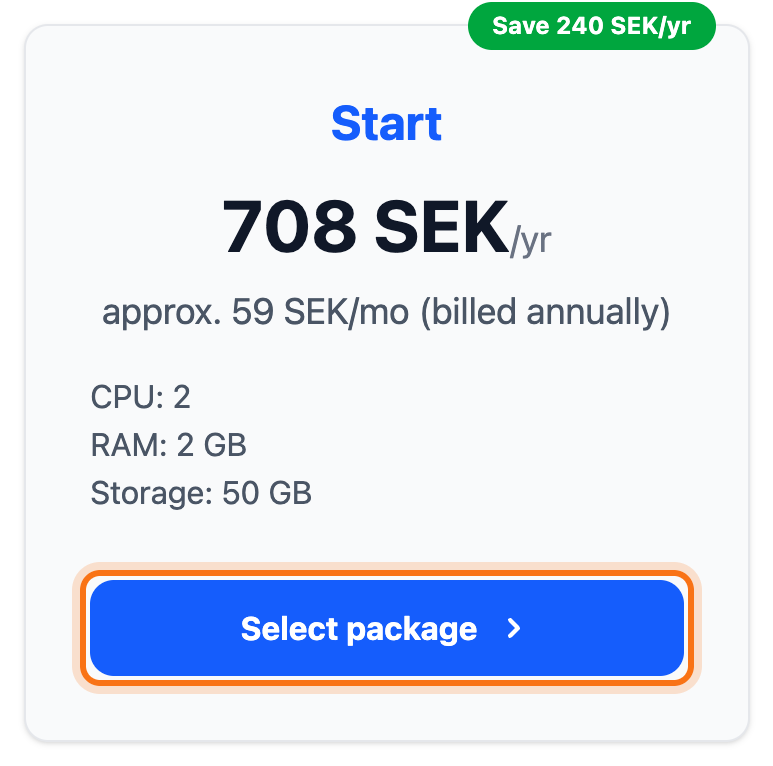
- Click Select package under the package you want. Monthly and Annually at the top show the price for each period.
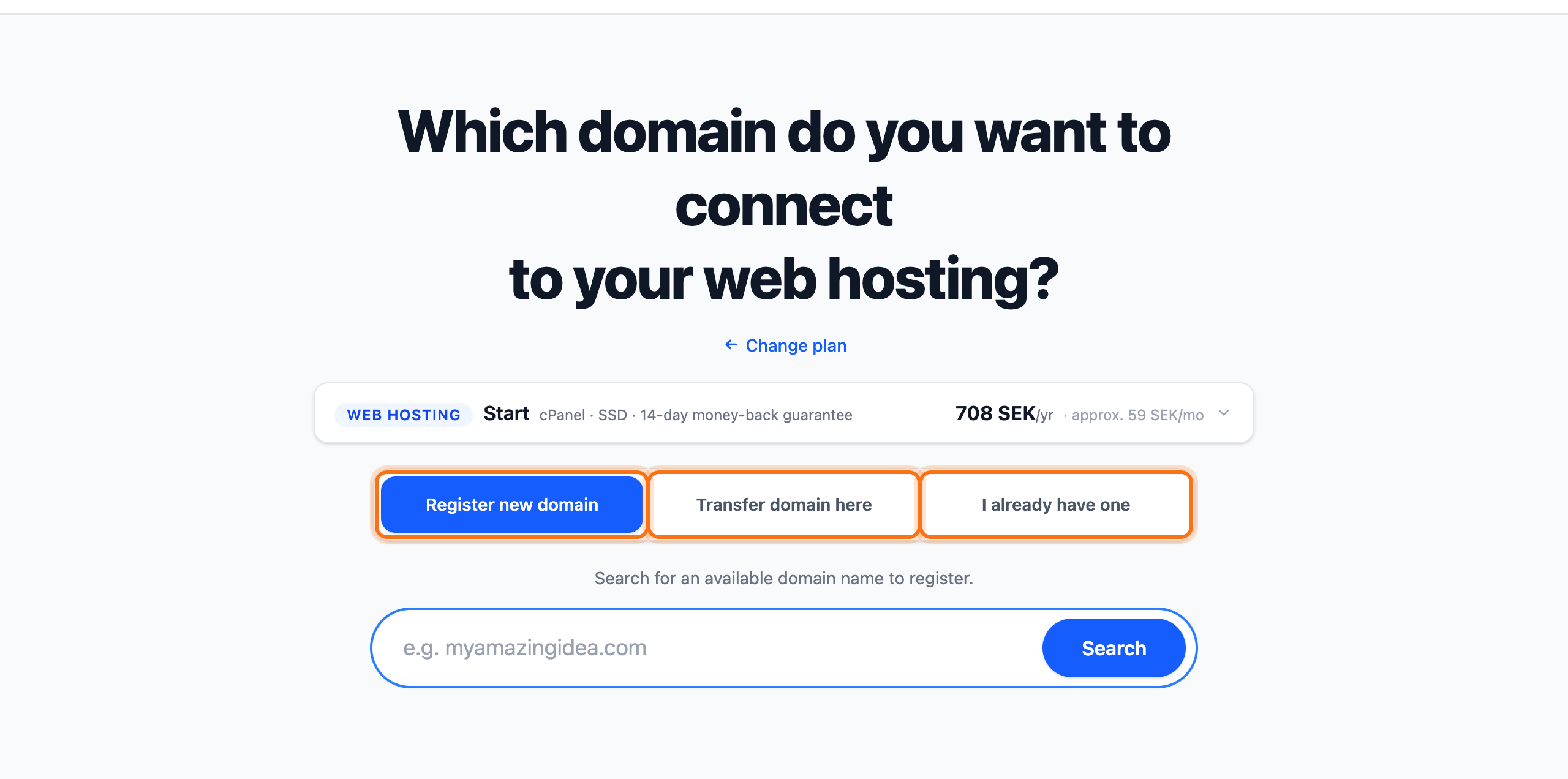
- Choose which domain the hosting gets:
- Register new domain if you want a new domain. Enter the name and click Search. Then click Add next to the available domain.
- Transfer domain here if the domain should move here from another provider. Enter the domain and click Continue.
- I already have one if the domain stays with its current provider. Pick one of your domains under Select one of your domains or enter the domain name. Click Use.
-
With a new domain, click Go to checkout in the summary. On a phone the button is called Review & Pay. Then continue with step 7.
-
If you transfer a domain or use one you already have, the page asks Need help moving? Pick one of the options:
- Yes, help me move if we should move the website for you. Fill in the details as described in the next section and click Add to cart.
- Email only if the hosting should only handle your email. The website stays where it is. Choose whether we should move your inboxes and click Add to cart.
- No, I'll start fresh if you are starting from scratch. The hosting then goes straight into the cart.
If the domain you transfer is not registered, the page asks whether you want to register it instead.
-
In the cart, choose the billing period: one month or one year. The price for both is shown there.
-
Click Go to checkout and complete the order at checkout.
How the transfer of the domain itself works is covered in Transfer your domain to Hostup.
Get help moving your website
Section titled “Get help moving your website”The move costs nothing. You give us the login details for the old website in the order. We take care of the rest.
- Choose Yes, help me move.
- Under What do you want to move?, choose what we should log in to:
- WordPress if the website is built with WordPress. Enter the address of the login page under WordPress Admin URL. Enter the WordPress Username and WordPress Password of an administrator.
- Other (cPanel/DirectAdmin) if your old provider has a control panel. Enter the Control Panel URL, Username and Password.
- FTP/SFTP only if you only have FTP or SFTP details for the old website. Choose FTP or SFTP under Connection type. Enter the FTP server (host), Username and Password.
- If your email should move too, tick Yes, migrate email too. Enter one email account per line with the address and password, for example
info@yourdomain.com:password. - If there is anything else we should know, write it under Additional information (optional).
- Click Add to cart.
If you chose Email only, the page asks whether we should move your inboxes. Choose Yes, help me move the inboxes and list the accounts the same way. To create new accounts yourself, choose No, I will set up email from scratch.
What happens next
Section titled “What happens next”The Your order box on the Dashboard shows how far the order has come. It updates by itself. While the hosting is being set up, it is marked Pending activation. The account is activated once the invoice is paid.
If you asked for help with the move, a ticket for it is created when you place the order. You find it under Support. That is where you follow the move and reply if we need anything. If you chose FTP/SFTP only, we test the login shortly after the order. If it is rejected, you get a reply in the ticket asking for the correct details.
Once the account is active, you log in to cPanel from the client area. That is where you build the website and create email accounts. See Log in to cPanel and find your FTP and email details.
Good to know
Section titled “Good to know”- If you change your mind before the invoice is paid, click More on the hosting and then Cancel Order. The invoice opens. Click Cancel Order there as well and confirm with Yes, Cancel Order.
- With I already have one you keep the domain with your current provider. The website and email only reach the hosting once the domain points here.
- You can add more storage after the order without changing package.
- If more domains should move here, you do that after the order.