
Block countries, bots and IP addresses with the CDN
Checked against the client area 29 October 2026
With the CDN you can stop unwanted traffic before it reaches your website. You can make visitors from other countries verify themselves, or block them completely. You can also stop bots that fetch your pages, and single IP addresses. The security overview shows what has been stopped in the last 24 hours.
Open the CDN page in the client area
The same change on many domains is quickest with Hostup’s MCP server in your AI app:
Before you start
Section titled “Before you start”The rules only apply to traffic that goes through the CDN. The domain should show CDN Active on the CDN page. The website’s DNS records should show CDN on. See Turn the CDN on or off for your domain and CDN settings.
How to
Section titled “How to”To decide what happens to visitors from other countries:
- Click CDN in the menu and then Settings next to the domain. On a phone, tap the domain.
- Under Visitors outside your target audience, choose Allow everyone, Verify visitors or Block visitors. With Verify visitors, visitors outside your target audience get a security check before the website shows. With Block visitors, they are not let in at all.
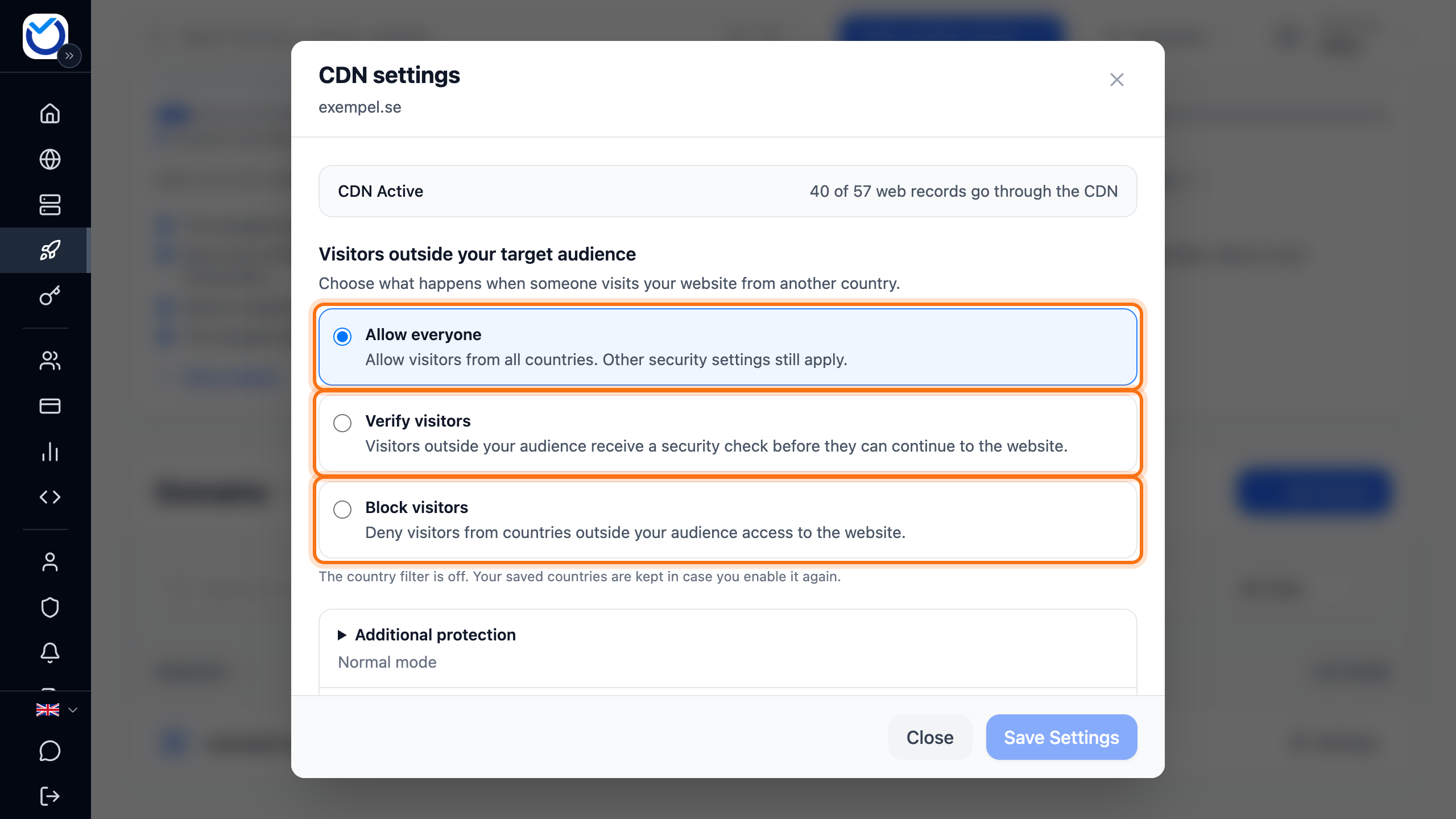
- If you chose to verify or block, Target Audience appears. It lists the countries whose visitors get in without a check. To add more, click Edit countries and tick them. Countries that are included automatically are greyed out and cannot be removed.
- Click Save Settings.
If an integration or webhook has to reach the website from another country, click Advanced: exception rules. Add its address under Allowed IPs / CIDRs, the service’s user agent under Allowed User Agents or the path under Allowed Paths. Click Add and save the settings. The exceptions get past the country filter. Other security rules can still apply.
Block bots, user agents and IP addresses
Section titled “Block bots, user agents and IP addresses”- Open the domain’s settings as above and click Additional protection.
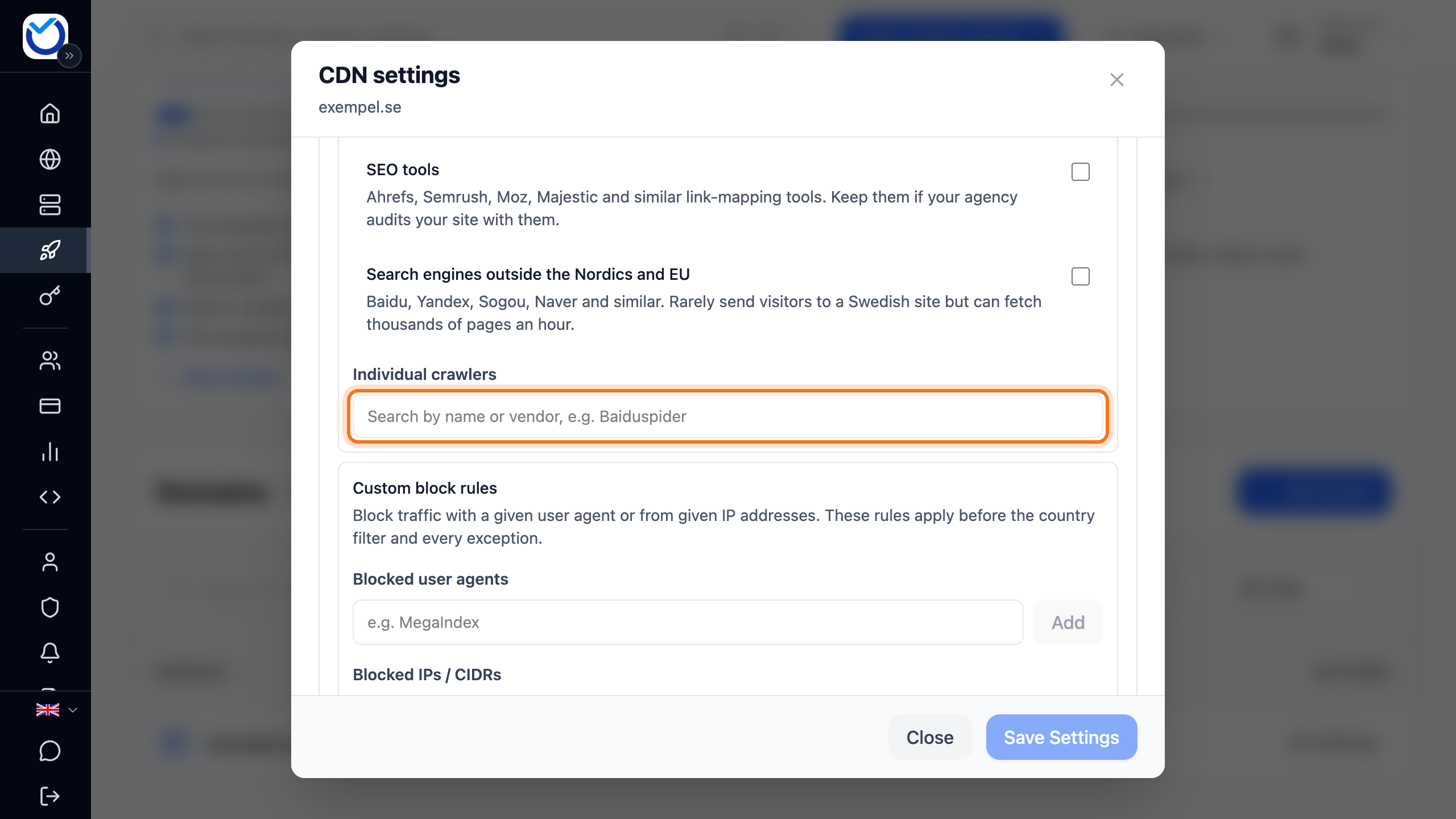
- Under Blocked crawlers, tick a group under Groups, for example AI crawlers that collect content or SEO tools. Each group says what it stops.
- To stop a single crawler, search for its name under Individual crawlers and click it in the list. If you pick Googlebot or bingbot, the website disappears from Google’s and Bing’s search results. The client area then shows a warning below the list.
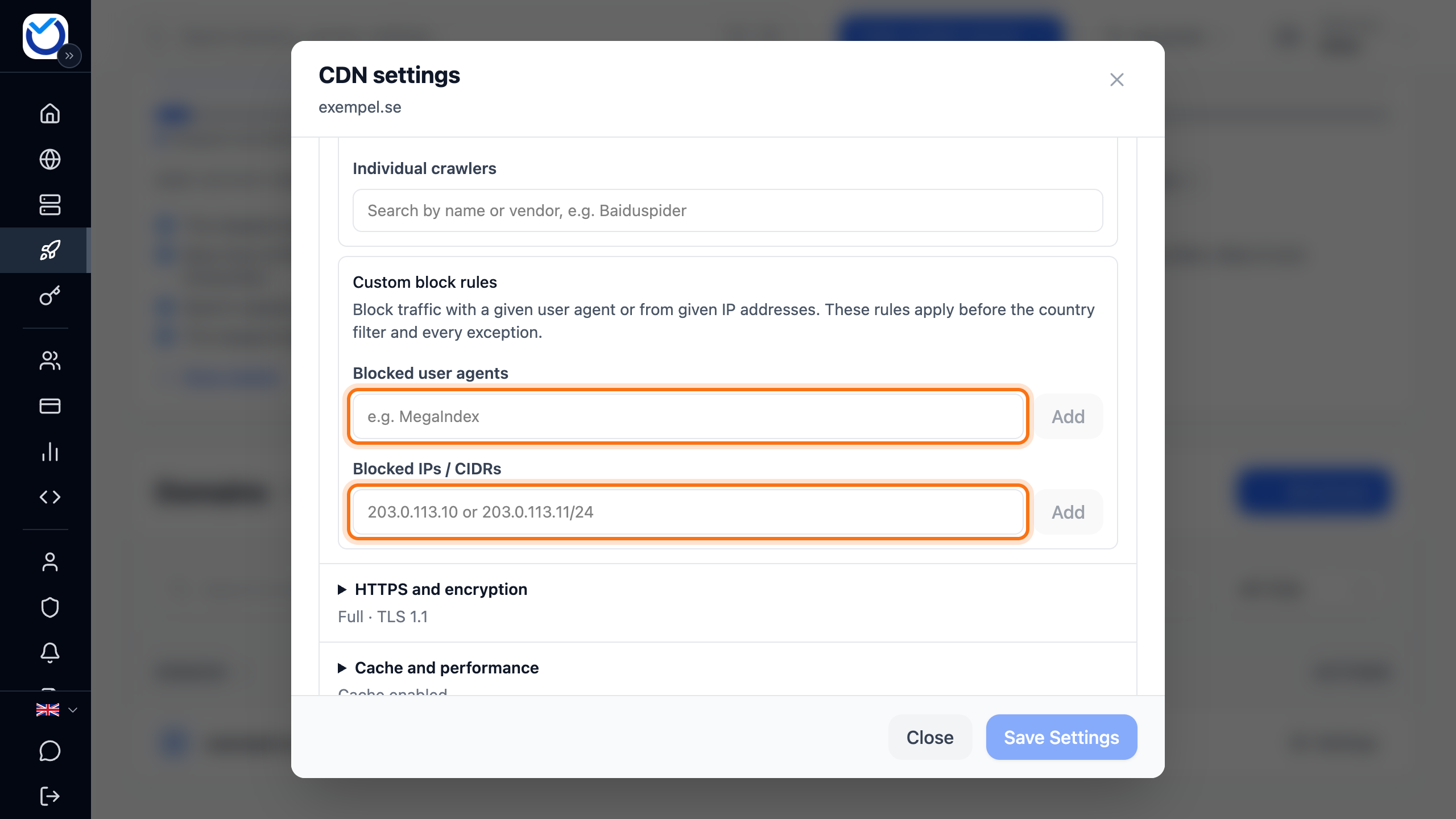
- Under Custom block rules, type a bot’s name in the Blocked user agents field. Type an IP address or a network such as 192.0.2.0/24 in the Blocked IPs / CIDRs field. Click Add.
- Click Save Settings.
Use the bot’s own name, for example MegaIndex. Text that appears in ordinary browsers’ user agents is not accepted. It would stop ordinary visitors. If the bot is in the list under Individual crawlers, pick it there instead. To remove a rule, click the cross (Remove) on it and save.
See what has been stopped
Section titled “See what has been stopped”At the top of the CDN page, Security overview shows what the protection has done on your domains in the last 24 hours.
- Bot attempts stopped: automated traffic that was stopped.
- Let in after verification: real visitors outside your target audience who passed the check.
- Passed verification: how many of those checked turned out to be people. A low value means the check mostly hits bots.
- Trusted exceptions: verified automated traffic let past the filter, for example Google’s indexing and payment services’ webhooks.
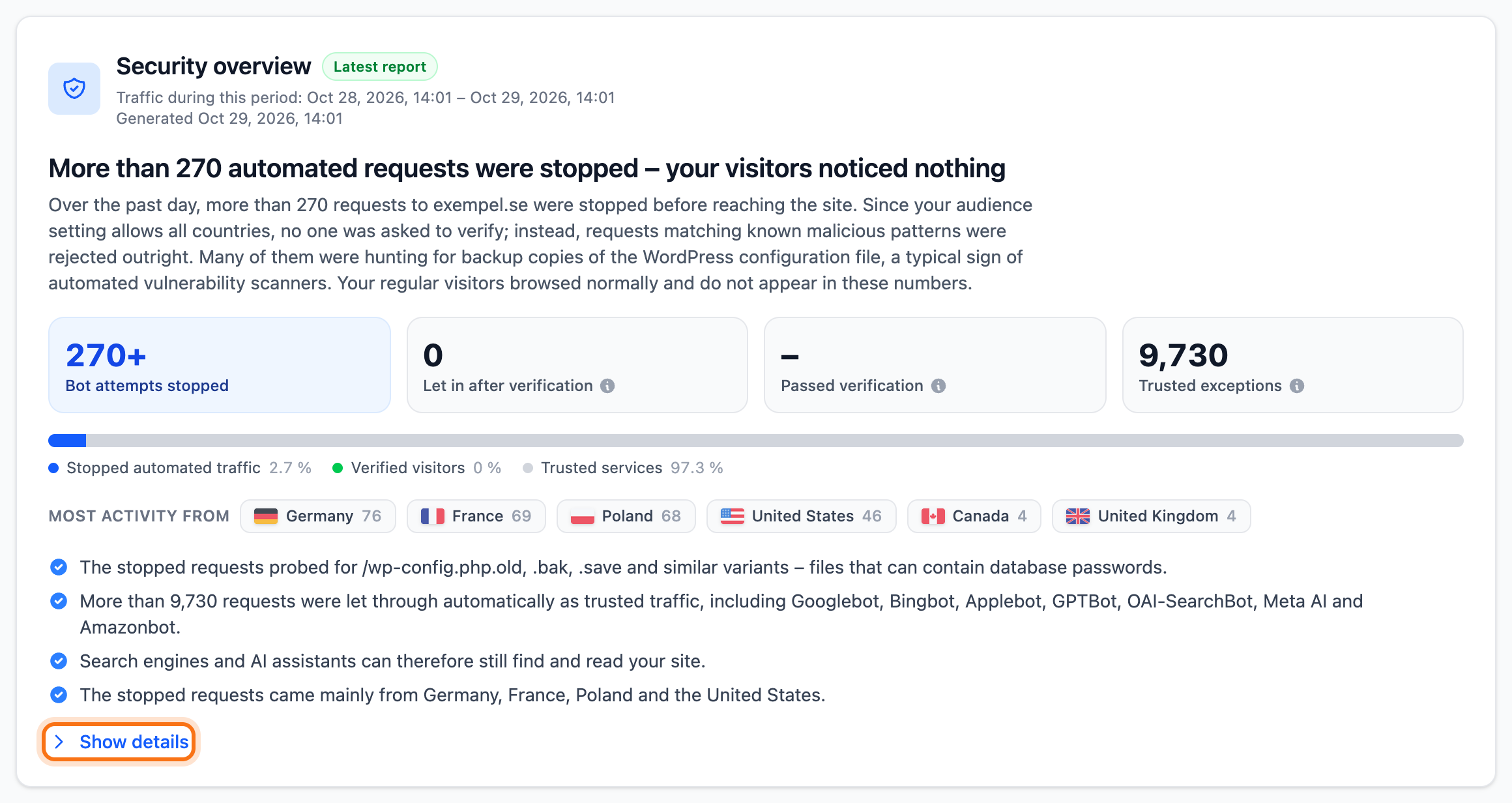
Click Show details to see the figures per domain. View traffic shows countries, paths and IP addresses for one domain.
If many real visitors outside your target audience pass the check, the overview shows a tip with a button for each domain concerned. The button opens that domain’s settings. Add their countries to the target audience, or choose Allow everyone.
Good to know
Section titled “Good to know”- Blocked crawlers are stopped before any other rule, even if they count as trusted. Custom block rules apply before the country filter and all exceptions.
- Verified automated traffic, such as Google’s indexing, payment webhooks and API calls, gets past the country filter without you doing anything.
- The overview covers 24 hours and is generated at most once a day. The period is shown below the heading. A filter you change only shows in the figures of the next overview.
- In the list of domains, the Audience filter column shows each domain’s current country filter.