
Change nameservers, contacts and DNS on several domains
Checked against the client area 29 October 2026
If you have many domains, you can make the same change on several of them at once. You select the domains in the list and choose what to change. Each change has its own page where you see the result for every domain.
Open your domains in the client area
How to
Section titled “How to”- Click Domains in the menu.
- Tick the domains to change. A bar with actions appears at the bottom of the page.
- Click More actions and choose Update Nameservers, Update Contacts, Edit DNS Records or Manage Redirects.
- The page that opens lists the selected domains on the left. Untick a domain if it should not be changed.
- Make the change as described in the section below.
Nameservers
Section titled “Nameservers”- Under Saved nameservers, pick nameservers in the list and click Use. Ours are under Recommended. You can also type the nameservers into the fields under Nameservers.
- Click Preview Changes. The page shows the current and new nameservers for each domain.
- Click the Apply changes button at the bottom.
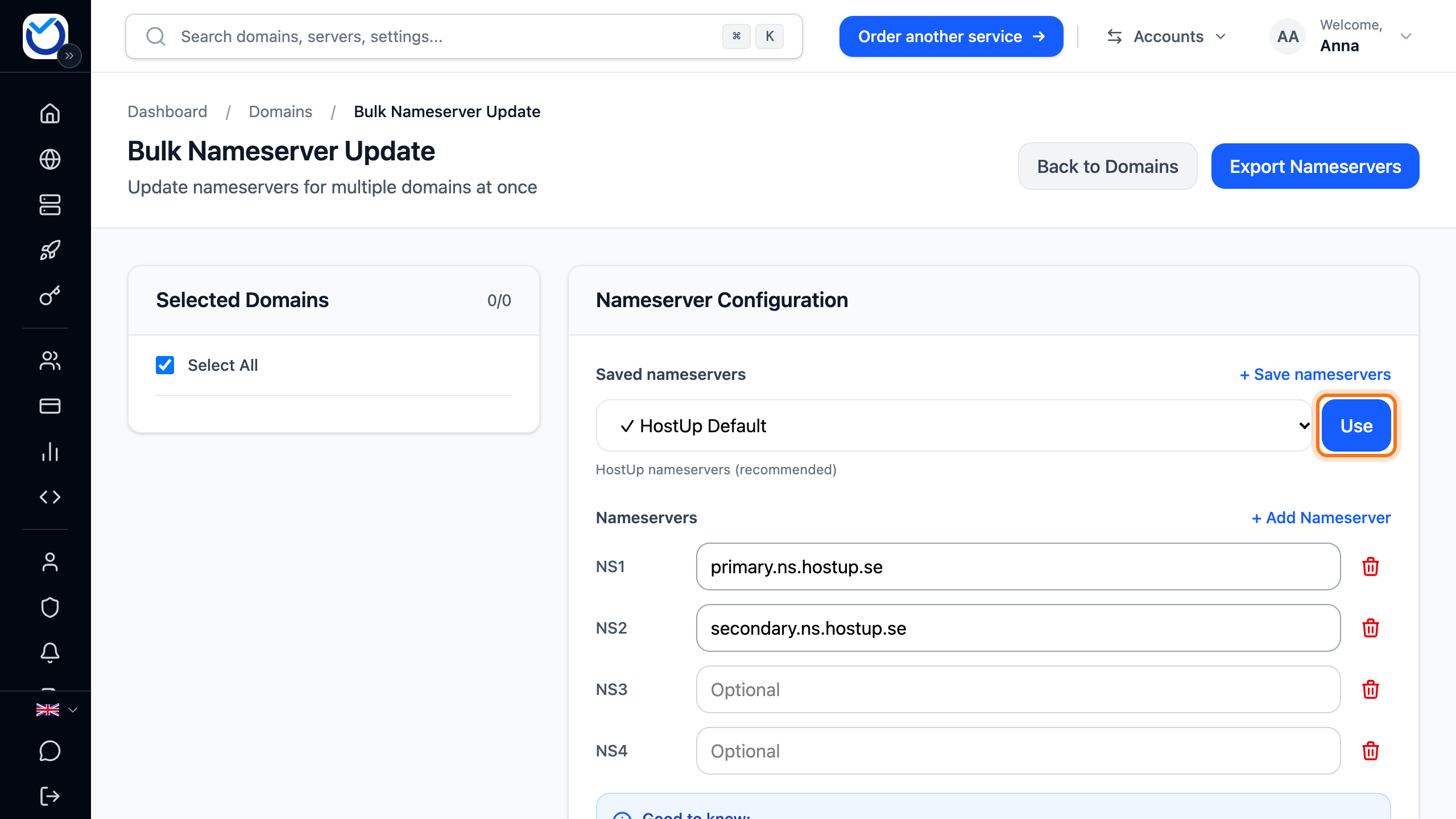
Your website and email follow the nameservers. So add the DNS records at the new place before you switch. If you are moving to us, see Move your DNS to Hostup without downtime. A .se or .nu domain with the domain lock on cannot be switched. Unlock it first as described in Domain lock and registry lock.
Contact details
Section titled “Contact details”- On the left, under Contact Groups, the domains are grouped by the contact details they have now. A group marked Different differs from most of the others.
- Fill in the new details. To use the details from your account, click Use profile details. The fields with an asterisk are required.
- Click Preview Changes and check what will change.
- Click the Apply changes button at the bottom.
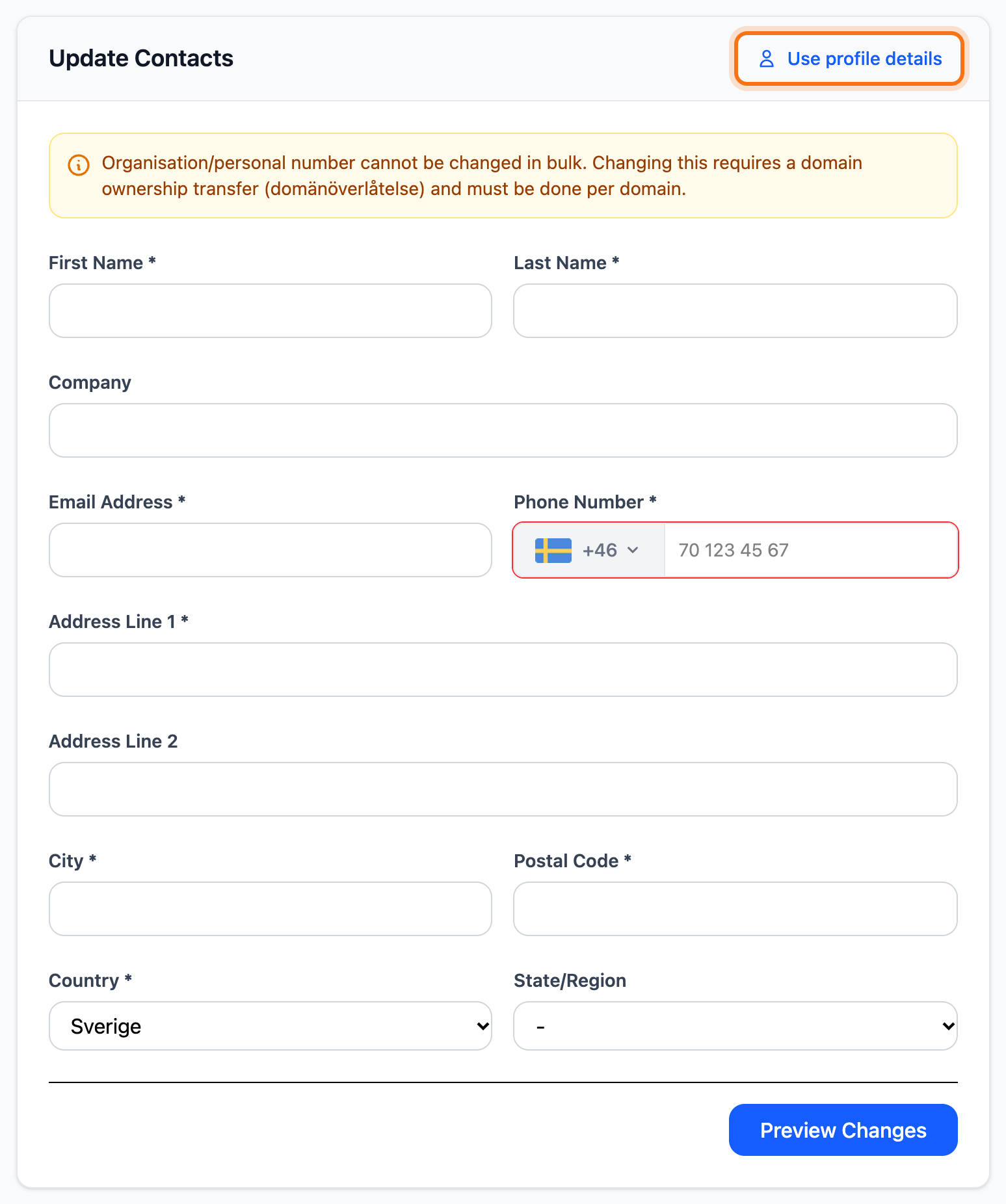
Organisation numbers and personal identity numbers are not changed here. A change of owner is done one domain at a time. Only active and suspended domains can be updated. The page shows how many of the selected domains are left out.
DNS records
Section titled “DNS records”This adds the same DNS record to every selected domain.
- Leave Add Records selected.
- Choose the Record Type. Type the name under Name (subdomain or @ for root), for example
www. Type@or leave it empty for the domain itself. - Type the Value. For an MX record, also fill in Priority.
- Click Preview Changes and check the record.
- Click the Apply changes button at the bottom.
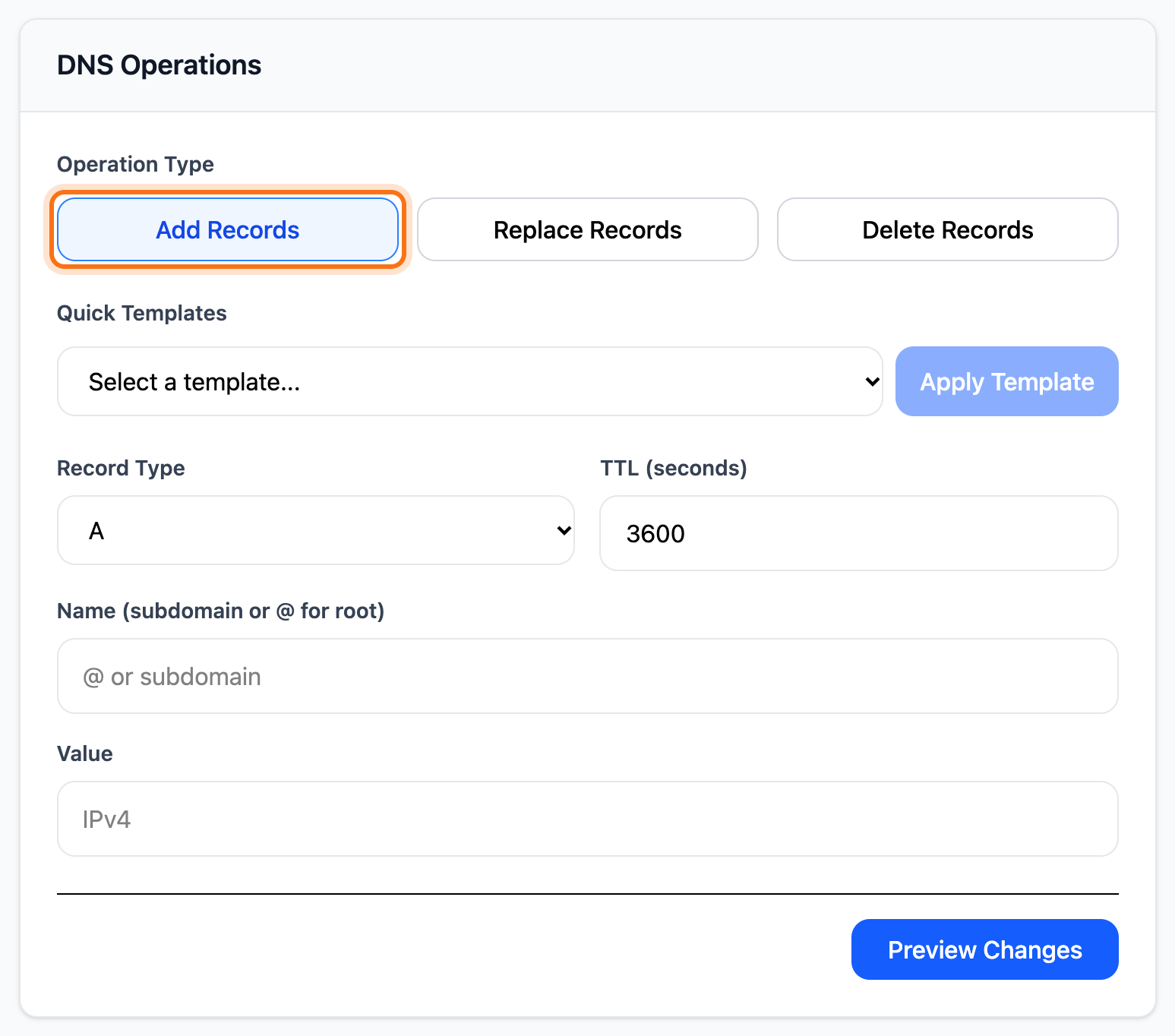
Every selected domain must have a DNS zone with us. If any of them has no zone, the change does not start at all. The record applies when the domain uses our nameservers.
Redirects
Section titled “Redirects”Redirects only work for domains that use our nameservers. The others are listed at the top of the page and cannot be selected.
- Leave Create Redirects selected.
- Under What to Redirect, choose Entire domain (all subdomains). Every subdomain and page on the domains is then sent on. Root domain only and Root and WWW only redirect the front page. To redirect one particular address only, choose Custom pattern. Type the address under Custom Source Pattern with
{domain}for the domain name, for examplehttps://shop.{domain}. - Under Where to Redirect To, type the full target address. Write
{domain}where the domain name should go, for examplehttps://www.{domain}. - Choose Permanent Redirect or Temporary Redirect.
- Click the button at the bottom. It shows how many domains get the redirect. It starts straight away, with no preview.
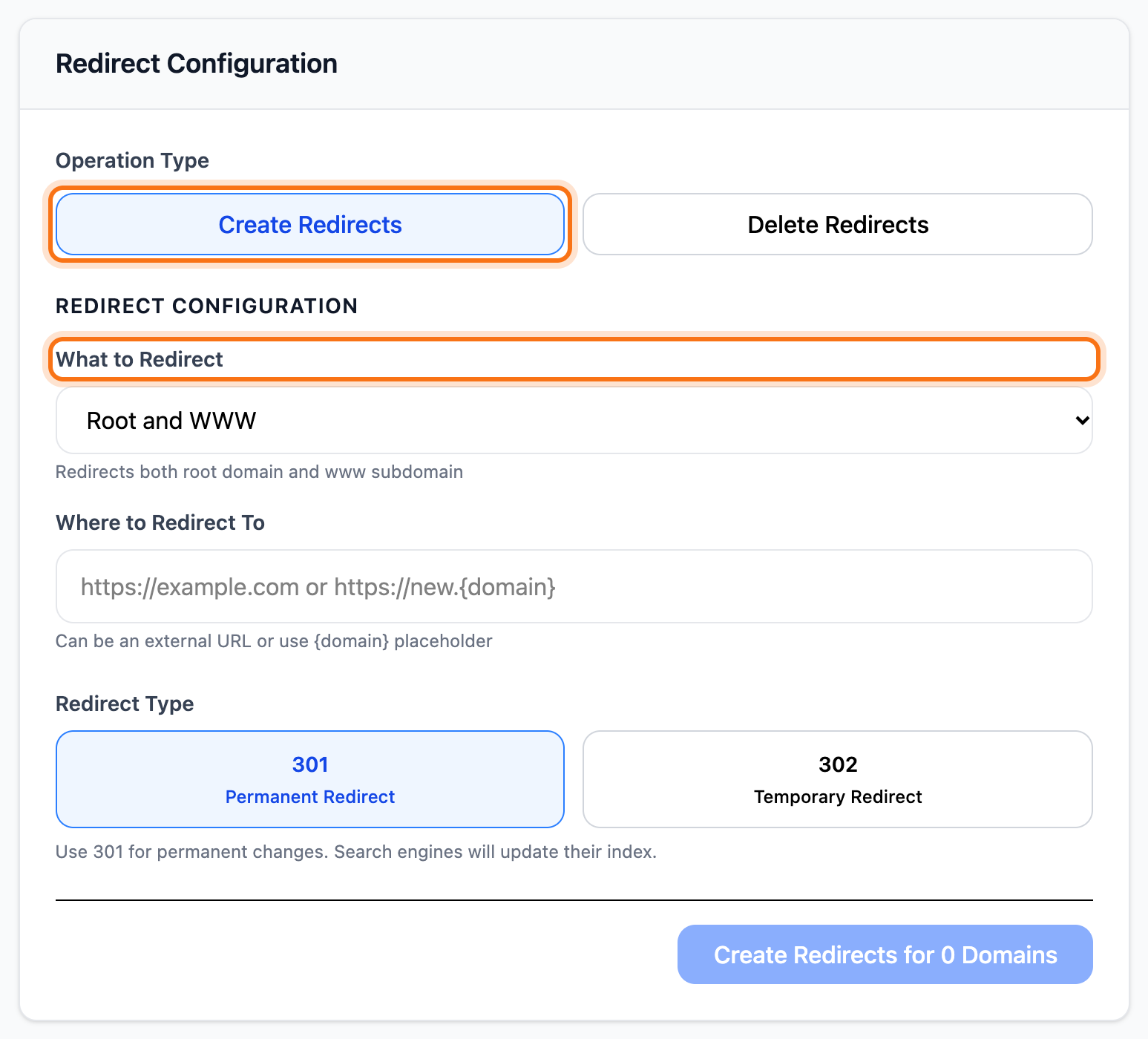
The domains’ website records are replaced so the traffic goes to the redirect. More options for a single domain are in Redirect a domain to another address.
What happens next
Section titled “What happens next”The change runs one domain at a time. The page shows how far it has got. When it is done, each domain shows whether it succeeded.