
Routed IPv6: more IPv6 addresses for your VPS
Checked against the client area 29 October 2026
Your VPS has one IPv6 address per network interface. If you need more, for example for containers or virtual machines on the server, you route a network of your own to it. You add a /48 to your account and then hand out /64, /56 or /48 networks to your servers.
Open the network tab in the client area
Before you start
Section titled “Before you start”The server that will receive the network must be active and have IPv6. If it has no IPv6, open the server and go to the Network tab. Click Enable IPv6.
How to
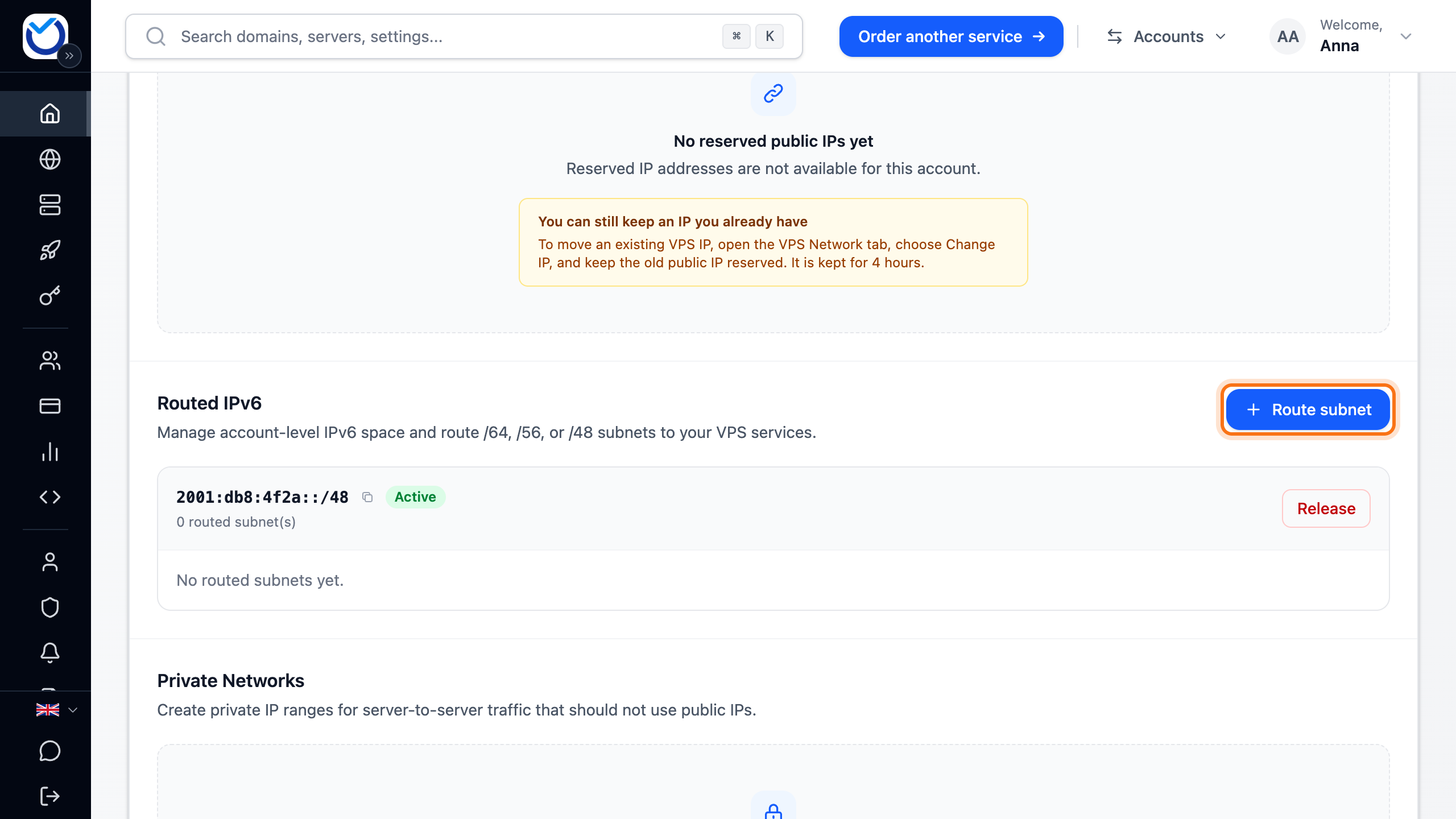
Section titled “How to”- Open the Network tab in the client area and scroll down to Routed IPv6.
- If the account has no /48 yet, click Add /48. An account can have one /48.
- Click Route subnet.
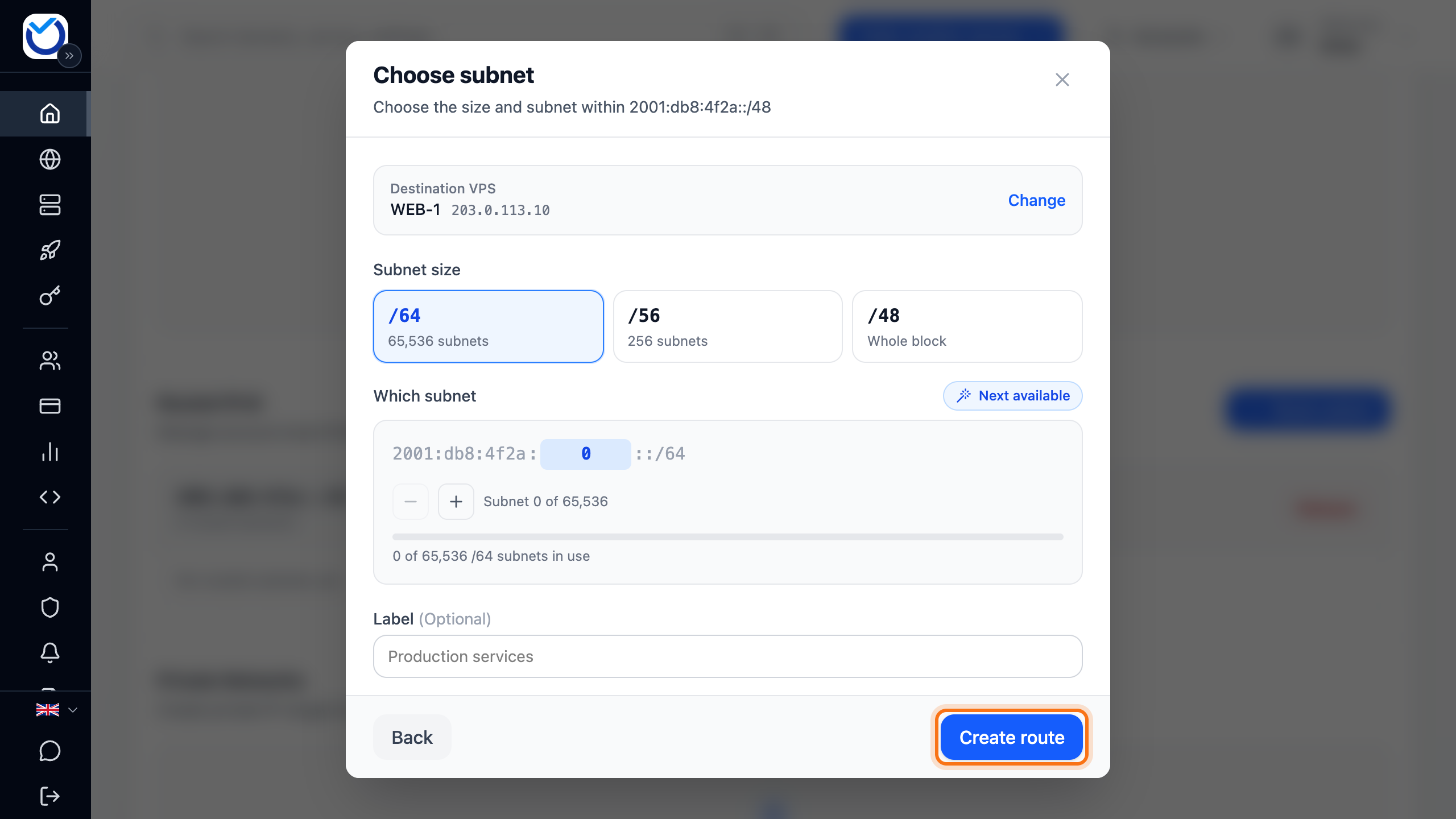
- Pick the server that will receive the network and click Continue. If you only have one server, you go straight to the next step. To pick another server, click Change.
- Choose a size under Subnet size. /64 is preselected. You can also route the whole /48 block to one server.
- Under Which subnet, leave Next available selected. To get a particular network, step to it with the − and + buttons. You can also type its number in the blue field.
- Optionally give it a name under Label, so you can see later what it is for.
- Click Create route.
What happens next
Section titled “What happens next”The network shows under your /48 with the name of the server it goes to. Next to the name is the server’s own IPv6 address. It is the same address shown as Next-hop when you pick the server. All traffic to the network is sent there.
Then set up the addresses on the server:
- If the server itself will use the addresses, add each one as a /128 on the loopback interface
lo. No forwarding is needed. - If containers or virtual machines on the server will use them, turn on IPv6 forwarding. Put the network on their bridge and use the server as their gateway.
Good to know
Section titled “Good to know”- The bin icon (Remove route) next to a network removes it straight away, without asking first. Traffic to it then no longer reaches the server.
- To give back the whole /48 block, first remove every network in it. Then click Release and confirm with Release in the dialog that opens. A released block is quarantined and cannot be used again for a while.