
Create an account and verify your email address
Checked against the client area 29 October 2026
With an account in the client area you order and manage your Hostup services. Before the account is created, you confirm your email address with a code we send you. If you have a Swedish BankID, you can skip the code and the password.
How to
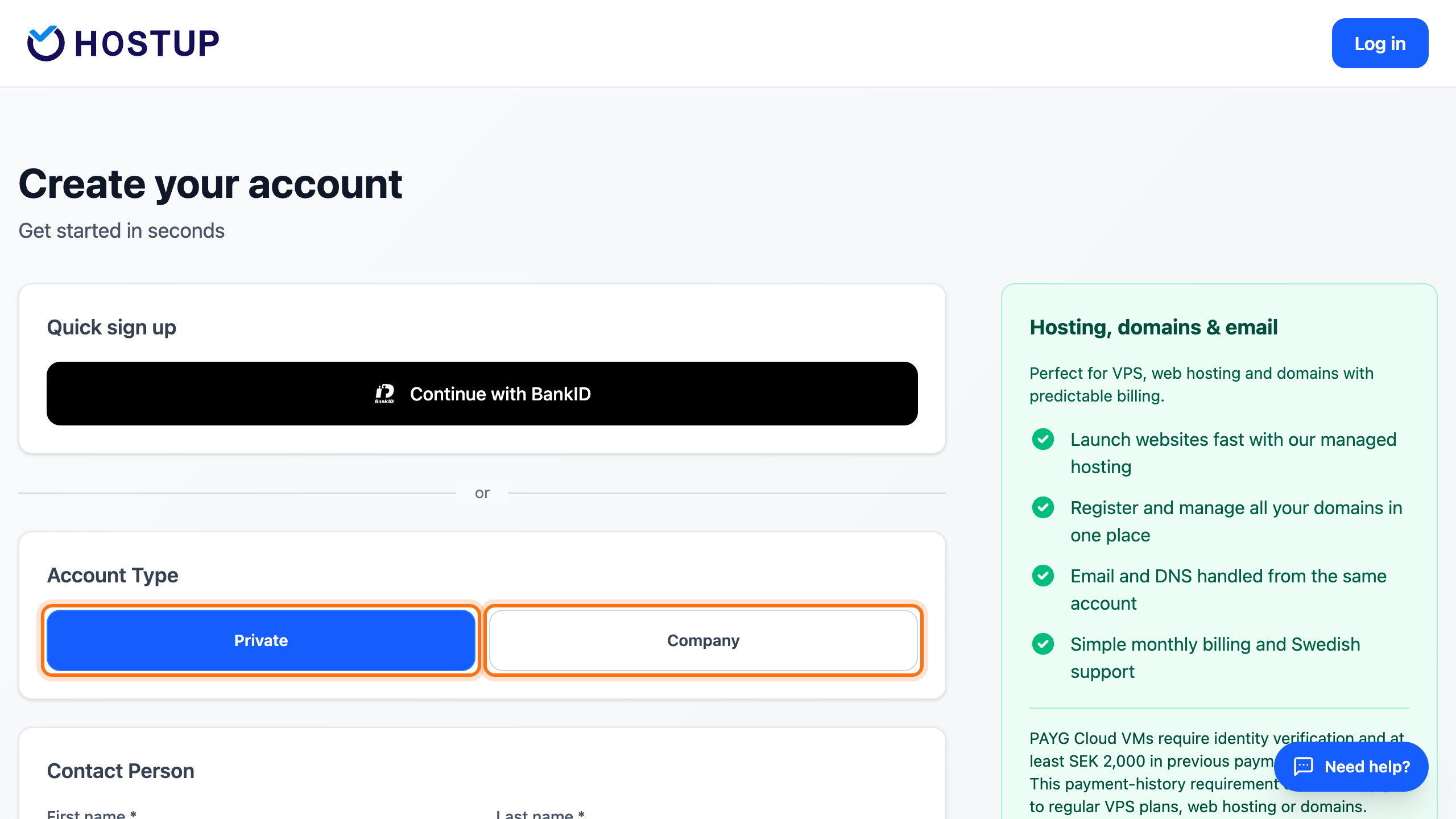
Section titled “How to”- Open the sign-up page. From the sign-in page you get there with Get started.
- Under Account Type, choose Private or Company. A company fills in Organization name. A Swedish company also fills in Organization number.
- Enter your First name and Last name under Contact Person.
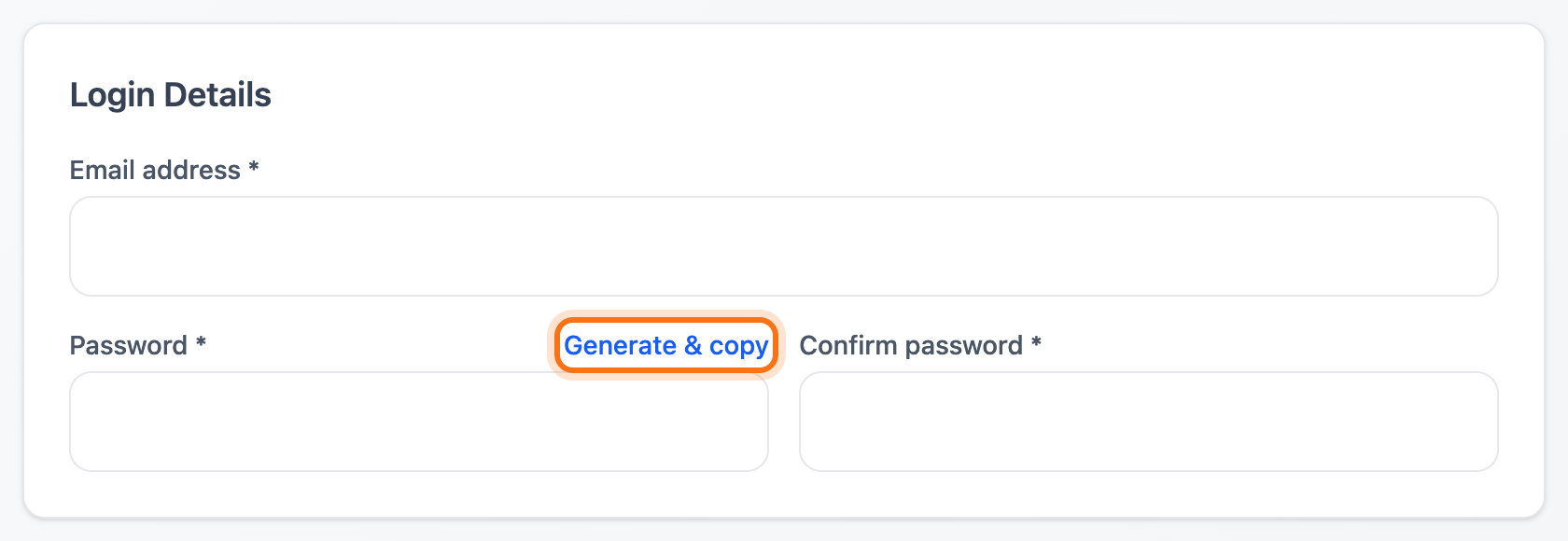
- Enter your email address in Email address under Login Details. Click Send verification code.
- Open our email and type the six-digit code into the box. The code is checked as soon as you have typed six digits. It says Verified! when the address is accepted.
- Type a password in Password and the same password in Confirm password. It needs at least 8 characters and must not be too easy to guess. If you click Generate & copy, a strong password is filled in and copied. Save it in your password manager.
- Fill in your address under Address.
- Click Create Account.
Create the account with BankID
Section titled “Create the account with BankID”- Click Continue with BankID at the top of the page and identify yourself.
- Your name and personal identity number come from BankID. You need no code and no password.
- Enter your email address under Contact Details and fill in Address. Click Create Account.
If an account with your personal identity number already exists, the You already have an account with us box appears. To sign in to that account, select it and click Log in. If you want a new account anyway, click Create a new account.
The account gets no password that you know. You sign in with BankID. To be able to sign in with a password as well, see Change or reset your password.
What happens next
Section titled “What happens next”The account is created and you are signed in straight away. You land on the start page of the client area.
To protect the account better, turn on two-factor authentication. You can also sign in with BankID or Google.
Good to know
Section titled “Good to know”- The code is valid for 10 minutes. If it has expired, click Resend Email. A new code can be sent one minute after the last one. After five wrong attempts you also need a new code.
- An email address can belong to only one account. If the address is already taken, the page tells you when you click Send verification code. A second account needs an address of its own.
- The account only exists once you have clicked Create Account. If you closed the page before that, go back and fill in the form again.
- If you order a service without having an account, you create the account at checkout in the same way.