
Log in to cPanel and find your FTP and email details
Checked against the client area 29 October 2026
You log in to cPanel straight from the client area, without a password. From there you also reach the File Manager and your email accounts. If you connect with an FTP program, SSH or a mail app, you find the details in the client area. That is also where you create a new cPanel password.
Open your web hosting in the client area
How to
Section titled “How to”- Click Dashboard in the menu and find your web hosting. The box shows the hosting’s name or domain at the top.
- Click Log in to cPanel. cPanel opens in a new tab and you are already logged in.
- To go straight to your files, click File Manager instead. For your email accounts, click Email. On a phone, both are under More.
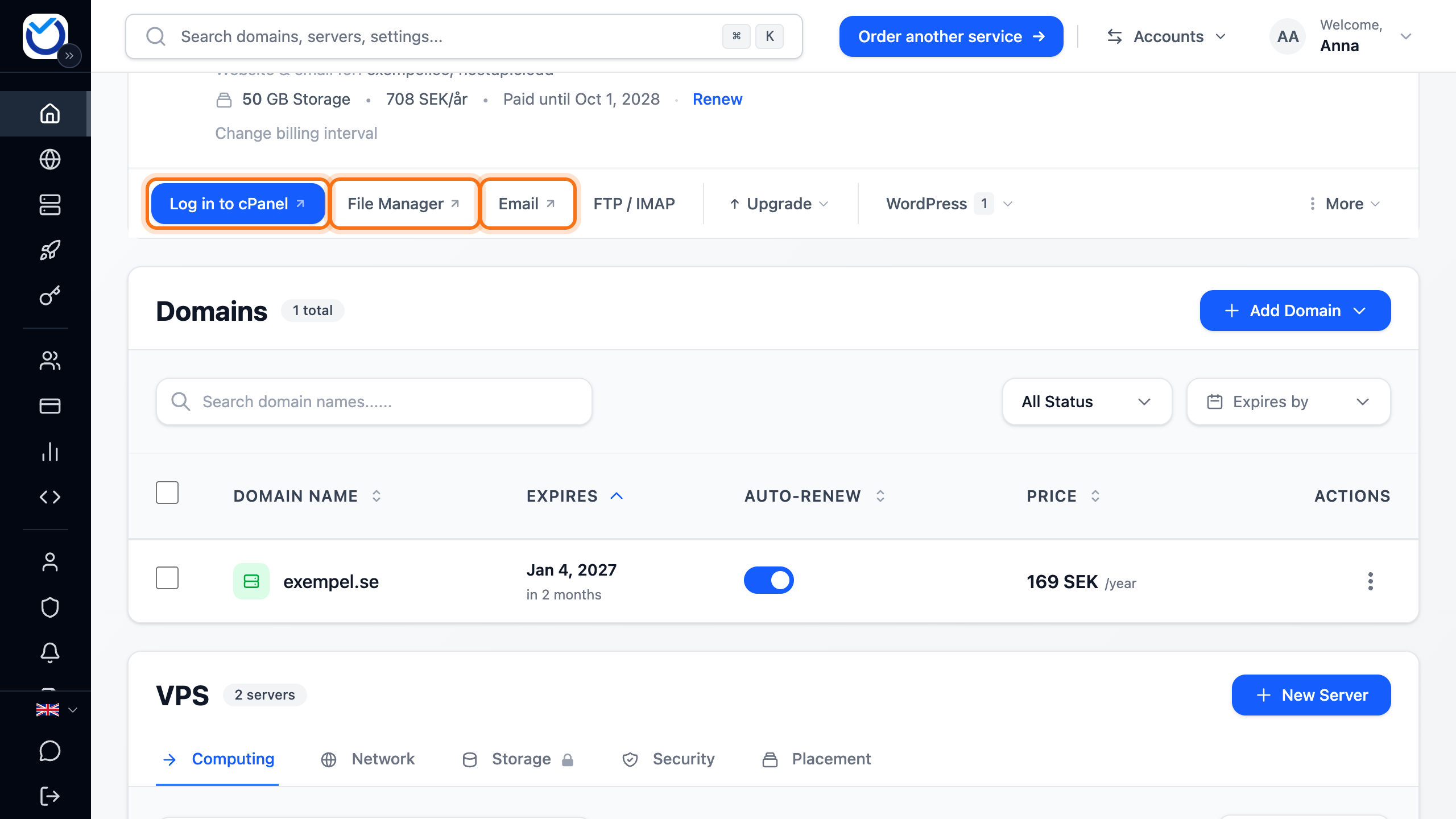
If your browser blocks the new tab, a notice appears with an Open Here button. Click it to open cPanel in the same tab.
Find your FTP, SFTP and email details
Section titled “Find your FTP, SFTP and email details”- Click FTP / IMAP on the hosting. On a phone, click More and then Account Details.
- FTP / SFTP Access shows the Host, Port and Username. Port 21 is FTP and port 22 is SFTP.
- Email Settings (IMAP/SMTP) shows the webmail address and the servers for incoming and outgoing mail. The username in your mail app is the full email address.
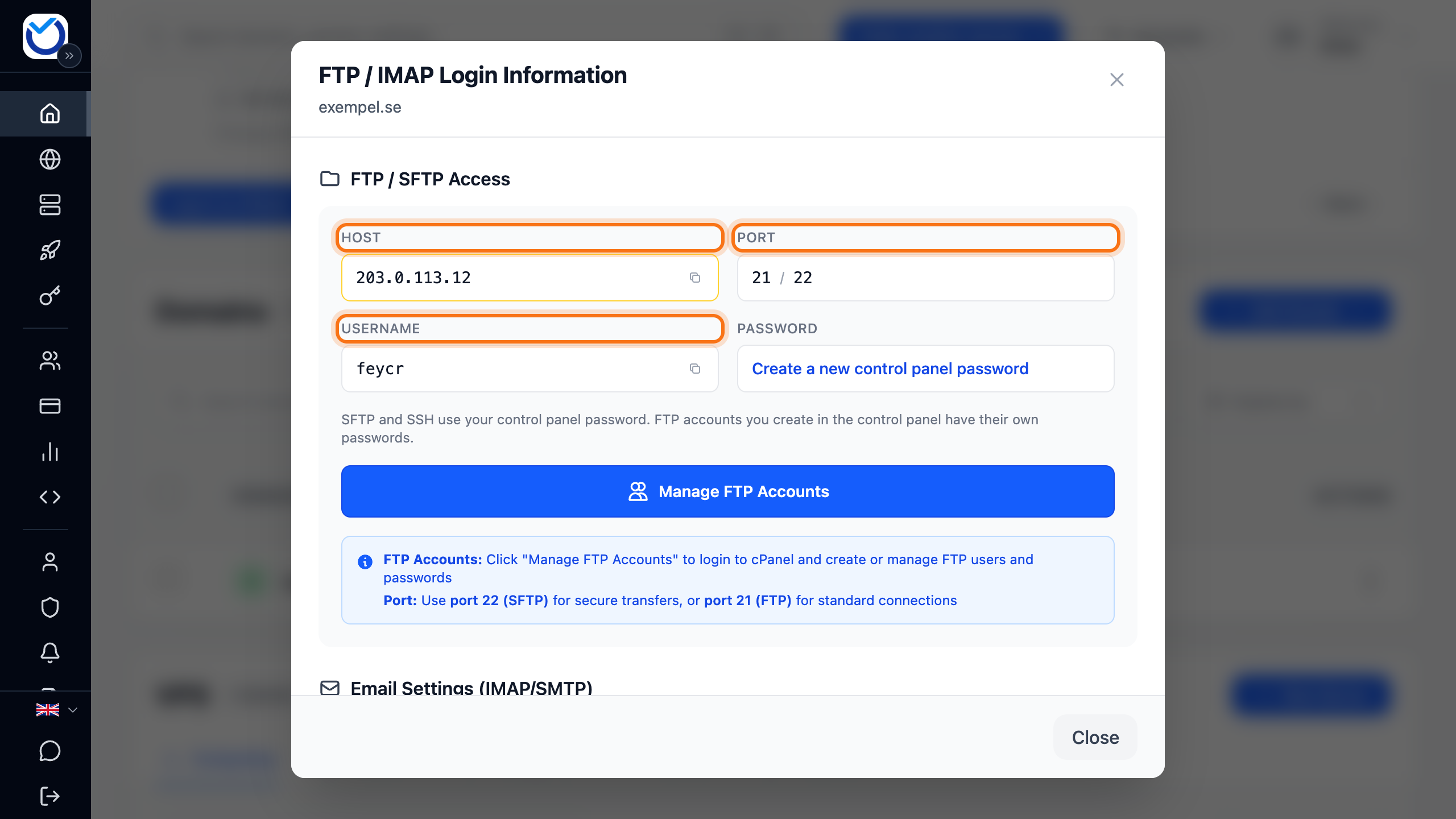
If the domain does not point to the hosting yet, the dialog shows the server’s IP address instead of the name. Use the IP address until the domain points here.
SFTP and SSH use the cPanel username and password. If you want FTP accounts with their own passwords, you create them in cPanel. Click Manage FTP Accounts in the dialog to open the right page.
Create a new cPanel password
Section titled “Create a new cPanel password”You log in to cPanel from the client area without a password. If you need the password for SFTP or SSH, create a new one here.
- Click FTP / IMAP on the hosting.
- Click Create a new control panel password under Password.
- The new password replaces the old one for cPanel, SFTP, SSH and webmail. Programs that have the old password saved stop working. Click Yes, create a new password.
- The password is shown once. Copy it and keep it somewhere safe.
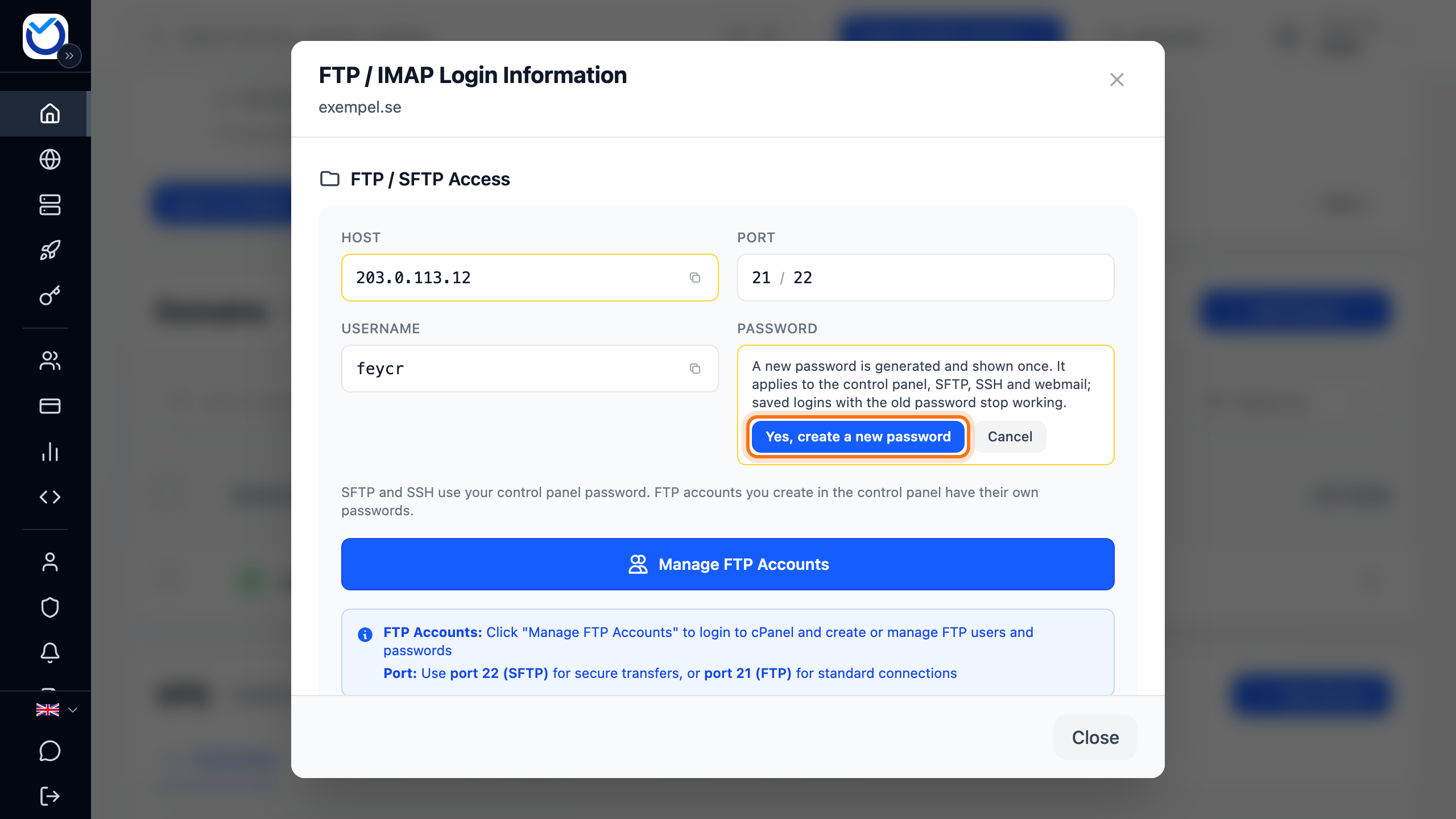
The passwords of your email accounts do not change.
Good to know
Section titled “Good to know”- The buttons only work while the hosting is active. If it is waiting for activation or suspended, the buttons are grey. Hover over a button to see why.
- A login from the client area works once. Click the button again the next time you want in.
- If you have several web hosting accounts, File Manager and Email are only on the top one. To put another one on top, click More on it and choose Set as Primary.
- A reseller package also has a WHM button next to it.
- If your website or email does not work from one particular network, that network may be blocked. See Remove an IP block on your web hosting.