
Open a support ticket and follow the replies
Checked against the client area 29 October 2026
When you need help from support, you open a ticket under Support in the client area. That is also where you read the replies and answer them. If one of our services is down, you can page the on-call team with a critical ticket.
Open a support ticket in the client area
How to
Section titled “How to”- Click Support in the menu.
- Click New Ticket. On a phone, it is the round plus button at the bottom right.
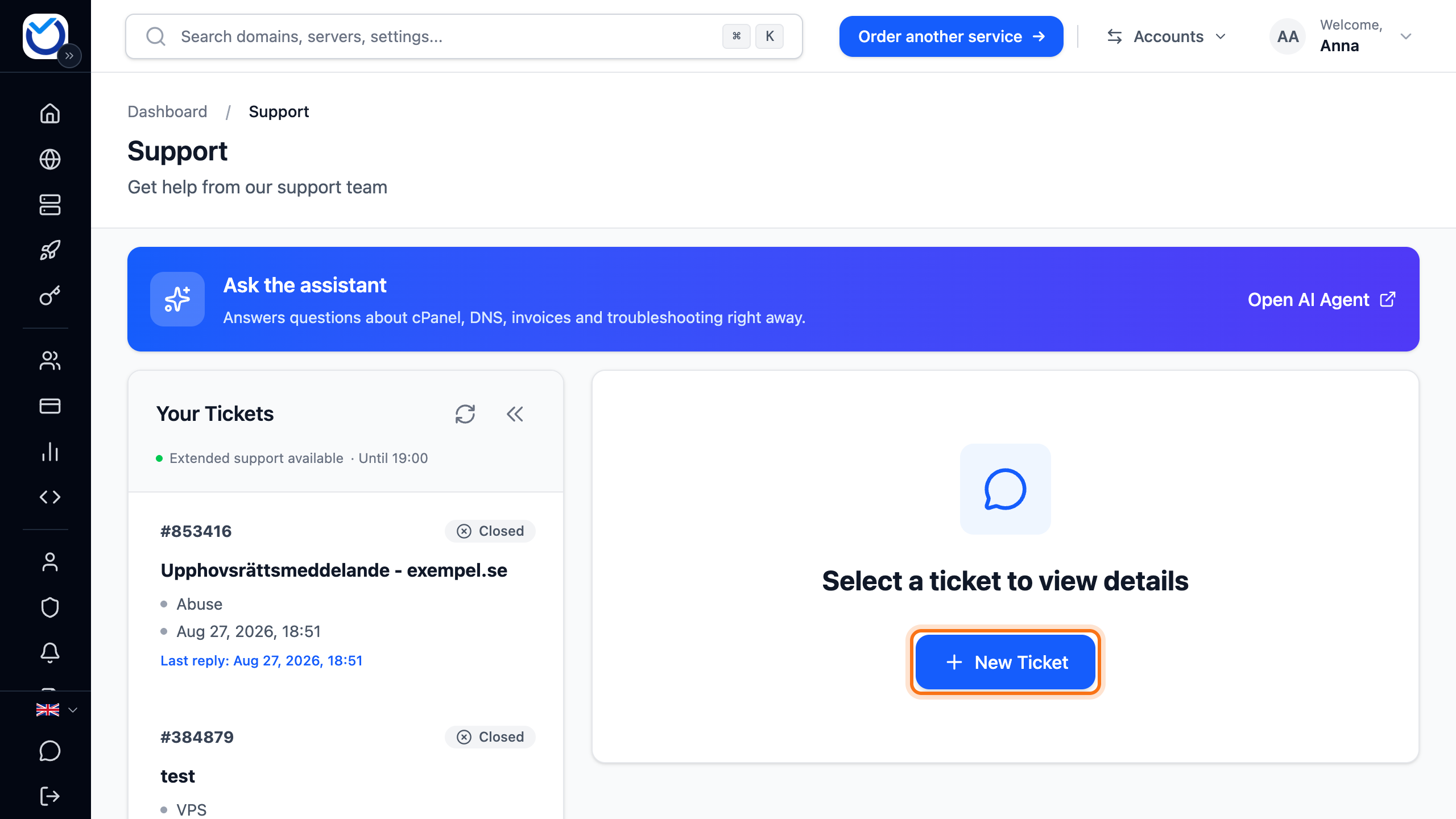
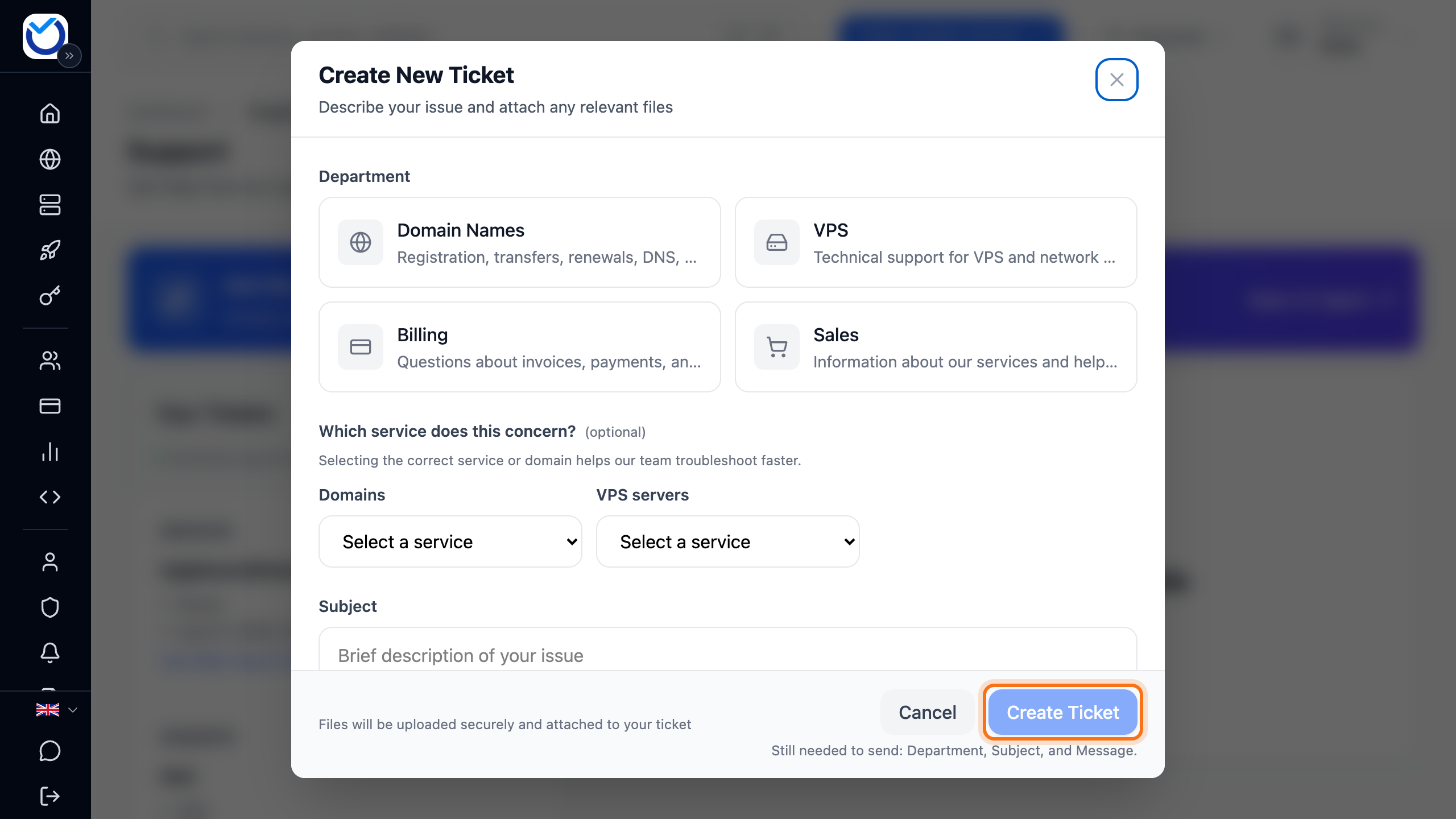
- Choose a department under Department. VPS only shows if you have a VPS. Web Hosting only shows if you have web hosting. If you choose VPS, leave Support ticket selected under Request type.
- Answer Which service does this concern? by picking the domain, web hosting or server from the list. Support then sees straight away what it is about.
- Write a short heading under Subject. Describe the problem under Message: what happens, and on which address or service.
- If someone else should get the replies, enter their email addresses under CC, separated by commas.
- Attach screenshots or logs under Attachments. Drag the files in or click browse. You can attach up to ten files of at most 50 MB each.
- Click Create Ticket. If the button is greyed out, the text below it says what is missing.
If you write about something you can sort out yourself in the client area, such as reverse DNS, a tip appears that tells you how. If you have just one VPS, it also links there. You can still send the ticket.
What happens next
Section titled “What happens next”The ticket shows under Your Tickets with its status. Some replies are marked Automated Response.
When support replies, the reply shows in the ticket. You also get it by email, at the account’s address and at the addresses under CC. When support starts working on the ticket, its status changes to Support is working on this. You then get a notification in the client area and an email.
Reply to or close a ticket
Section titled “Reply to or close a ticket”- Click the ticket under Your Tickets.
- Write your reply in the box at the bottom. To attach files, drag them in or click the paperclip.
- If the reply contains something sensitive, such as a password, tick Sensitive. The reply is then encrypted. On a phone, a padlock shows next to the box instead of the word.
- Click Send Reply. You can also press Ctrl+Enter, or ⌘+Enter on a Mac.
Once the issue is solved, click Close Ticket. On a phone, it is the cross icon at the top of the ticket. The ticket closes straight away. You can’t reply in a closed ticket. Click Reopen Ticket to carry on in it.
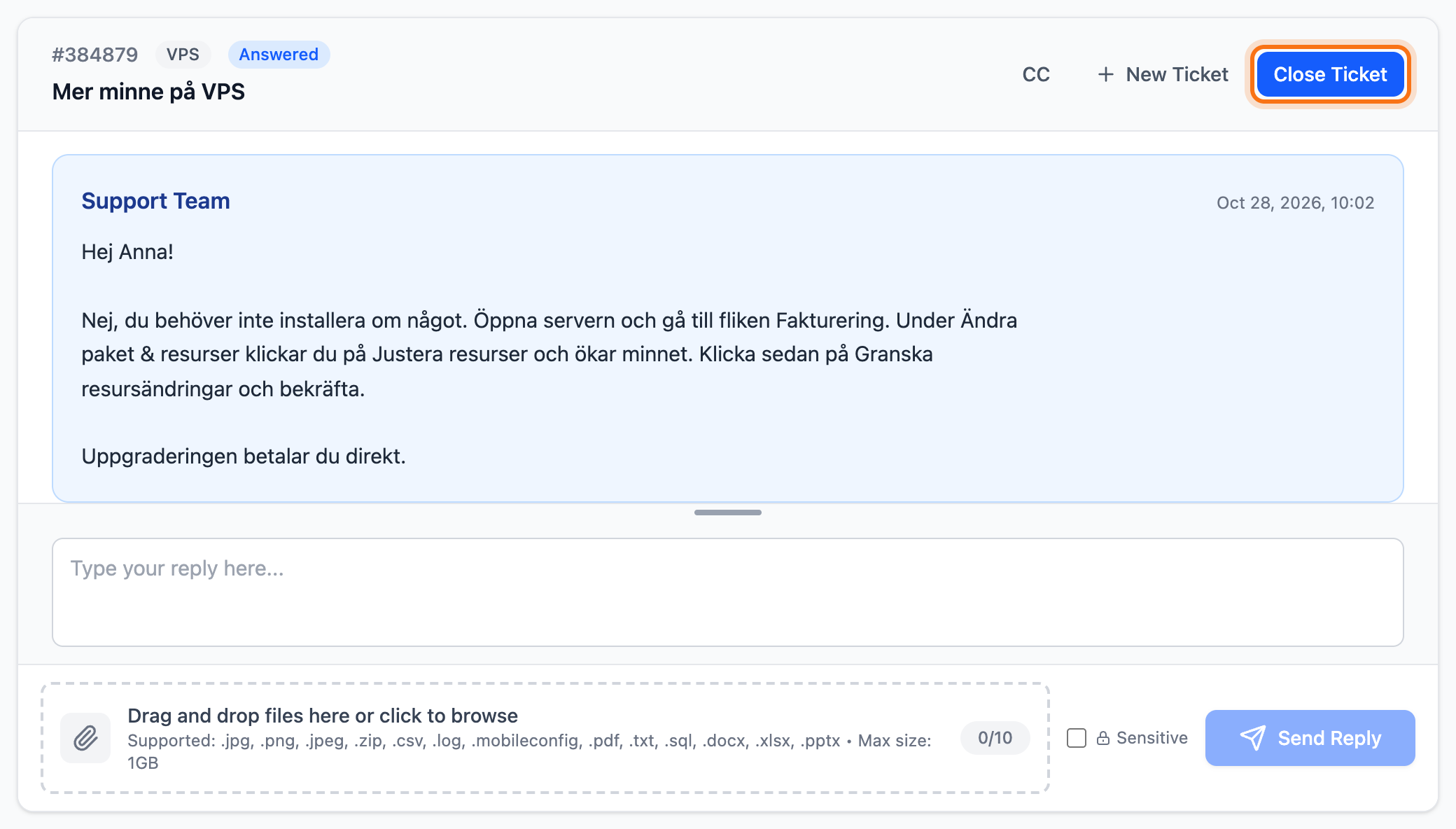
To change who gets a copy of the replies, click CC at the top of the ticket. Enter the addresses separated by commas and click Save.
Page the on-call team with a critical ticket
Section titled “Page the on-call team with a critical ticket”A critical ticket goes straight to our on-call technician, day and night. It is for when something is down or broken on our side and you have already checked your own setup. It is not for website moves, WordPress troubleshooting or general help.
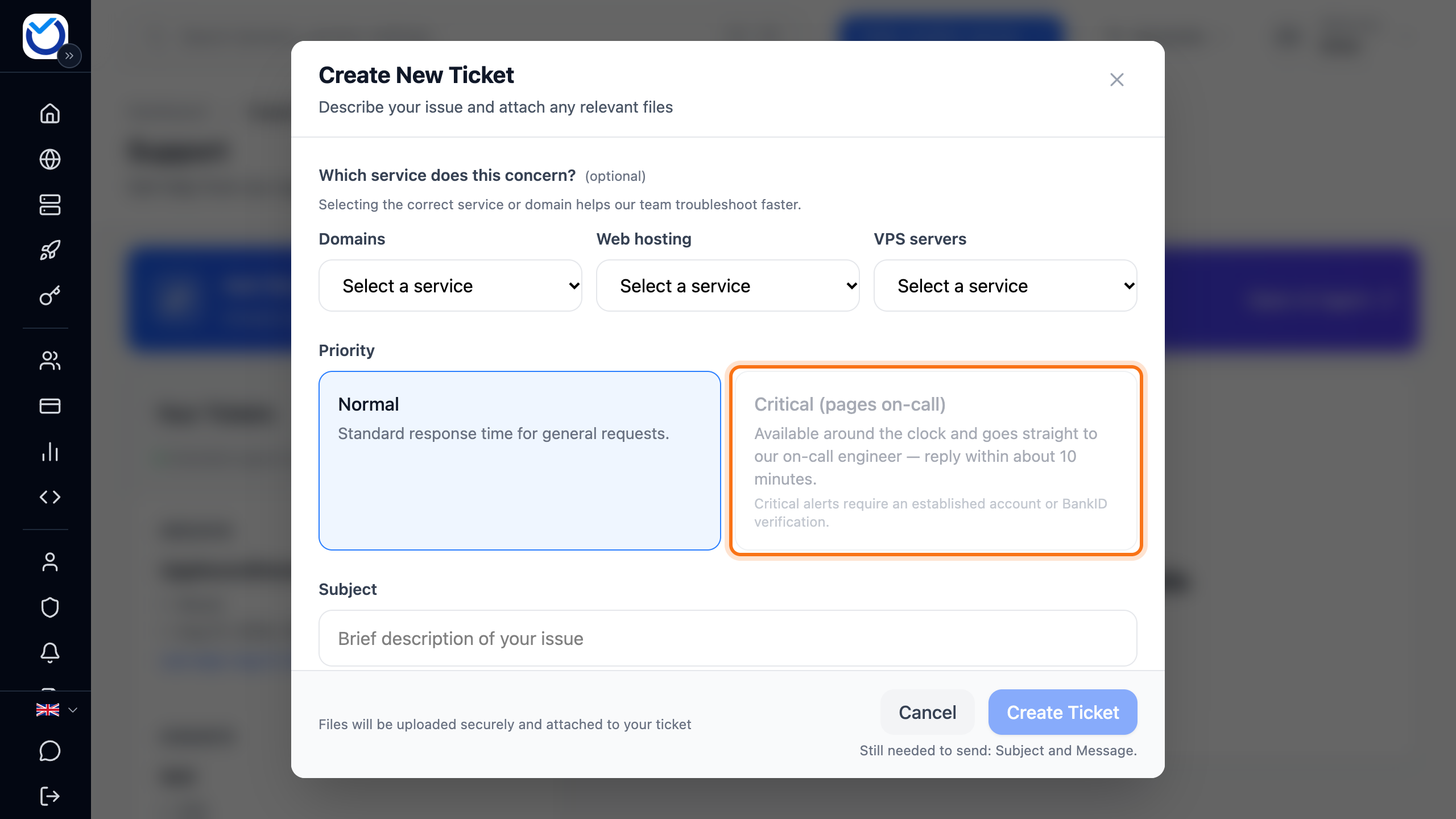
Critical tickets are under the VPS department. They need an established account or BankID verification. Each critical ticket uses one prepaid support credit.
- Open a ticket and choose VPS.
- If you have no credit, click Buy critical support credit under Priority. The price is on the button. If such an invoice is already waiting for payment, Pay invoice shows there instead.
- Click Create invoice. An invoice is created and you are taken to your unpaid invoices. Pay it. The credit becomes active once the payment is registered.
- Open the ticket form again and choose VPS.
- Answer Which service does this concern? with the affected service. A critical ticket needs one.
- Under Priority, choose Critical (pages on-call).
- Under Impact summary (required), describe what is down and who is affected, in at least 15 characters.
- Fill in Subject and Message and click Create Ticket.
The credit is refunded if the fault turns out to be ours. You can send one critical ticket per hour. If you have more to add, reply in the ticket you already sent.
Good to know
Section titled “Good to know”- To open port 25 on a VPS or to get higher Cloud resource limits, choose Open port 25 (VPS) or Increase resource limits in the same dialog, after the VPS department. See Open port 25 on your VPS and Request higher Cloud resource limits.
- Users you have given access to support tickets can also open and answer tickets. See Give colleagues or an agency access to your account.
- Tickets we open about abuse from one of your services are closed by support. They have no close button.
- Under Your Tickets you can see which support is available right now.