
DDoS protection for your VPS
Checked against the client area 29 October 2026
If your server is hit by a network attack, you can turn on DDoS filtering for its IP address. Traffic then passes through our filter before it reaches the server. Malicious traffic is stopped and normal traffic gets through.
Open your servers in the client area
Before you start
Section titled “Before you start”Filtering covers the server’s primary IPv4 address. The DDoS Protection box only shows on the Network tab when filtering is available for that address. If the box is missing, you cannot turn it on yourself.
How to
Section titled “How to”- Open the server in the client area and go to the Network tab.
- Scroll down to DDoS Protection and click Show.
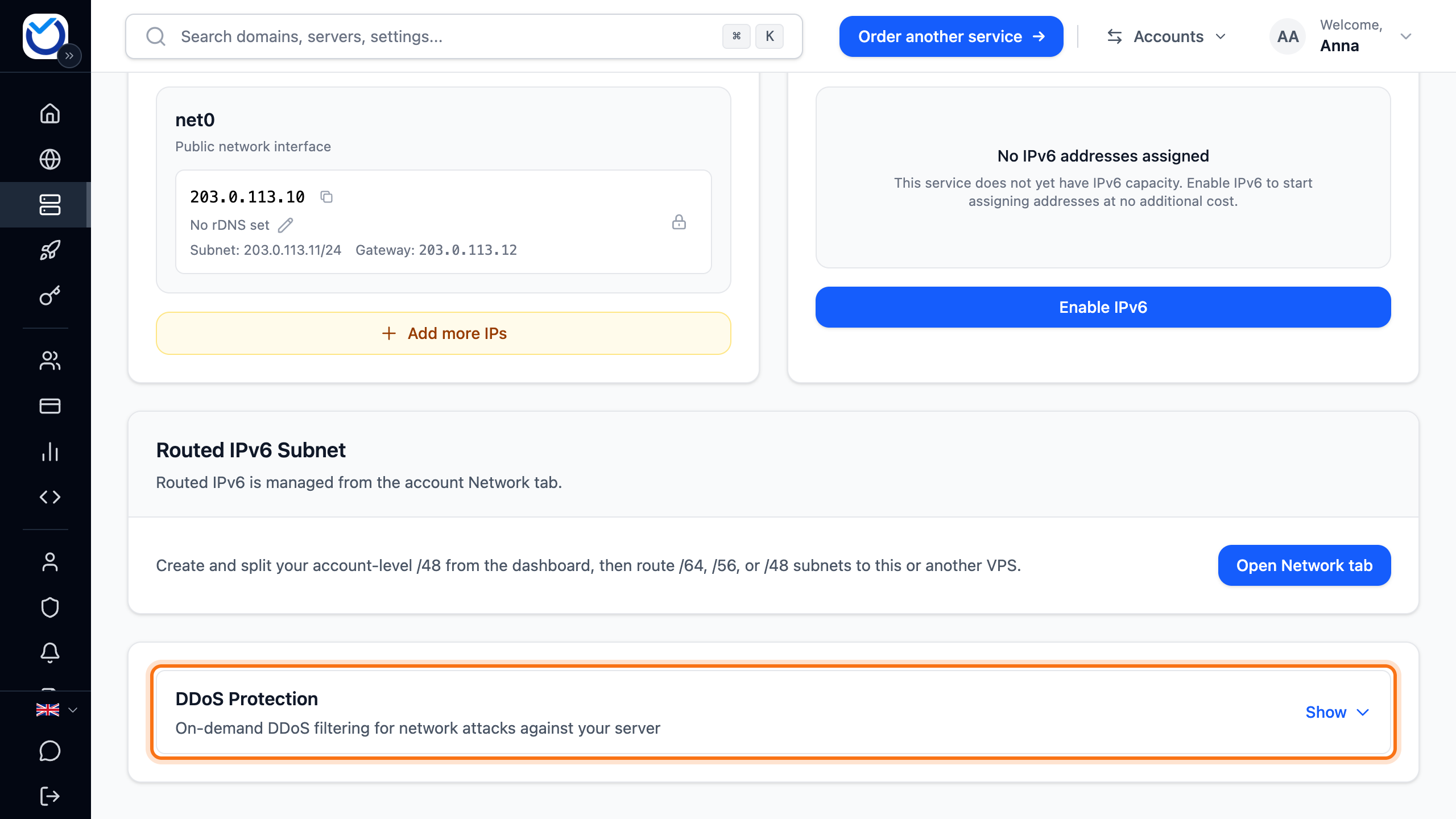
- Choose how long protection stays on under Duration. 1 hour is selected to begin with. You can pick up to 24 hours. To keep it on all the time, pick Always on.
- Click Enable Protection. Open TCP connections may drop briefly while traffic is rerouted.

What happens next
Section titled “What happens next”While protection is being turned on, the button shows Activating.... Then Active shows next to the heading. Activated shows when protection was turned on.
If you picked a duration, the end time shows next to Expires. Protection then turns itself off. With Always on the box shows Active until you turn it off instead.
Under Filtered traffic you see two lines: Stopped by the protection and Delivered to the server. The first figures appear within a couple of minutes.
To turn protection off sooner, click Disable Protection. The button does not ask first. It shows Disabling... while protection turns off.
Good to know
Section titled “Good to know”- During larger attacks our protection kicks in automatically. Attack protection active then shows next to the heading. A box at the top of the server page explains what is happening and how long it lasts.
- The filter works at network level. Attacks on a website over HTTP or HTTPS are better stopped by a CDN or reverse proxy in front of the site.
- After an attack, changing the IPv4 address is paused for a while. See Change the IP address of your VPS.