
Connect Claude or ChatGPT to your account (MCP)
Checked against the client area 29 October 2026
You can let the AI app you already use look after your services at Hostup. It works with Claude, ChatGPT, Codex, Claude Code and other apps that support MCP. You log in to Hostup from the app and choose what it may do. No API key is needed.
Open API management in the client area
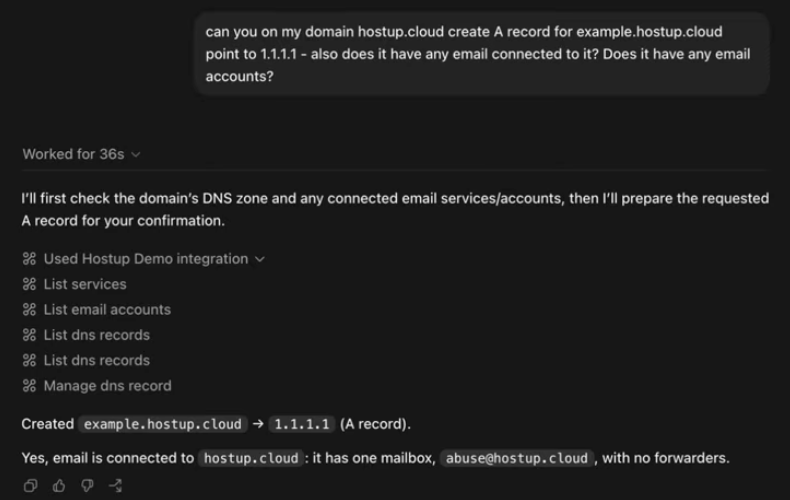
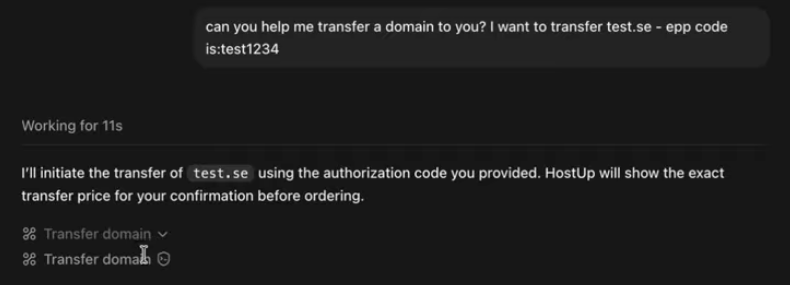
This is what it can look like. You say what you want done, and the app uses Hostup’s tools to do it:
Before you start
Section titled “Before you start”Only the account owner can connect an AI app. Log in as the owner, not as a user or with delegated access.
How to
Section titled “How to”- Click API Management in the menu. Scroll down to Connect an AI app.
- Click the tab for your app: Claude (app), ChatGPT, Claude Code, Codex or Other clients.
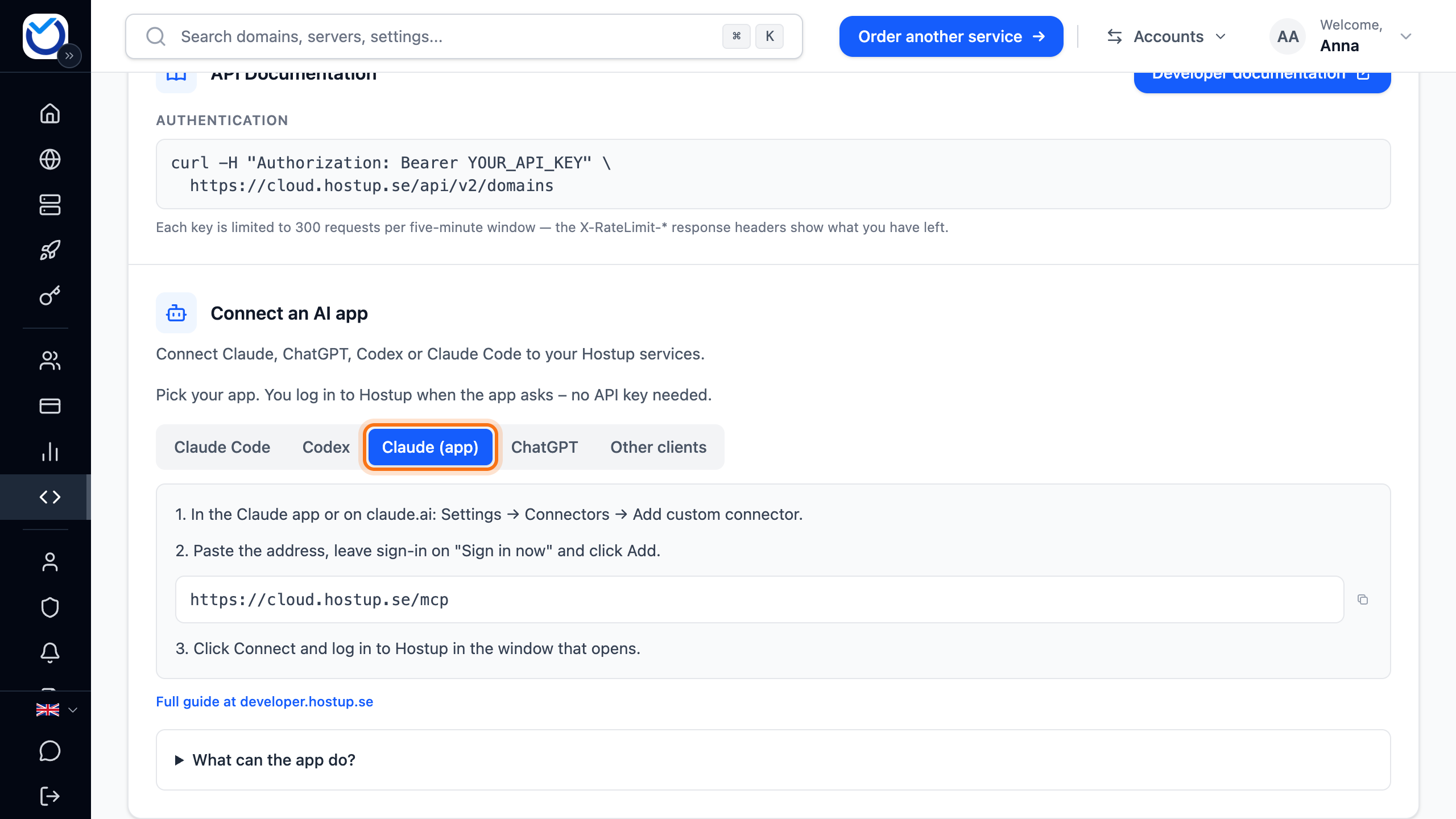
- Follow the steps under the tab. The Hostup address is
https://cloud.hostup.se/mcp.- Claude and ChatGPT: copy the address with the button next to it. Add it as a new connector in the app’s settings. Choose OAuth sign-in if the app asks.
- Claude Code and Codex: copy the command with the button next to it and run it in your terminal. Then start the sign-in the tab describes.
- Other apps: add a remote MCP server (Streamable HTTP) with the address and choose OAuth.
- The app opens Hostup in your browser. If you are not logged in to the client area, log in first.
- The page shows which app wants to connect to your account. Check that the right account is shown next to Account.
- Choose under What may the app do?:
- Read and change: the app can manage services, domains, DNS, email and invoices.
- Read only: the app can see services and settings but not change anything.
- Choose yourself: you tick exactly which permissions the app gets.
- Click Approve. You are taken back to the app.
If the page says Unknown app – check the address before you approve, Read only is preselected. If the app runs on your own computer, the page warns you about it. Approve only if you started the connection yourself just now.
What happens next
Section titled “What happens next”The app now shows under Connected AI apps on the API Management page. There you see what it may do and when it was last used. The connection lasts until you disconnect it.
You can now ask the app to do things, for example add a DNS record or restart a server. The app does most things right away. That includes removals: a DNS record you ask the app to delete is gone at once. If the app should never be able to change anything, choose Read only when you connect it.
The app never makes purchases, reinstalls, restores or cancellations on its own. You confirm those yourself in the client area.
Confirm an action the app has prepared
Section titled “Confirm an action the app has prepared”You confirm these yourself:
- anything that costs money, for example a new domain, a new server or paying an invoice
- reinstalling a VPS
- restoring a VPS, a web hosting account or a database from a backup
- cancelling a service
How to:
- The app says the action is prepared and gives you a link. Open the link.
- Log in to the client area if you are not logged in already.
- The Confirm action page shows what will be done. If it costs money, the price is next to Amount. Next to Valid until you see how long the link is valid.
- Click Confirm & execute if everything looks right. Otherwise click Cancel.
Nothing happens until you click. The page then shows whether the action went through.
If the link has expired, the page says the confirmation has expired. Ask the app to prepare the action again.
Disconnect an app
Section titled “Disconnect an app”- Click API Management in the menu. Scroll down to Connected AI apps.
- Click Disconnect on the app’s row.
- A box asks Revoke API Key? Click Revoke Key.
The app can no longer reach your account. To use it again, connect it again from the app.
To change what the app may do, first disconnect it here. Then connect it again and choose a new level.
Good to know
Section titled “Good to know”- If the app lacks permission for something you ask, it can give you a link to API Management. There you are asked Give your AI assistant full access? Click Give full access. The app then gets full access. Go back to the app and ask again. If the app still cannot find what it needs, start a new conversation in the app.
- If you remove the connection inside the AI app, it may still be listed in the client area. Disconnect it here too. Then you know the app cannot reach your account.
- If the app does not support OAuth sign-in, you can use an API key instead. Send it in the header
Authorization: Bearer <your API key>to the same address. Read more in API keys.