
Add your email to iPhone, Mac, Outlook or Gmail
Checked against the client area 29 October 2026
Every email account on the domain’s Email tab has a button that shows how to add the account to a mail app. iPhone, iPad and Mac get a ready-made setup file. In Outlook, Thunderbird, Gmail and other apps you enter the IMAP and SMTP details. The client area shows what to enter.
Open your domains in the client area
Before you start
Section titled “Before you start”The email account must exist. Create an email account shows how. You also need the account’s password.
How to
Section titled “How to”- Click Domains in the menu, then the domain.
- Go to the Email tab.
- Click Add to mail app on the account’s row.

- Pick your device at the top of the dialog: iPhone / iPad, Mac, Android or Windows / other. Then follow the matching part below.
iPhone or iPad
Section titled “iPhone or iPad”- If you opened the dialog on a computer, it shows a QR code. Point the camera of the iPhone or iPad at the code and tap the link. Choose Allow when asked to download a profile.
- If you opened the dialog on the iPhone, tap Add to Mail on this device. Choose Allow.
Then open Settings and tap Profile Downloaded at the top. Tap Install and enter the account’s password. The account is now in the Mail app.
The QR code works for 30 minutes. If it has stopped working, close the dialog and open it again.
Click Download setup file and open the file. Open System Settings and search for Profiles. Select the email account and choose Install. Enter the account’s password. The account is now in the Mail app.
Android, Outlook, Thunderbird and other apps
Section titled “Android, Outlook, Thunderbird and other apps”Choose Android or Windows / other. Add an account in the app and choose IMAP. Then enter what the dialog shows:
- Username: the full email address.
- Password: the account’s password.
- Incoming (IMAP): the server in the dialog, port 993 with SSL/TLS.
- Outgoing (SMTP): the server in the dialog, port 465 with SSL/TLS. It needs a sign-in with the same username and password.
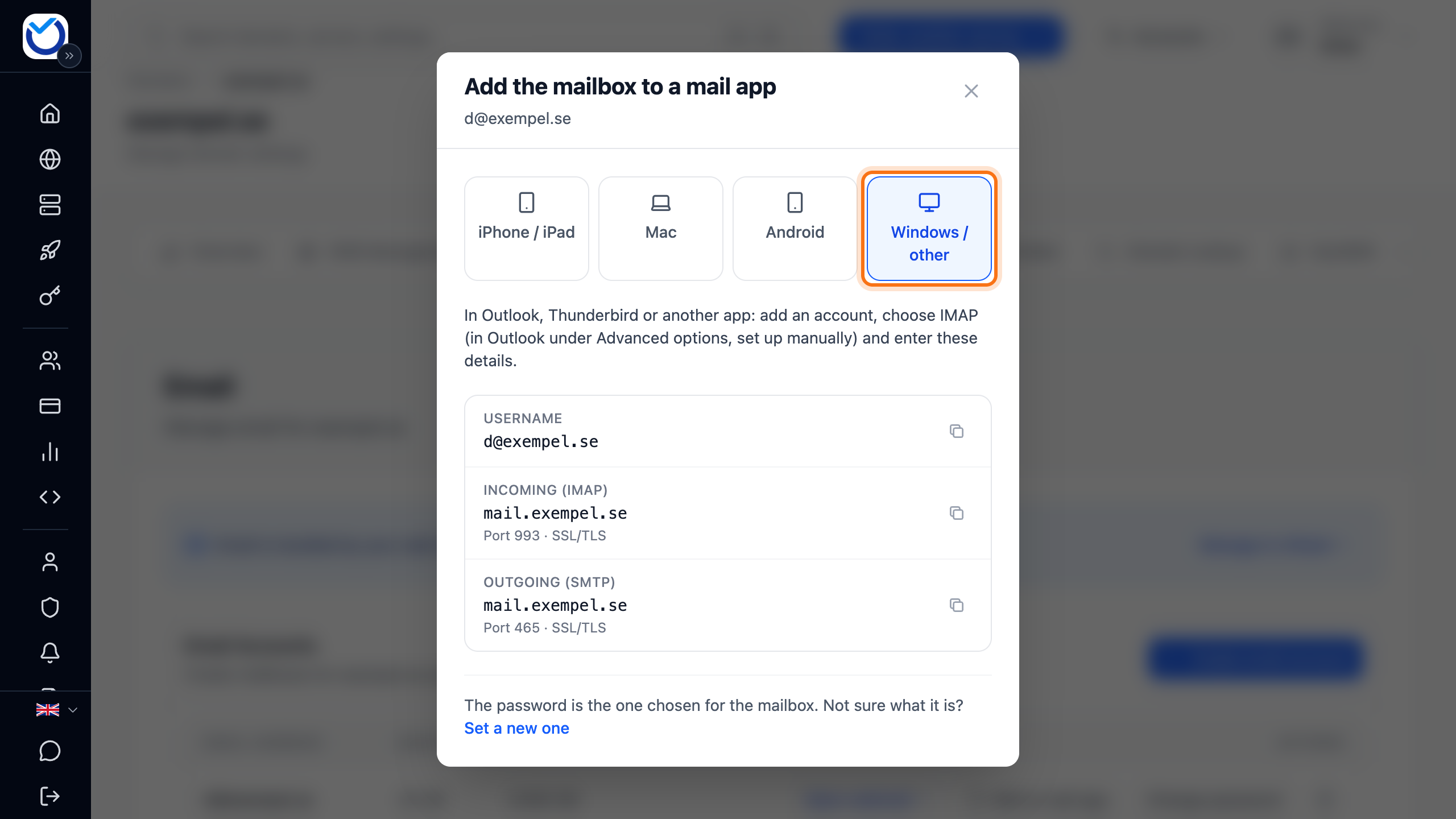
Type the server names exactly as the dialog shows them. In Gmail on Android, tap your picture and choose Add another account, Other and IMAP. In Outlook, choose Advanced options and set the account up manually with IMAP.
What happens next
Section titled “What happens next”The app fetches your email from the web hosting. Mail you send also goes through the web hosting. At the bottom of the Email tab you find Deliverability. It shows what happened to each message you sent.
Good to know
Section titled “Good to know”- Not sure of the password? Click Set a new one at the bottom of the dialog. That sets a new password for the account. Then enter the new password in every app that uses the account.
- The servers and ports are the same for every account on the domain. They are also shown under Mail app settings on the tab.
- Mail stuck in the outbox? Check that the outgoing server is the one in the dialog, with port 465 and SSL/TLS. The app must sign in with the full email address and the account’s password.
- If the top of the tab says a sender is paused, read Paused email sender.
- No email coming in at all? Read Email not arriving at your web hosting.