
VPS backups: create and schedule them
Checked against the client area 29 October 2026
A backup is a copy of the server’s whole disk at one point in time. Every new VPS gets a schedule that takes a backup once a week. You can also take one yourself whenever you like, for example before a bigger change.
Open your servers in the client area
Before you start
Section titled “Before you start”The server does not need to be shut down while the backup is taken. For a consistent copy, the QEMU Guest Agent must be installed on the server. If the tab shows Guest Agent Not Detected, it is missing. Install the qemu-guest-agent package on the server. The Storage tab shows the command for the most common Linux systems.
How to
Section titled “How to”- Open the server in the client area and go to the Backups tab.
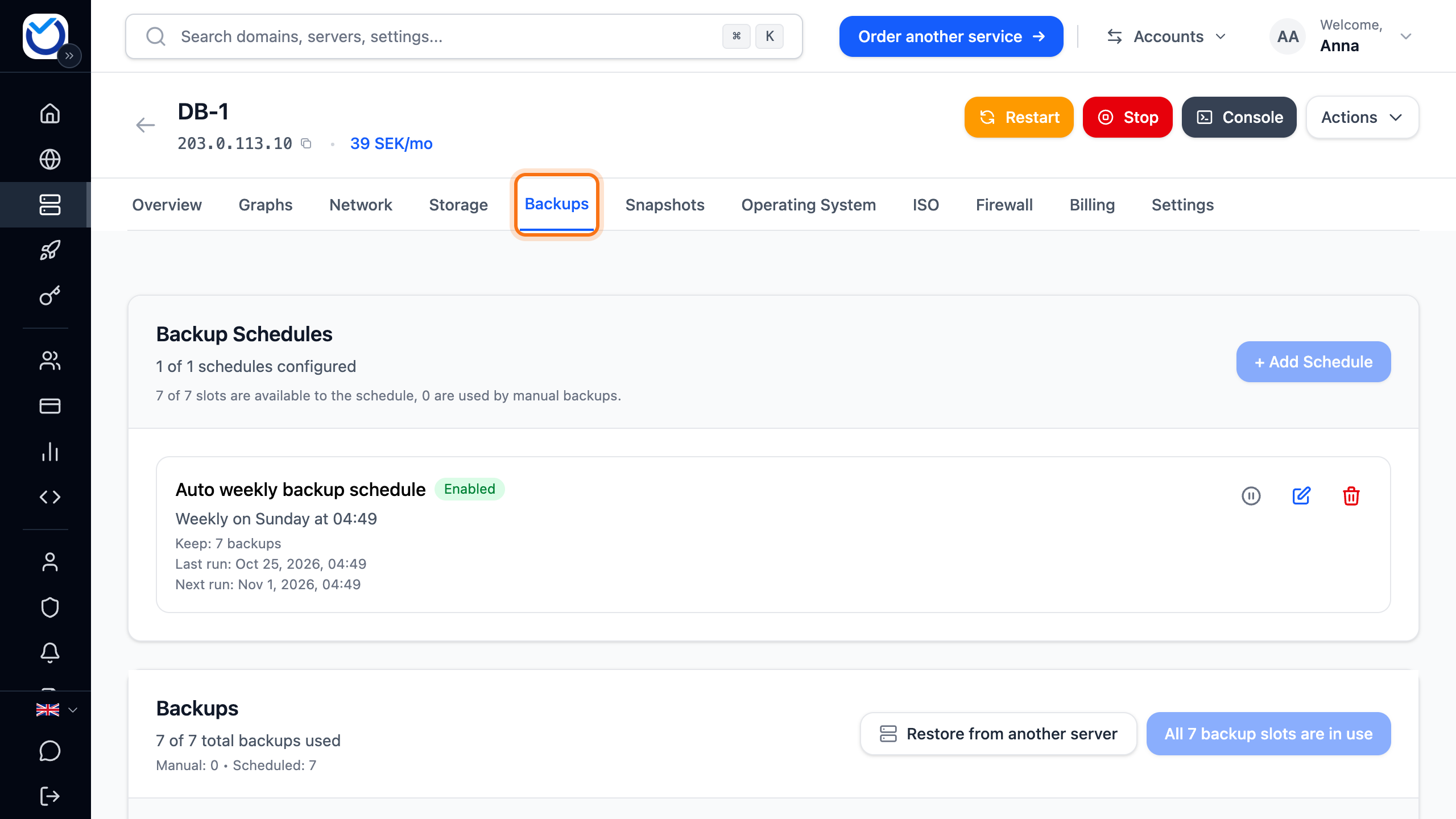
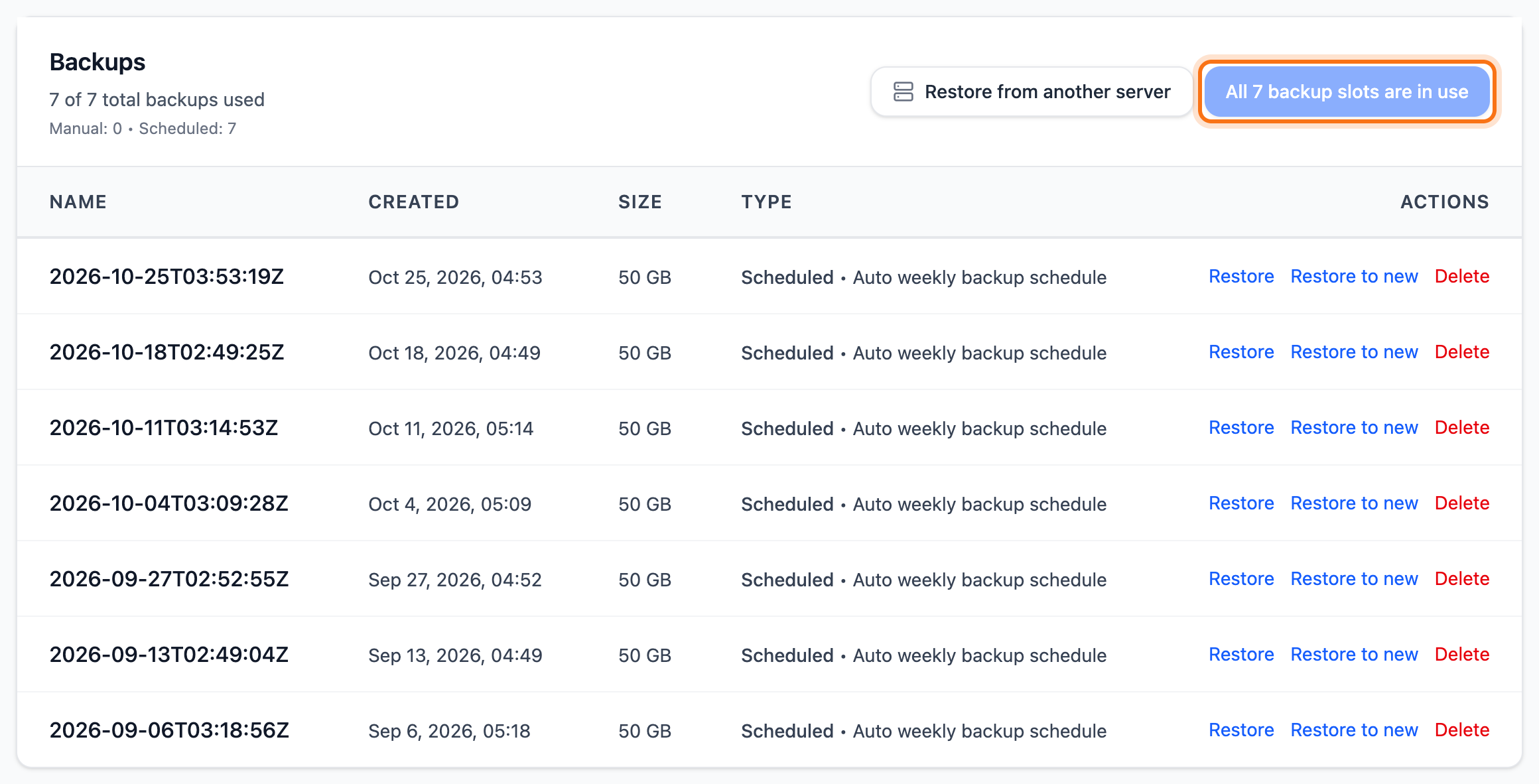
- Scroll down to the Backups box. Click + Create Backup. If the server has no backups yet, the button says + Create First Backup.
What happens next
Section titled “What happens next”The backup starts straight away, without asking first. A blue box shows Manual backup in progress and how far it has come. Meanwhile you cannot restart or reinstall the server.
When it is done, the backup shows in the list with the type Manual. To stop it before then, click Cancel Backup and confirm in the box that opens. Whatever was copied so far is not kept.
How to restore a backup is described in Restore a backup of your VPS.
Change the schedule for automatic backups
Section titled “Change the schedule for automatic backups”A server can have one schedule. You change the automatic schedule of a new server the same way.
- Under Backup Schedules, click the pencil (Edit) next to the schedule. If the server has no schedule, click + Add Schedule.

- Enter a name under Schedule Name. Letters a–z, digits, spaces, hyphens and underscores work. Letters such as å, ä and ö do not.
- Choose how often under Frequency: Daily, Weekly or Monthly.
- Choose the Start Hour in Swedish time. The exact minute within the hour is picked automatically.
- If you chose weekly or monthly, also choose the Day of Week or the Day of Month.
- Under Number of Backups to Keep, enter how many backups the schedule should keep. The highest number you can choose is shown below the field.
- Leave Enable this schedule ticked and click Save.
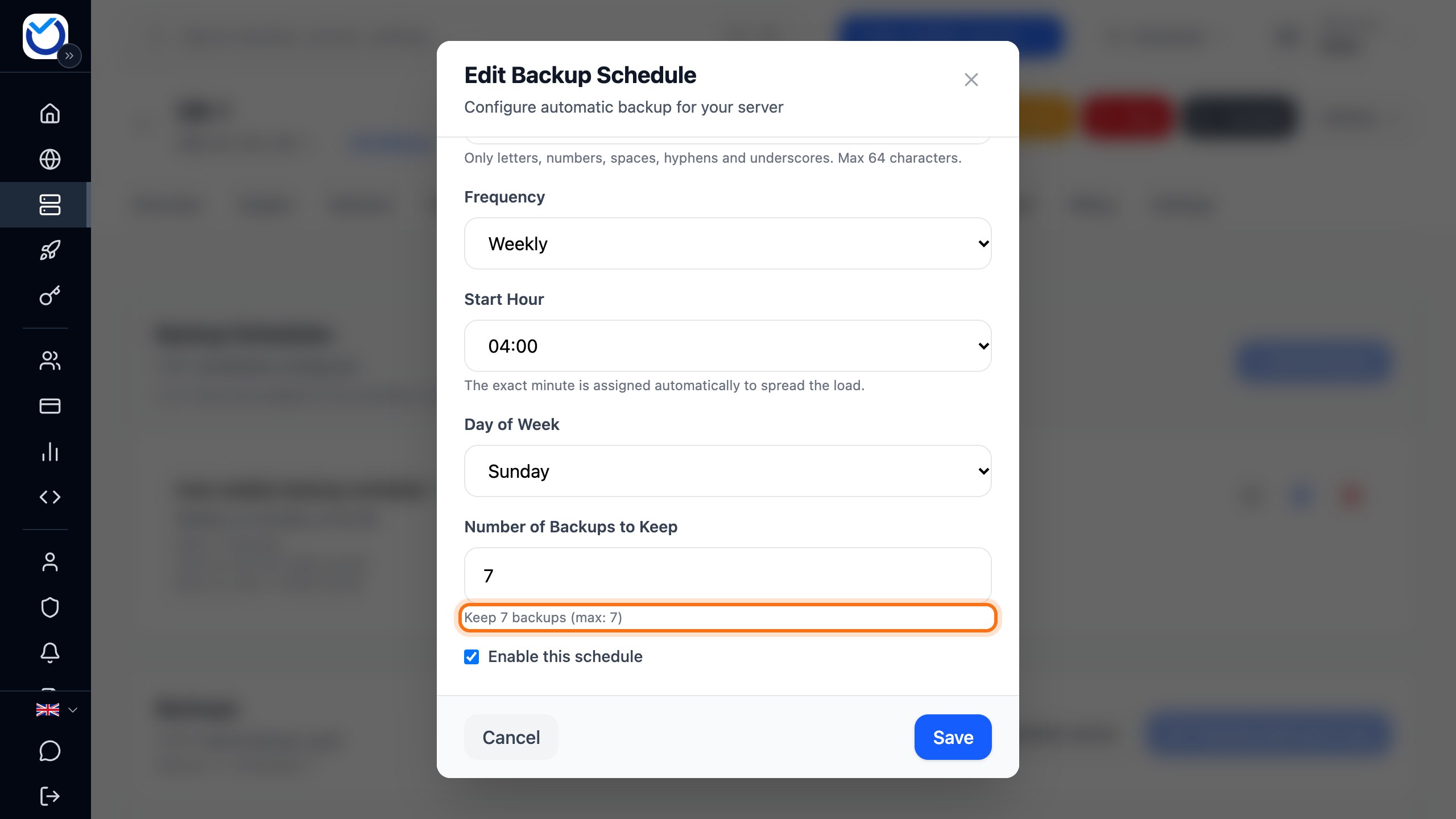
The schedule shows when the next backup is taken under Next run. Once the schedule has kept as many backups as you chose, the oldest scheduled backup is deleted when the next one is taken.
To pause the schedule without deleting it, click the pause button (Disable) next to it. Click the same button (Enable) to start it again.
Good to know
Section titled “Good to know”- The server has a set number of backup slots. Manual and scheduled backups share them. Under Backup Schedules you can see how many slots the schedule can use right now.
- Manual backups are never deleted automatically. Each manual backup leaves the schedule one slot fewer. Delete the manual ones you no longer need.
- When every slot is in use, you cannot take a manual backup. The button then says that all slots are in use. On a regular VPS you can add more slots on the Billing tab. Under Change Plan & Resources, click Adjust Resources.
- To delete a backup, click Delete on its row and confirm in the box that opens. It is deleted straight away and cannot be brought back.
- Size in the list is the size of the disk the backup restores to. It is not how much data it holds.
- When a server has been cancelled and removed, its backups are kept for a short time only. Then they are deleted.
- If you need a quick restore point for the next few hours, a snapshot suits you better.