
The console (VNC): reach your VPS when SSH or RDP fails
Checked against the client area 29 October 2026
The console, sometimes called the VNC console, shows your server’s screen in the browser. It is like sitting at the server with a screen and keyboard. It works even when the server can’t be reached over the network, for example after a boot problem or a firewall inside the server that locks you out.
Open the console in the client area
How to
Section titled “How to”- Click VPS in the menu, then click the server.
- Click Console at the top of the page.
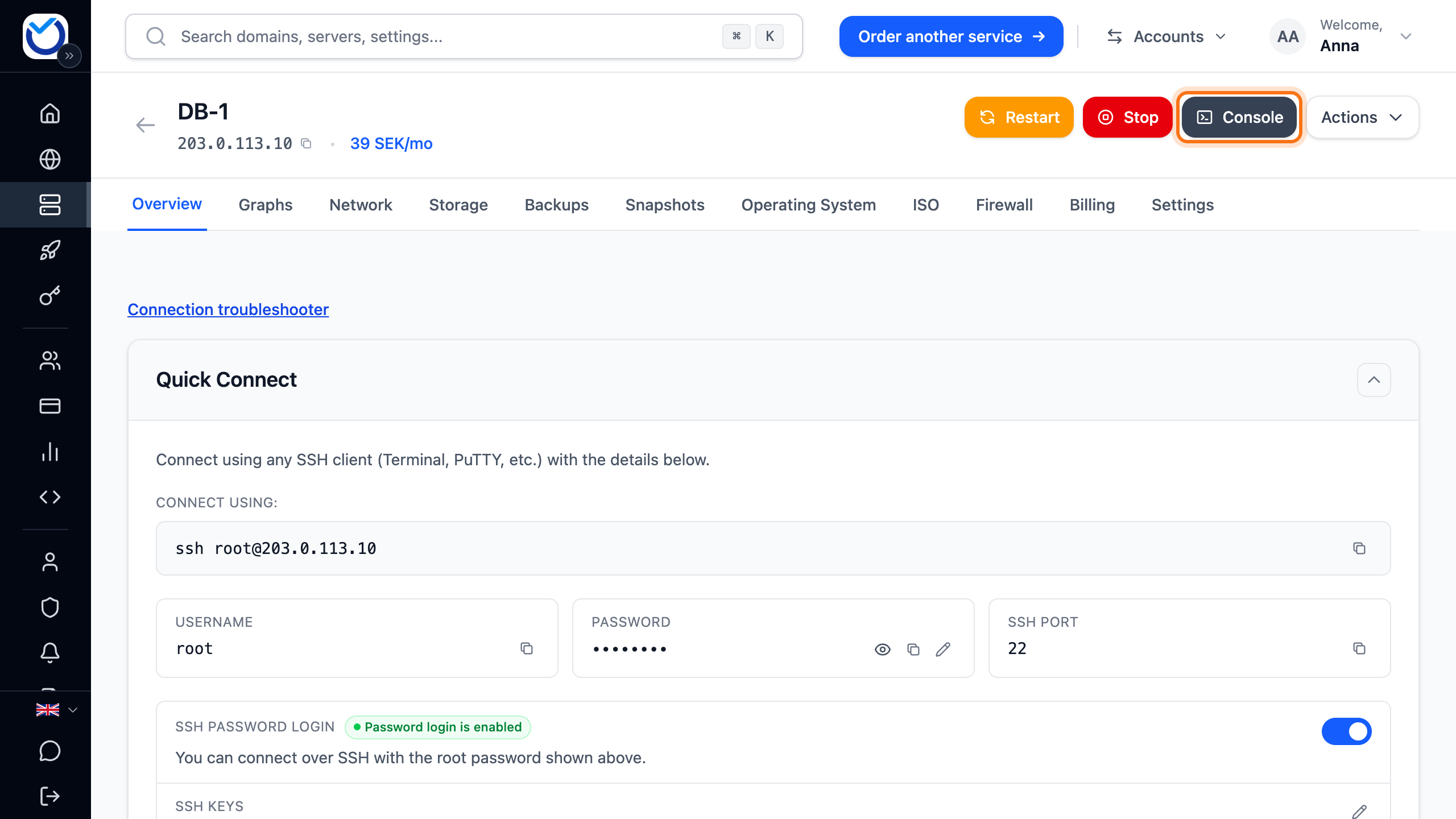
- The console opens in a new tab. If your browser blocks new windows, a message appears with the button Open VPS console. Click it to open the console in the same tab.
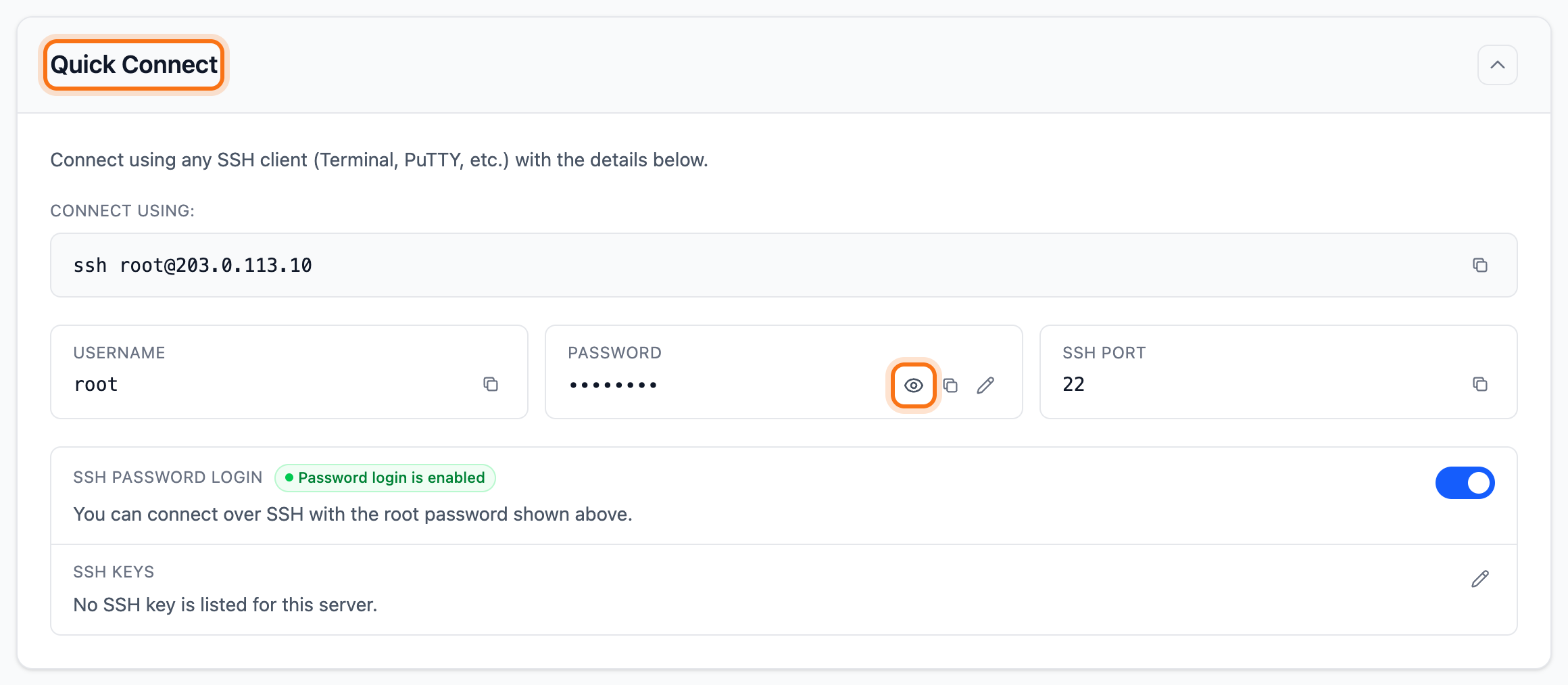
- Log in with the username and password shown under Quick Connect on the Overview tab. Click the eye (Show) to see the password.
What happens next
Section titled “What happens next”You see the server’s screen and type into it as if you were sitting at the server. If a firewall inside the server locked you out, fix it here. Then try connecting with SSH or Remote Desktop again.
Good to know
Section titled “Good to know”- You can also open the console from the list under VPS. Click the terminal icon (Open console) on the server’s row.
- The button can’t be clicked while another operation is running on the server. It is also blocked when the service is suspended or terminated, and when the month’s bandwidth is used up. Hover over the button to see why.
- If you see Couldn't open the console, try again in a moment.
- If you don’t know why you can’t reach the server, click Connection troubleshooter on the Overview tab. Then click Run check. It checks whether the server answers from the internet.
- If you have forgotten the password, create a new one. See Reset the password for your VPS.