
Two-factor authentication (2FA) with an app or passkey
Checked against the client area 29 October 2026
With two-factor authentication, your password alone is not enough to sign in. The client area also asks for a second step: a code from an app on your phone, a passkey or a security key. You can have several methods on the same account.
Open the Two-factor tab in the client area
Add an authenticator app
Section titled “Add an authenticator app”This works with Google Authenticator, Microsoft Authenticator, Authy and similar apps.
- Go to Account › Two-factor.
- Click Add 2FA and choose Authenticator App.
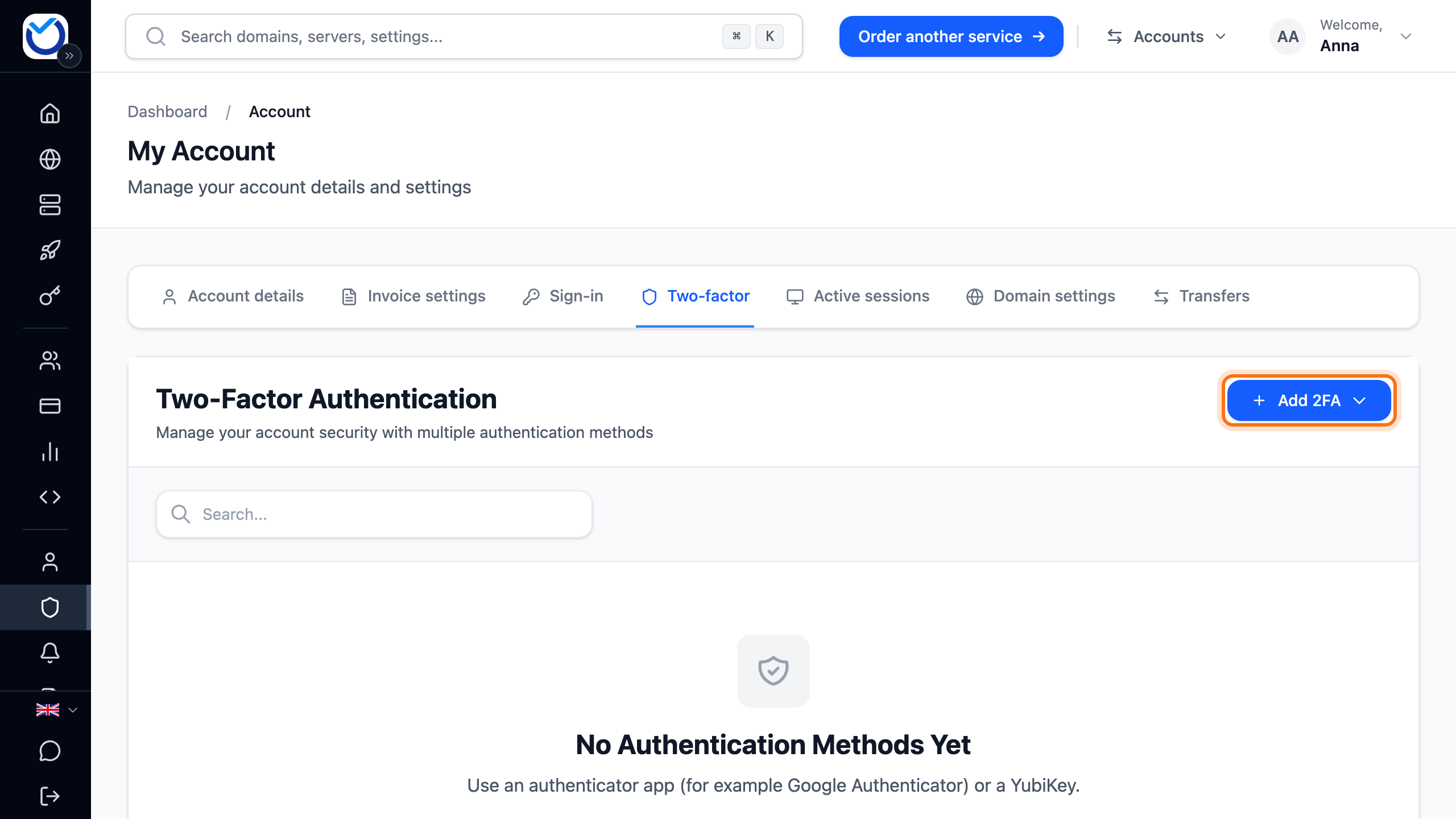
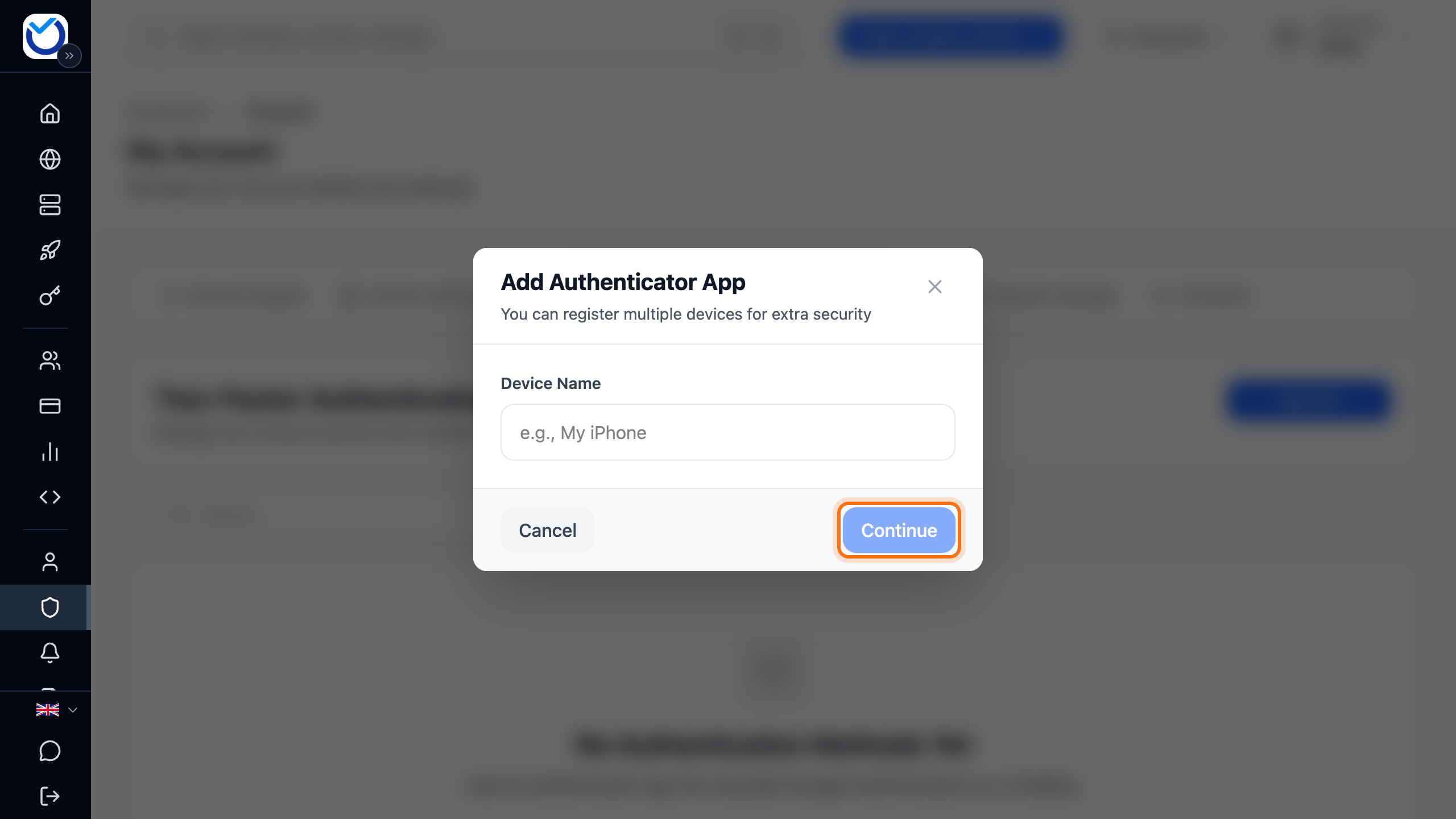
- Give the device a name, for example the name of your phone. Click Continue.
- Scan the QR code with the app. If you can’t scan it, click Can't scan? Enter manually and type the key into the app.
- Enter the six-digit code from the app. Click Verify & Save.
Add a passkey or security key
Section titled “Add a passkey or security key”A passkey uses Face ID, Touch ID or Windows Hello on your device. A security key is a physical key, such as a YubiKey.
- Go to Account › Two-factor.
- Click Add 2FA and choose Passkey / Security Key.
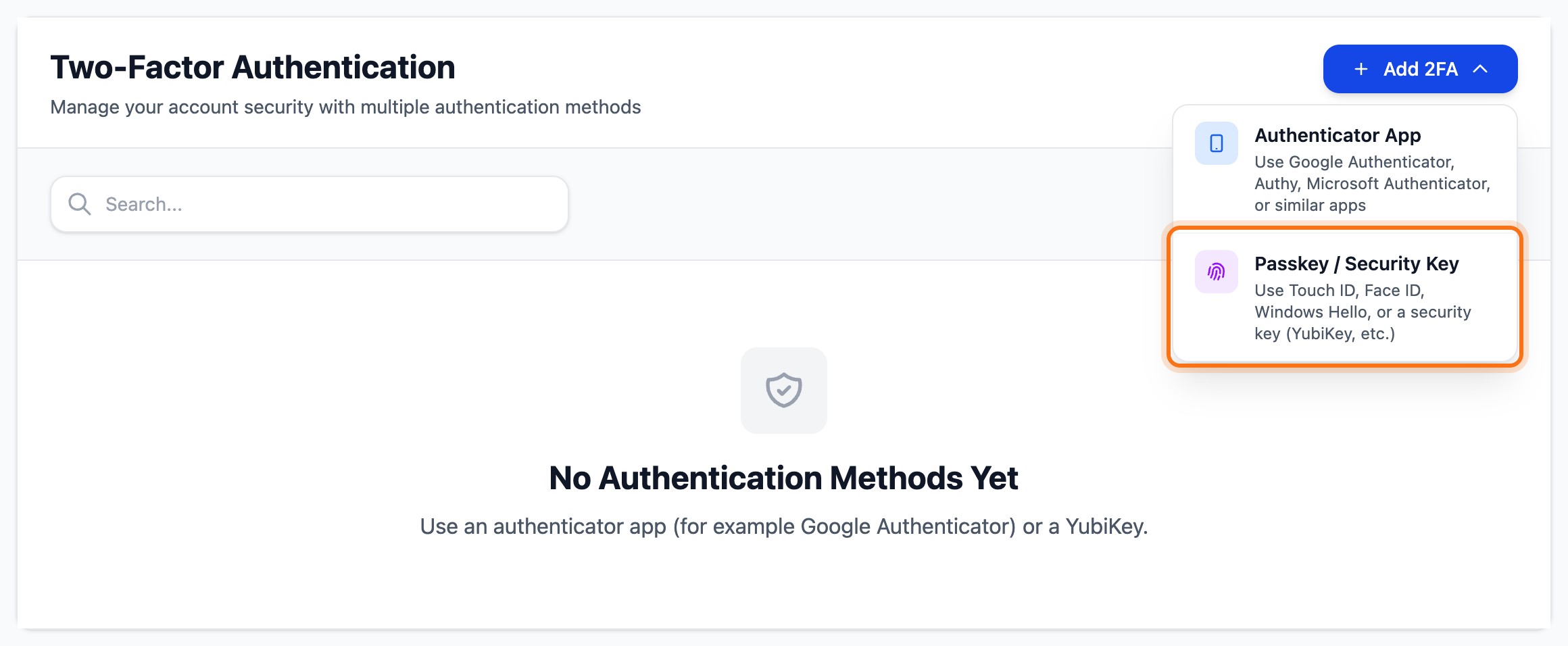
- Give the device a name. Click Register.
- Approve the prompt your browser shows.
If your browser does not support passkeys, the menu shows YubiKey instead. Switch browser or use an authenticator app.
Save backup codes
Section titled “Save backup codes”A backup code gets you in if you lose your phone or key. The button for the codes shows once you have added a method. It only appears on a larger screen. Use a computer.
- Go to Account › Two-factor.
- Click Generate Backup Codes. If you already have codes, the client area asks whether to replace them. Click Yes, generate new codes.
- Click Download Codes and keep the file somewhere safe.
- Click Done. The box won’t close until you have downloaded the codes.
You get ten codes. Each code works once. If you create new codes, the old ones stop working.
What happens next
Section titled “What happens next”The next time you sign in with your password or Google, the client area asks for the second step. If you have a passkey, it starts straight away. Otherwise you enter the code from the app. To use another method, pick it at the bottom of the box, for example Use backup code.
Tick Trust this device for 30 days if you don’t want to be asked on that computer every time. Don’t do this on a computer other people use.
If you sign in with BankID, the client area does not ask for a second step. BankID is enough. See Sign in with BankID.
Good to know
Section titled “Good to know”- To remove a method, click the bin (Remove) on its row. Confirm with your password or click Confirm with BankID instead of password. Then click Remove.
- Removing the last method turns two-factor authentication off. The account is then protected by the password only.
- If you have lost your phone, sign in with a backup code. Then add the new phone and remove the old one. If BankID is connected to the account, you can also sign in with BankID.
- Two-factor authentication belongs to your own sign-in. A user you have added to the account turns on their own on the same tab. See Give colleagues or an agency access to your account.