
Invoice settings: combined invoices, reference, currency
Checked against the client area 29 October 2026
On the Invoice settings tab you decide what your invoices look like and when they arrive. You can combine renewals on one invoice, choose how early invoices are created, add a reference and change currency. You can also turn off SMS reminders there.
Open invoice settings in the client area
Combine renewal invoices
Section titled “Combine renewal invoices”The page has one choice for domains and one for services.
- Go to Account › Invoice settings.
- Under Domain renewal invoices, choose Consolidated domain invoice or Separate Invoices. With a combined invoice, domains due in the same month are put on one invoice. It is due before the first renewal. The choice shows when you have domains with us.
- Under Service renewal invoices, choose Combine invoices or Separate invoices. The due date is shown on each invoice.
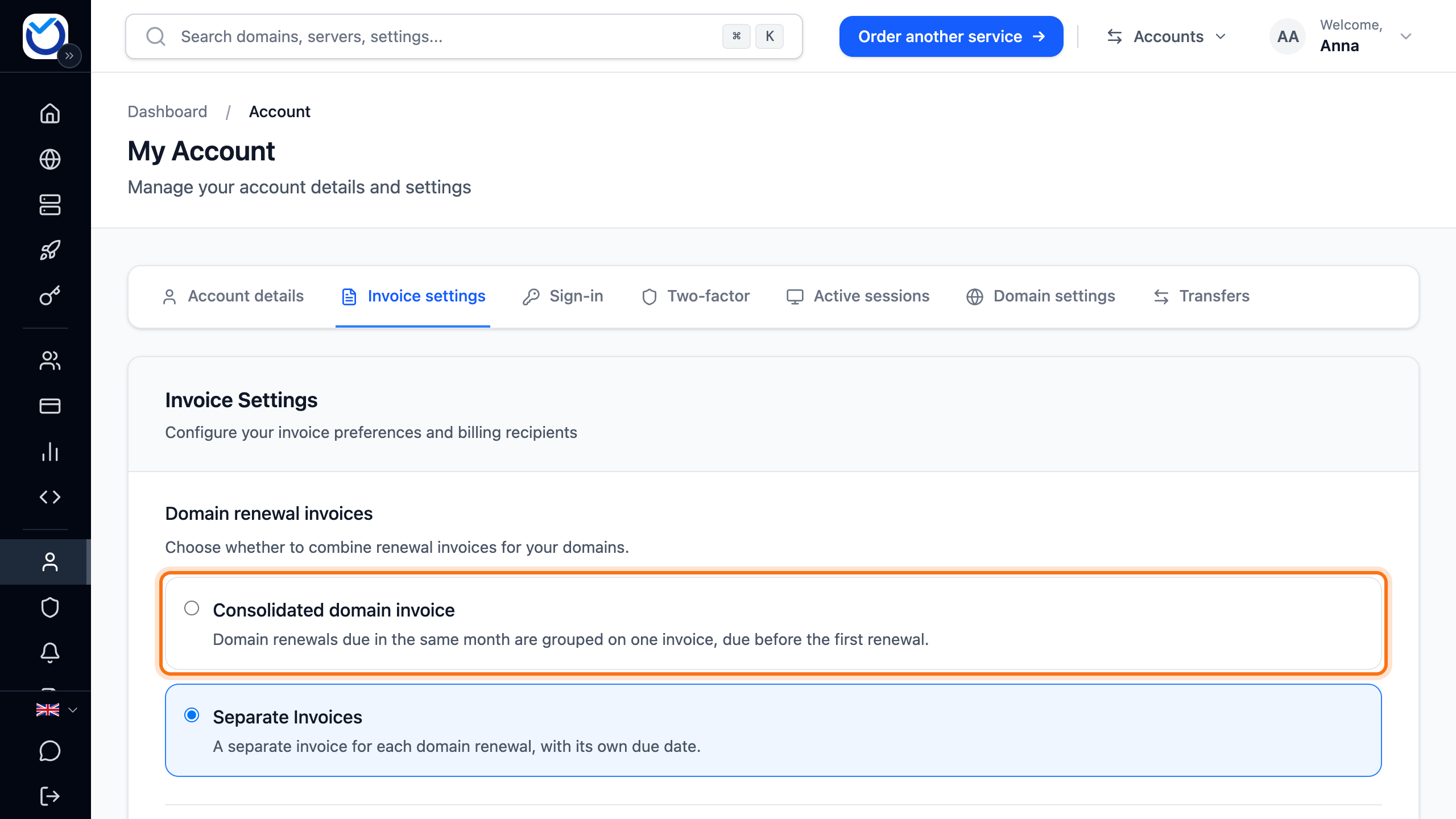
The choices are saved straight away and apply to future invoices.
Choose when invoices are created
Section titled “Choose when invoices are created”Under When invoices are created, you choose how many days before the due date your renewal invoices are created and sent.
- Go to When invoices are created on the same tab.
- Choose Standard, or 7, 14 or 30 days ahead. Standard means 30 days ahead for web hosting and domains and 14 days for VPS.
The choice is saved straight away. It applies to all services and domains from the next renewal. The due date does not change.
Add a reference to your invoices
Section titled “Add a reference to your invoices”Company accounts have the Your reference (buyer reference) box at the top of the tab. Use it for a purchase order number or a cost centre, for example.
- Click Edit Details in the Your reference (buyer reference) box.
- Enter the reference.
- Click Save.
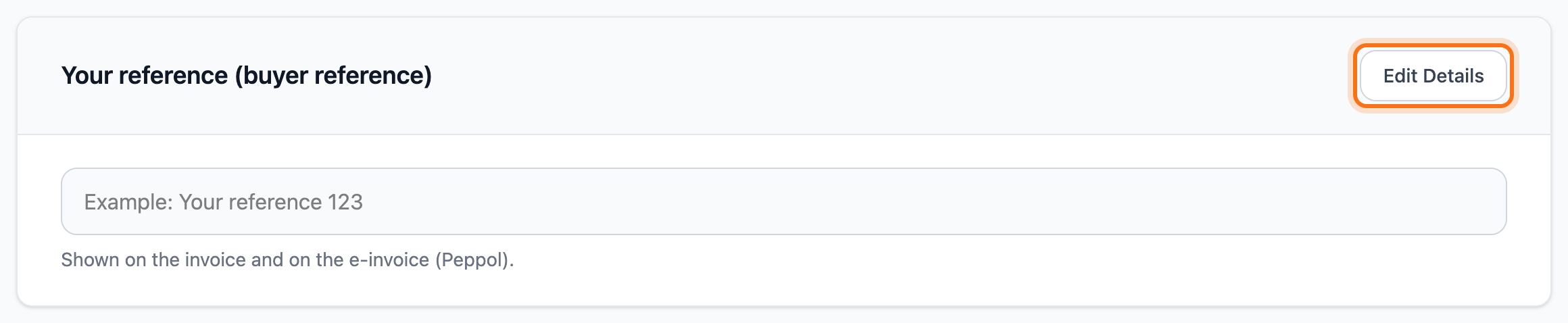
The reference is shown on the invoice and on the e-invoice via Peppol. To remove it, empty the field and save.
Change currency
Section titled “Change currency”The Billing currency section does not show for accounts in Sweden that pay in Swedish kronor.
- Click Change currency under Billing currency.
- Choose a currency under Currency.
- Click Change currency.
The page reloads in the new currency. The services you already have get their price in the new currency. New orders and future invoices come in it.
You cannot change currency while you have unpaid invoices. The dialog says how many there are and links to them. Pay them first. You also cannot change it while an order is waiting to be completed. You can only change currency a limited number of times per month. The Monthly change limit box shows how many changes you have left.
SMS payment reminders
Section titled “SMS payment reminders”With SMS payment reminders you get a text with a payment link when an invoice is a few days overdue. It is on from the start.
- Scroll down to SMS payment reminders on the Invoice settings tab.
- Untick it if you do not want texts. Tick it again when you want them back.

Important notices, such as before a service is suspended, are still sent by text when the box is unticked.
The option only shows when the account has a Swedish phone number starting with +46. You change the phone number under Account details. See Change your contact details, address and account type.
Good to know
Section titled “Good to know”- Who gets invoices by email is chosen on the same tab. See Send invoices to your finance team or another email.
- Swedish companies can get their invoices as e-invoices. See E-invoices via Peppol for Swedish companies.