
DynDNS: keep your domain pointed at a changing IP
Checked against the client area 29 October 2026
Do you have a server, a camera or something else at home, and an IP address that changes now and then? With DynDNS, your router updates a DNS record every time the address changes. You then always reach it on the same name, for example home.example.com.
Open your domains in the client area
Before you start
Section titled “Before you start”DynDNS only works when the domain uses our nameservers. Otherwise the DynDNS tab cannot be opened. The nameserver guide shows how to switch.
How to
Section titled “How to”- Click Domains in the menu and then the domain.
- Go to the DynDNS tab.
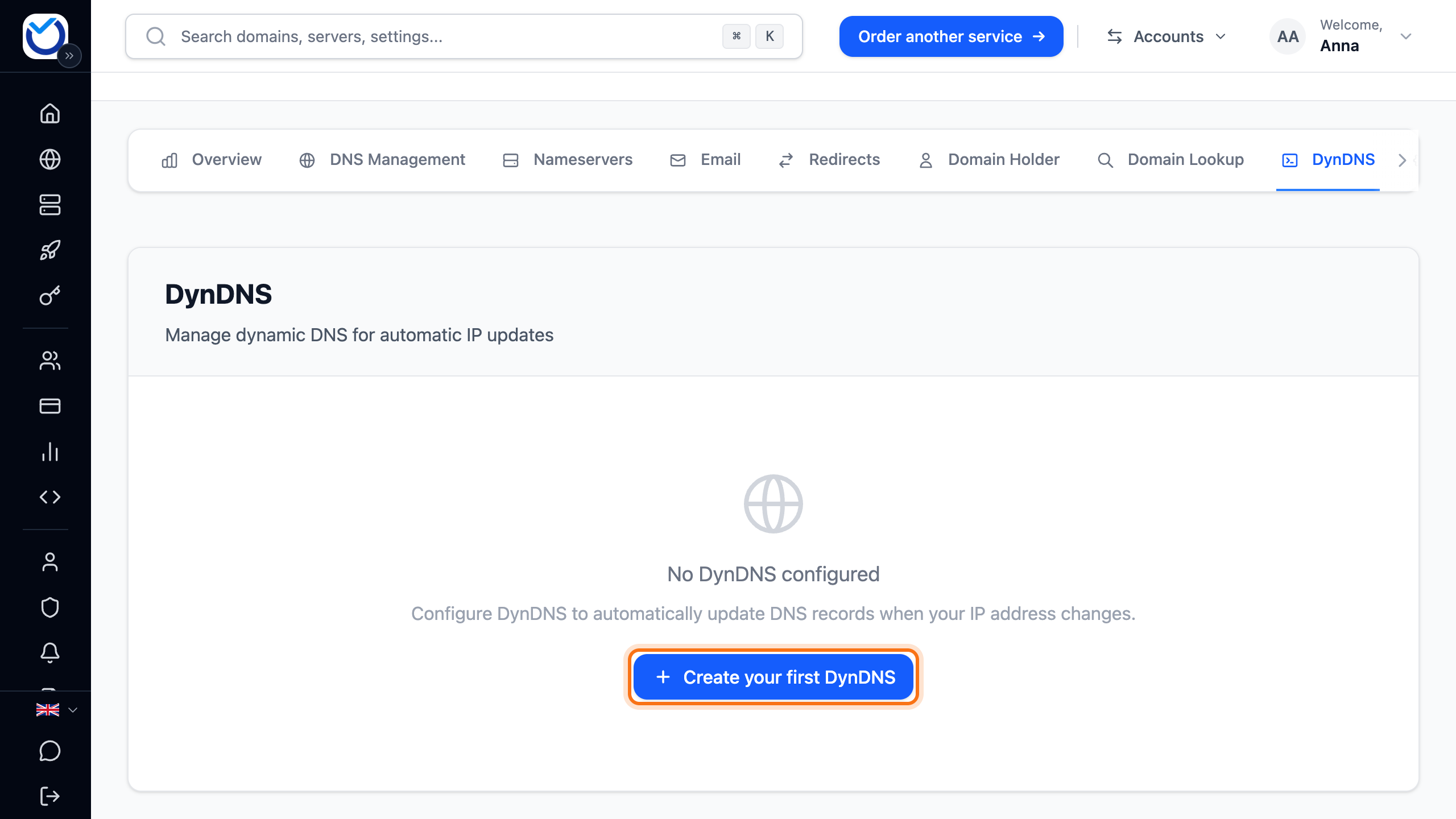
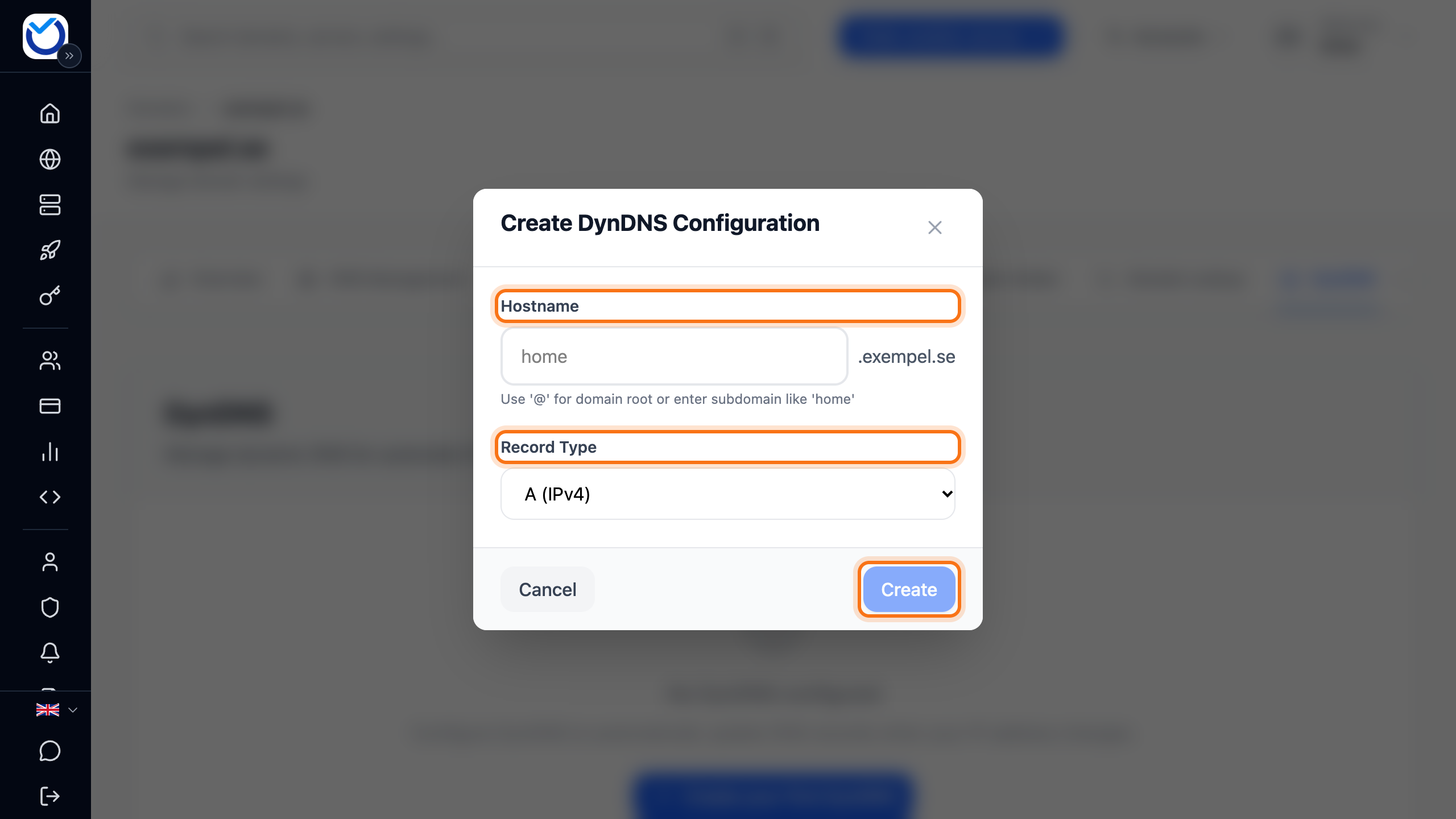
- Click Create your first DynDNS. If the domain already has a DynDNS, the button is called Add DynDNS. On a phone, tap the round plus button (Add DynDNS) at the bottom right. The Create DynDNS Configuration dialog opens.
- Under Hostname, type the name before the domain, for example
home. To have the domain itself follow the IP address, type@. - Choose the Record Type. A is for IPv4 and AAAA for IPv6.
- Click Create.
Set up your router
Section titled “Set up your router”Click Router Setup under the hostname in the list. It appears once the DynDNS configuration is created. It shows everything your router needs.
- Under DynDNS2 Standard (Recommended) you find the settings for routers and programs that support DynDNS2, for example EdgeRouter, UniFi, DD-WRT, OpenWrt and ddclient. There is one block for EdgeRouter / ddclient (Linux) and one for UniFi Custom DynDNS. Fill in the values exactly as shown there. The username is the hostname and the password is your token.
- If your router can only call a web address, use the Update URL under Custom URL (Legacy Method). Copy the full address with the copy icon (Copy URL) under Actions in the list. If you remove
&ip=<address>at the end, the IP address the request comes from is used.
What happens next
Section titled “What happens next”The DNS record is created the first time your router checks in. After that it is updated whenever the IP address changes. A record that DynDNS creates gets a TTL of 5 minutes. A new address therefore shows up quickly.
The list shows the Current IP and Last updated. The document icon (View logs) shows every update from the last 30 days and whether anything went wrong.
Good to know
Section titled “Good to know”- Your token works like a password. If it has got out, delete the configuration with the bin icon (Delete) and create a new one. You then get a new token.
- The switch in the Active column pauses the updates. Your router’s requests are refused while it is off.
- If you delete the configuration, the DNS record stays with the last address. If you don’t need it, delete it on the DNS Management tab, see the DNS records guide.
- To have the same name follow both IPv4 and IPv6, create two: one with A and one with AAAA.