
Redirect a domain to another address
Checked against the client area 29 October 2026
A redirect sends anyone who visits your domain on to another address. That can be from an old domain to a new one, to a social media page, or between www and no www. You set it up on the domain’s Redirects tab.
Open your domains in the client area
Before you start
Section titled “Before you start”The domain must use our nameservers. If it doesn’t, the Redirects tab is greyed out and cannot be opened. Switch nameservers first as described in Change the nameservers for your domain.
How to
Section titled “How to”- Click Domains in the menu and then the domain.
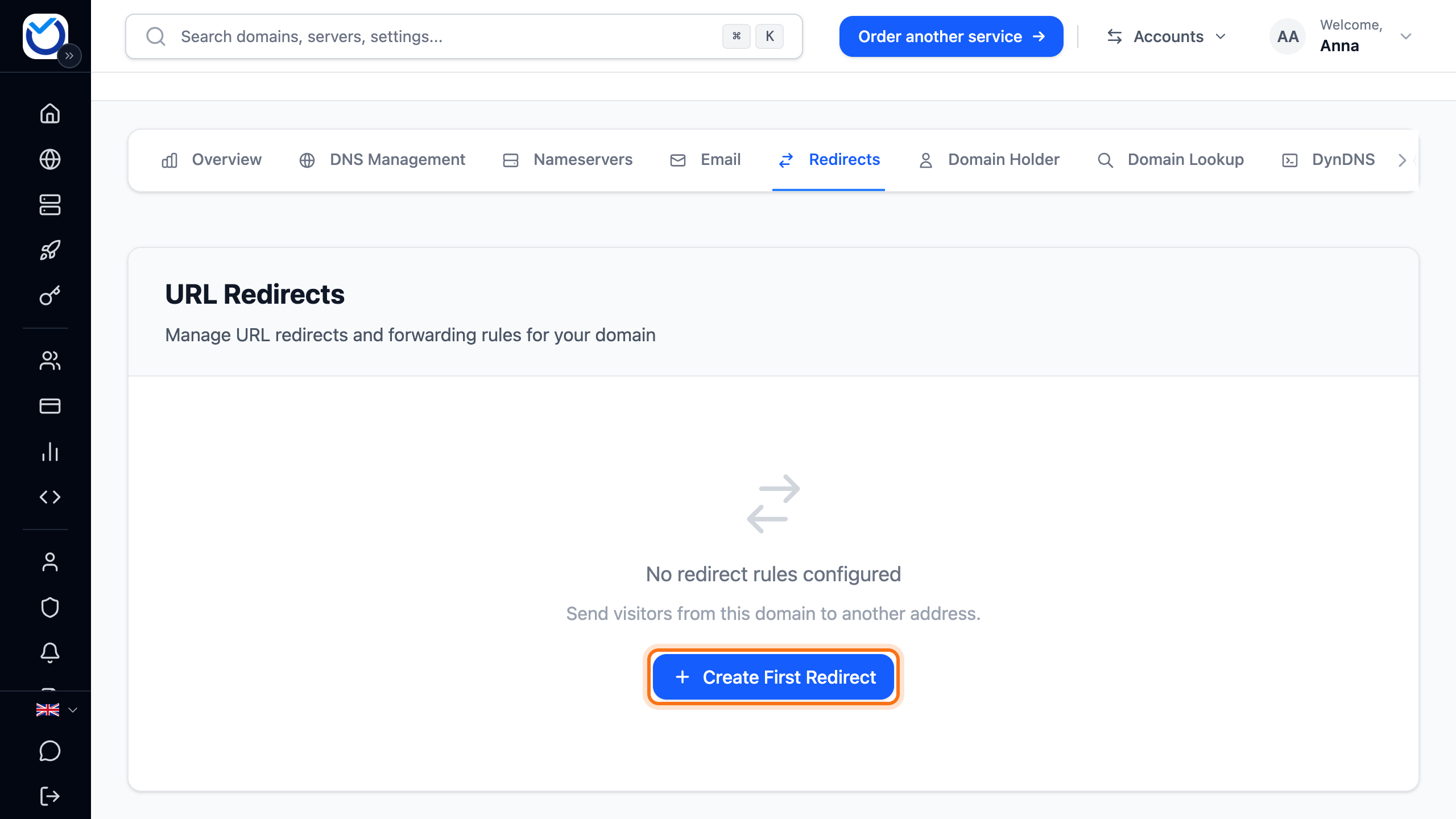
- Go to the Redirects tab and click Create First Redirect. If the domain already has redirects, the button is called Add Redirect. On a phone, tap the round plus button at the bottom right.
- If you only want to send visitors between www and no www, choose From non-www to www or From www to non-www under Quick Templates. The form is filled in for you. Then go to step 8.
- Choose what to redirect under Redirect Scope:
- One hostname covers one address, for example the domain itself or
shop.example.com. www is not included. - Root + www covers both the domain and www.
- Entire domain (all requests) covers every address on the domain.
- One hostname covers one address, for example the domain itself or
- Under From URL you can type a subdomain before the domain name, for example
shop. To redirect only one page, type its path after the domain name, for example/campaign. - Under To URL, type the full address visitors should go to, for example
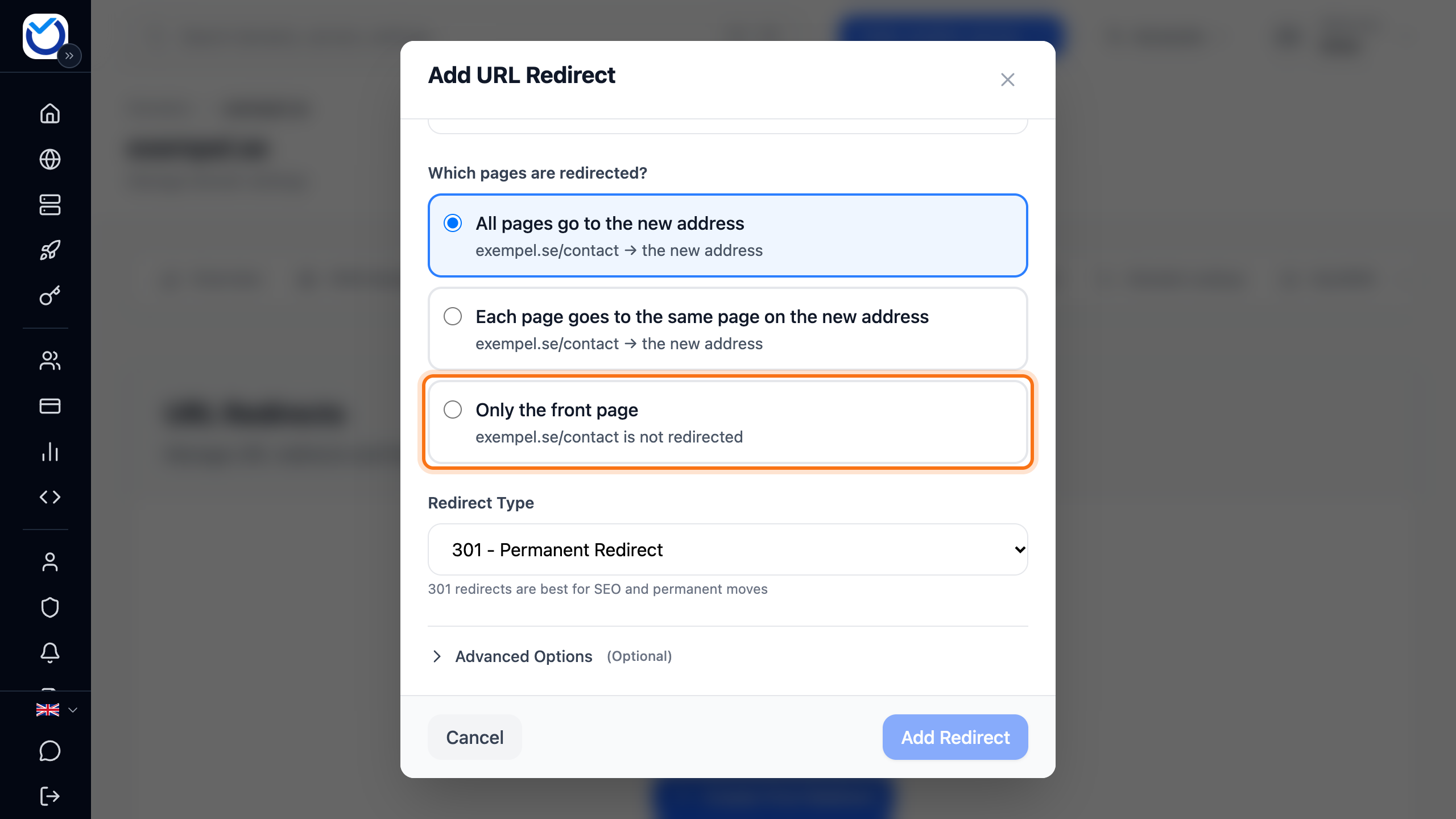
https://example.com/new-page. - Under Which pages are redirected?, choose what happens to the pages below. They can all go to the new address. Each page can go to the same page on the new domain, which only suits a site with the same pages. Except with Entire domain (all requests), you can also have only the front page redirected (Only the front page). If you typed a path, that choice covers only the path. The dialog shows an example with your own addresses.
- Choose 301 - Permanent Redirect if the move is permanent. Choose 302 - Temporary Redirect if it is temporary.
- Click Add Redirect.
- If the address already has website records, DNS Records Will Be Replaced appears with the records that will be replaced. Click Replace & Continue to go ahead.
What happens next
Section titled “What happens next”The redirect shows in the list. If it says Activating next to it, it isn’t live yet. Hover over the word to see why. If it says it will go live by itself, you don’t need to do anything.
The redirect only changes the address’s website records (A, AAAA, CNAME and ALIAS). MX records and other records are not changed.
Change or delete a redirect
Section titled “Change or delete a redirect”- Change: click the pencil next to the redirect (Edit redirect). Make the change and click Save Changes.
- Delete: click the bin (Delete redirect). Confirm with Delete Redirect.
When you delete the domain’s last redirect, the records it replaced are put back. The dialog then shows what the address will point to afterwards. If there were none, the address shows no website until you add an A record. If the domain has web hosting, you can choose Delete and point to web hosting instead.
Good to know
Section titled “Good to know”- A domain can have up to ten redirects.
- To pass on query parameters such as
?utm_source=, click Advanced Options and tick Preserve URL Parameters. - A subdomain under a subdomain, such as
www.shop, cannot be redirected. - If the target address would itself be covered by the redirect, the dialog tells you. Visitors would otherwise be sent round in a loop.
- Redirects are available for domains registered with us. To set up the same redirect on several domains, see Change several domains at once.