
Sign in with BankID as a private person or company
Checked against the client area 29 October 2026
You can sign in to the client area with BankID instead of an email address and password. It works for private and company accounts. As the account owner you can also let colleagues sign in to the account with their own BankID.
Before you start
Section titled “Before you start”You need a Swedish BankID. The BankID settings in the client area are only on accounts that have Sweden as their country.
How to sign in
Section titled “How to sign in”- Click Sign in with BankID on the sign-in page.
- Identify yourself with your BankID.
- If your BankID is connected to one account, you go straight into the client area.
- If it is connected to several accounts, Select Account opens. Pick the account and click Continue.
Your BankID opens these accounts:
- Your private account, if the account has your personal identity number.
- Accounts that list your personal identity number among their authorised numbers. More on that below.
- A company account where Bolagsverket (the Swedish Companies Registration Office) lists you as able to sign for the company alone. This applies when your BankID does not already belong to another account. The first time, your personal identity number is added to the company account.
If you can only sign for the company together with someone else, the company account shows in the box but cannot be selected. Click Send confirmation link next to it. The link goes to the company account’s email address. Once it is opened, your personal identity number is connected to the account.
If your BankID is not connected to any account
Section titled “If your BankID is not connected to any account”If the account does not have your personal identity number, BankID sign-in cannot find it. This often happens when you created the account with an email address and password. You then see Connect BankID to your account after signing in with BankID.
- Enter the account’s email address in the box.
- Click Send confirmation link.
- Open the link in the email. It is valid for 60 minutes.
- Sign in with BankID again.
If no account uses that address, no email arrives. Check that you entered the address the account is registered with. If you have no account at all, click Create an account with your BankID.
If you are already signed in with your password, go to Account › Sign-in. Click Link BankID in the Link BankID to your account box and identify yourself. If the box is not there, add your own personal identity number as described in the next section.
Let more people sign in with BankID
Section titled “Let more people sign in with BankID”The account owner can add up to five personal identity numbers. Each person then signs in with their own BankID and gets full access to the account. If someone should only reach some services, see Give colleagues or an agency access to your account.
- Sign in and go to Account › Sign-in.
- Under Authorized BankID Personal Numbers, click Manage Authorized Personal Numbers.
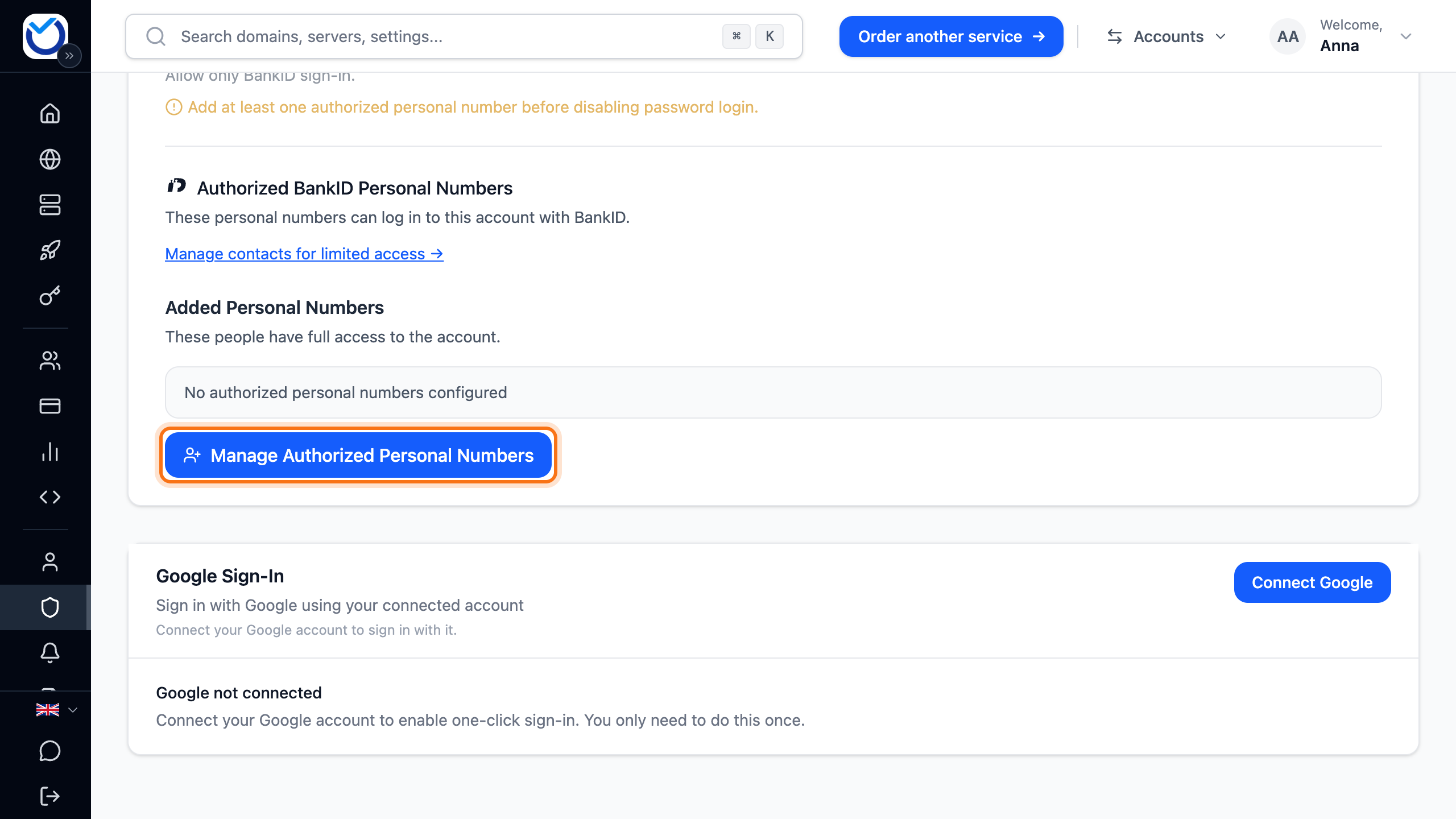
- Enter the personal identity number. Add a name as well, so you can see later whose number it is.
- Click Add.
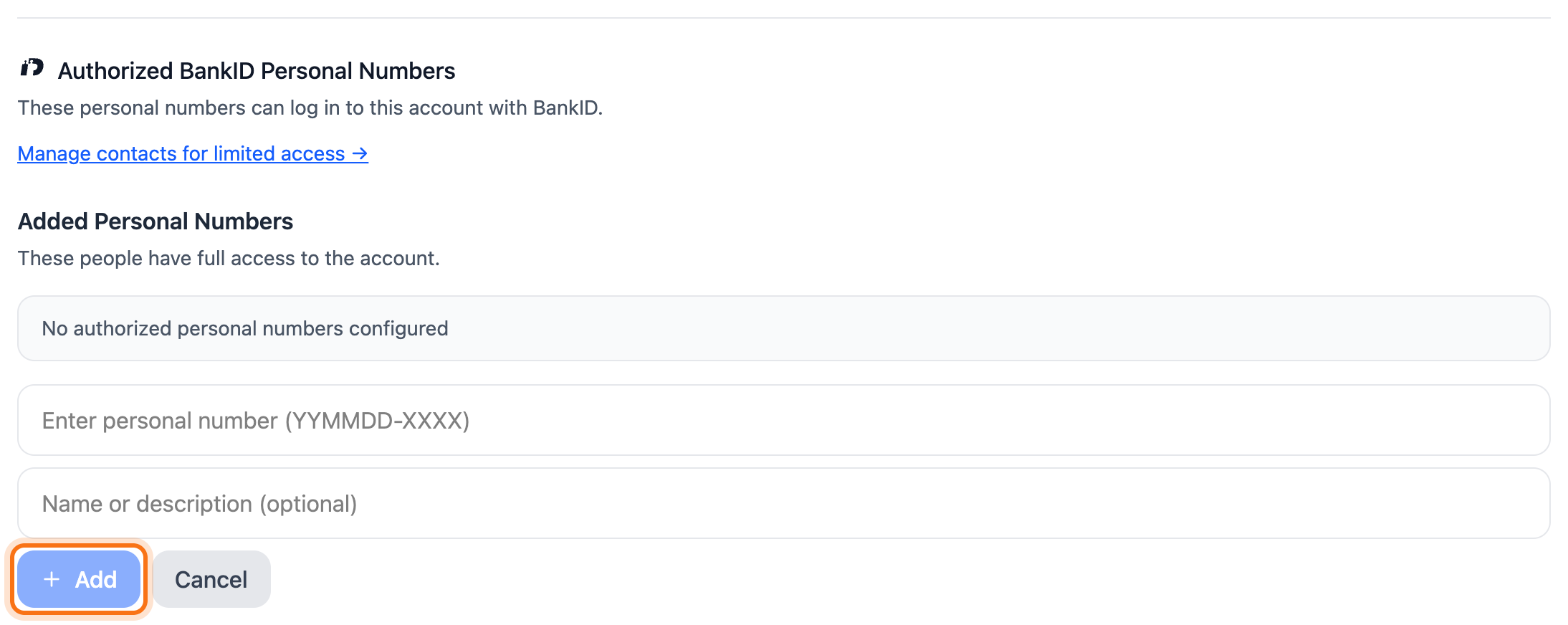
The number shows under Added Personal Numbers. The account’s email address gets a security notice about the change.
To remove a number, click Manage Authorized Personal Numbers. Then click the bin next to the number and confirm.
Turn off password sign-in
Section titled “Turn off password sign-in”If you want the account to open only with BankID, turn off password sign-in.
- Go to Account › Sign-in.
- Turn on the switch next to Disable password login. The switch can only be turned on once BankID linked shows next to the setting.
- If the client area asks you to confirm with BankID, identify yourself. The setting is turned on when you come back.

After that, nobody can sign in with a password or Google. The account’s email address gets a security notice. Turn the switch off again and the password works as before.
Good to know
Section titled “Good to know”- Anyone who signs in with an authorised personal identity number has the same access as you. They can also add and remove numbers.
- Removing a personal identity number turns password sign-in back on.
- If you have several accounts with the same BankID, switch between them under My accounts in the top menu.
- The English sign-in page shows the BankID button only if you are in Sweden or your browser uses Swedish. It also shows if you have signed in with BankID in the same browser before.