
Paused email sender: see deliveries and lift the pause
Checked against the client area 29 October 2026
We check the email sent from your web hosting. The same goes for mail your VPS sends through our relay. If many messages from one sender look like spam, phishing or similar, the sender is paused for a while. The client area shows what happened to each message. You can also lift the pause yourself there.
Open your domains in the client area
How to lift the pause
Section titled “How to lift the pause”- Open the page where the pause is shown:
- Web hosting: go to Domains and open the domain. Choose the Email tab. A paused sender is shown at the top of the tab.
- VPS: open the server and go to the Settings tab. Click Delivery Insights in the Email Sending box. A paused sender is shown a little further down in that part.
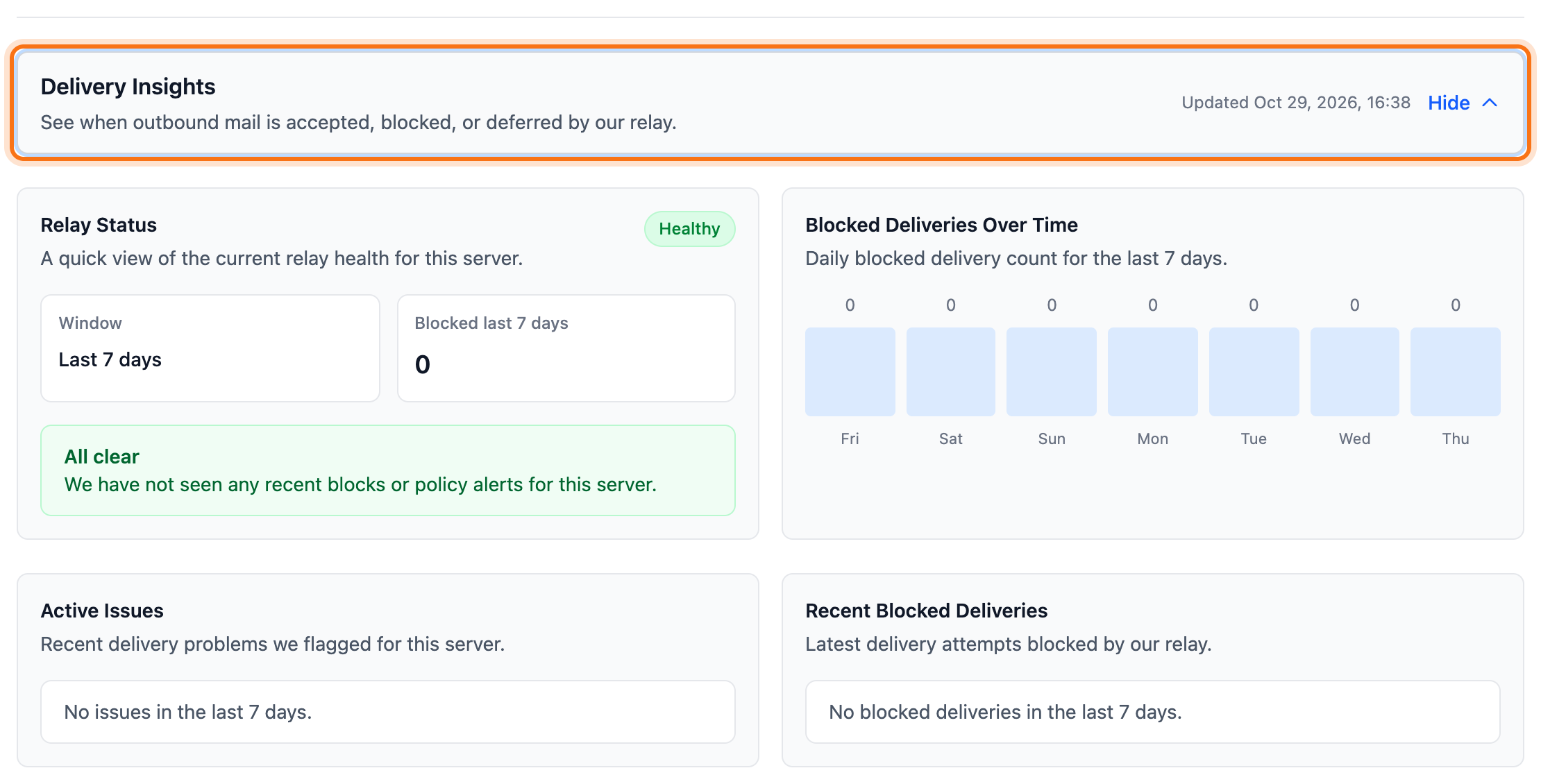
- Read which sender is paused and why. The box also says how long the pause lasts.
- Fix the cause before you lift the pause. If it says the messages look like phishing, a scam or malware, change the mailbox password first. The same applies when the mailbox looks hijacked.
- Click Lift the pause. A dialog opens.
- Tick I have changed this mailbox's password if the dialog asks for it.
- Click Lift the pause in the dialog.
What happens next
Section titled “What happens next”The pause is lifted within a minute. Every message is still checked. If the same kind of mail keeps going out, the sender is paused again, for longer each time.
Mail sent while the pause was on got a temporary error. The server that sent it tries again.
If you do nothing, the pause ends by itself at the time shown in the box.
See what happened to a message
Section titled “See what happened to a message”- Web hosting: on the domain’s Email tab, Deliverability is at the bottom.
- VPS: on the Settings tab, click Messages in the Email Sending box.
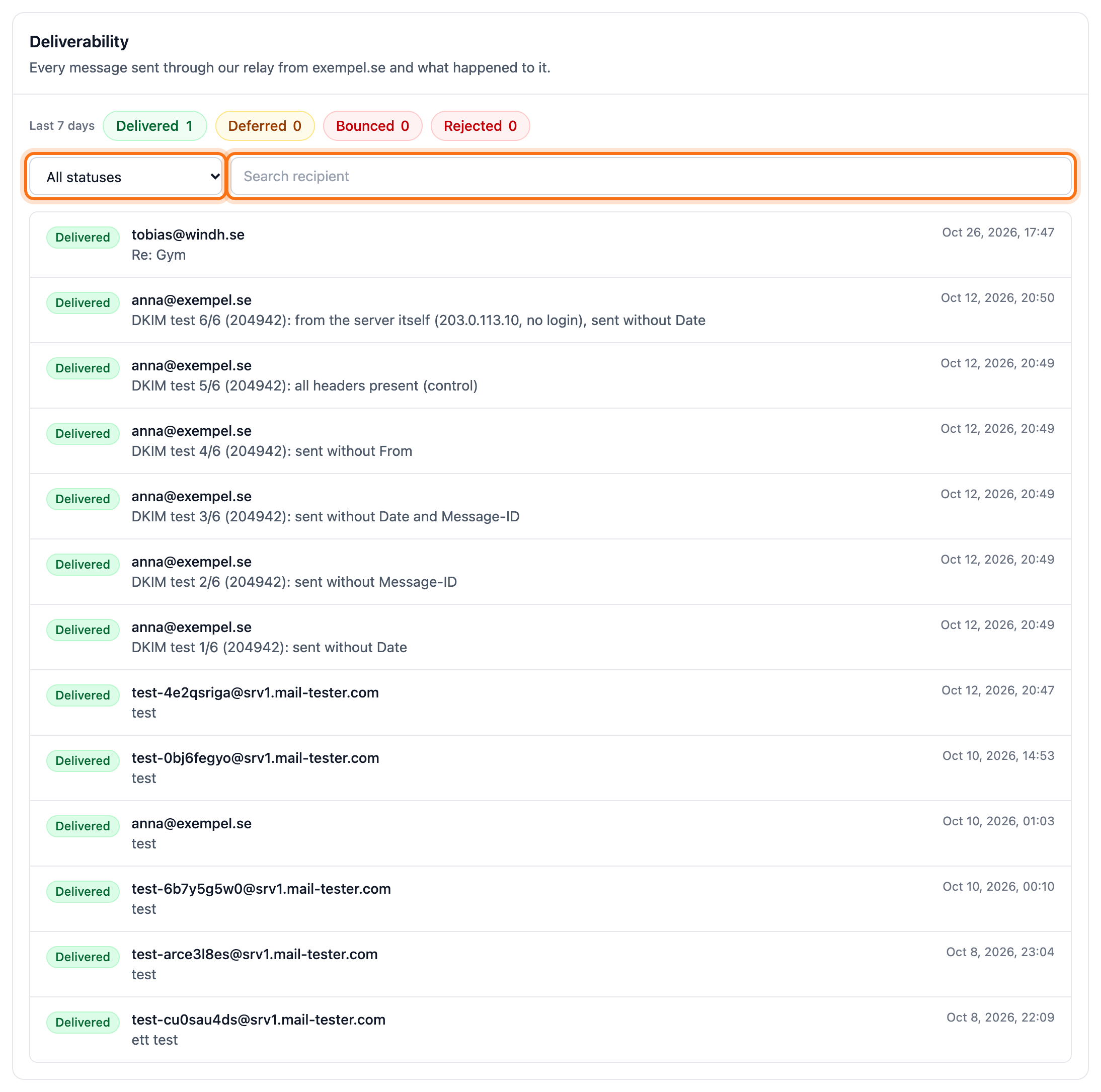
The list shows messages from the last 30 days. Click a message to see its timeline. If the recipient’s server replied, the reply is shown there. You can search for a recipient and filter by status.
- Delivered: the recipient’s server accepted the message.
- Deferred: the recipient’s server asked us to try again later. We retry automatically.
- Bounced: the recipient’s server refused the message.
- Rejected: our relay stopped the message. Click it to see why.
Good to know
Section titled “Good to know”- You can lift the pause on the same sender three times in seven days. After that the button is replaced by Contact support to lift the pause. Support then needs to lift it. That button takes you to support. Create a ticket
- If your VPS still has unwanted mail in its queue, it is sent when the pause is lifted. Remove it first.
- Mass mailings need the recipients’ consent and a mailing tool with an unsubscribe link.
- How to send from a VPS through the relay is in Send email from your VPS through our relay.