
Give colleagues or an agency access to your account
Checked against the client area 29 October 2026
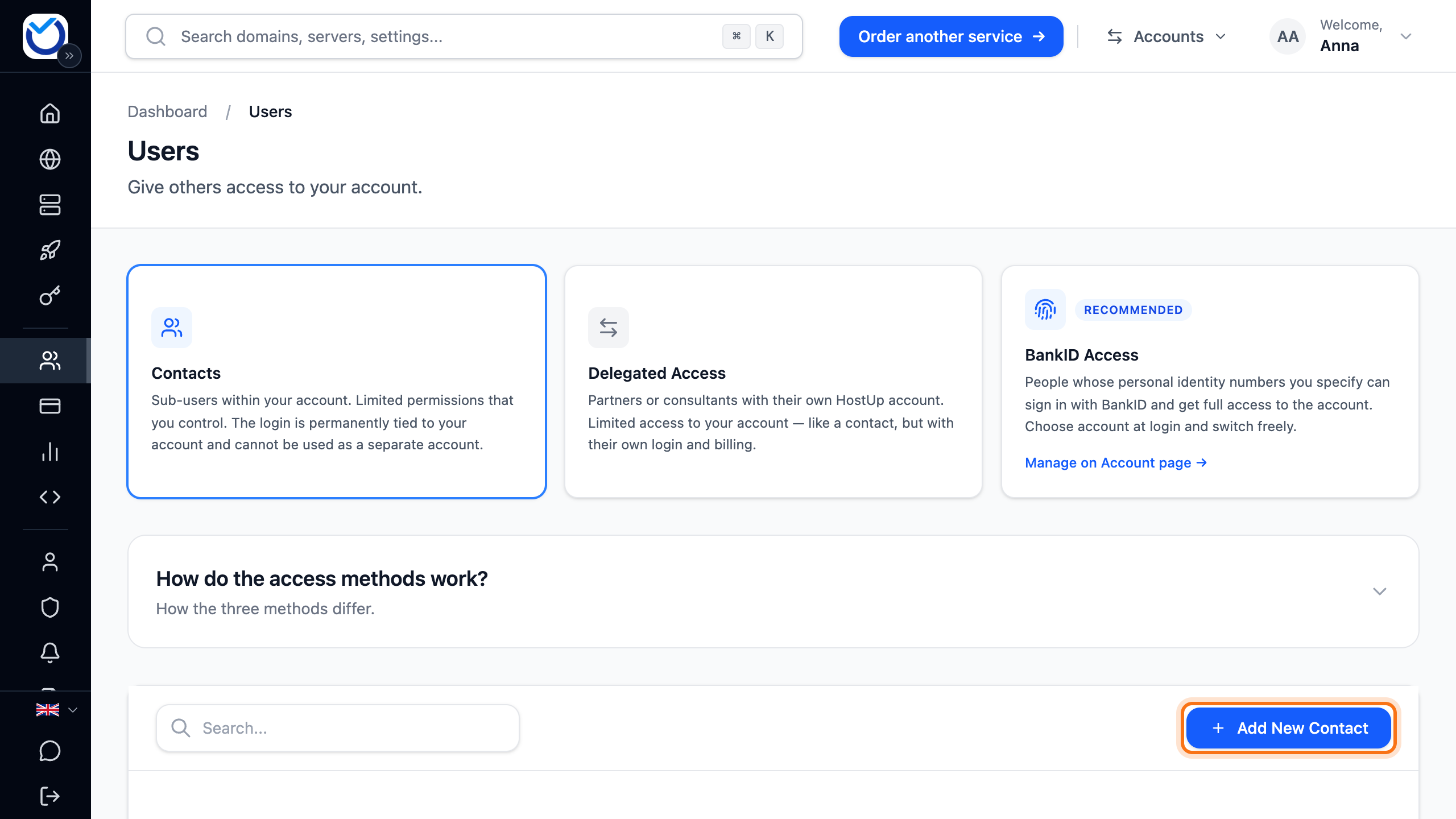
Want someone else to manage your services without borrowing your password? There are three ways. Pick the one that fits the person.
- Contacts are for staff at your company. They get their own sign-in to your account and only see what you choose.
- Delegated Access is for a web agency or consultant with their own Hostup account. They switch to your account from their own.
- BankID Access is for people with a Swedish BankID who need full access. See Sign in with BankID.
Add a user
Section titled “Add a user”- Click Users in the menu.
- Click Add New Contact. On a phone it is the round plus button at the bottom right.
- Fill in First name, Last name and Email. Type a password under Password or click Generate and copy password. The password is then copied for you.
- Click Add New Contact.
- Click Permissions on the person’s row. Choose which services and domains they can see. Also choose whether they can handle invoices, support tickets and orders.
- Click Save.
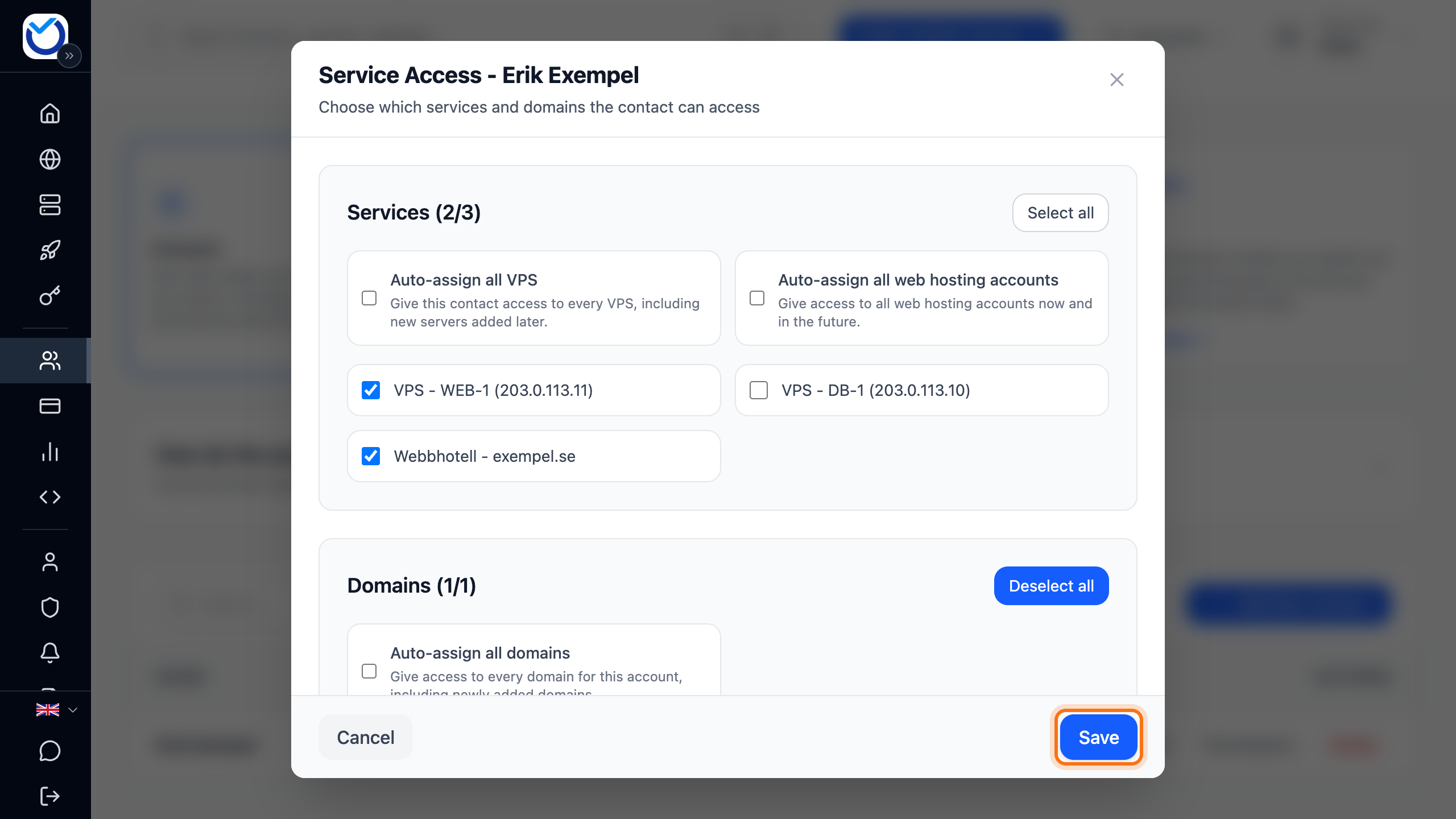
The person then signs in to the client area with the email address and the password you chose.
Give a web agency or consultant access
Section titled “Give a web agency or consultant access”The partner needs their own Hostup account. Your account needs at least one active service or domain before you can invite anyone.
- Click Users in the menu and choose Delegated Access.
- Click Grant access.
- Enter the partner’s email address under Partner's email. It must be the address of the partner’s Hostup account. Click Send Invite.
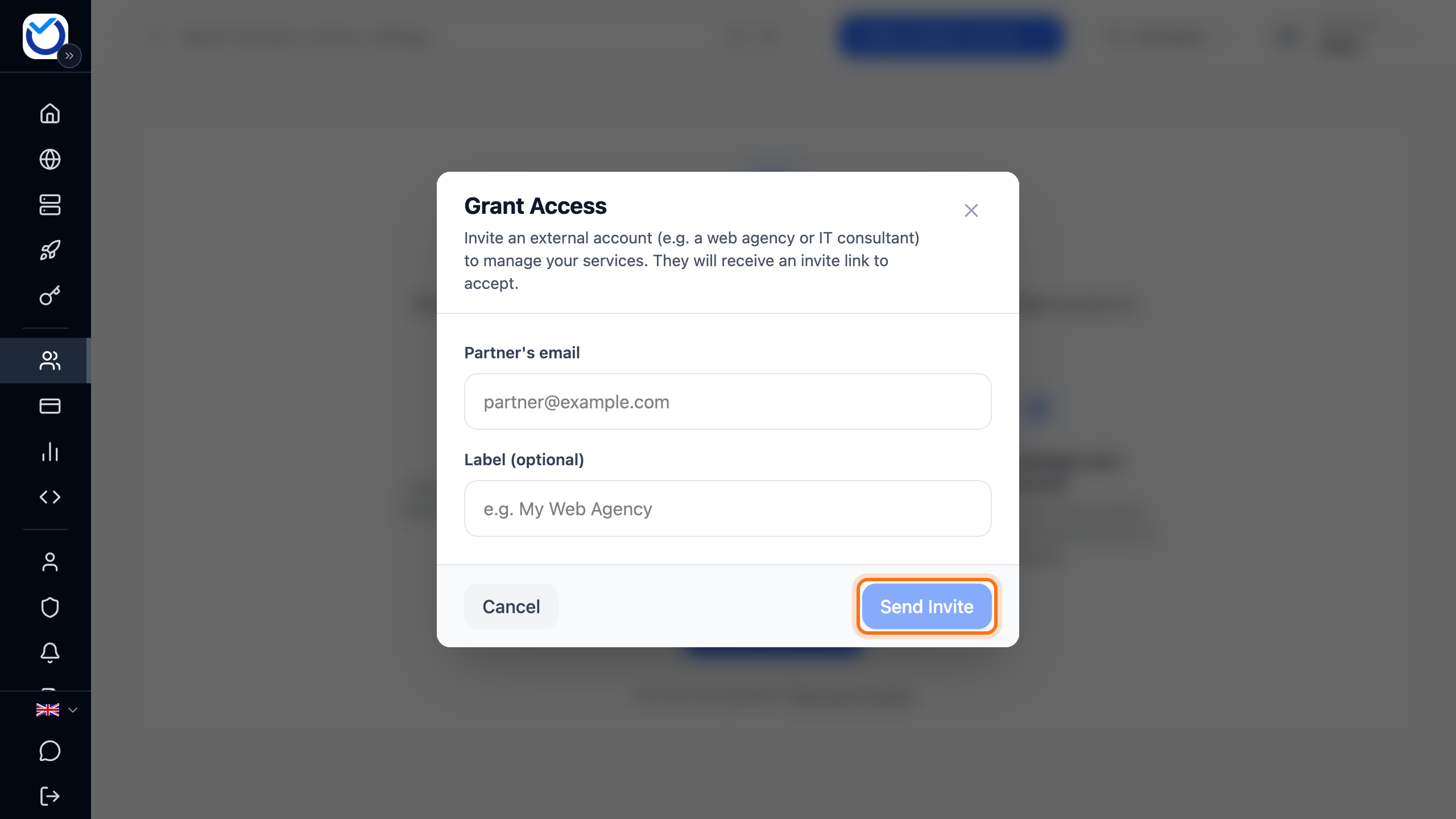
- The partner gets an email with a link that is valid for seven days. They sign in to their own account, open the link and click Accept Invite.
- When the row shows Active, click the gear icon (Edit permissions) on the row. Choose what the partner can access and click Save. Until you do, the partner cannot reach anything.
The partner then clicks Accounts in the top menu. Your account is listed under Delegated accounts.
Remove access
Section titled “Remove access”- To remove a user, click Delete on their row. Then click Delete Contact. This cannot be undone.
- To remove a partner, click the bin (Revoke access) on their row. Confirm. The partner loses access straight away.
Good to know
Section titled “Good to know”- Users share your account’s billing details. If the person or company needs their own invoices, use delegated access.
- Users cannot add other users or change the account’s sign-in settings.
- Under View audit log you can see when the partner switches to your account and when permissions change.
- Users can turn on two-factor authentication for their own sign-in. See Two-factor authentication.